

Mass ‘Linked Funds’ Update
- 11 Jul 2025
- 1 Minute to read
- Print
- DarkLight
Mass ‘Linked Funds’ Update
- Updated on 11 Jul 2025
- 1 Minute to read
- Print
- DarkLight
Article summary
Did you find this summary helpful?
Thank you for your feedback!
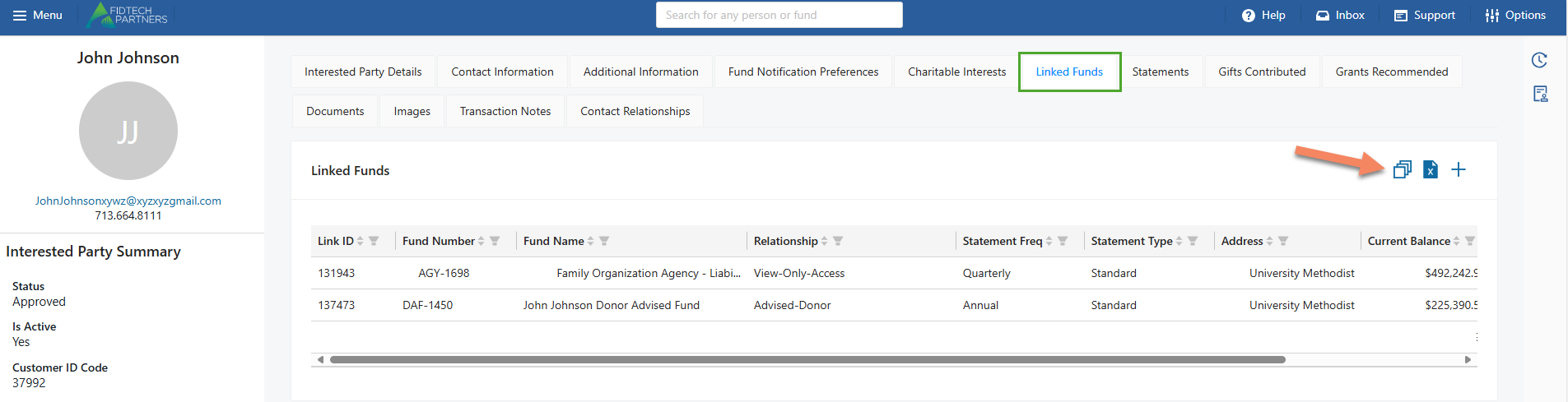
For contact profiles linked with multiple Funds, the ‘Linked Funds’ section also contains a mass linked funds update functionality.
For this, click on the “Mass Update” button .png) .
.
This pops up a Mass Link Update page. where you can see a table that shows you all the multiple funds that the profile is linked to. Use the left-most column of this table to select the funds that you want to update.
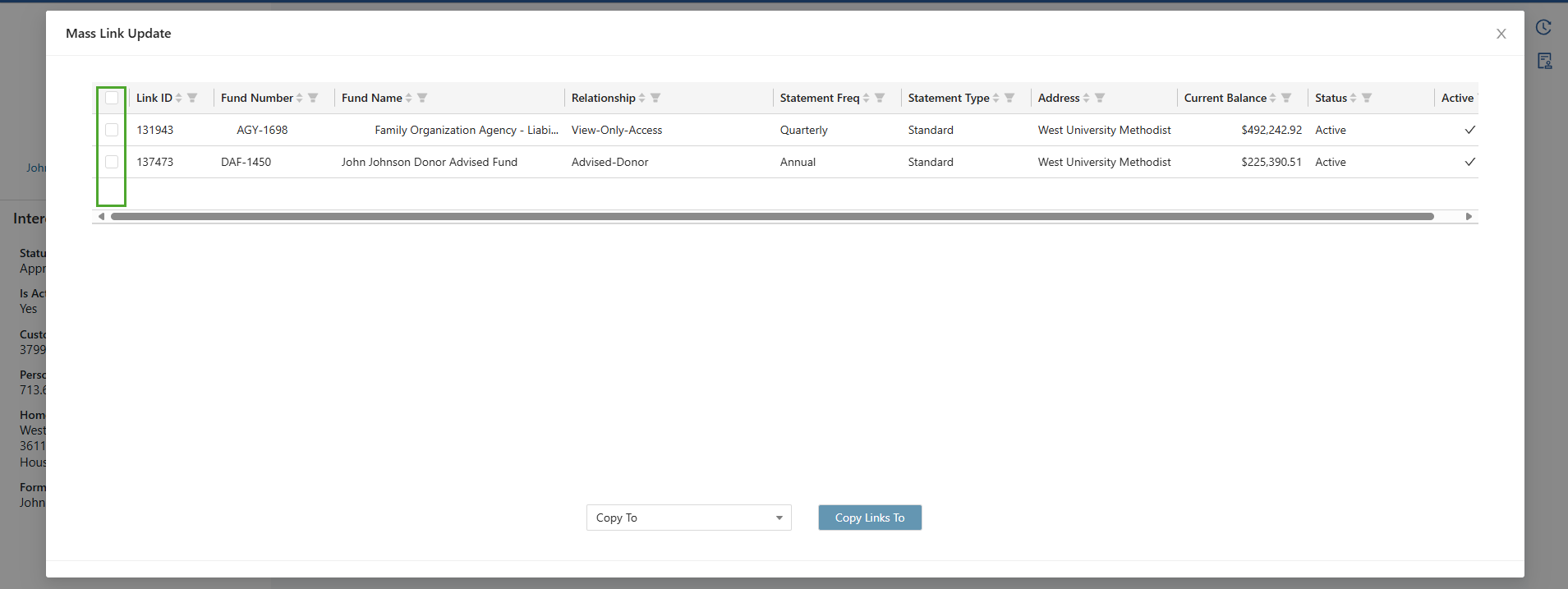
After selection, use the drop-down menu to select the functionality that you want to use. They are as follows:
a. ‘Copy To’:
This option allows you to link multiple funds associated with THIS Contact Profile to ANOTHER Contact Profile in a single go.
.png)
After selection, click on the “Copy Links To” button to open a ‘Copy Selected Links To’ dialog box that allows you to search for an existing Contact Profile in FoundationHub to whom you want to link the Funds to.
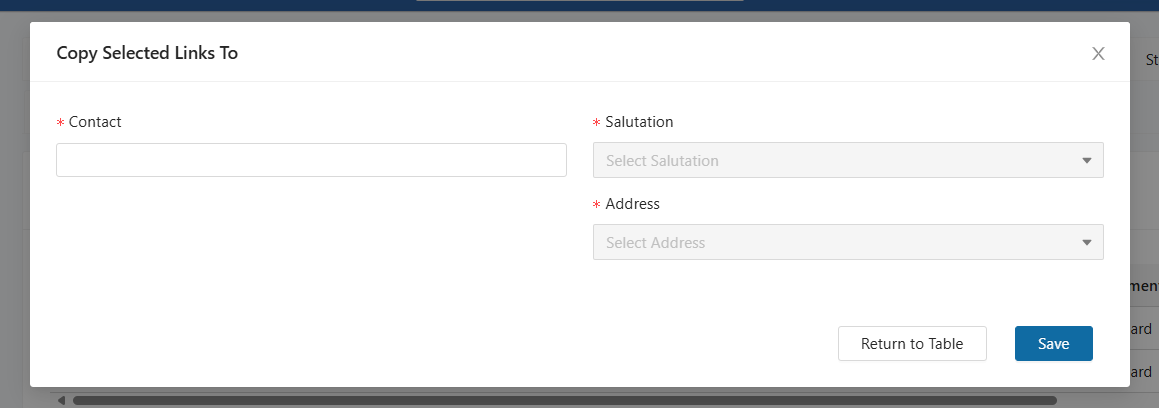
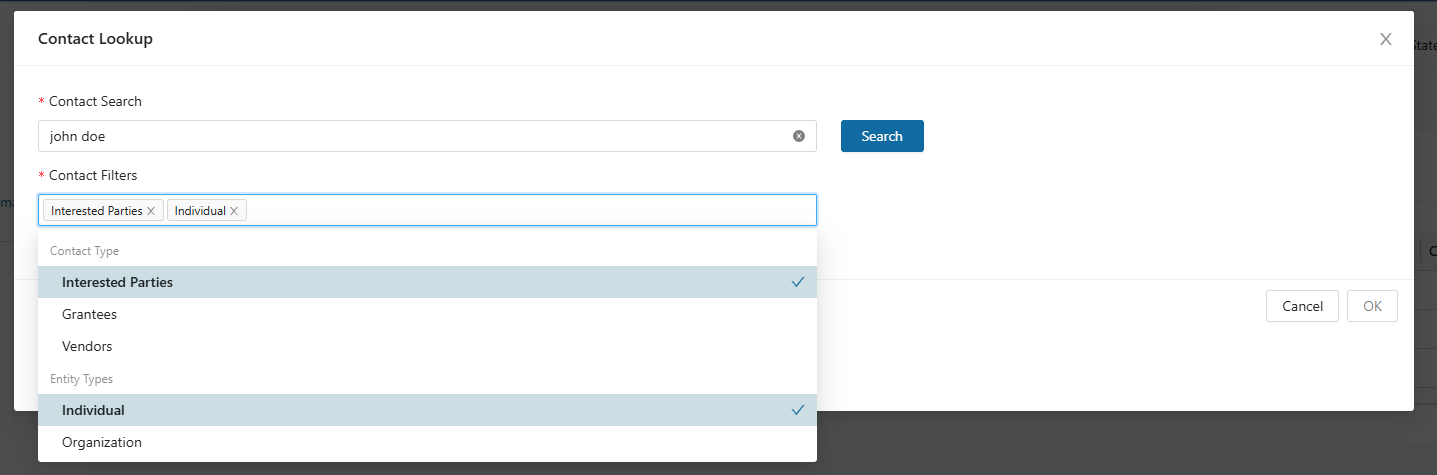
Clicking on the Contact field here opens ‘Contact Lookup‘ dialog box. The Contact Search field allows you to enter the Contact’s name, and the Contact Filters field lets you filter the type of Contact Profile that you want to search for.
After searching and selecting the desired Contact Profile, click on the “OK” button
.png)
After selecting the appropriate details in the Salutation and Address fields, click “Save” to successfully link the previously selected funds to the Contact Profile.
For Electronic Statements to be copied over, the recipient should have a valid email address
.png)
By navigating to the recipient’s Contact Profile, you can see that the Fund has now been copied to the recipient’s profile.
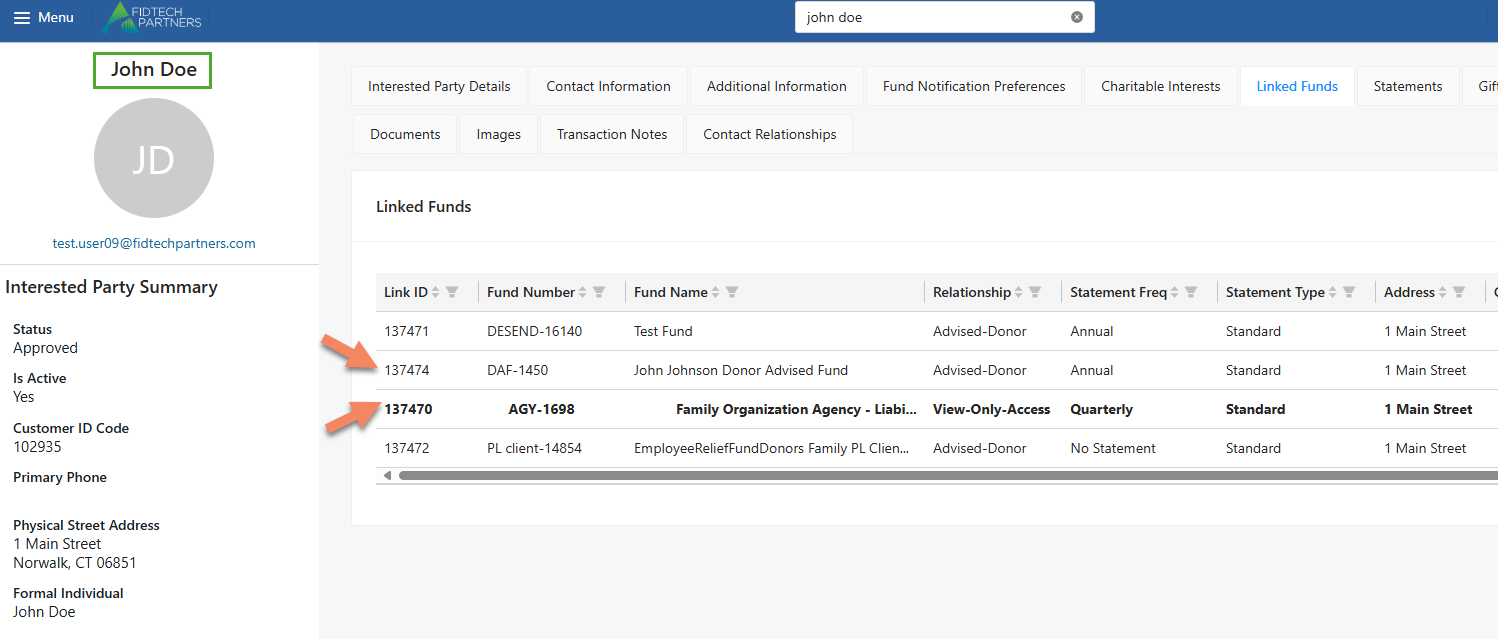
b. ‘Unlink’:
This option allows you to unlink multiple Funds associated with the profile in a single go.
After selection, click on the “Unlink Links” button to unlink the selected Funds from the profile.
.png)
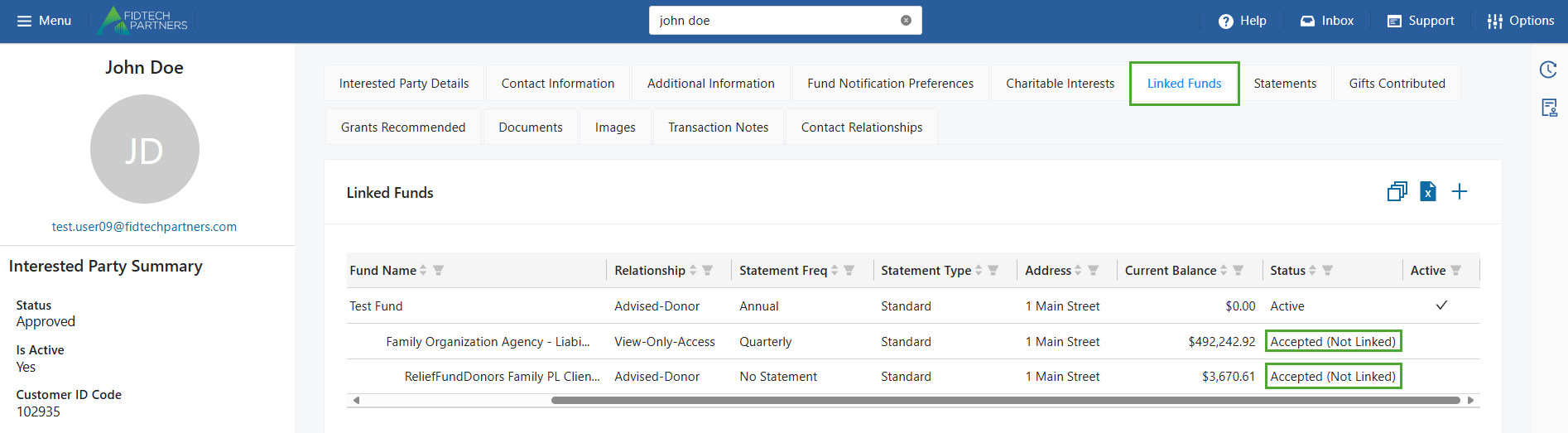
This initiates an Unlink Request for the Fund, which need to be approved by an Approval Level User to successfully unlink the Funds from the Contact. The Approval Level User can simply navigate to the contact’s profile and the click on the Fund’s entry on the Linked Funds section to change its status to ‘Accepted (Not Linked)’.
Once, approved the Funds will no longer be linked to the Contact and will be listed as ‘Accepted (Not Linked)’ in the Status field.
Was this article helpful?