FoundationHub allows you to mirror a Donor’s (Interested Party’s) DonorSphere account. This functionality allows you to impersonate the Donor in their DonorSphere portal and gives you the following capabilities:
View the Donor’s Activities, Allocations, Contact Information, Fund Balance, Fund Summary, Initiatives, etc.
View and Create Contributions for the Donor
View and Create Grants for the Donor
View and Create Fund Transfers for the Donor
Note: This functionality gives you limited ability to edit the Donor’s DonorSphere account details or view/edit their sensitive information.
To use this, first ensure that you are in the Donor’s contact profile in FoundationHub. For Donors already setup with a DonorSphere account, a “Mirror User” button is available on the left-side Summary pane.
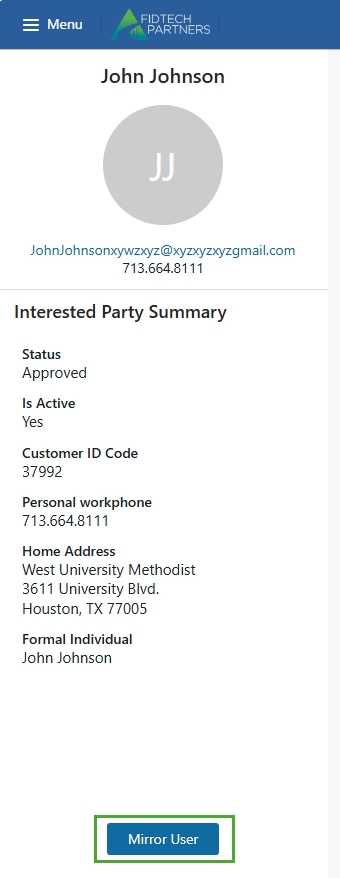
Click the “Mirror User” button. This opens the Donor’s DonorSphere account in a new browser window which allows you to impersonate the Donor and gives you the above discussed capabilities.
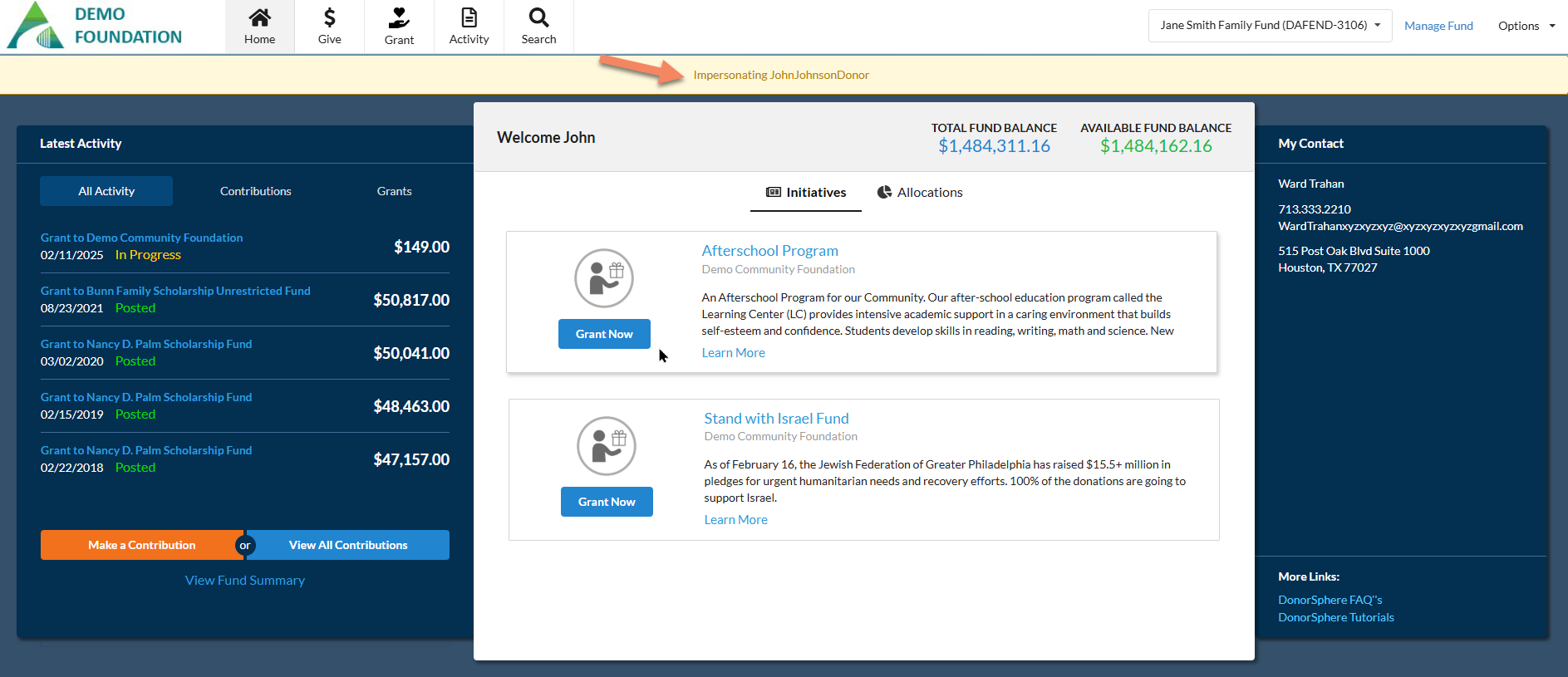
Click on the Grant tab to grant funds to a Grantee using the Fund selected in the dropdown on top right corner. For clients with multiple linked Funds, you can select the desired Fund from the list of Funds using this dropdown.
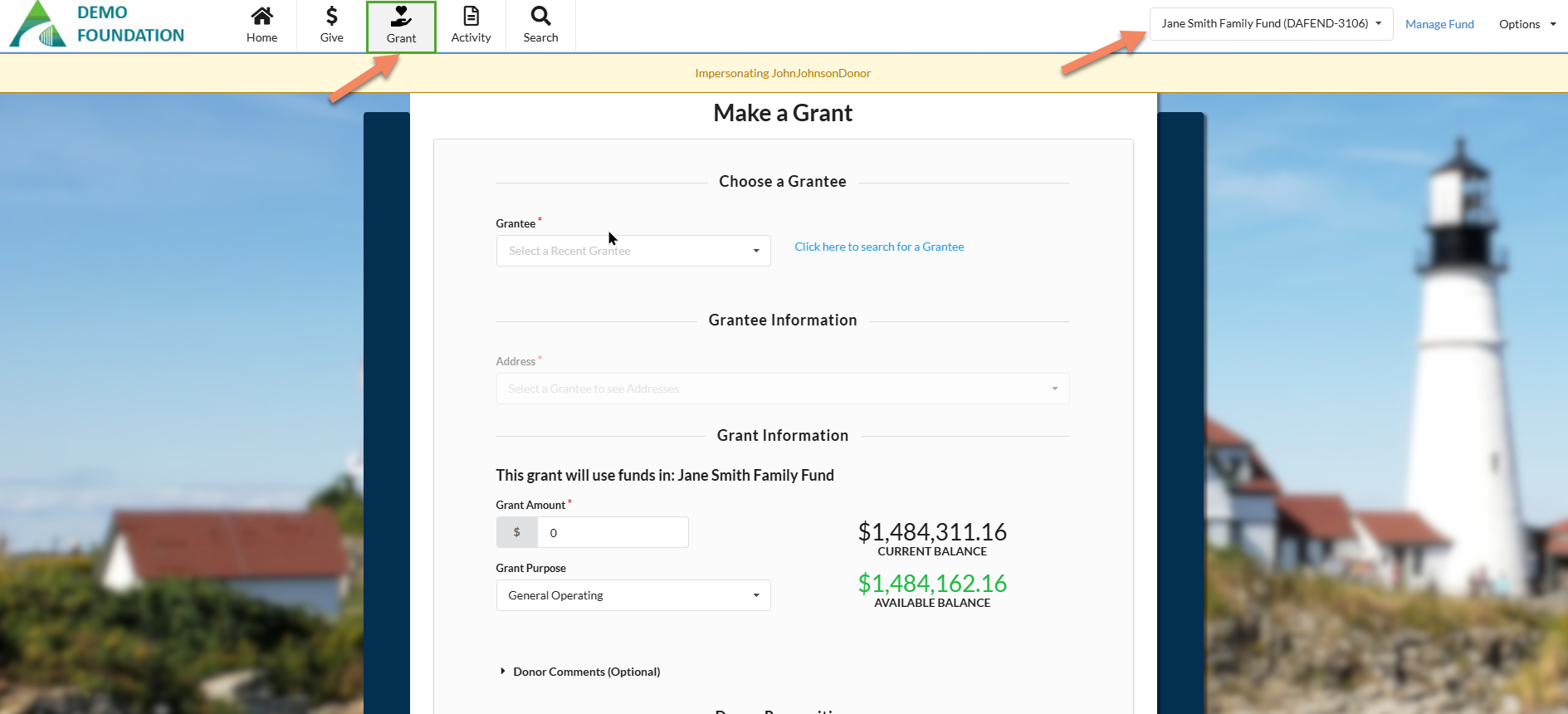
Suppose we want to make a Grant of $149 to Demo Community Foundation, we do so by entering the following details:
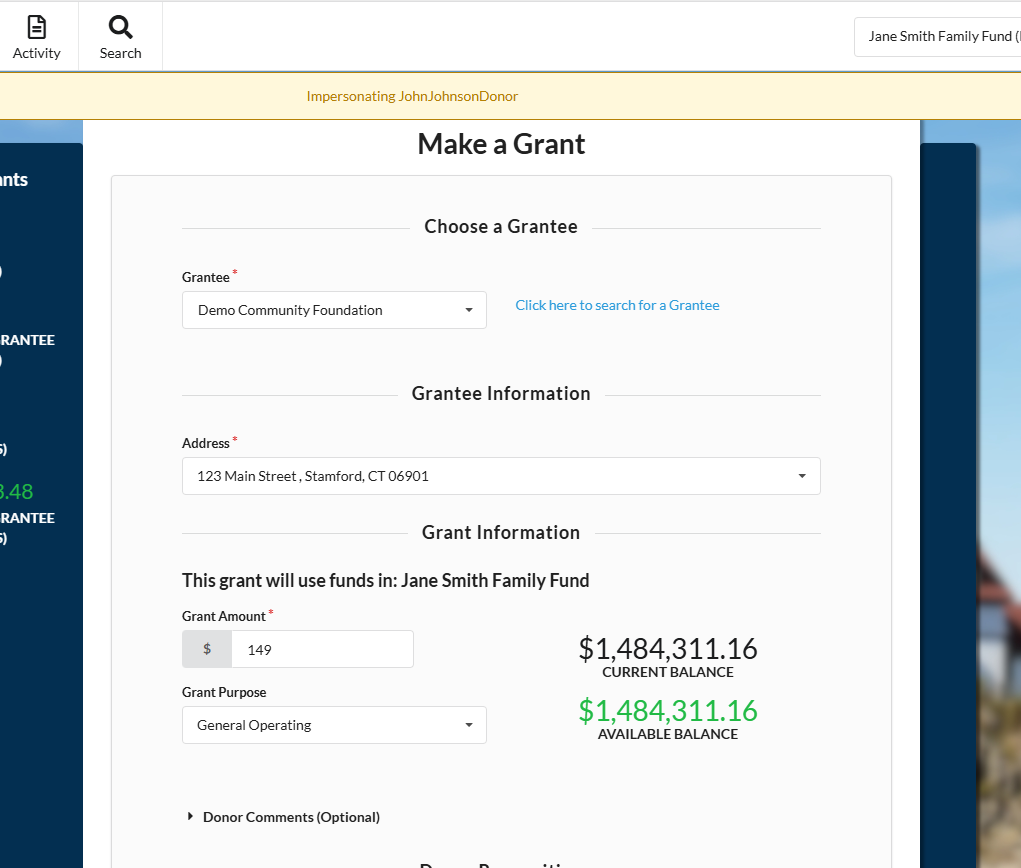
Clicking on the “Submit” button directs you to the final submission page.
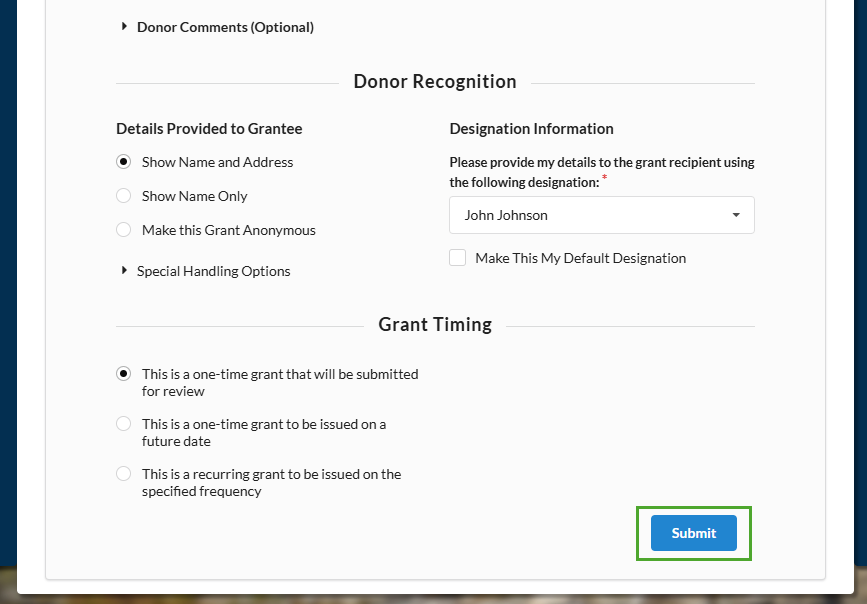
After reviewing the submission again and agreeing to the terms and conditions, click on “Submit” button to submit the Grant.
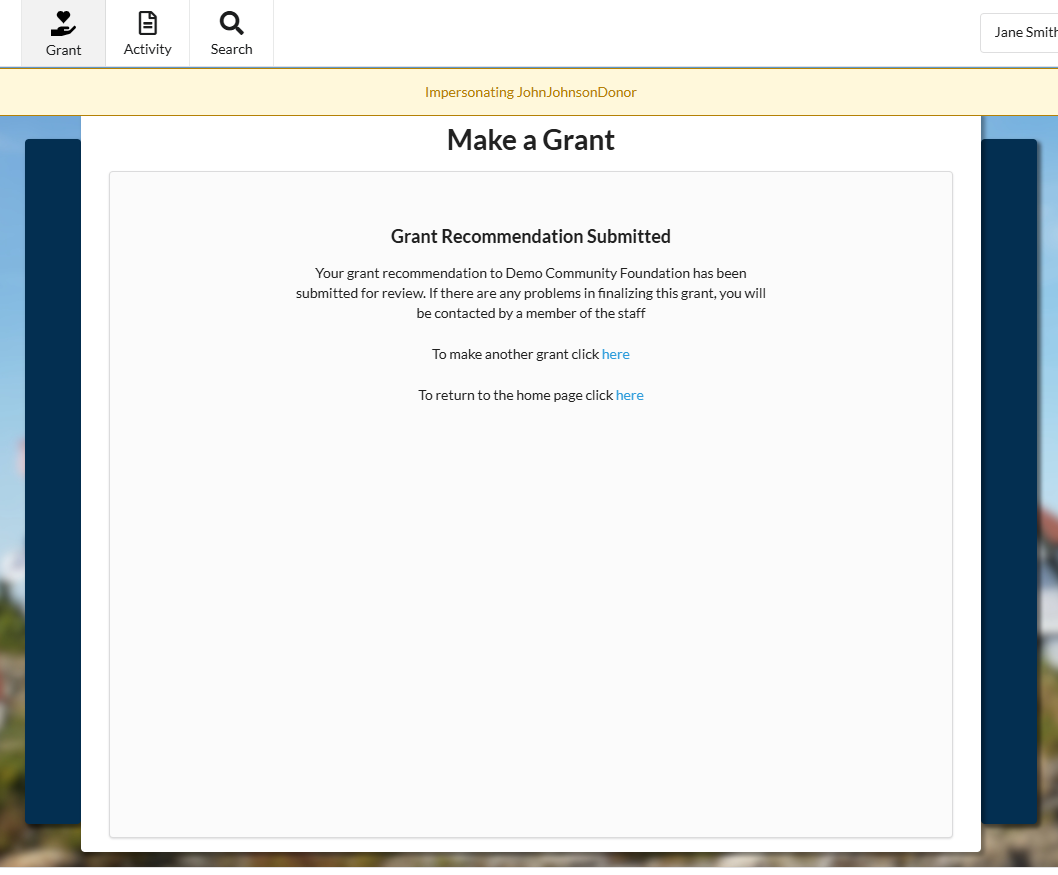
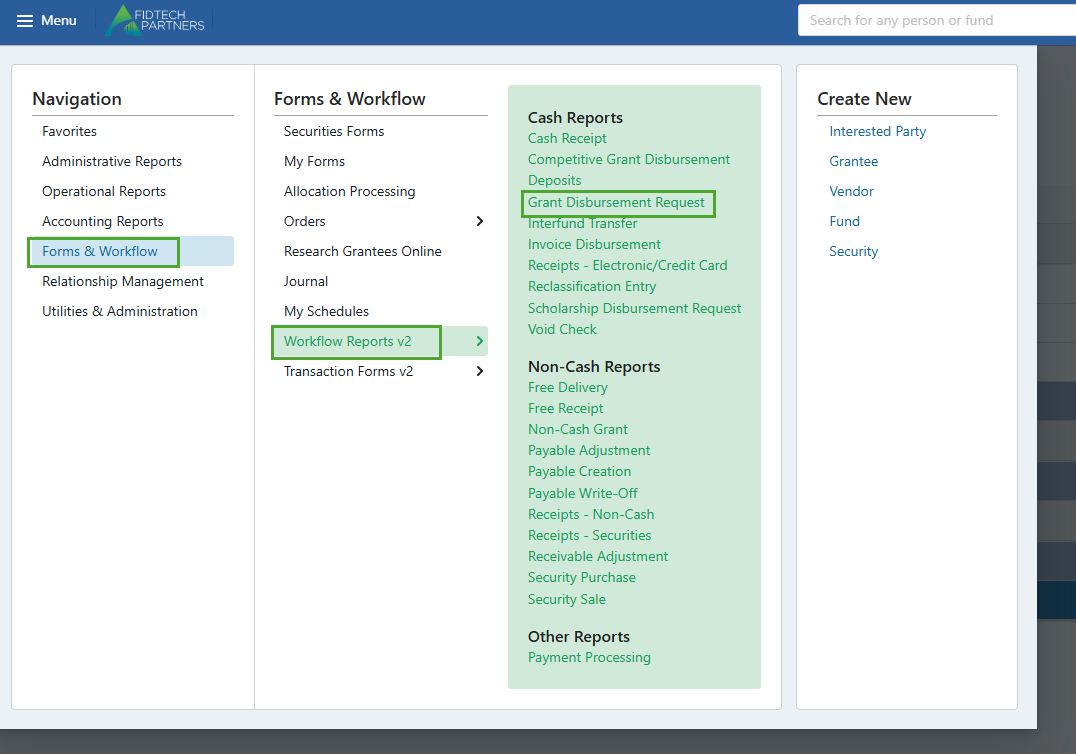
This creates a Grant Disbursement Request on FoundationHub which appears on the initial approver-level user’s Inbox. If not, the disbursement request can always be looked for in the Grant Disbursement Request report by clicking on Menu > Forms & Workflows > Workflow Reports v2 > Grant Disbursement Request.
Run the report for the appropriate Date Range and you can see the Grant Disbursement Request that you created. For Workflows created using Donorsphere, the Workflows entry in the table has the checked Donorsphere Created column.
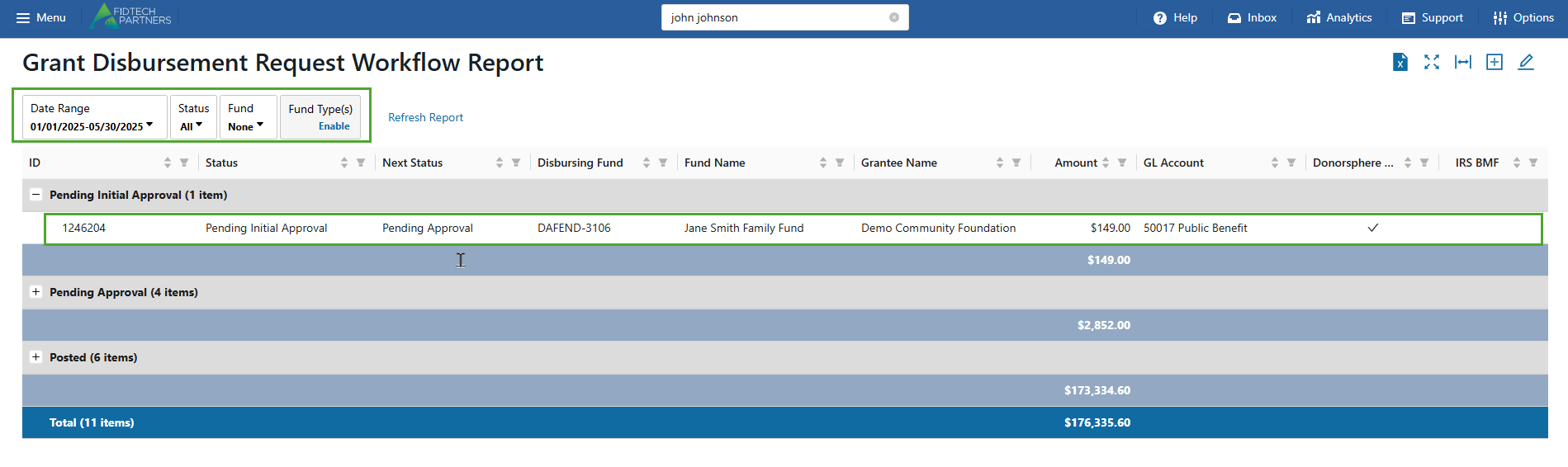
This Request can be further processed using the steps provided in this article.
Similarly, you can also do the tasks below on behalf of the donor using this functionality:
View the Donor’s Activities, Allocations, Contact Information, Fund Balance, Fund Summary, Initiatives, etc.
View and Create Contributions for the Donor
View and Create Fund Transfers for the Donor
To learn more about Donorsphere functionalities, click on this article.