Linking Contacts to Funds
To provide as much flexibility as possible, FoundationHub allows people to be linked to Funds in many ways. There is no limit to the number of people that can be linked to a Fund (for example, for a Supporting Org, you could link all the Board Members plus staff members etc. and give them different roles). In addition, there is no limit to the number of different Funds that a person can be linked to or the number of different ways in which they can be linked. To link a person to a Fund, go to the Interested Party Profile.
The easiest way to search for an Interested Party is to use the “Search For” function on the top of every screen.

1. Select “New Link” on the profile screen in the Linked Account Information section.
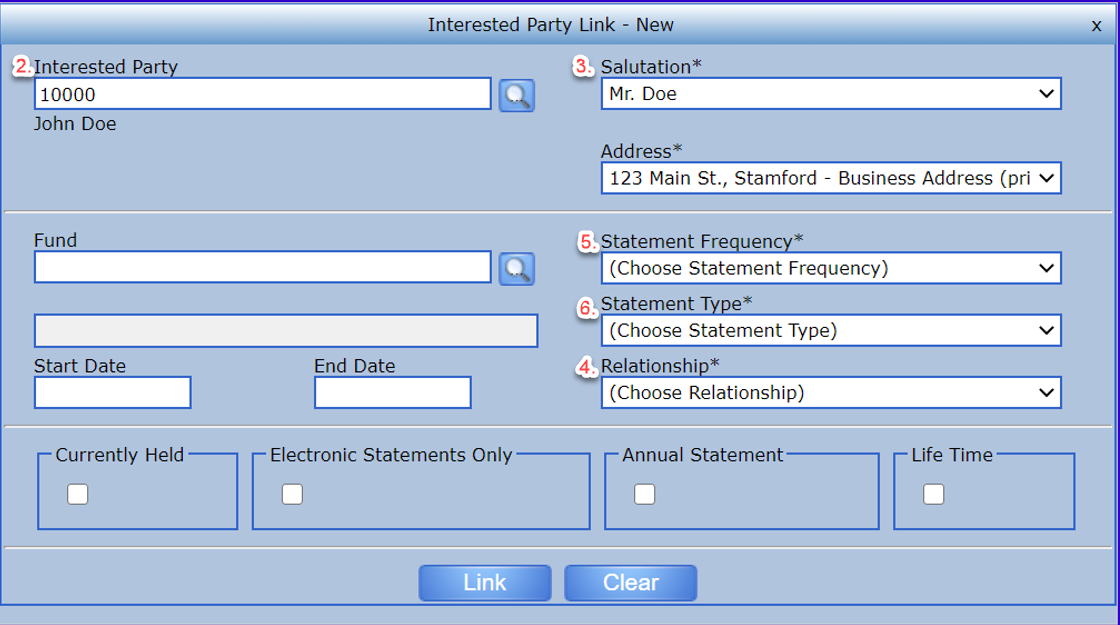
2. Select the Fund to which you wish to link the interested party – either type in the account number if you know it, or search for the account using the small lookup button.
3. Once you have selected the Fund, you can choose from the different salutations and the different addresses available for the selected interested party. The selections that you make here are for statement purposes. You will be able to change the selected salutation and/or address on each occurrence.
4. Relationship determines how the person is linked to the Fund – are they a donor, advisor, trustee, income beneficiary, etc. These relationships are defined by your office and if you require different types to be added, speak to your relationship manager about adding those new relationship types.
5. Select the “Statement Frequency”. If this Interested Party should not receive a statement, select the “No Statement Option”.
6. Select the Statement Type & Relationship (both required). These two fields are required even for Interested Parties that are not receiving a statement. A Statement Type of “NA” can be chosen for these cases.
7. Once you have reviewed all information, press “Link”, and the Link will be forwarded for approval.