Closing a Fund
Prior to closing a Fund, you must decide whether to run a Fund closing fee to ensure that the Fund holds enough money to cover the final fee that will be assessed. To maintain a fixed balance in the Fund that is not susceptible to market changes, you may want to change the portfolio models of the Fund to 100% Cash and rebalance the account to cash prior to closing.
1.) To change the portfolio models of the fund, navigate to the Fund Profile and the Accounting Sub-Section.
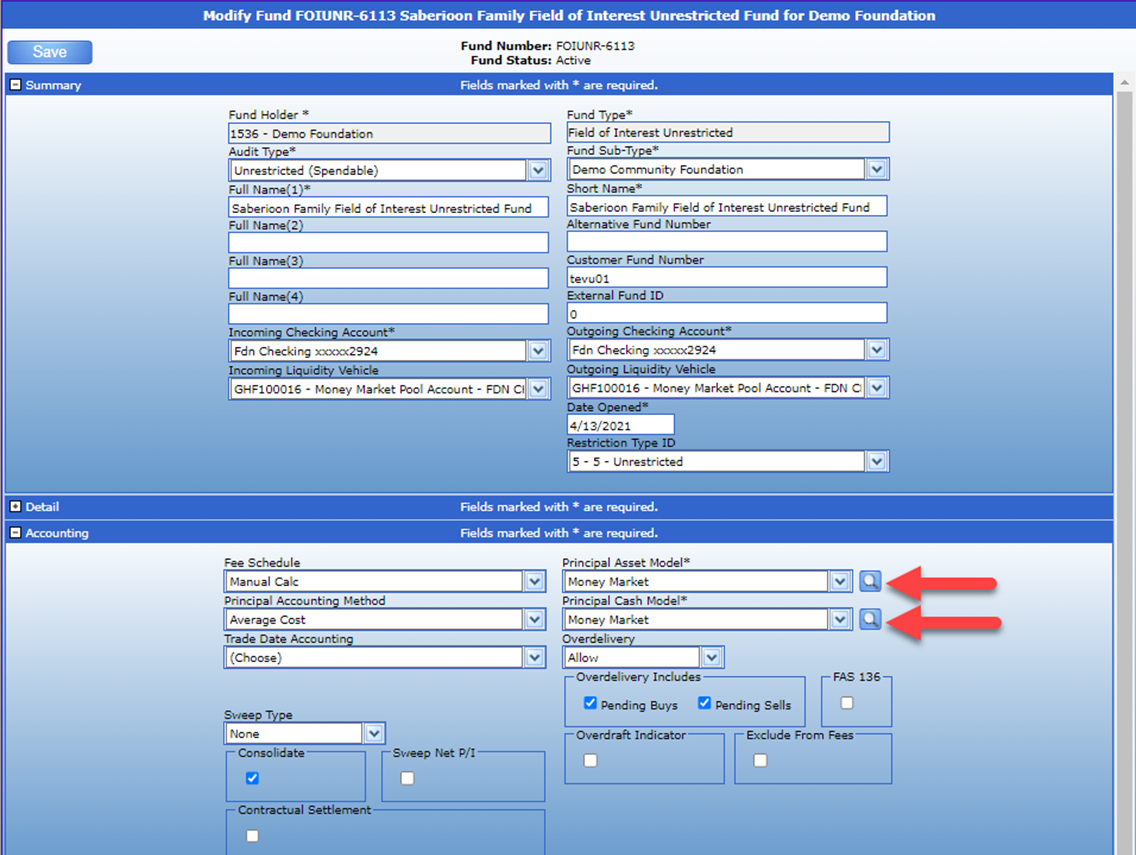
2.) From there, set both the “Principal Asset model” and “Principal Cash Model” to a 100% Cash Model as seen in the image below.
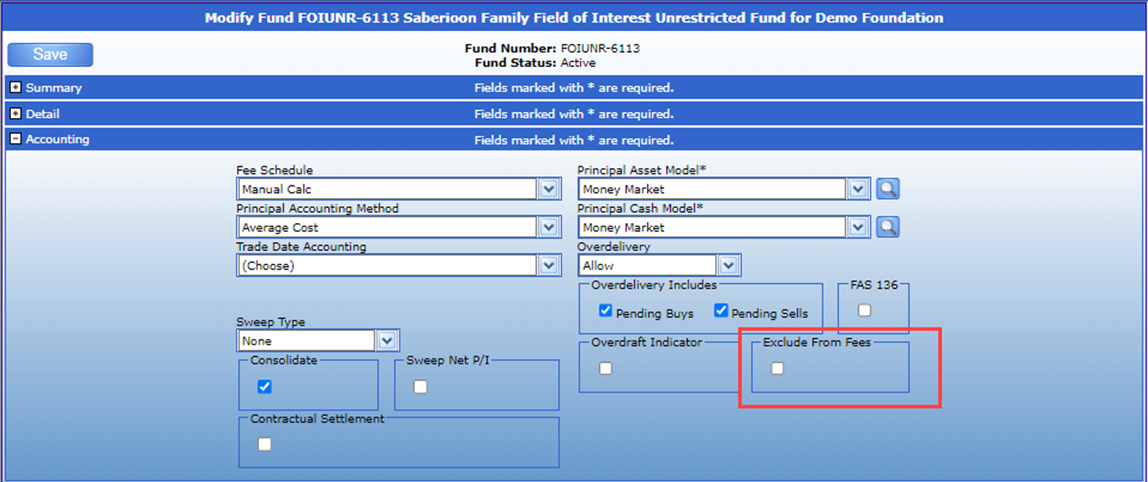
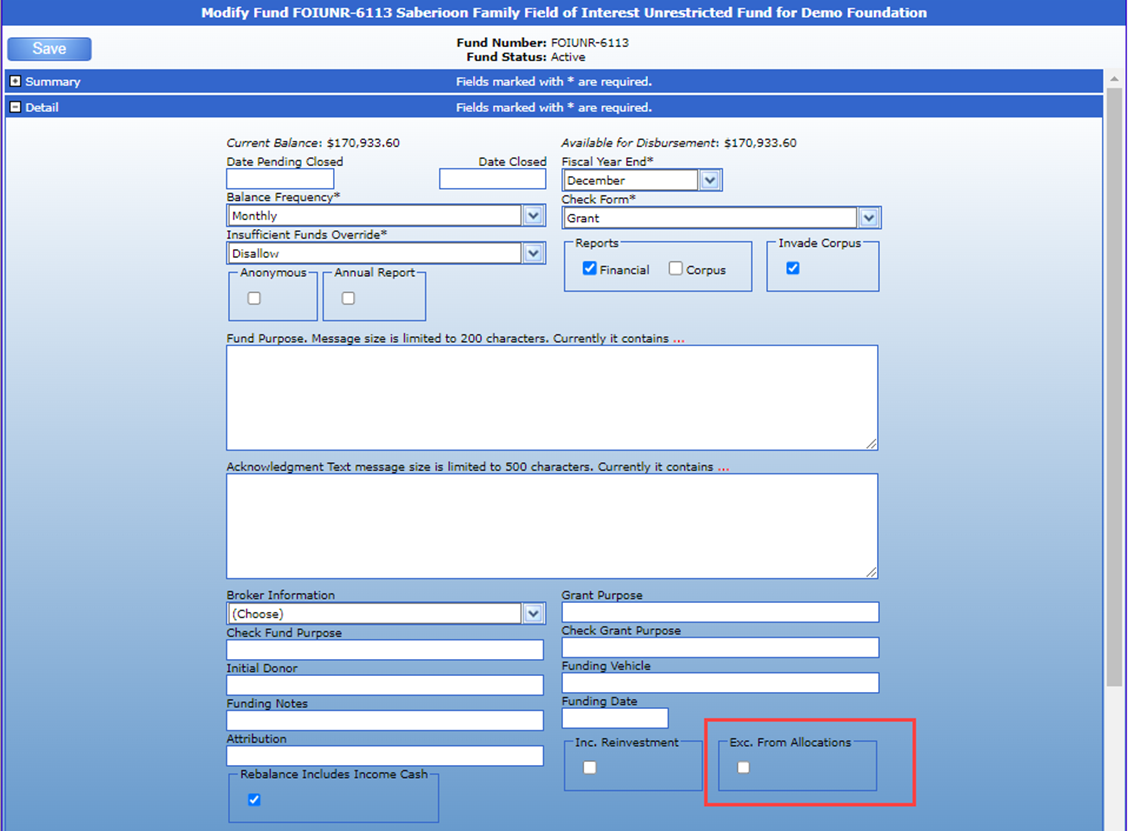
3.) Before saving your changes from Step 2, you will need to check 2 boxes. In the Accounting Section, check “Exclude from Fees” (First Screenshot) and in the Details section check “Exclude from Allocations” (Second screenshot). Checking these two options prevents the fund from being charged fees and being included in allocations for the closing month.
NOTE: If you want to exclude the funds from next month's allocations but want the fund(s) to receive the prior month's allocations on investment returns, and pay the prior month's fees, then you would need to set the two flags "AFTER" you have processed the prior month's allocations and fees, but "BEFORE" you process next month’s fees and allocations. For example, a fund requests to be closed in June but wants to be included in May allocations and fees. Do not check off these boxes until the May allocations and fees are processed.
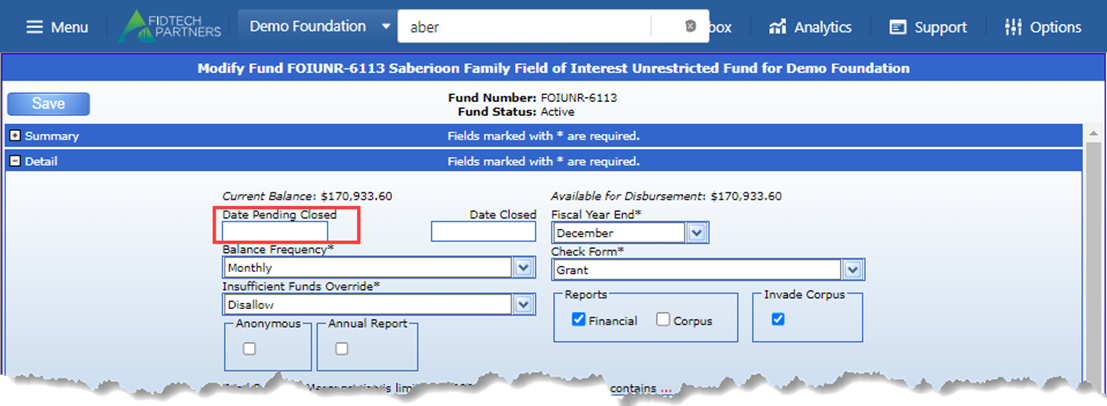
4.) [Please note this step is entirely optional] A ‘Date Pending Closed’, located in the Detail tab, can also be added at this time. The ‘Date Pending Closed’ feature will make it so that the fund cannot gain any additional funds and can only make disbursements. This is not a required step but is an available feature to ensure the fund does not receive any additional funds but still maintains the ability to make disbursements in order to clear out its remaining balance. The date can be removed at any time.
5.) After making all the requisite changes. Click Save at the top of the page to implement the changes. If your setup requires multiple approvals to approve changes to the fund, then complete the process until the Fund is ‘Active’ again.
6.) Once the prior steps are saved, you must run a fund rebalance to update the fund’s asset allocations to the new model. If you utilize FidTech’s Accounting services, please open a support ticket and request a rebalance for the requisite fund. If you are software only client, then follow the steps below to run a rebalance.
a. To rebalance a fund, go to Menu > Forms & Workflow > CTF Processing > Rebalance Portfolio. Once here you will select the Fund, enter an Effective Date, and uncheck cash only as we want to rebalance all models. Once run it will generate a list of trades that will need to be released and executed. Once executed, the fund is rebalanced.
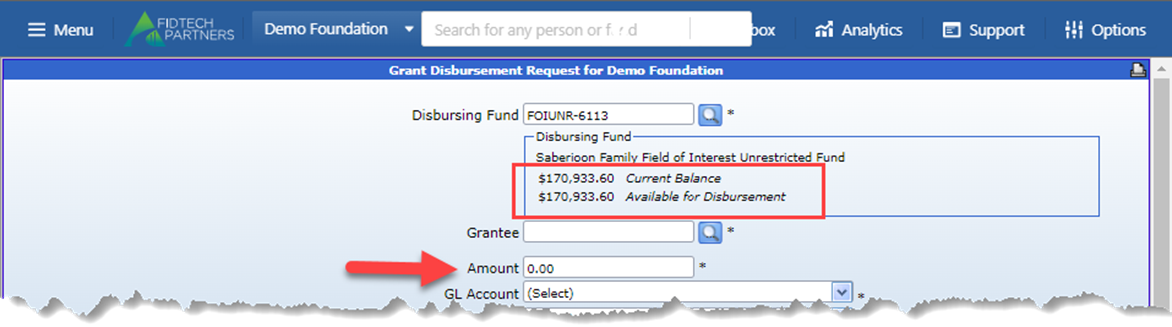
7.) After the rebalance has been completed, the remaining balance will need to be disbursed out. The remaining balance can be viewed when making a disbursement (As seen in the screenshot below). The total balance will need to be cleared out before the fund is closed. If the intention is to make one disbursement to clear out the balance, then enter the total amount.
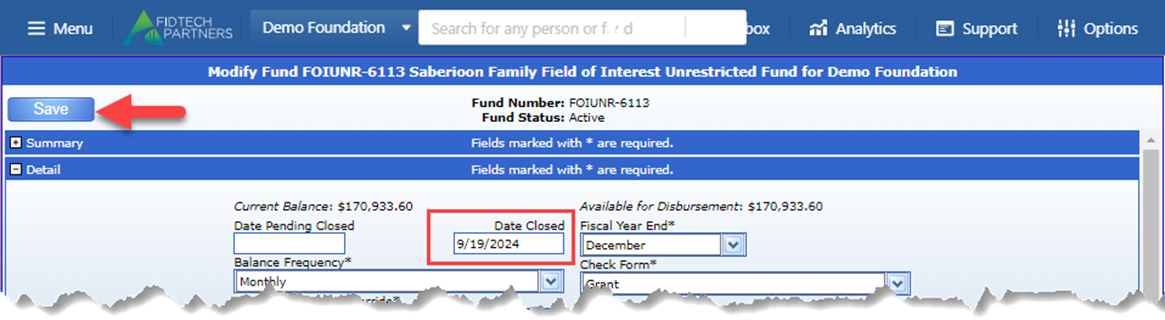
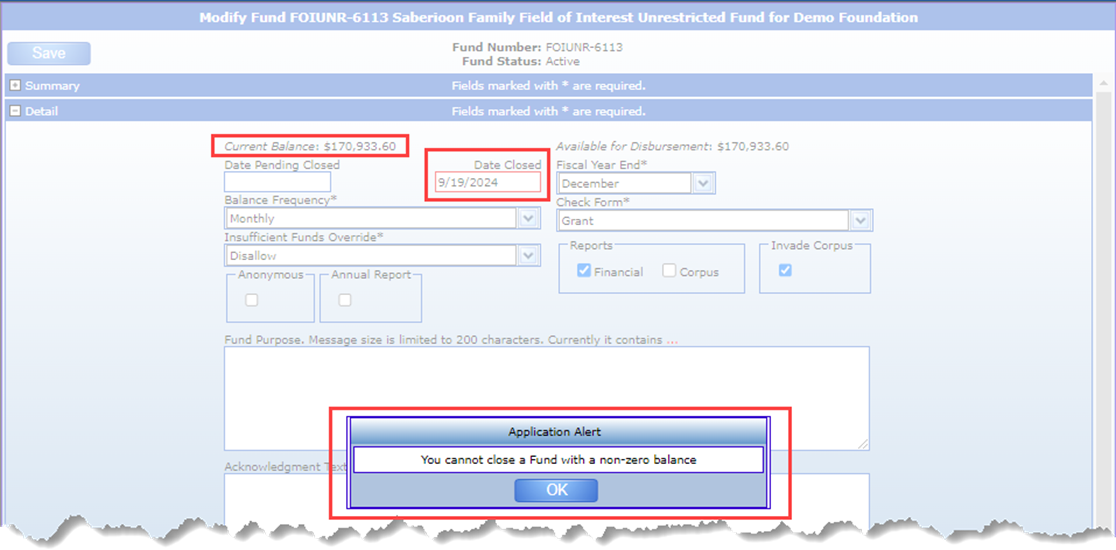
8.) Once the disbursement is posted and the fund shows a zero balance, navigate back to the fund’s profile. On the fund profile under Details, you will then populate the “Date Closed” field and Save (screenshot below). This will then put the fund into a pending state for it to be closed.
Note: If you try to close a fund with a balance you will be met with the error below:
But if the fund is zeroed out you should not receive an error and instead see the following:
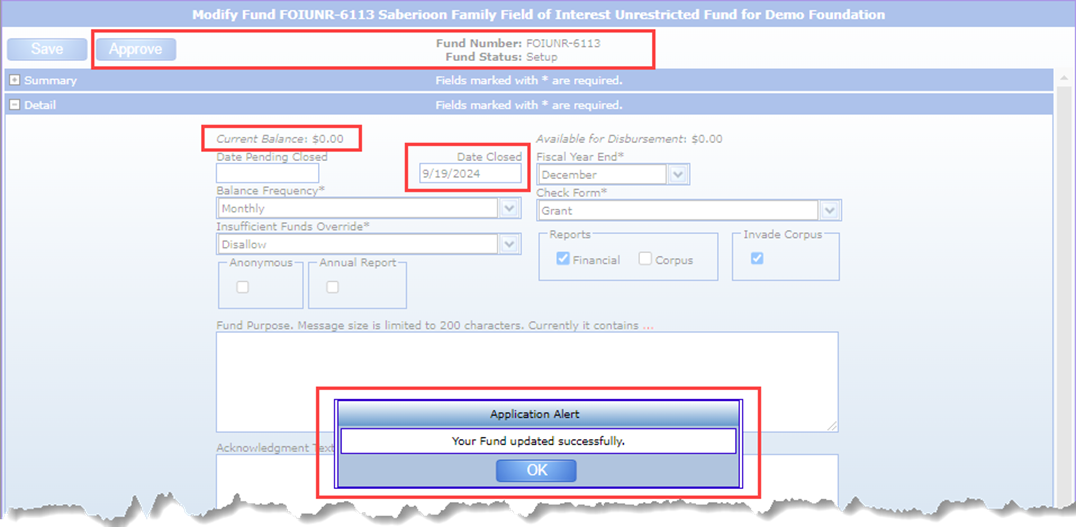
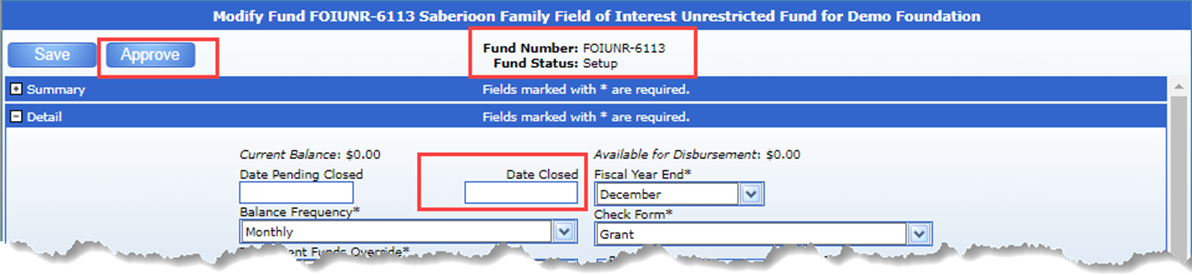
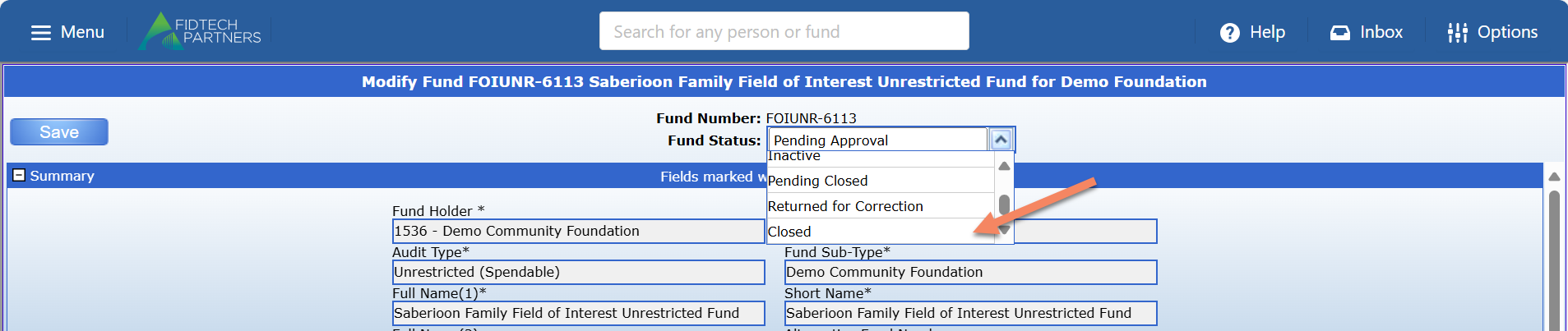
9.) Confirm that the details from the prior steps have been completed and then click “Approve”. This puts the Fund in a “Pending Approval” Status. An Approval level User will then need to approve this change by changing the Fund’s status to ‘Closed’, hereby confirming the closure of the Fund.
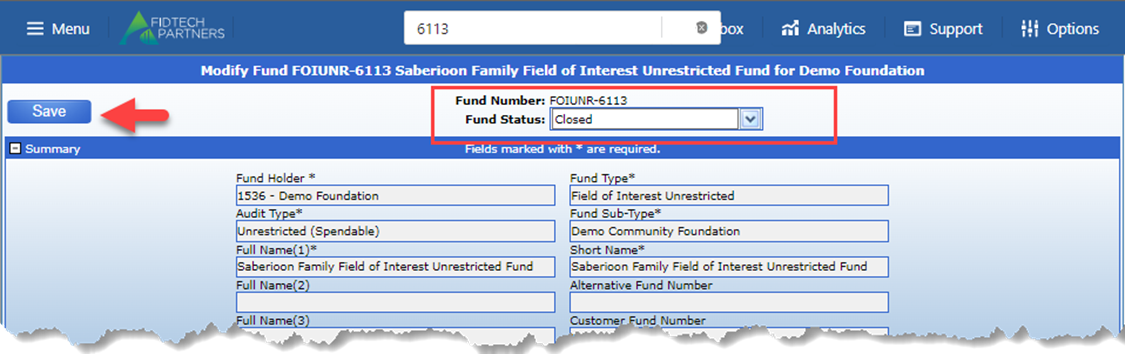
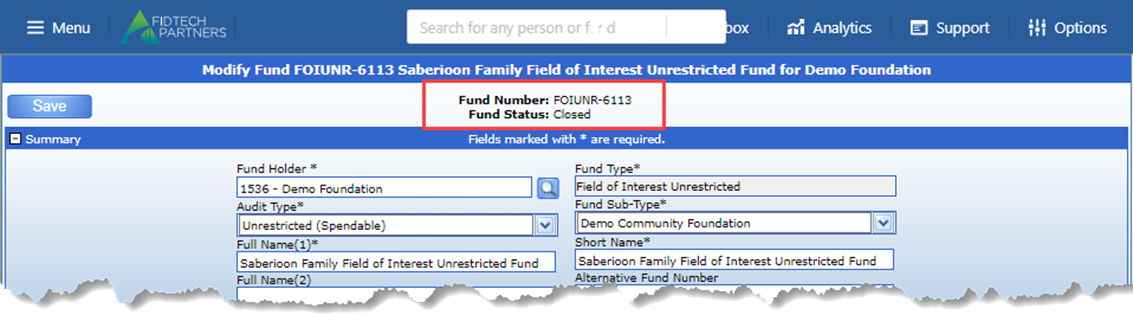
Once closed the fund will look like the below image:
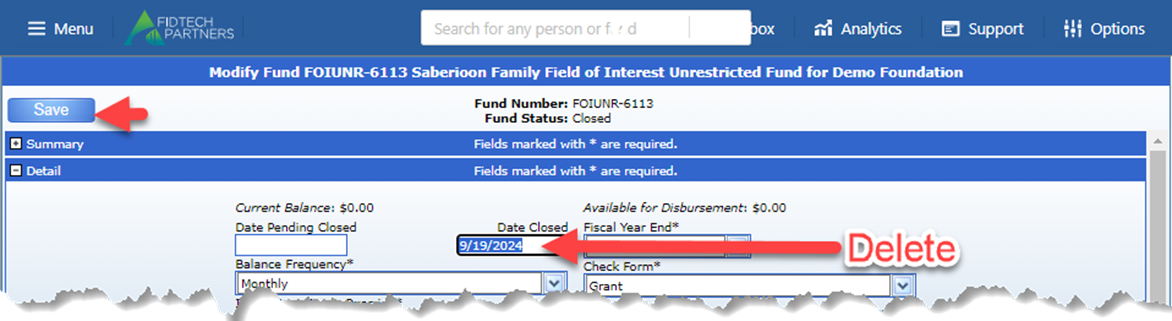
Note: If you ever need to reopen a closed fund you can do so by removing the closed date and clicking save which will put the fund back into a pending state to be reactivated.