

New - Searching Statements
- 25 Aug 2025
- 1 Minute to read
- Print
- DarkLight
New - Searching Statements
- Updated on 25 Aug 2025
- 1 Minute to read
- Print
- DarkLight
Article summary
Did you find this summary helpful?
Thank you for your feedback!
Method 1 - Through the Interested Party’s Profile
The User can search for a statement for a specific Interested Party directly on their profile.
For example, if the User needed to see the statement for Demo Donor, a search for that IP can be done in the Search Bar on the top of the FoundationHub page:

In the Interested Party’s Profile, the User will see any posted statements on the Statements tab. If the statement has not been posted here, enter the values in the Date Range field and click Get Statements.
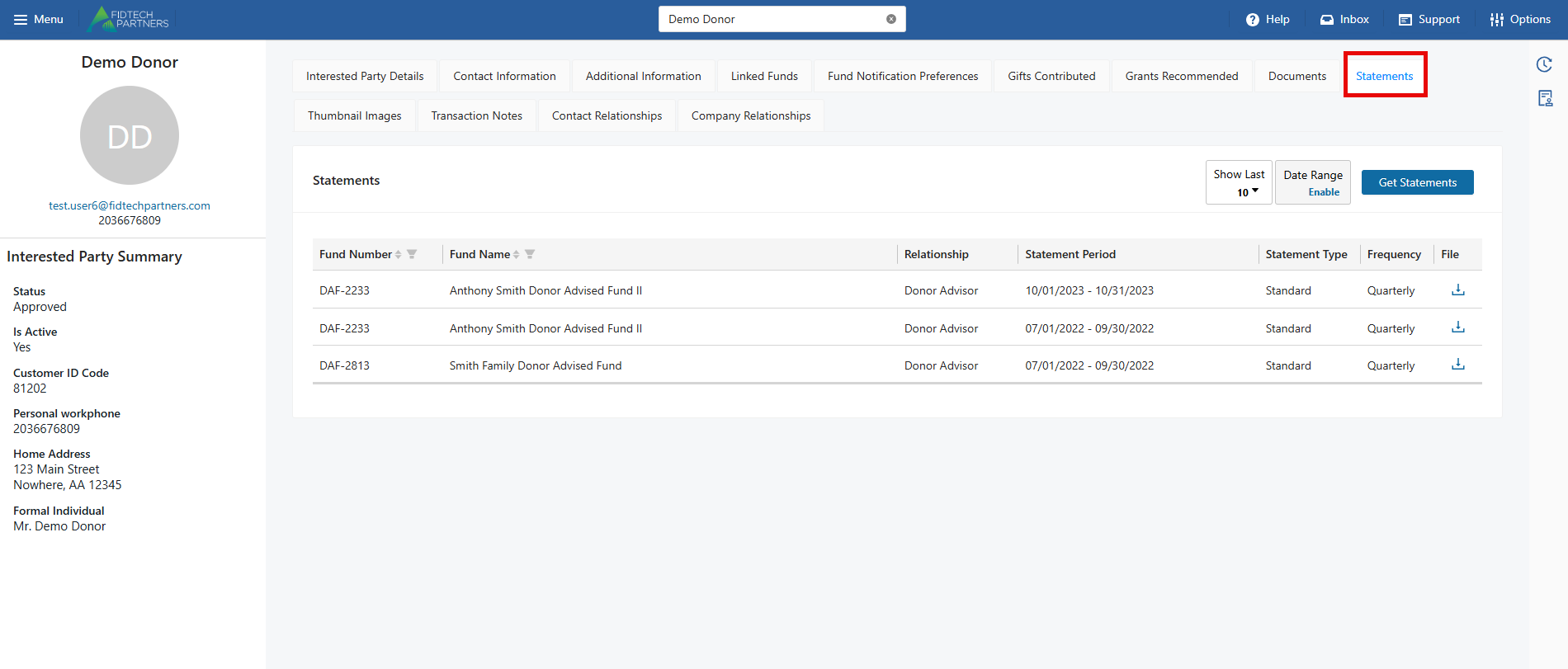
Searching in Statements section
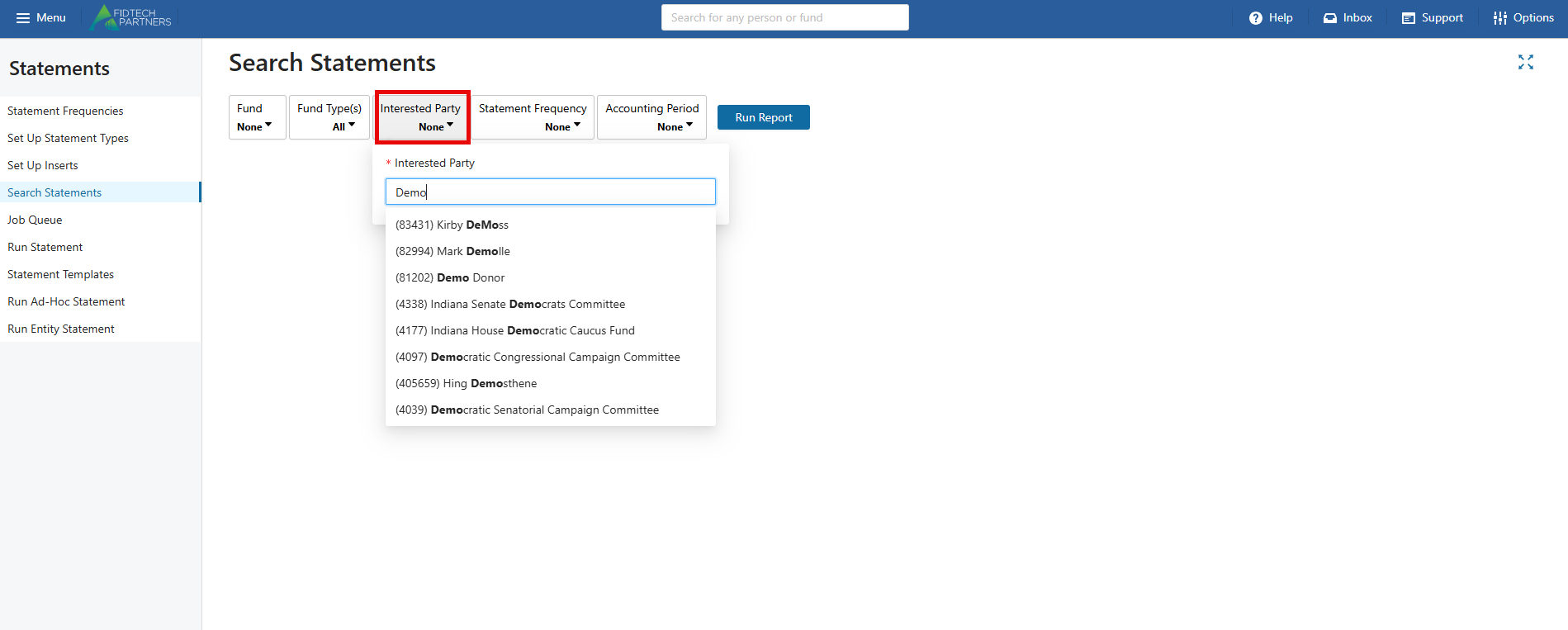
You can also search for Statements using the search option in the Statements page.
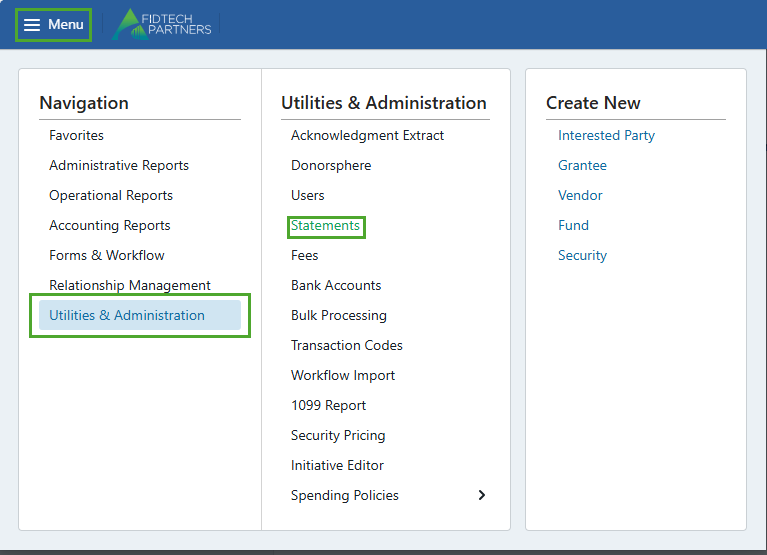
To open the Statements page, Go to Utilities & Administration in the Menu and select Statements.
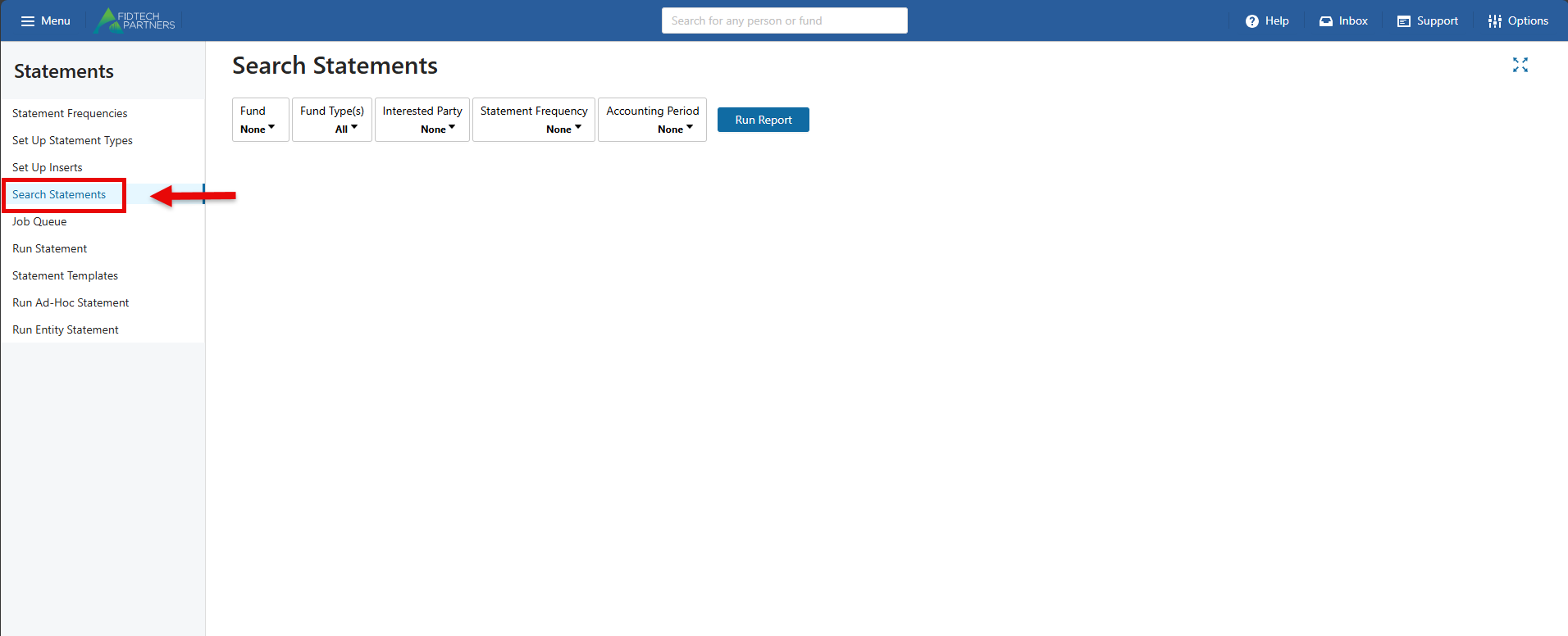
To search for statements by Fund, type a keyword in the Fund dropdown.
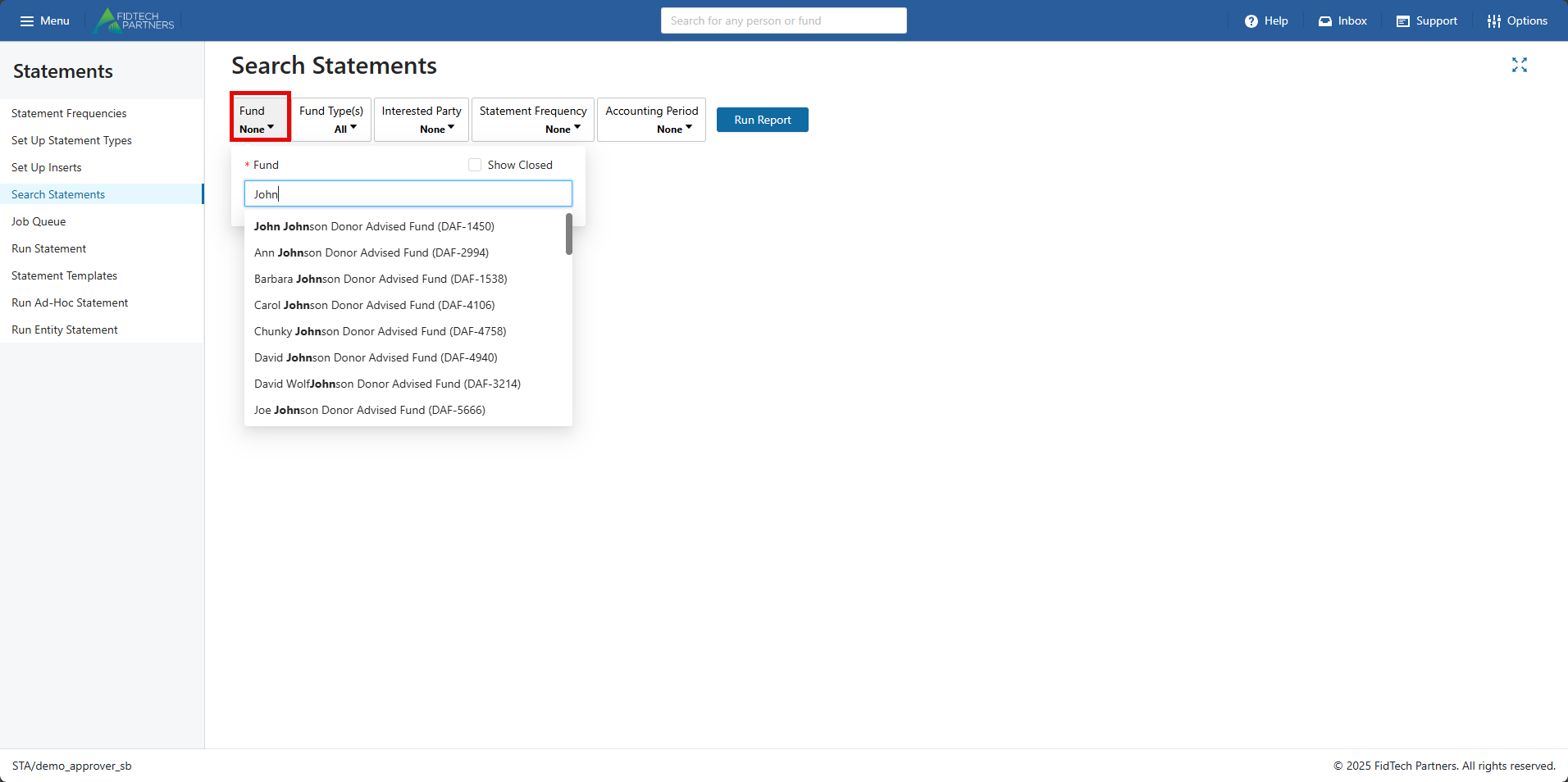
To search by an Interested Party, type a keyword in the Interested Party dropdown.
After entering the parameters, click on “Run Report” button to search for the Statements.
Was this article helpful?