

IP Import
- 28 Mar 2024
- 2 Minutes to read
- Print
- DarkLight
IP Import
- Updated on 28 Mar 2024
- 2 Minutes to read
- Print
- DarkLight
Article summary
Did you find this summary helpful?
Thank you for your feedback!
Imports - Fund, Gift, Grant, and IP Imports
To access these uploaders, navigate to: Menu > Utilities > Workflow Import:
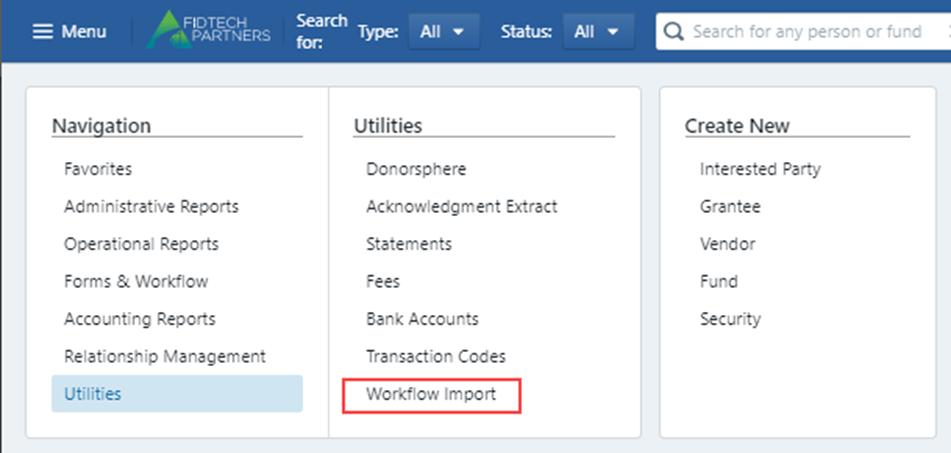
IP Import
Select the “View Excel IP Imports”:
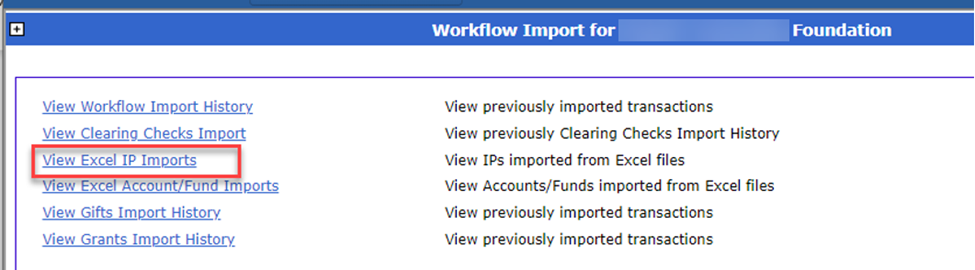
This will bring you to all previous uploads and their results, while also allowing you to download the IP Import template. This is the same process as the Gift import.
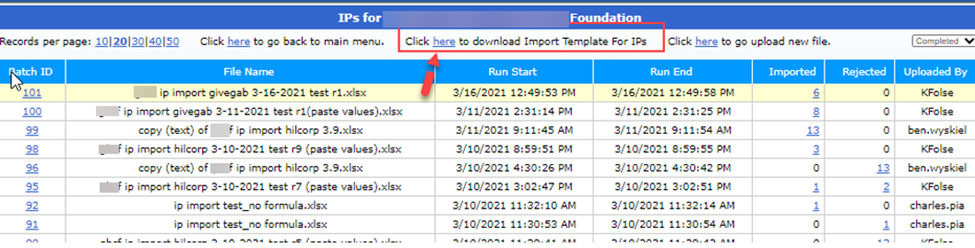
Once opened the template has required fields (in red) as well as other data input fields (in black) that can be filled out and will be reflected on the Interested Party’s profile once uploaded.
On the IP uploader there are multiple tabs: Contact Record, Salutation Record, Address Record, Account Links and Communication Record.
The Contact Record is standard IP information such as customer ID code, name, email, if the party is an organization and other preferences that can be found within the IP profile on FoundationHub.
The Salutation Record is where the IPs salutations are input. Most IPs will have more than one salutation, and this is kept track in the “Template id” field. This most match back to a record in the contact tab. The external ID field will need to be a unique indicator to successfully upload this IP record (example below):

The same logic is applied to the Address Record tab. For IPs with multiple addresses the “Template id” should match the Template id from the contract record, but the external ID field will need to be a unique indicator to successfully upload this IP record (example below):

The same logic is applied to the Communication Record tab:

The Account Links tab is where the IP will be linked to a desired account. There are multiple fields that will drive the link relationship permissions and settings such as “role”. The Role will drive how the IP is linked to the account, whether they are a Donor, Founder, Donor Advisor, etc. You will also need to select the Statement Type (the type of statement this IP will received) and Statement Frequency (monthly, quarterly etc.). The “Salutation ID” and “Address ID” fields will need to be the unique “External IDs” tying to each Salutation and Address record of the IP being linked (example below):
To upload the completed Excel template, select the “Click here to go upload new file” option:
You will be prompted to select the desired file:
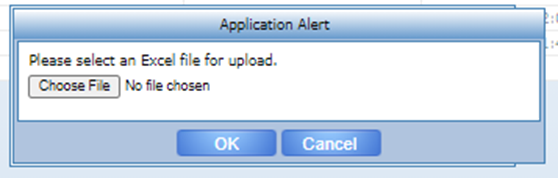
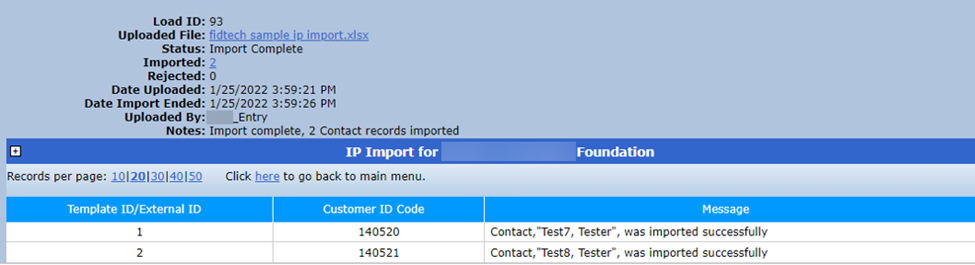
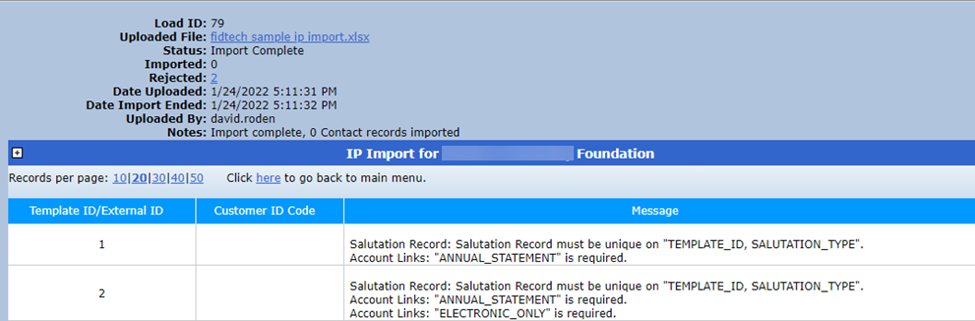
Once the file is selected and the upload is complete, you can review the results. Here you will be shown the successful and failed uploads. If there were issues/unsuccessfully uploaded Interested Parties, the Message box will identify the underly issues (shown below). You can also re-download the Excel file with all fields with errors highlighted.
Successful Uploads:
Unsuccessful Uploads (changes required):
Was this article helpful?