

Grant/Invoice Import
- 26 Jul 2023
- 1 Minute to read
- Print
- DarkLight
Grant/Invoice Import
- Updated on 26 Jul 2023
- 1 Minute to read
- Print
- DarkLight
Article summary
Did you find this summary helpful?
Thank you for your feedback!
Imports - Fund, Gift, Grant, and IP Imports
To access these uploaders, navigate to: Menu > Utilities > Workflow Import:
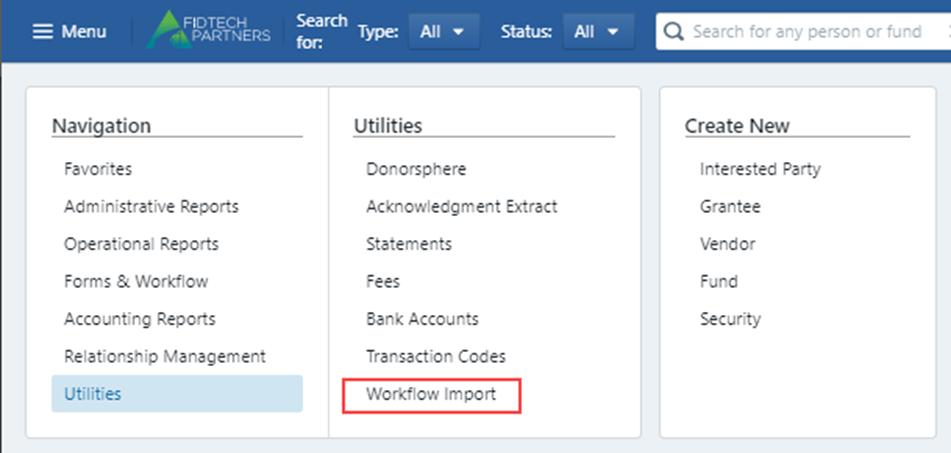
Grant/Invoice Import
Select the “View Grants Import History”:
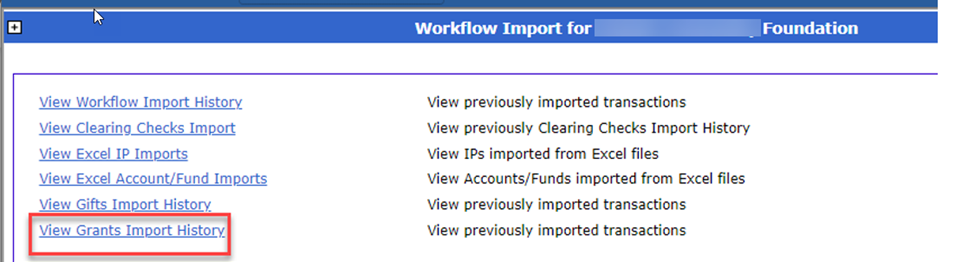
This will bring you to all previous uploads and their results, while also allowing you to download the Grant Import template. This is the same process as the Gift import.
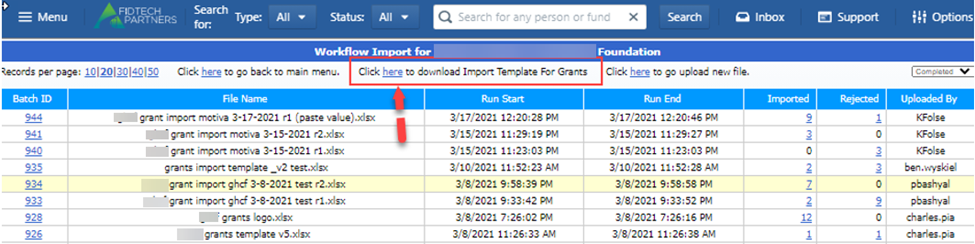
Once opened the template has required fields (in red) as well as other data input fields (in black) that should be filled out and will be reflected on the transaction once uploaded.
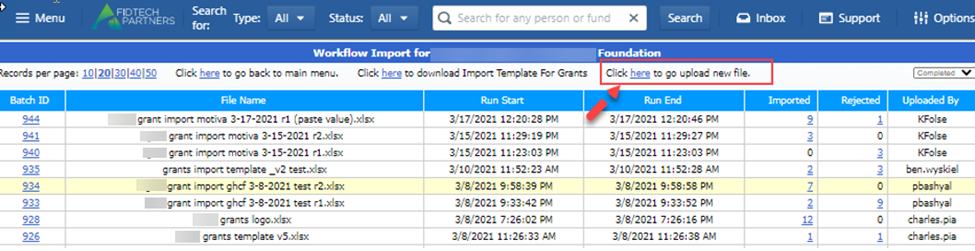
To upload the completed Excel template, select the “Click here to go upload new file” option:
You will be prompted to select the desired file:
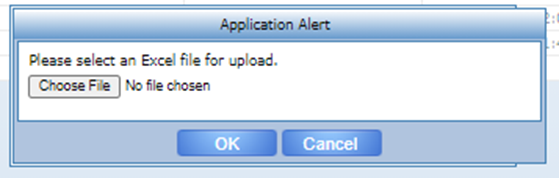
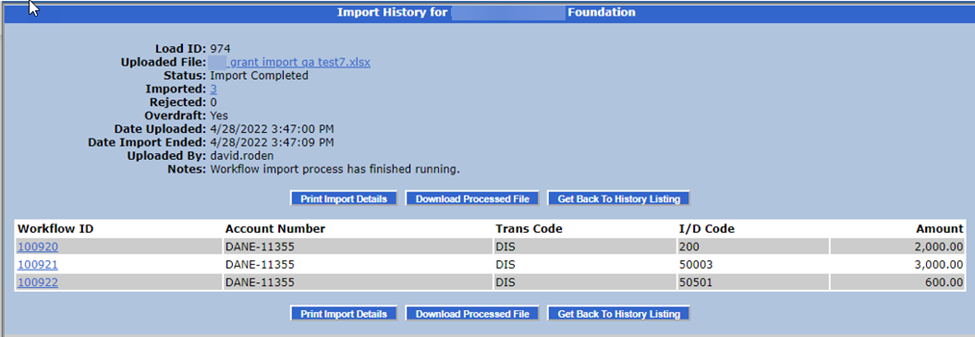
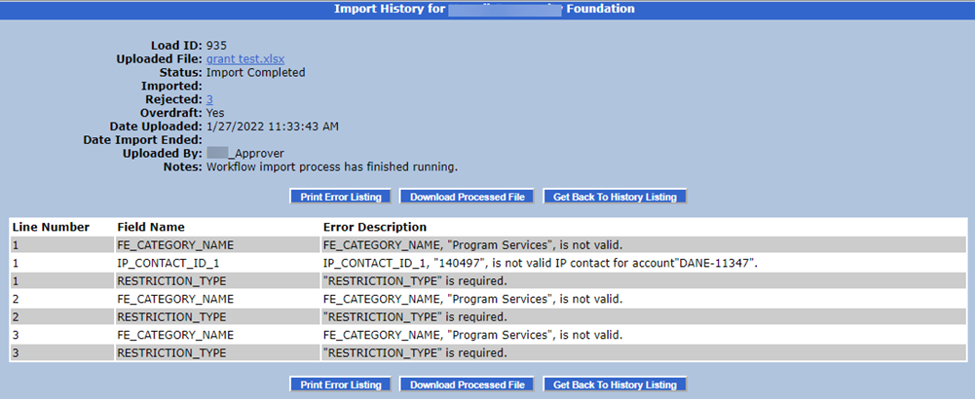
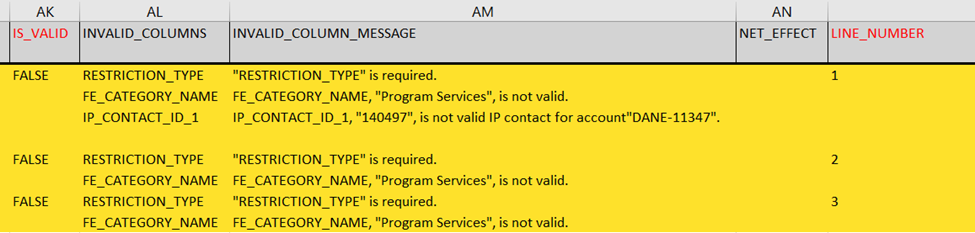
Once the file is selected and the upload is complete, you can review the results. Here you will be shown the successful records. To see records that failed to load, click on the Rejected count to see those errors. You can also download the Excel file by clicking on the file link which will include the error messages on each row.
Records that processed successfully will be created in a “Pending Posting” status. The details for each can be viewed by clicking on the individual workflow ids. The records will also be in the approvers inbox same as a gift entered directly in PGFundConnection.
New Features
Was this article helpful?