

Spending Policy Management
- 02 Nov 2025
- 4 Minutes to read
- Print
- DarkLight
Spending Policy Management
- Updated on 02 Nov 2025
- 4 Minutes to read
- Print
- DarkLight
Article summary
Did you find this summary helpful?
Thank you for your feedback!
Spending Policies can be created and maintained within the Spending Policy management function under Menu > Utilities & Administration.
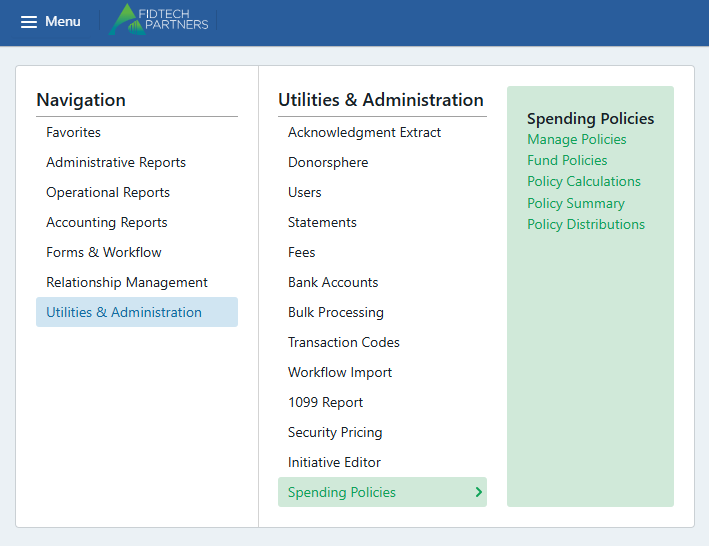
Access is controlled by user permissions, allowing specific users to view, create, or modify policies based on their role.
Users can also post fund balances and calculate how much is available to spend directly from FoundationHub, with separate permissions for viewing, calculating, and submitting.
Spending Policy calculations are tracked by year, enabling users to review both current and past calculated amounts.
The system supports a variety of policy types, including “Income Only” policies, and provides flexible calculation options such as rolling forward any unused spending amounts into the next year and including zero-balance periods in the calculation. These options help tailor the spending approach to meet each fund’s unique needs.
Roll Residuals Forward - This option will roll remaining spendable forward into the next spending policy year adding the amount to the calculated amount.
Include Zero Balance Periods - If this option is used, all periods are used in the calculation regardless of activity in each period.
Limit Distributions to Funds Available - If this option is used, a Fund’s available balance on DonorSphere, Workflow forms, and the Fund Profile, will display the current spending policy funds available amount.
The following calculation controls that were previously not configurable from an online screen are available in the ‘Manage Policies’ function to be configured at the Spending Policy level.
GL Codes for Fund Balance Calculations
GL Codes for Activity
Manage Policies
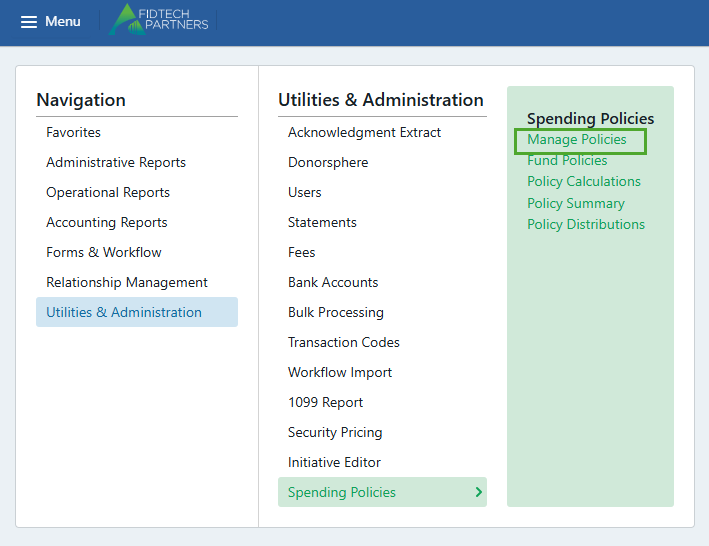
The Manage Policy function is used to either create new policies or view / update existing policies.
The first screen will have a summary of the existing policies as shown below.
To create a new policy, click on “New Policy”.

You will be brought to another screen to enter the Spending Policy details:
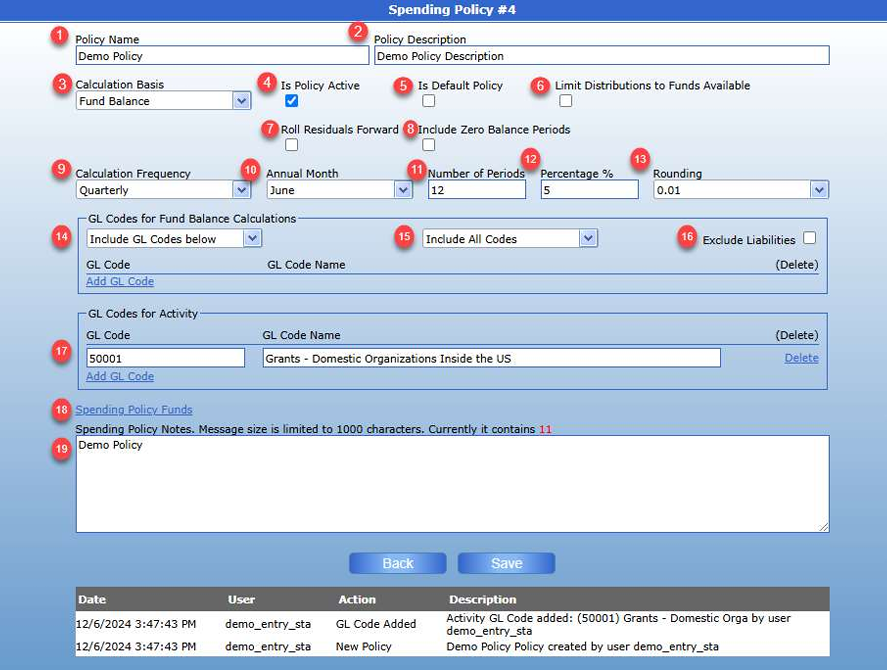
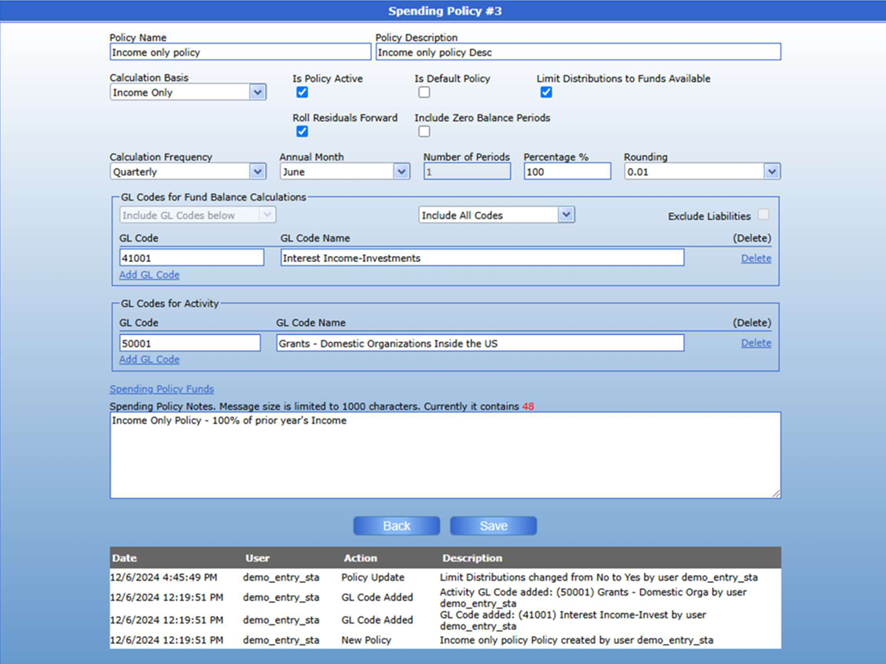
1. Policy Name
2. Policy Description
3. Calculation Basis
a. Fund Balance – Replaces “Principal & Income”
b. Fixed – Used only for Spending Prices with a Fixed dollar amount
c. Income Only – Used for Spending Policies that are based on Revenue and Expense Codes as opposed to Assets and Liabilities
4. Is Policy Active
5. Is Default Policy
a. Only one can be the default. If this is selected, “Is Default” will be unselected on any other policy where it is set.
b. The default policy will be the top policy in the Spending Policy selection dropdown on the Fund profile.
6. Limit Distributions to Funds Available
a. If this option is used, a Fund’s available balance on DonorSphere, Workflow forms, and the Fund Profile, the current spending policy funds available amount will be displayed.
7. Roll Residuals Forward
a. This option will roll remaining spendable forward into the next spending policy year adding the amount to the calculated amount.
8. Include Zero Balance Periods
a. If this option is used, all periods are used in the calculation regardless of activity in each period. b. For a Calculation Basis of “Fixed”, this field will not be editable.
9. Calculation Frequency
a. Monthly
b. Quarterly
c. Annual - For a Calculation Basis of “Fixed”, “Annual” is automatically set.
d. Semi-Annual
10. Annual Month
11. Number of Periods
a. For a Calculation Basis of “Fixed” and “Income only”, Number of Periods will be automatically set to 1
12. Percentage
a. 0 to 100%
b. For a Calculation Basis of “Fixed”, This field is changed to “Flat Amount”.
13. Rounding
a. .01
b. 1.00
c. 10.00
d. 100.00
14. GL Codes for Fund Balance Calculations (Include / Exclude Codes below)
a. For a Calculation of “Fund Balance”, the user has the option to select specific codes or not. If no codes are selected, all Asset and Liability codes will be considered.
i. The GL codes available to select will contain Asset and Liability Codes.
b. For a Calculation Basis of “Fixed”, this section is not applicable.
c. For a Calculation Basis of “Income Only”, “Include GL Code” will be automatically selected, and the user must select the codes to be considered.
i. The GL codes available to select should only be Revenue and Expense Codes.
15. GL Codes for Fund Balance Calculations (Include All Codes / Exclude Liquid / Exclude Non-Liquid)
a. This option is used to exclude either Liquid or Non-Liquid Asset and Liabilities from the Spending Policy calculations.
b. The default will be to include both Liquid and Non-Liquid if not explicitly selected under “Include / Exclude Codes below”
16. Exclude Liabilities
17. GL Codes for Activity
a. The selection list will contain Revenue and Expense Codes
18. Spending Policy Funds a. listing of Funds using the policy
To update a Spending Policy, click on the Policy number.

This will bring you to the screen to make updates to the Spending Policy.
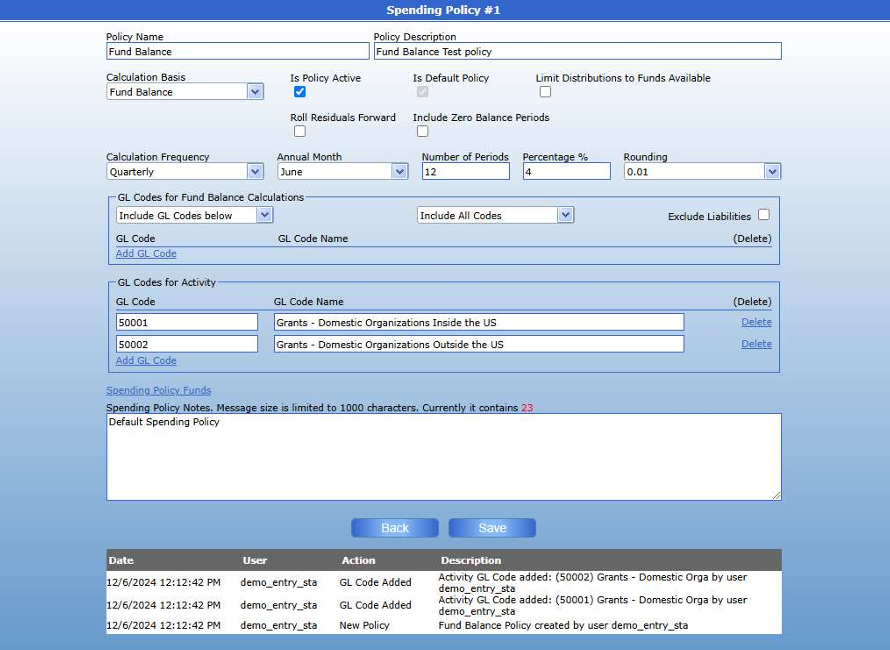
Example of an “Income Only” Policy with the GL Codes for Fund Balance Calculations included:
Spending Policy Functionalities
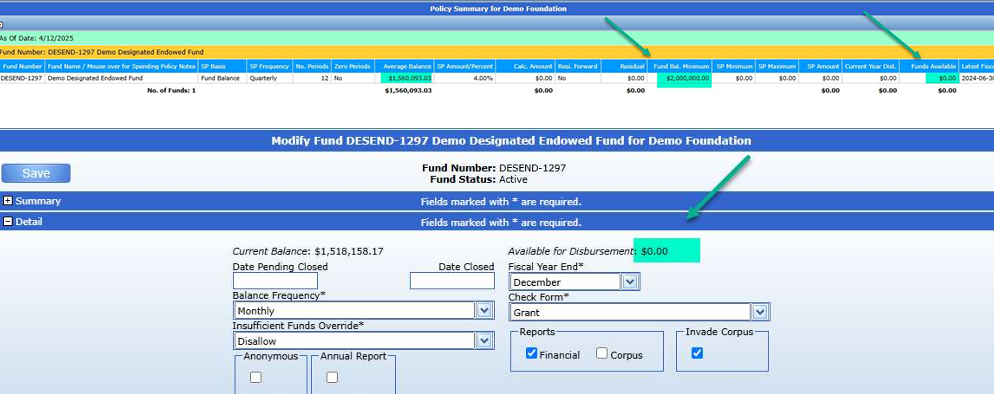
The Fund Balance Minimum setting in the Fund Profile Spending Policy section can be used when calculating Spending Policies. If the Average Balance calculated for the Spending Policy is less than the Fund Balance Minimum setting on the Fund Profile for a given Fund, then no Spendable Amount will be calculated for that Fund.
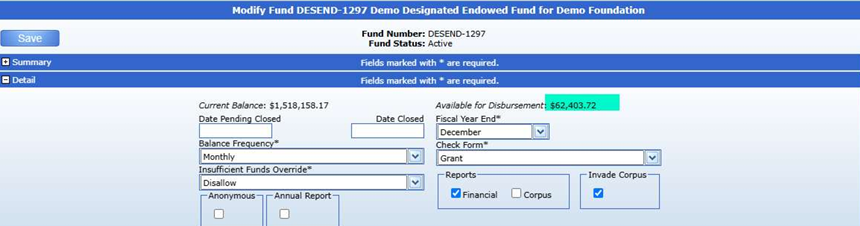
Spending Policy before applying a Fund Balance Minimum:
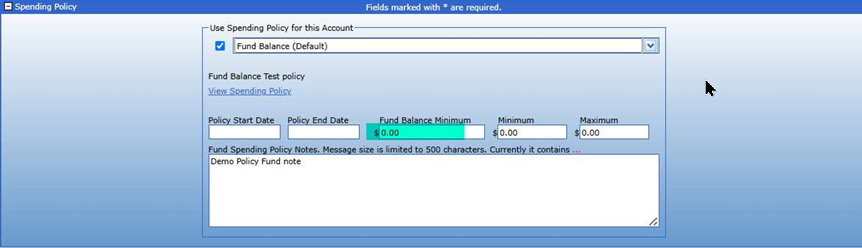
Policy Summary:

Added a Fund Balance Minimum:
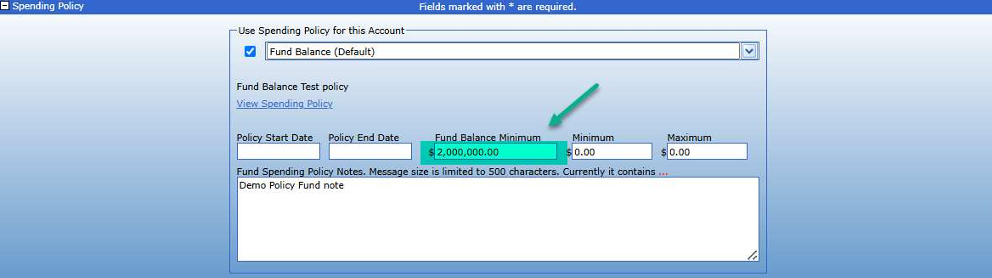
After recalculating the Spending Policy, the Available for Disbursement and Funds Available are now $0.00. Note: this Fund has a Spending Policy that is restricting Available for Disbursement to the Funds Available calculated on the Spending Policy.
Was this article helpful?