

Filtering Data
- 10 Jul 2023
- 1 Minute to read
- Print
- DarkLight
Filtering Data
- Updated on 10 Jul 2023
- 1 Minute to read
- Print
- DarkLight
Article summary
Did you find this summary helpful?
Thank you for your feedback!
- By applying Filters on Insights, you exclude or select specific ranges poof data to be used for analysis. for more explanation on this see Creating Insights.
- Another option you have is to use Dashboard filters. By applying filters on Dashboards, you hide a specific range of data from being displayed on the Dashboard.
- There are two types of filters for Dashboards
- Date Filters
- Attribute Filters
- Filters can be selected from the top left corner of the screen:
- There are two types of filters for Dashboards
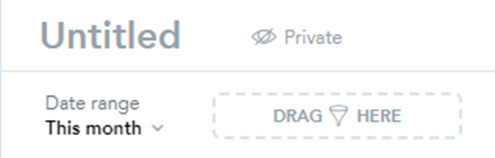
- To select a date range, click on the dropdown arrows next to the given date ranges, select a new date range, and click apply.
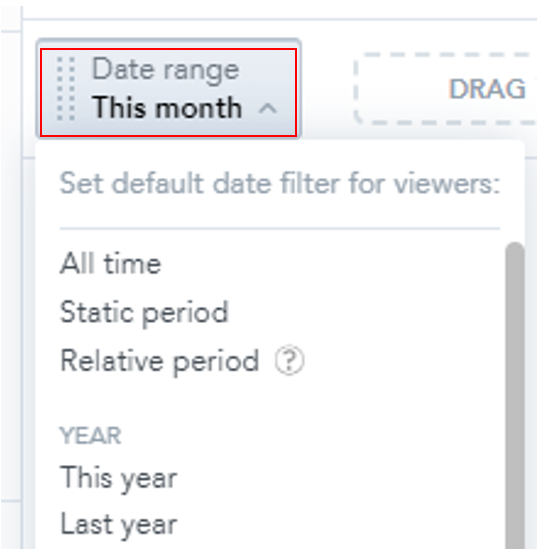
- You can create a custom date range using the "relative Period" option.
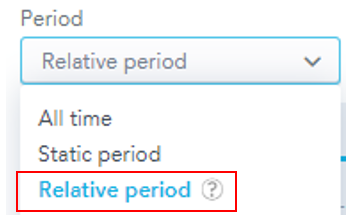
- Selecting "Relative Period" will open a window where you can create an entirely custom period.
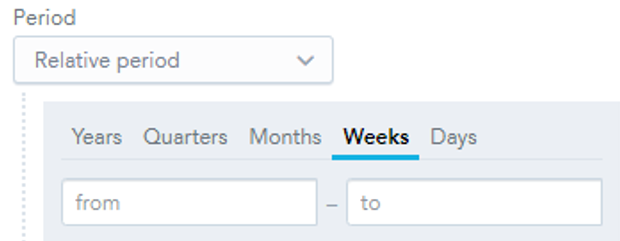
- Select any of the given time intervals (Years, Quarters, Months, Weeks, and Days) and click inside the "from" or "to" box to reveal a dropdown menu of date options.
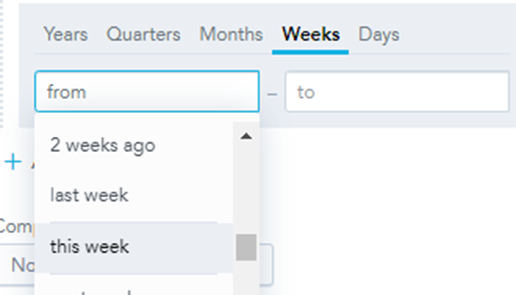
- Scroll upwards to set the time frame earlier and downwards to set the timeframe later. When you have found your desired timeframe, select "Apply" and your changes will appear in the Dashboard.
- Attribute filters can be applied by selecting the "Attribute Filter" from the list on the left and dragging it to the box on the toolbar.
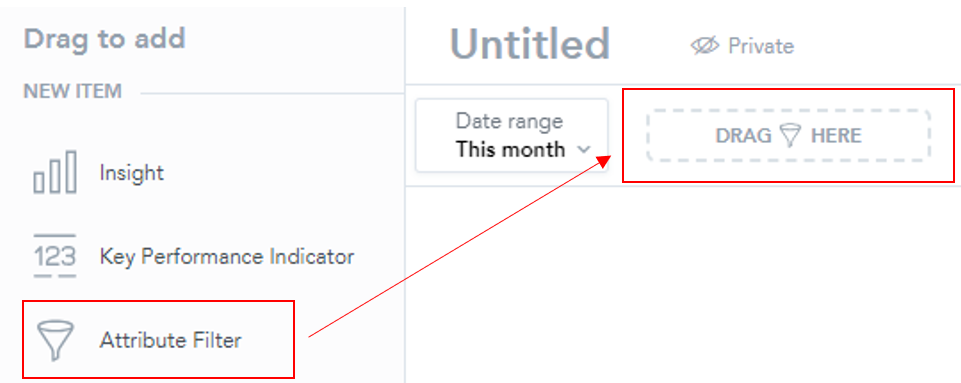
- Upon doing so, a dropdown list of possible filters should appear. Click on the one you want and a list of all data for that filter should appear.
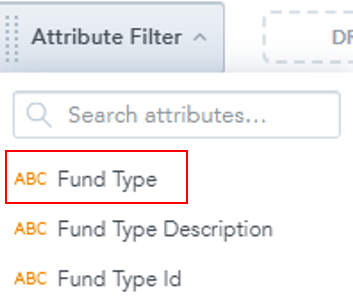
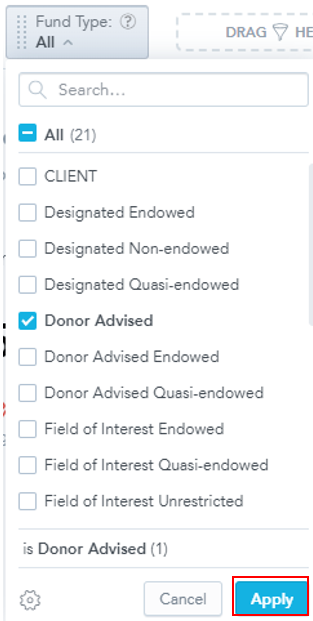
- Upon doing so, a dropdown list of possible filters should appear. Click on the one you want and a list of all data for that filter should appear.
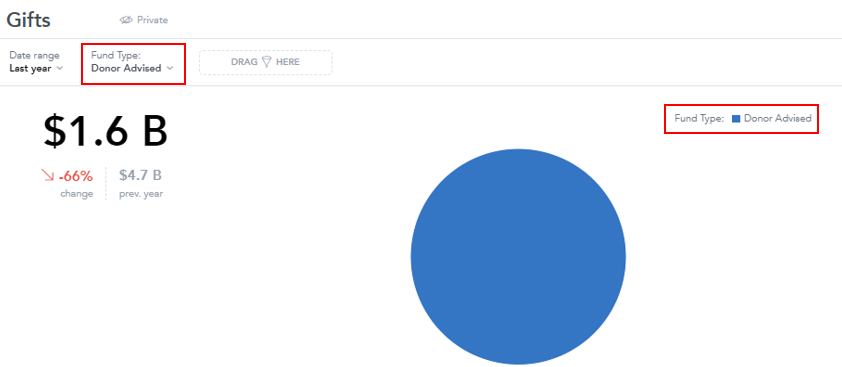
- Now, we have filtered out data so that the Insights and KPIs on our Dashboard will only use data from Donor Advised funds. This is what the Dashboard now looks like:
- By default, all filters apply to all Insights you placed on that Dashboard.
- If you wish to prevent a specific filter from applying to an Insight, click the Insight and uncheck the filter that you want to ignore.
- Select any of the given time intervals (Years, Quarters, Months, Weeks, and Days) and click inside the "from" or "to" box to reveal a dropdown menu of date options.
Was this article helpful?