

Formatting Numbers in Insights
- 10 Jul 2023
- 1 Minute to read
- Print
- DarkLight
Formatting Numbers in Insights
- Updated on 10 Jul 2023
- 1 Minute to read
- Print
- DarkLight
Article summary
Did you find this summary helpful?
Thank you for your feedback!
- Use the Number Format Editor to configure how numbers appear in your Insights. You can round numbers, add currency symbols, adjust colors, or append numbers with sets of characters.
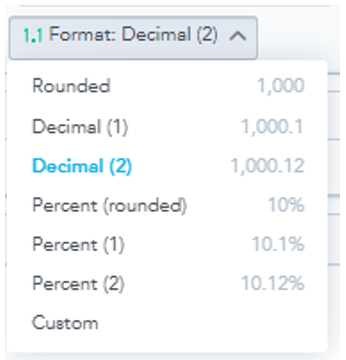
- To access the Number Format Editor, use the drop-down next to your selected metric. Click on the arrow next to “Format: ___” to see a list of pre-set number formats and a custom option.
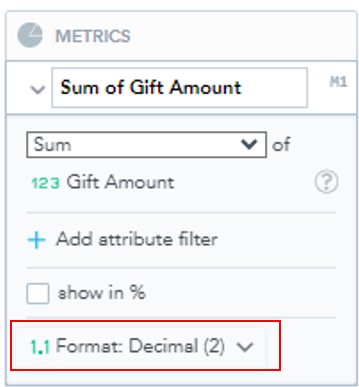
- Formatting changes made in the Number Format Editor modify formatting for the entire Workspace.
Rounding to a Whole Number and Decimal Places
- Use the Number Format Editor to change the rounding of numbers in your Dashboard.
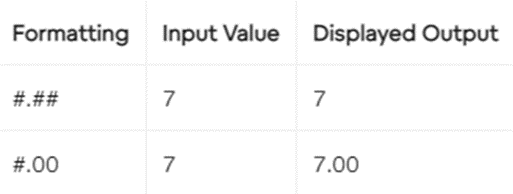
- The number of hash symbols (#) to the right of the decimal point dictates the number of decimal place values to display. If a number has more decimal places than the number of hash symbols, the number will be rounded.
- Use zeroes in place of hash symbols to ensure that whole numbers will be given decimal places:
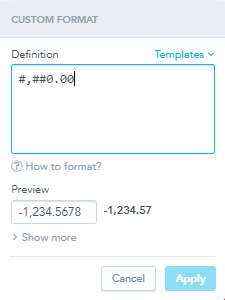
- Use commas in between the hash symbols if you would like your numbers to have commas. #,### means that commas will be used in accordance with number rules. (i.e. 123456789 will be written as 123,456,789)
- Use zeroes in place of hash symbols to ensure that whole numbers will be given decimal places:
- When you have decided the format of your numbers, use the above notation in the Number Format Editor:
- You can also select any of the presets in the Formatting menu:
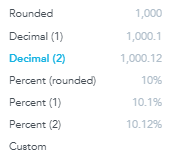
- Each preset has an example number that demonstrates the format it will apply to your Dashboard.
Conditional Number Formatting
- You can create conditions using the "Custom" option in the Formatting menu.
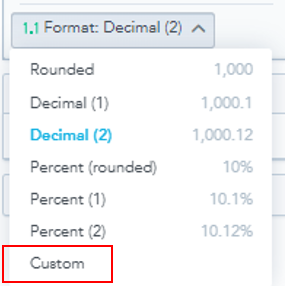
- Conditions are formed using brackets and their numerical ranges are defined with the following symbols:
- Greater than: >
- Greater than or equal to: >=
- Less than: <
- Less than or equal to: <=
- Equal: =
- Example condition:
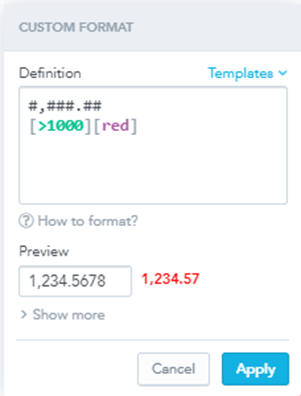
- #,###.##[>1,000][red] means that numbers will be rounded to the hundreths place and any number greater than 1,000 will be colored red.
- You can add a second condition using a semicolon:
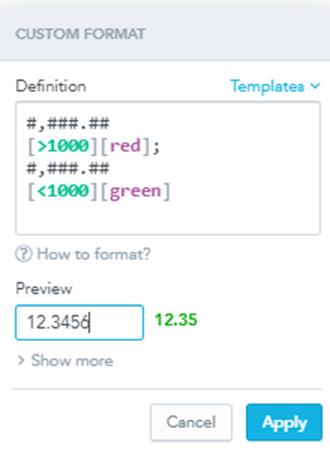
- Now, numbers greater than 1,000 will be displayed in red and numbers less than 1,000 will be displayed in green.
- You can add as many conditions as you would like as long as they do not conflict with each other. (ex. You could not write [>1,000][purple]#,###.##; [>100,000][red]#,###.## because the two conditions are overlapping).
Was this article helpful?