

Editing Dashboards and Insights
- 10 Jul 2023
- 1 Minute to read
- Print
- DarkLight
Editing Dashboards and Insights
- Updated on 10 Jul 2023
- 1 Minute to read
- Print
- DarkLight
Article summary
Did you find this summary helpful?
Thank you for your feedback!
- After selecting a Dashboard, click edit to open the Dashboard. Note that some Dashboards are locked and therefore cannot be edited by Users.
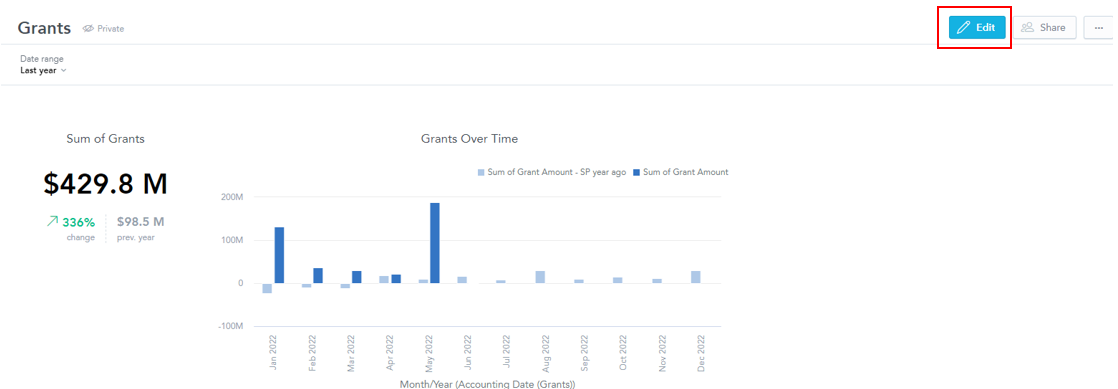
- To rename a Dashboard, click on the current title (once you have opened the Dashboard for editing) and begin typing.

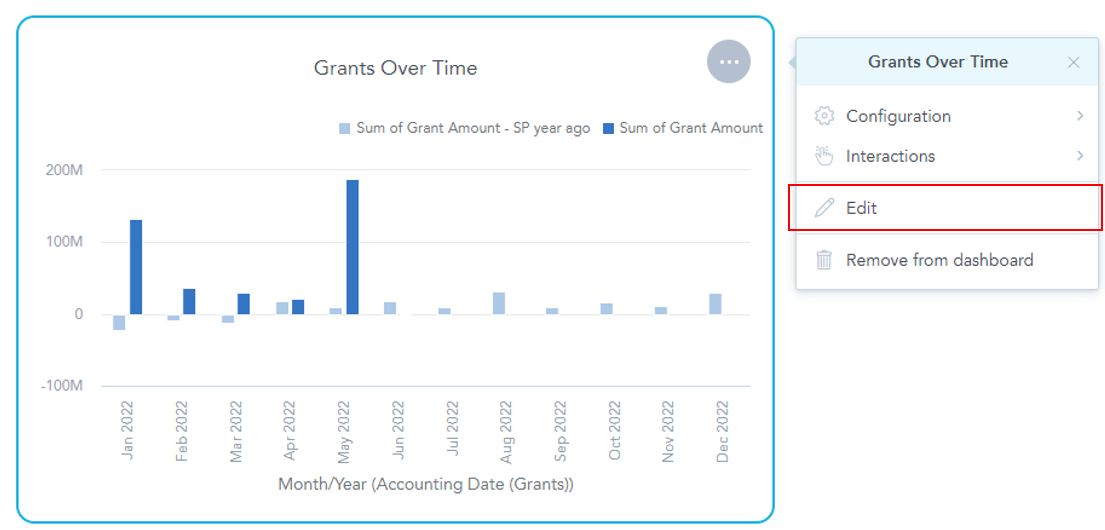
- To edit an Insight, click on the Insight you wish to change. Three dots should appear in the top right corner and a box should appear next to it. Click edit to modify the Insight.
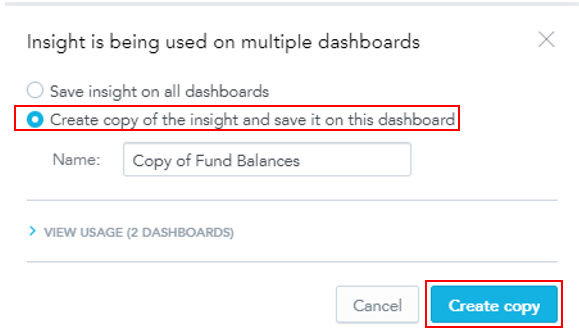
- Once you have made changes to the Insight, you have the option to apply changes to all instances of the Insights (across Dashboards) or for that specific version of the Insight.
1. To see a list of Dashboards that include this Insight, click the link to the right of the Insight name.
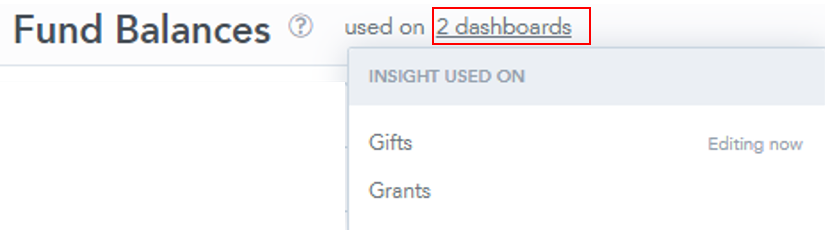
2. If the Insight is included on multiple Dashboards and you want to update it on all Dashboards, select "Save Insight on all Dashboards" and click save.
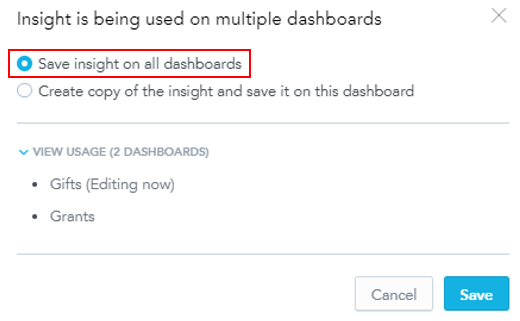
3. If the Insight is included on multiple Dashboards and you want to update it only for the current Dashboard, select "Create copy of the Insight and save it on this Dashboard", type a new name, and click "Create copy".
Dashboards have a flexible layout where you can add multiple Insights and KPIs in a single row.
- To rearrange Insights/KPIs on a Dashboard, drag and drop them to a new place. The Dashboard displays the target place as you drag.
Was this article helpful?