Open a New Fund Application (existing DonorSphere users)
For existing portal users, a new fund application can be started by selecting the Open New Fund Account option under the select Fund dropdown menu. Please note: You are able to change the labelling to either Account or Fund. We have used Fund in this instance.

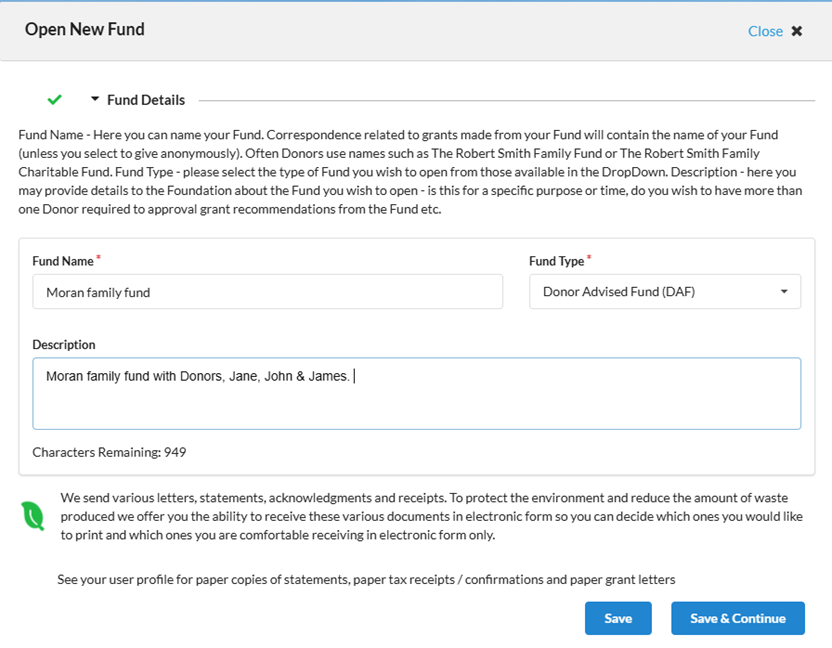
Step 1: New Fund Application
On the left-hand menu of the online application is a progress chart that allows the Donor to see which parts of the application have been completed and which of those remain.
The application can be saved at a section level allowing donors to complete the application at their convenience. The application is divided into the following sections which can be shown or hidden to the donor depending on your preferences
Fund Details.
Interested Parties.
Contributions / Assets set-up.
Investment Options selection (including the ability to add custom investment options).
Registering Interests.
Ability to upload relevant documents (pdf format).
Succession Planning documentation.
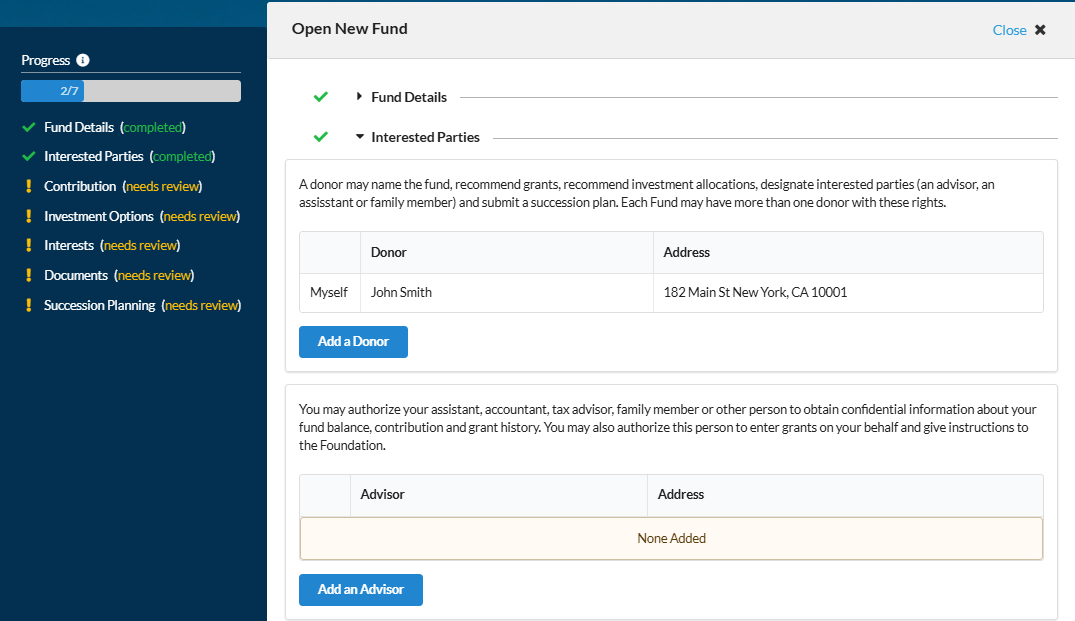
Fund Details
The Fund Details section allows the donor to suggest a name for the Fund, select the Fund Type from the available dropdown and provide some further information about the proposed DAF. Please note that the description under Fund Details is customizable and can be edited in the New Fund Templates (See Below).
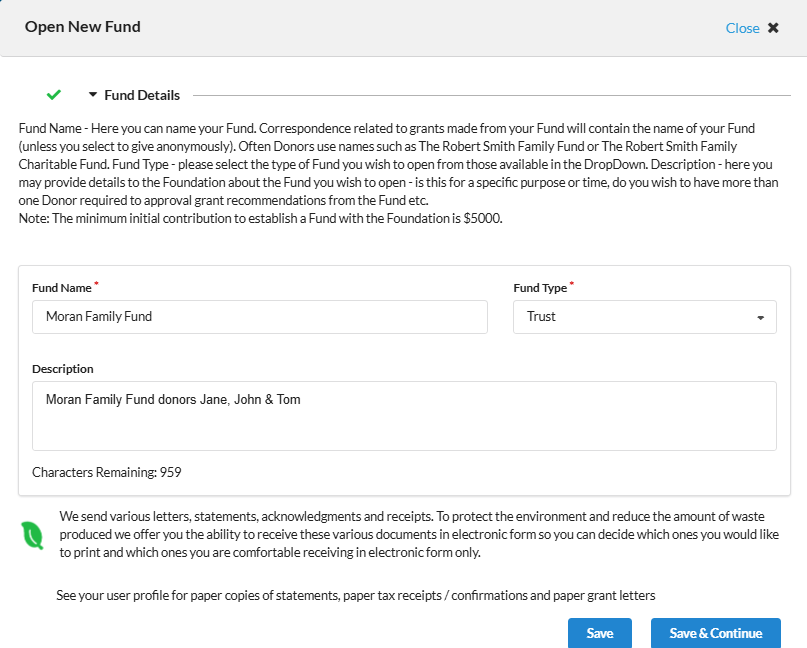
Interested Parties
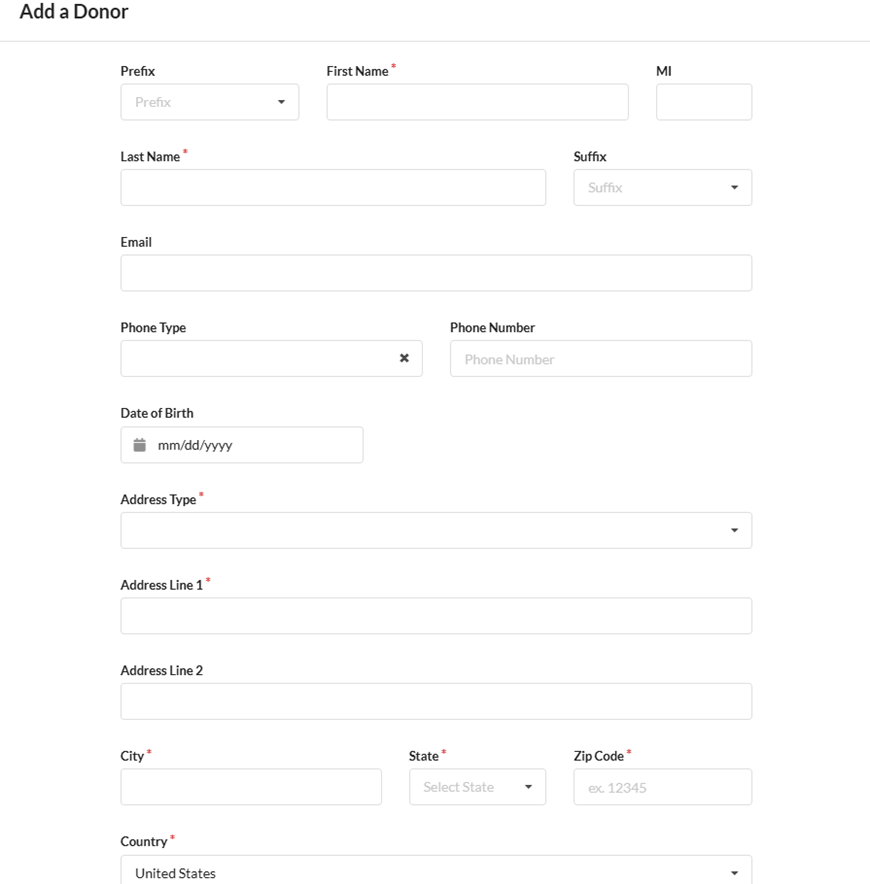
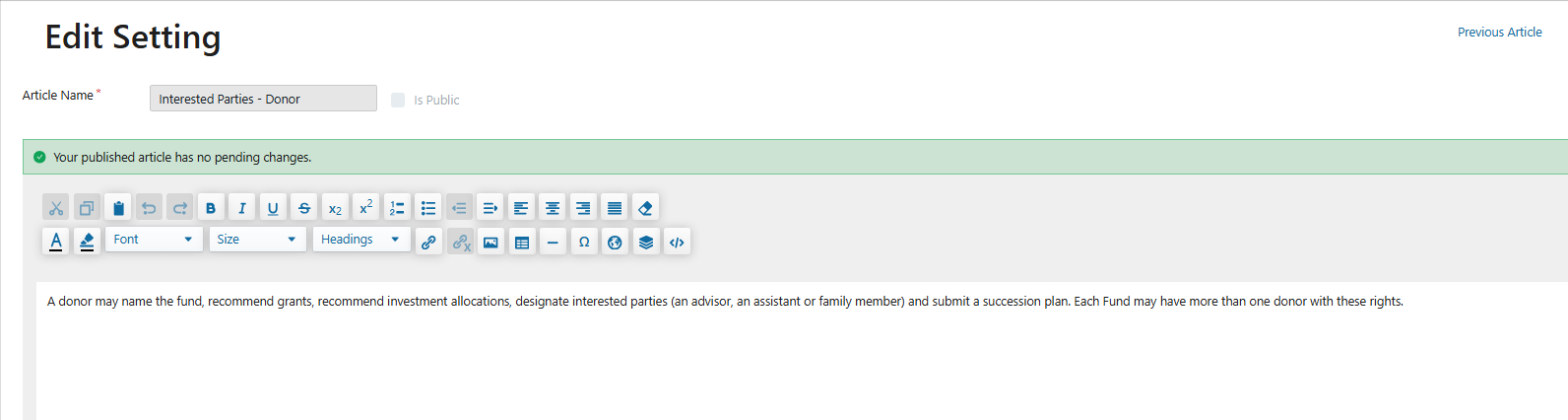
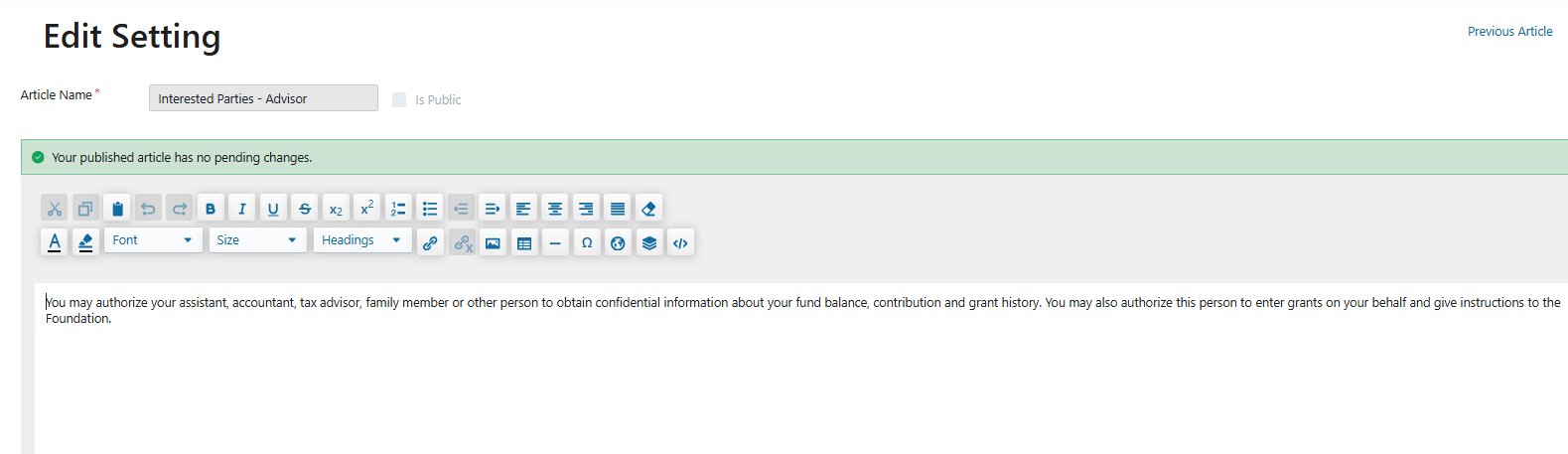
Donors can add interested parties in the form of donors and advisors.
Please note the names of Interested Parties are customizable and can be edited in the New Fund Templates & you can choose to add a few words to explain to the Applicant what the role of that Interested Party is (See Below)
Contributions
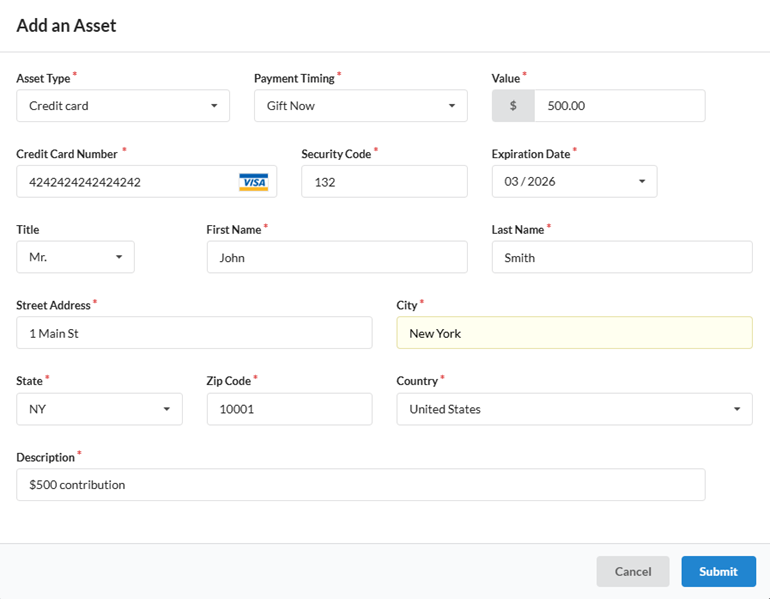
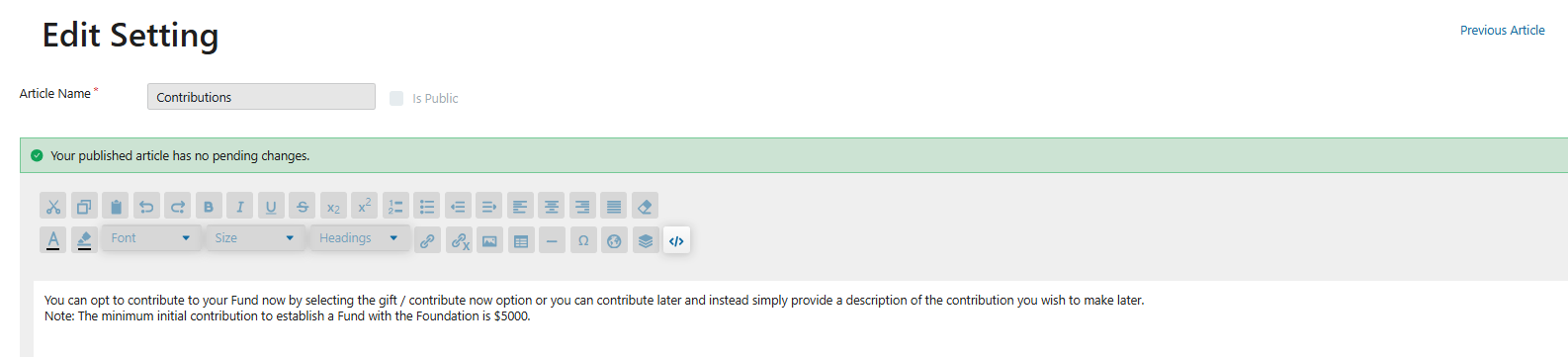
Donors can opt to contribute to their DAF now by selecting the gift / contribute now payment selection or they can gift / contribute later and instead simply provide a description of the contribution they wish to make later. Note: A suspense account needs to be in place to enable the gift / contribute now option.
Please note the description for Contributions (not shown below) is customizable and can be edited in the New Fund Templates (See Below)
Gift / Contribute Now
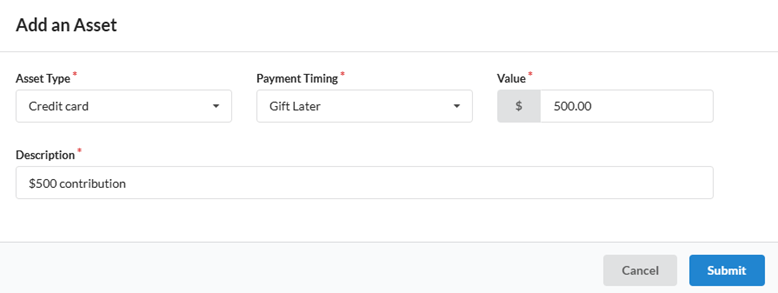
Gifting Later
The option to record a payment through Gifting / Contribution later exists allowing Donors to select an asset type, add a value and a description of the asset they wish to contribute.
Investment Options
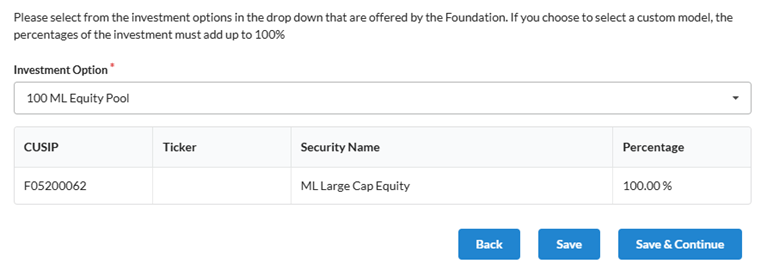
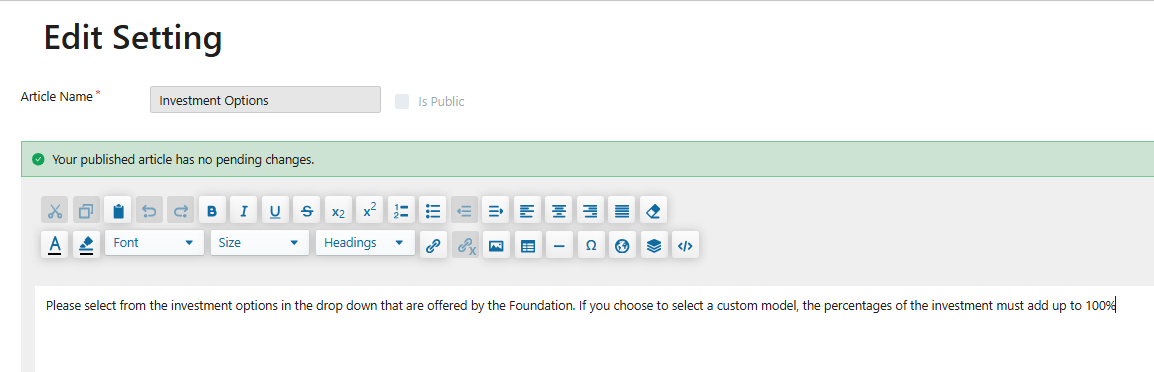
Investment options that are offered by you will be available for donors to select from. Should you choose, donors can also select a custom investment model in which varying percentages of investment options can be added to equate to a 100% total.
Please note that the description for Investment Options as shown in the screenshot below is customizable and can be edited in the New Fund Templates (See Below).
Interests
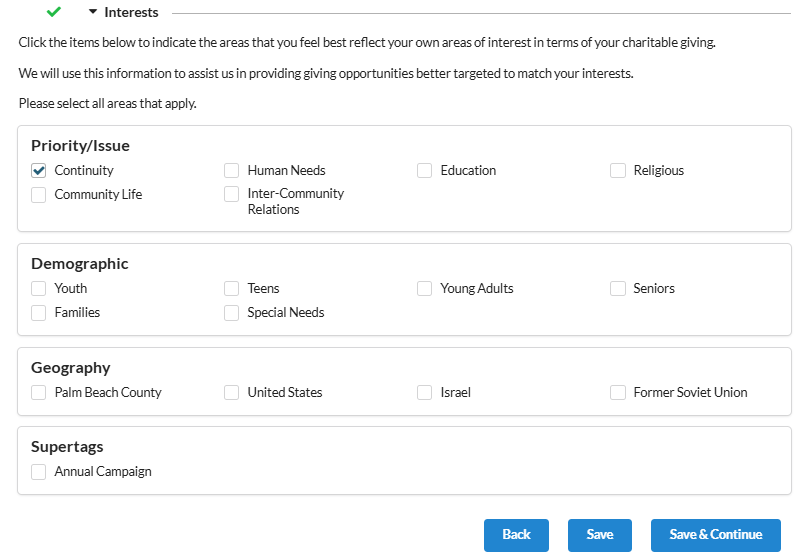
Donors can select their charitable interests in the Interests section.
The explanation relating to choosing a Donors Interests is customizable and can be edited in the New Fund Templates (See Below) or this section can be hidden in its entirety, depending on your preference.
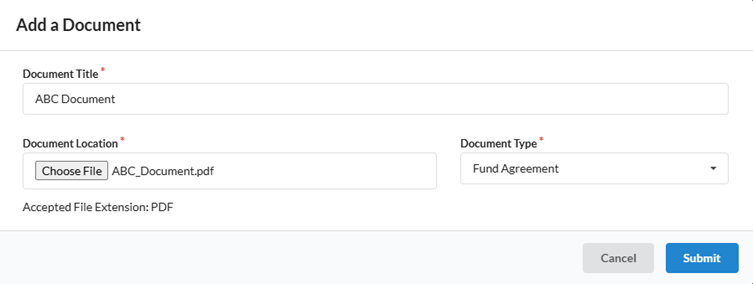
Documents
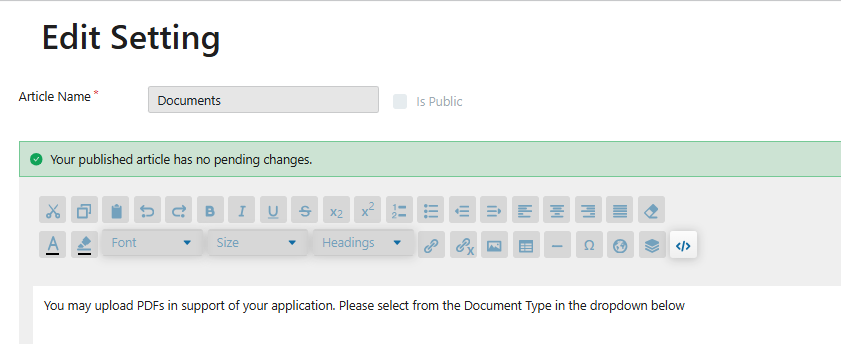
There is the ability for a Donor to add certain pdf documents. The document types will match those document types already defined.
Succession Planning
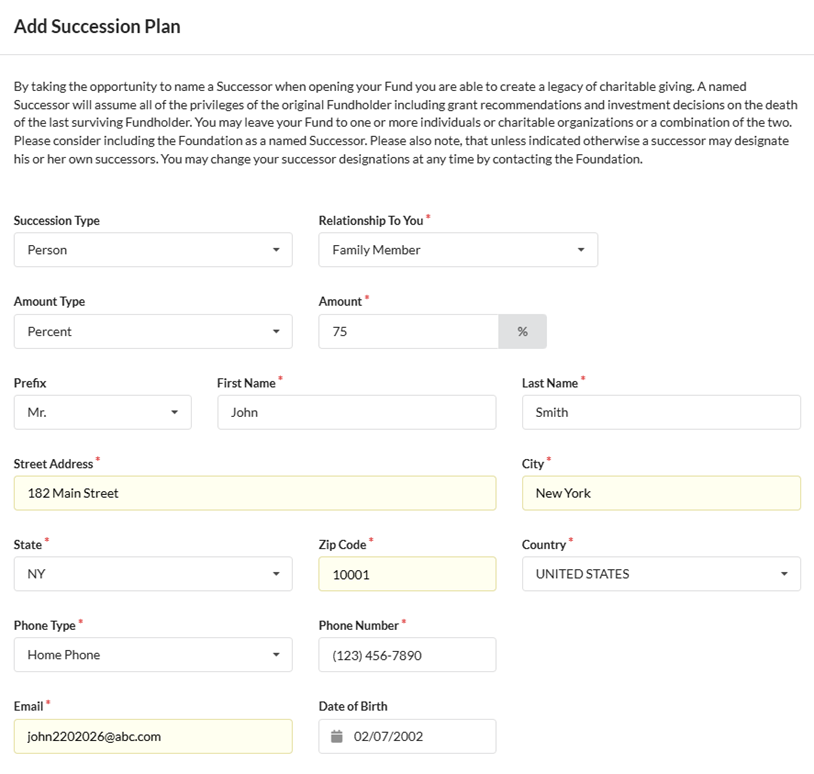
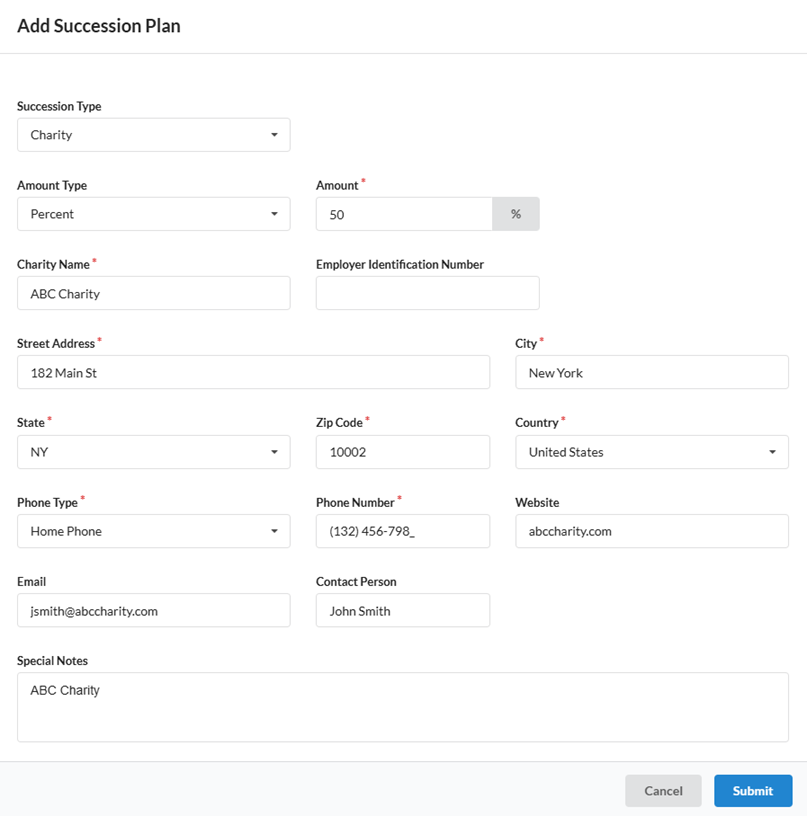
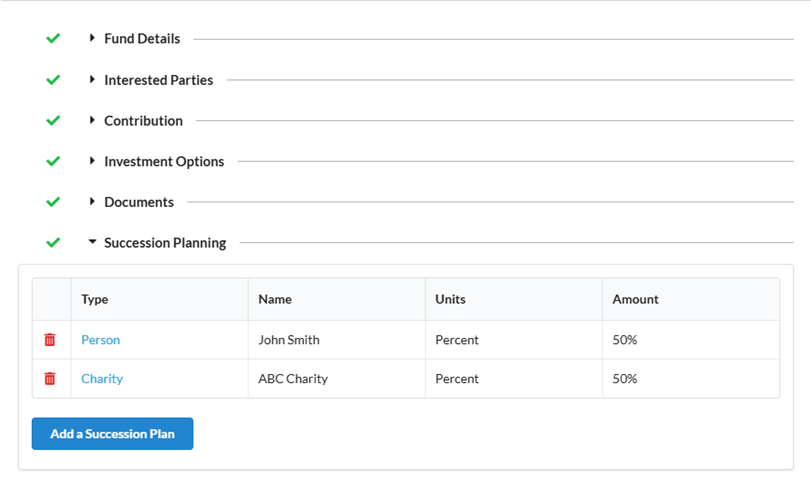
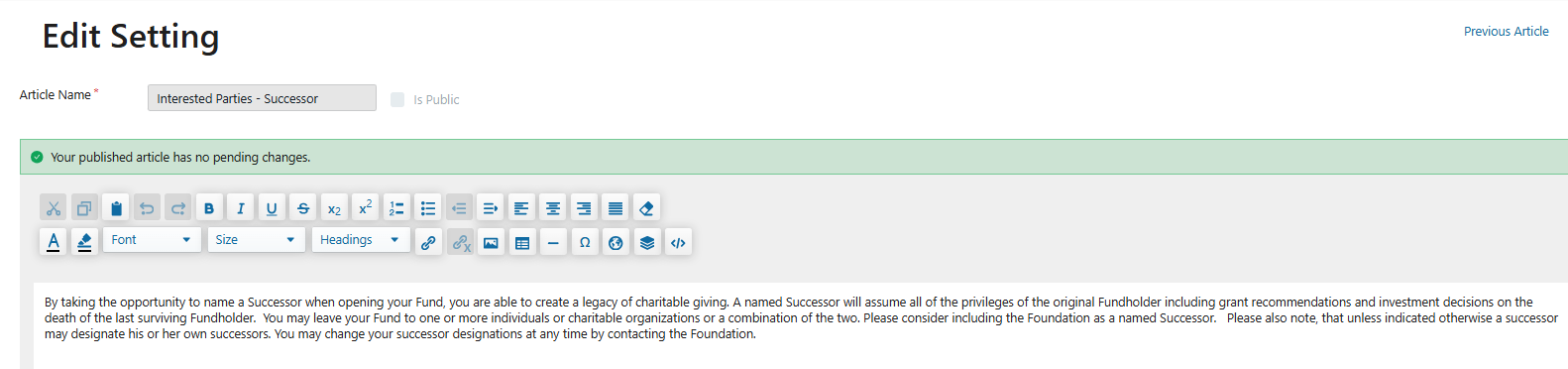
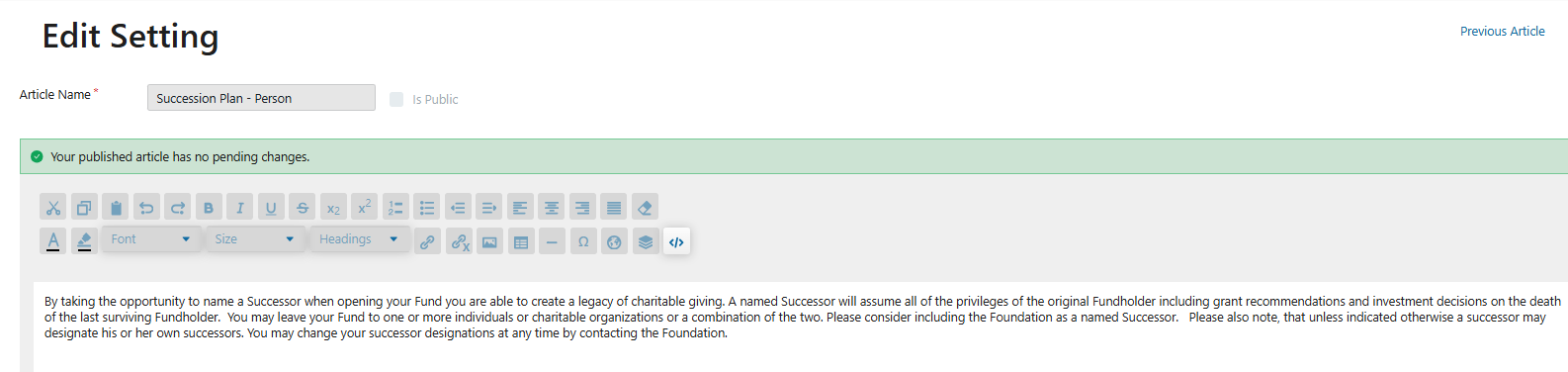
Succession plans can be documented by a donor within the succession planning section of the account application. Donors can choose a person, an existing DAF or donor or charity as successors, or a combination thereof. This is the perfect opportunity to promote your Foundation as a Successor.
Please note that the description for Succession Planning shown in the screenshot below is customizable and can be edited in the New Fund Templates (See Below).
Person
Charity
Terms and Conditions
The terms and conditions display on the finalize page of the application. Terms and conditions are fully customizable. A digitally signed pdf file is saved upon finalization of the application and is available within FoundationHub upon request, once the application has been completed.
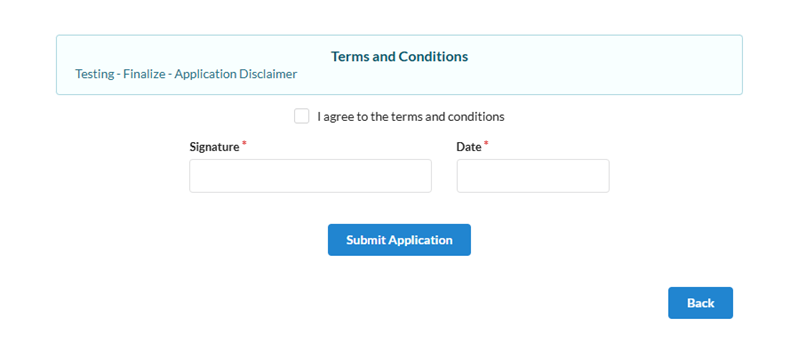
Upon completion of the application, approvers will see the application display in their inbox under the Funds section for approval. For more information, see here.
New Online Fund Application Configuration
There are multiple configuration settings which can be altered or edited in FoundationHub to fit the client’s needs.
DonorSphere New Fund Settings preferences
These settings control labels and visibility within the application and can be edited to preferred terms or labels.
Steps
Navigate to:
Utilities & Administration → DonorSphere → Preferences → New Fund Settings
Configure the following:
Interest Visibility – Set to Show
Title for Interested Parties Advisor – Set preferred label
Title for Interested Parties Donor – Set preferred label
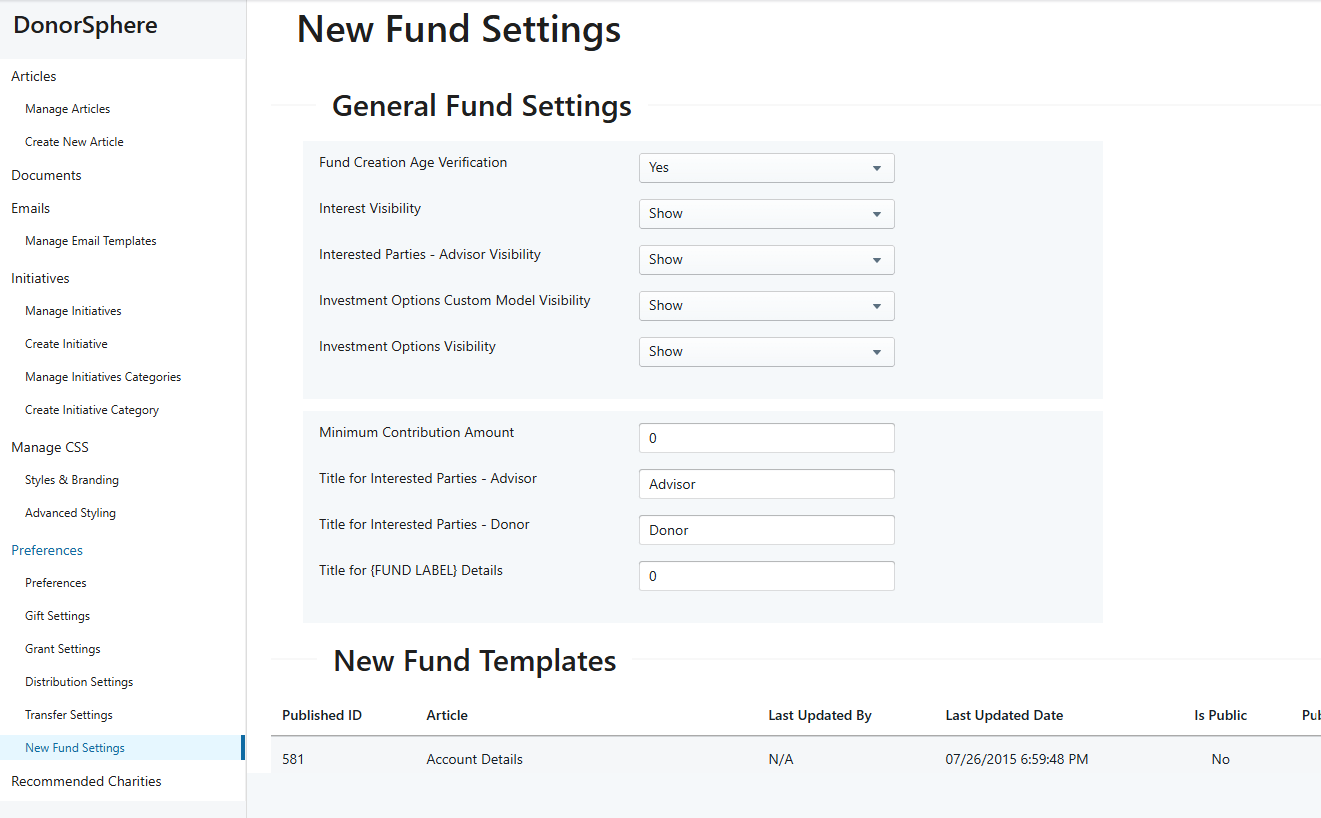
New Fund Templates
The templates to add informative text to the sections of the New Account application are controlled under the New Fund Templates.
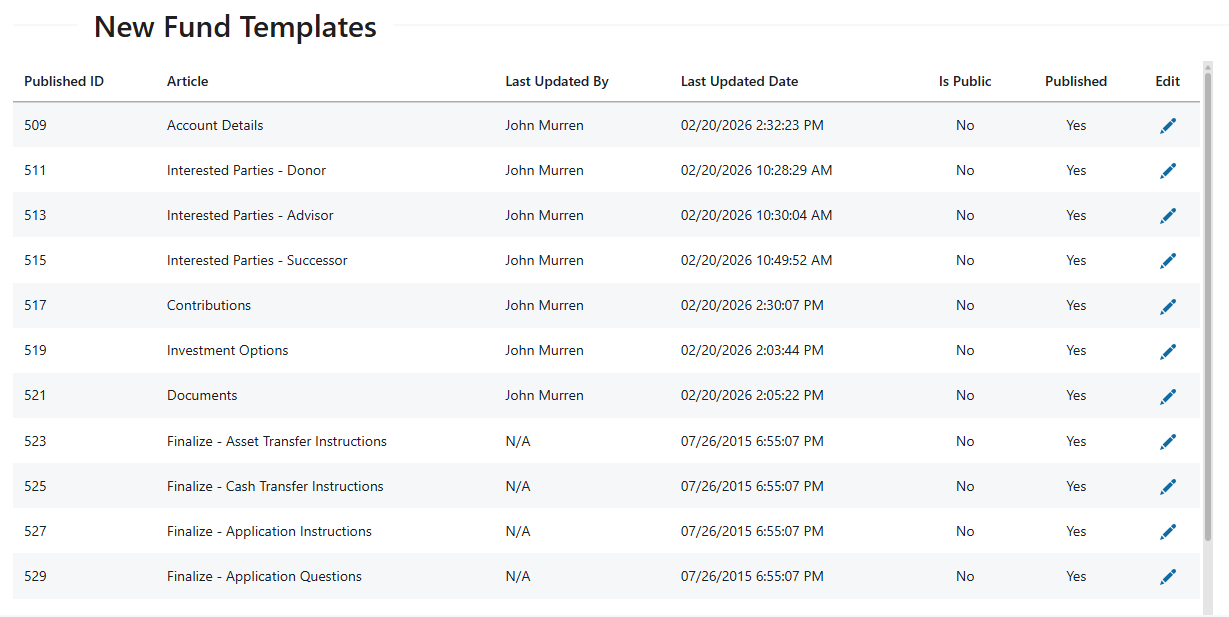
Example Verbiage for New Fund Templates
The templates can be edited to include relevant verbiage. Once the information is added it can either be saved or saved and published. Once saved and published, it will display on DonorSphere.
Fund Details
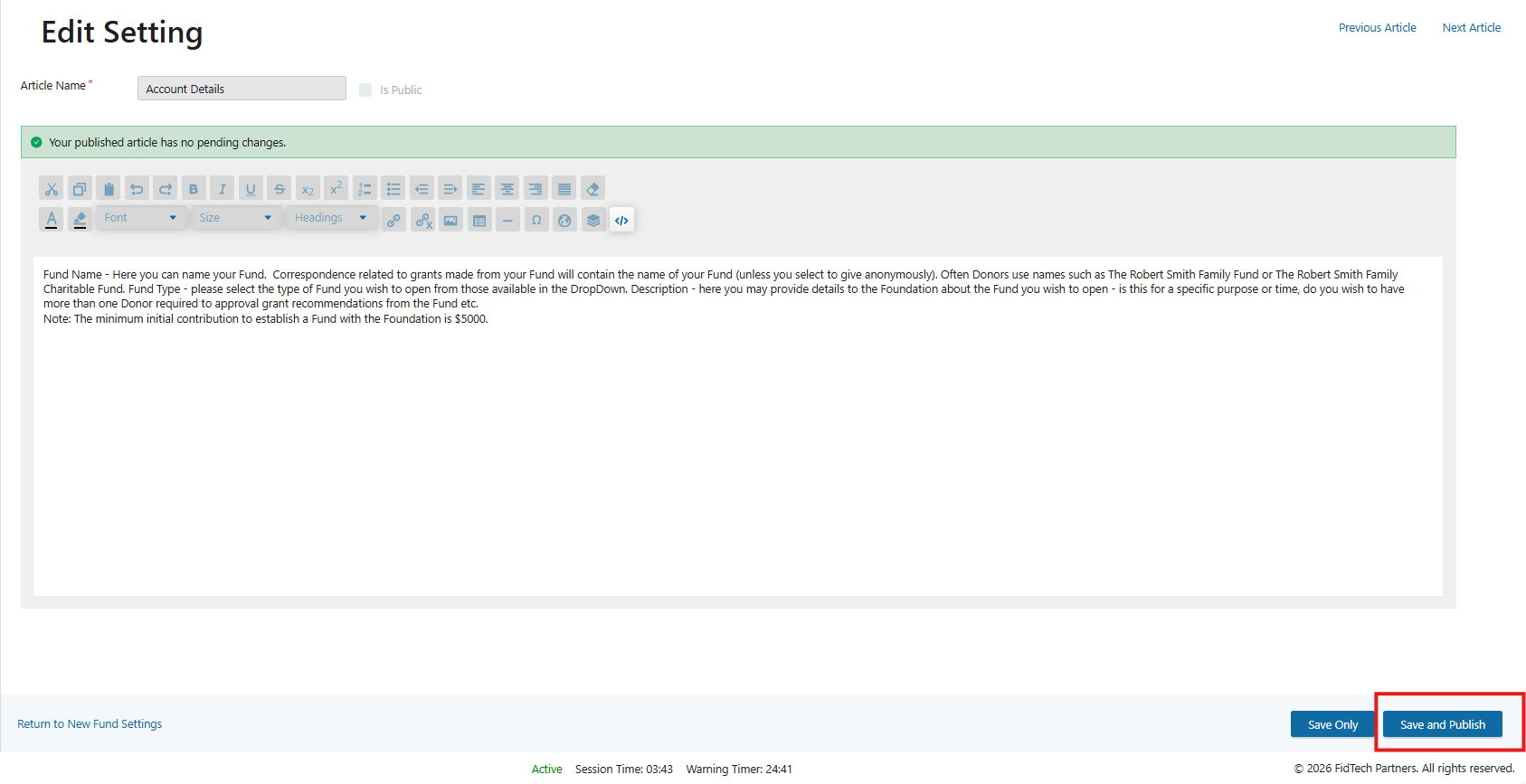
Interested Parties - Donor
Interested Parties - Advisor
Interested Parties - Successor
Contributions
Investment Options
Documents
Succession Plan
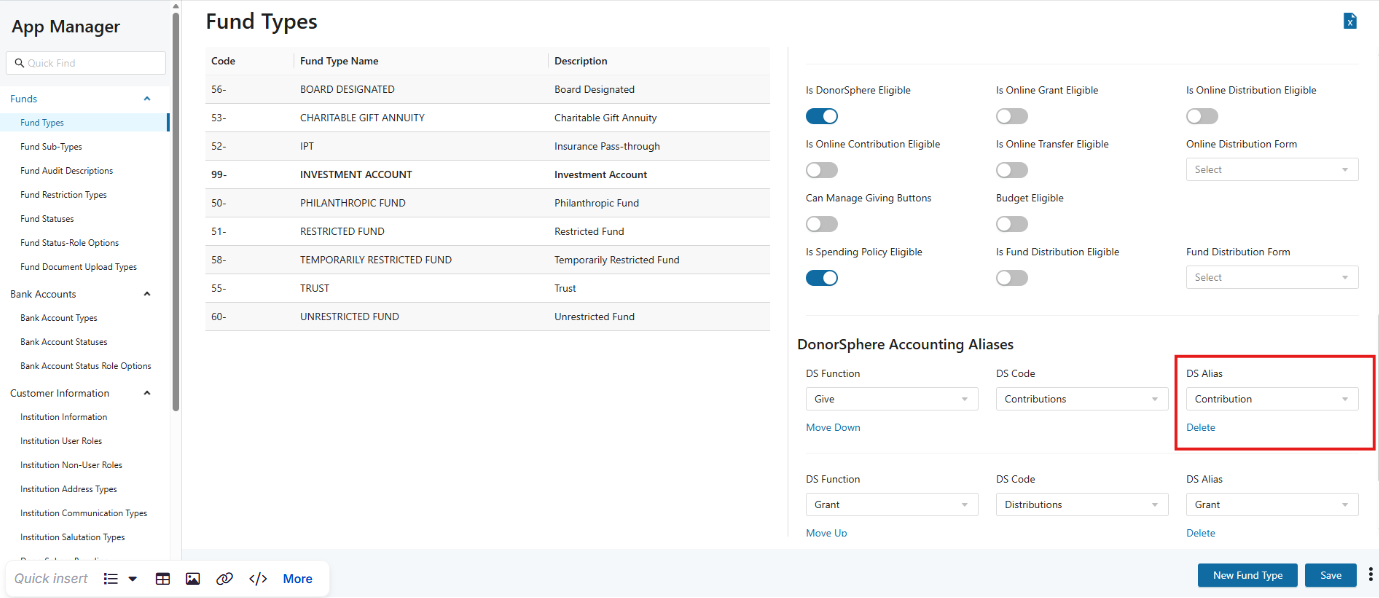
DonorSphere Accounting Aliases
DonorSphere accounting aliases can be updated to reflect the preferred aliases. Please reach out to the client services team to update these.
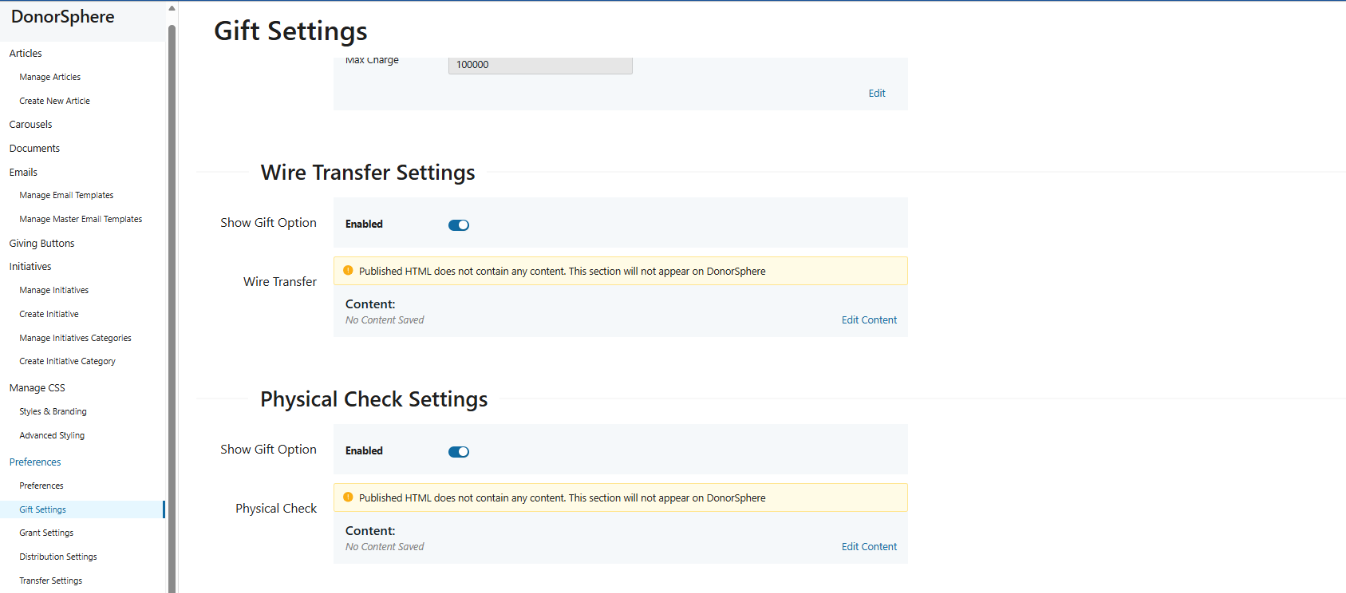
Asset types available in the application are controlled by gift settings. The following can be enabled and edited to display relevant content;
Wire Transfer Settings
Physical Check Settings
Complex Gift Settings
Stock and Mutual Funds Settings
Steps
Navigate to Utils & Admin → DonorSphere → Preferences → Gift Settings
The asset type instructions are set by the content section below the show toggle for each section
Contribution Credit Card Payments
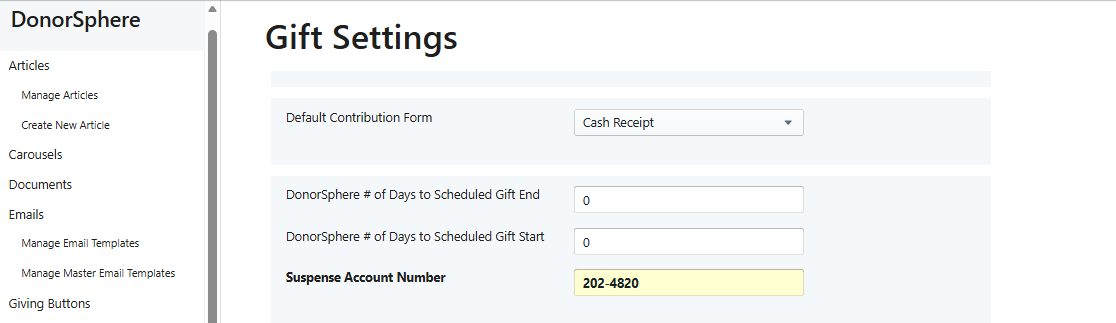
To enable the Gift Now option on the New Account form (when adding an asset for making a credit card payment), there must be a valid Suspense Account configured
To configure a suspense account
Go to Utilities & Admin → DonorSphere → Preferences → Gift Settings
Fill in the Suspense Account Number field
Interests
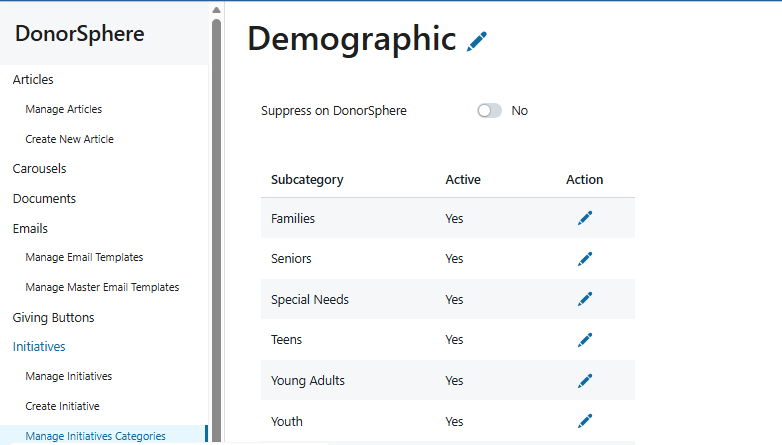
The Interests categories on the New Fund Application can be controlled in FoundationHub in relation to displaying the section and populating the Interest categories. The Interests section can be enabled or disabled on the New Fund Application by toggling ‘Suppress on DonorSphere’ Yes or No.
Categories can be added in the section Create Initiative Category.
Steps
Navigate to
Utils & Admin → DonorSphere → Initiatives → Manage Initiatives Categories
Investment Options - Custom Asset Model
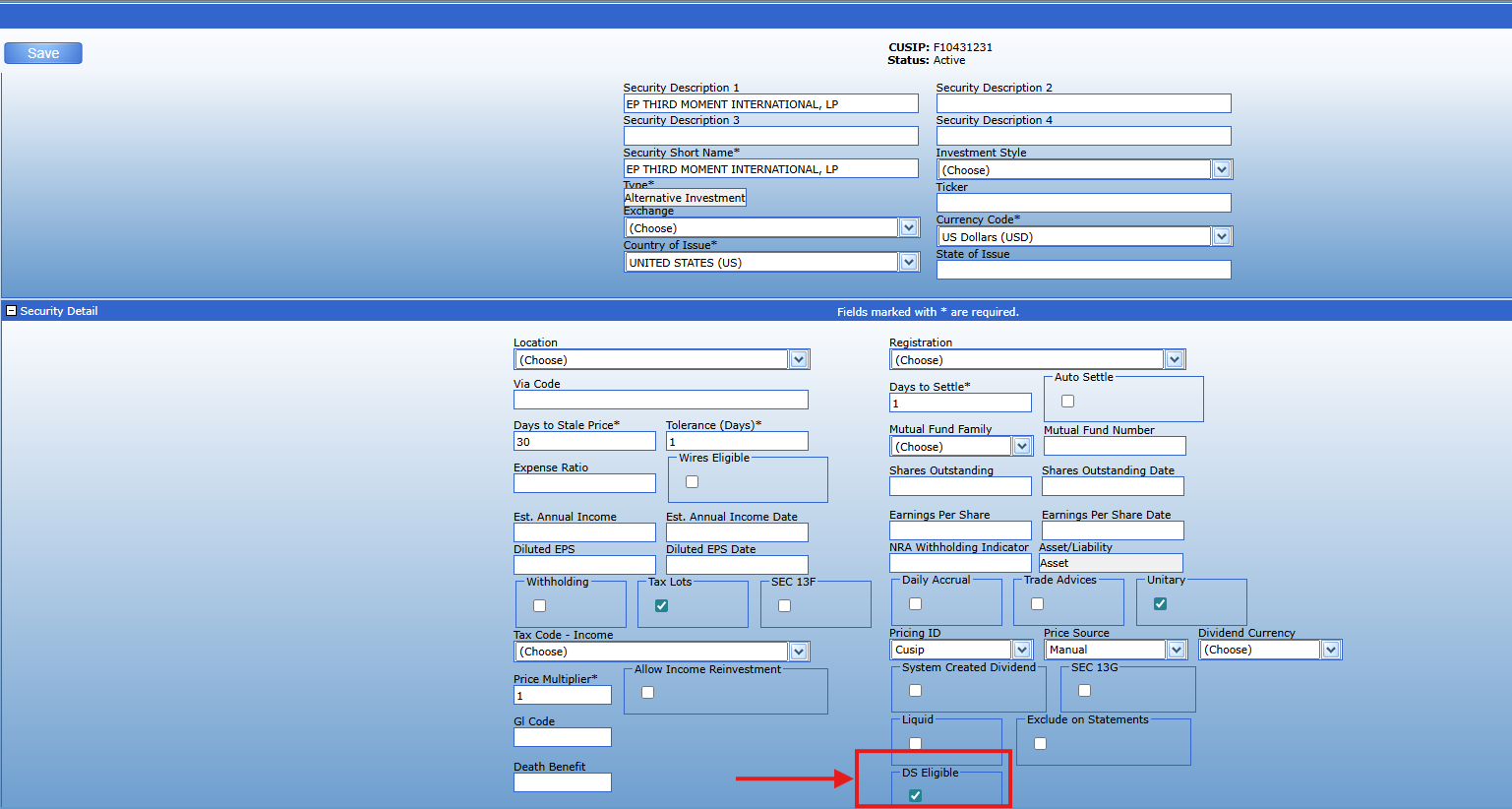
The DS Eligible checkbox on a security control if this displays in the Investment Options section.
App Manager
Communication Types
Phone Types on the registration ‘Personal Information’ section of the registration are controlled in App Manager > Institution Communication Types.