An Insight can be created in one of two ways:
- You can create an Insight directly from a Dashboard using the “Insight” button under the New Items header.
- You can use the “Ad-Hoc Insights” button on the left to create and save an Insight, which can then be used in any Dashboard.
1. Insights from Dashboards
- To create a new Insight from inside a Dashboard, drag and drop the Insight item to the Dashboard area.
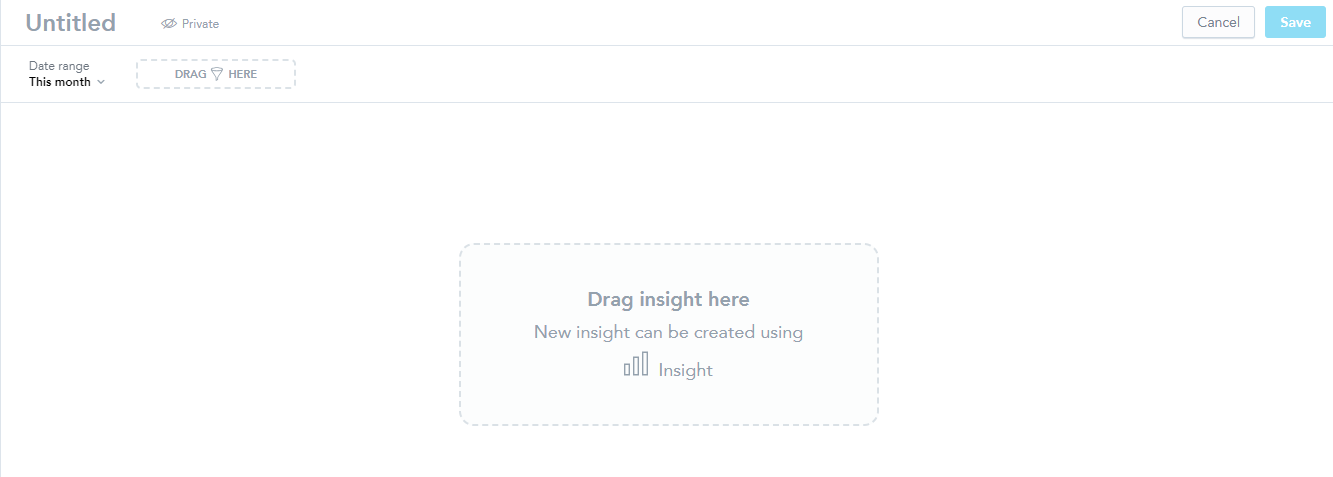
- This will open a second window in which you can create your Visual:
- Select a type of Visual from the top left corner
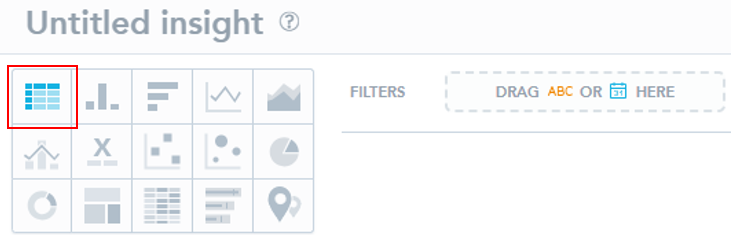
Use the toggles on the left side of this guide to find instructions for the graphic you have selected. They are in the same order order, from left to right, as the image above.
2. Ad-Hoc Insights
- To create an Ad-Hoc Insight, open the Ad-Hoc Insights window from the menu on the left.
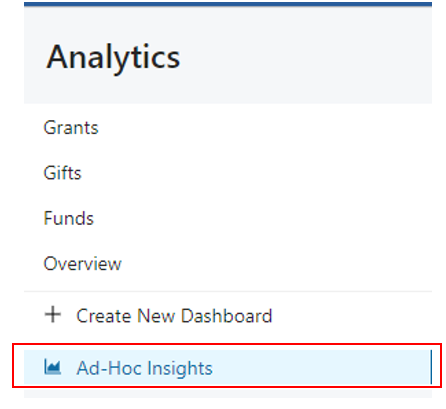
- This will open the same window as when creating an Insight from inside a Dashboard:
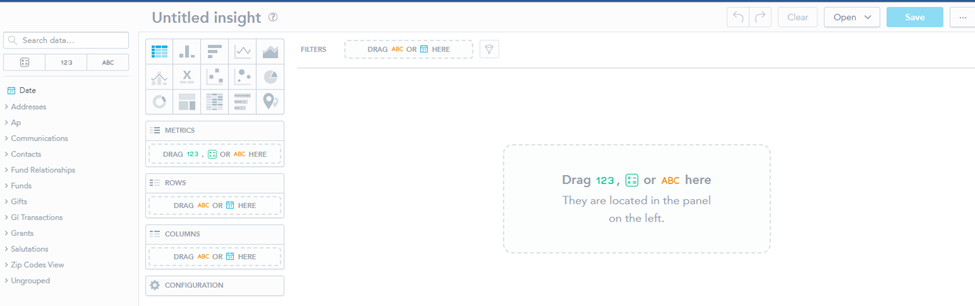
From here, use the toggles on the left side of this guide to find instructions for the graphic you have selected. They are in the same order order, from left to right, as the image above.