FoundationHub includes a budgeting functionality that allows an organization to store an annual budget and run reports to compare budget versus actual by GL Code. A budget can be created for a single fund (account) or for a group of funds.
Creating a New Budget
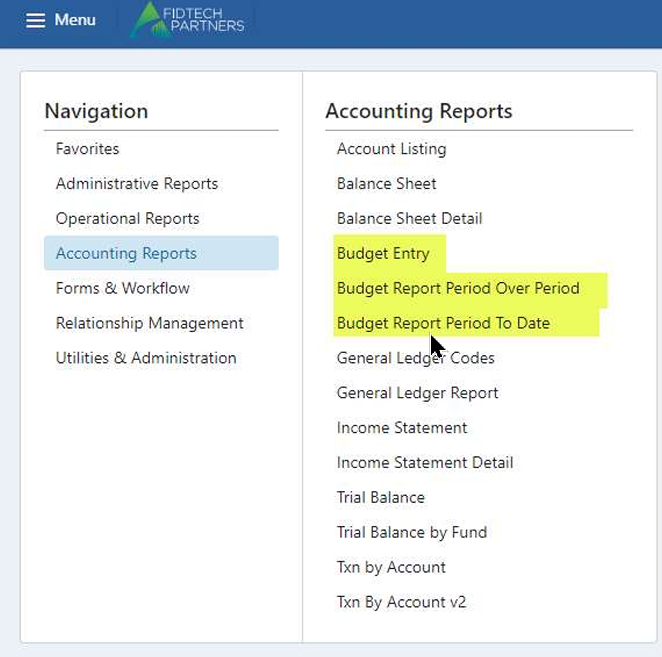
Navigate to: Menu > Accounting Reports > Budget Entry
Each budget entry must include:
GL Year
Budget Version
Budget Name
Budget Description
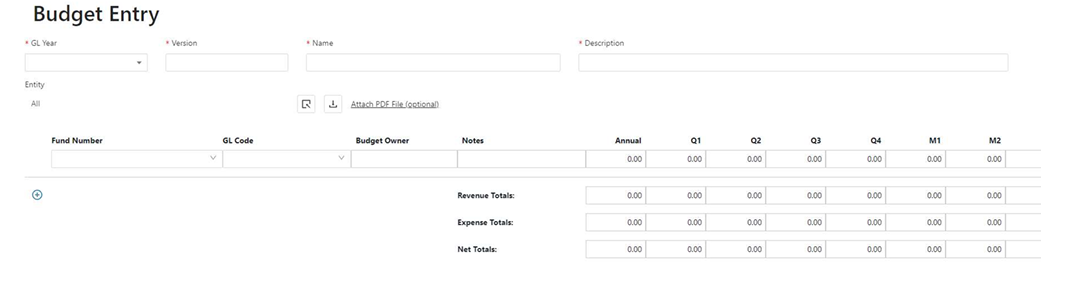
You can also upload a PDF version of the budget.
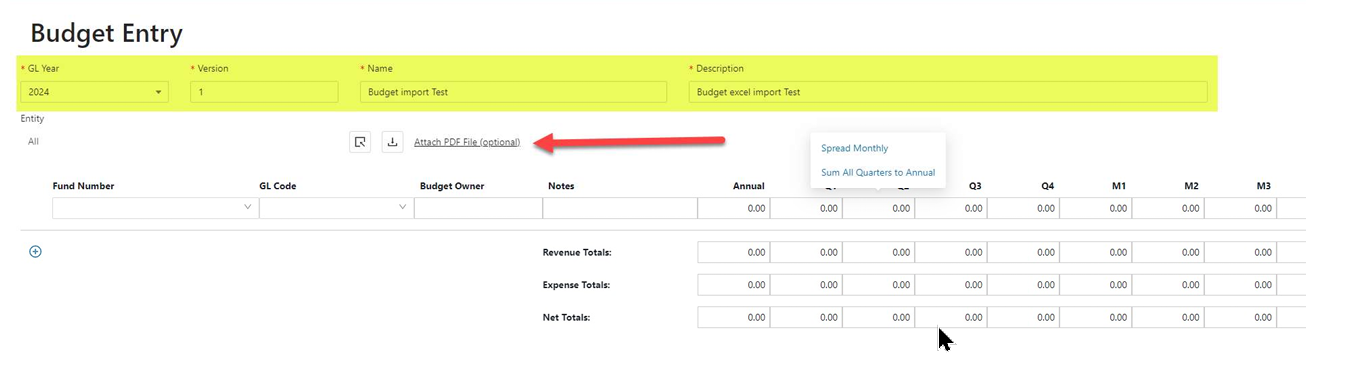
Entering Budget Lines
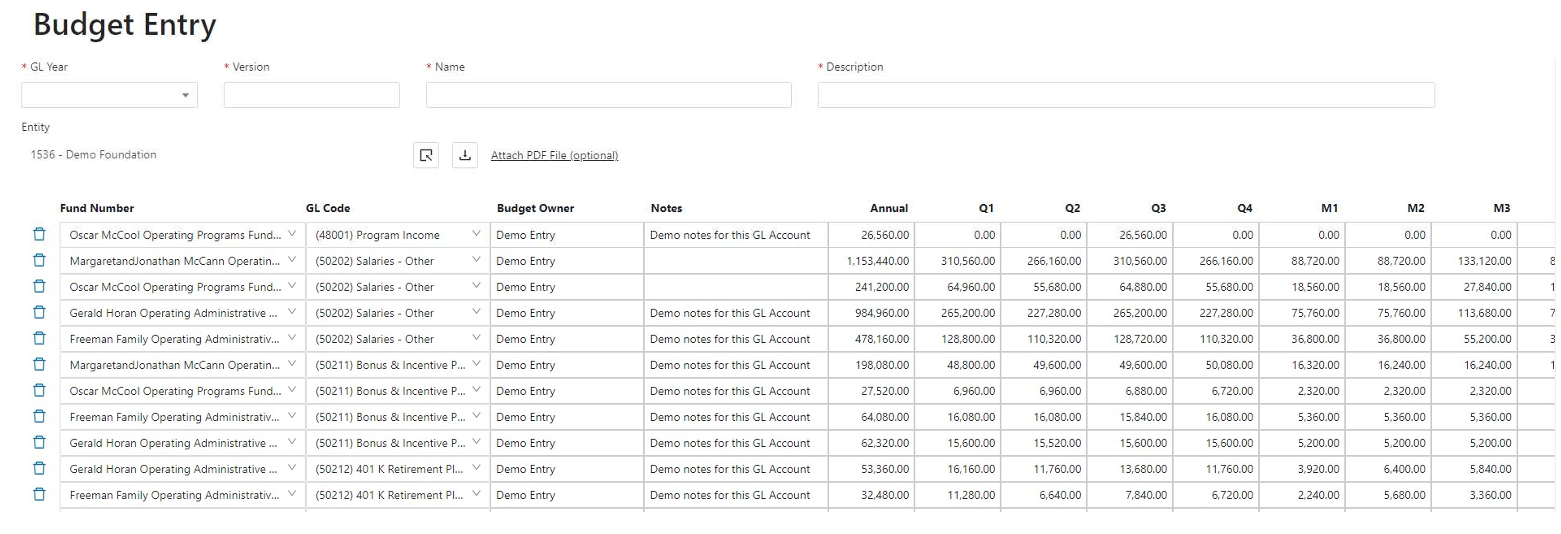
Budget lines can be entered directly through the UI. You can enter values annually, quarterly, or monthly. If annual values are entered, the system can automatically spread them evenly across months or quarters.
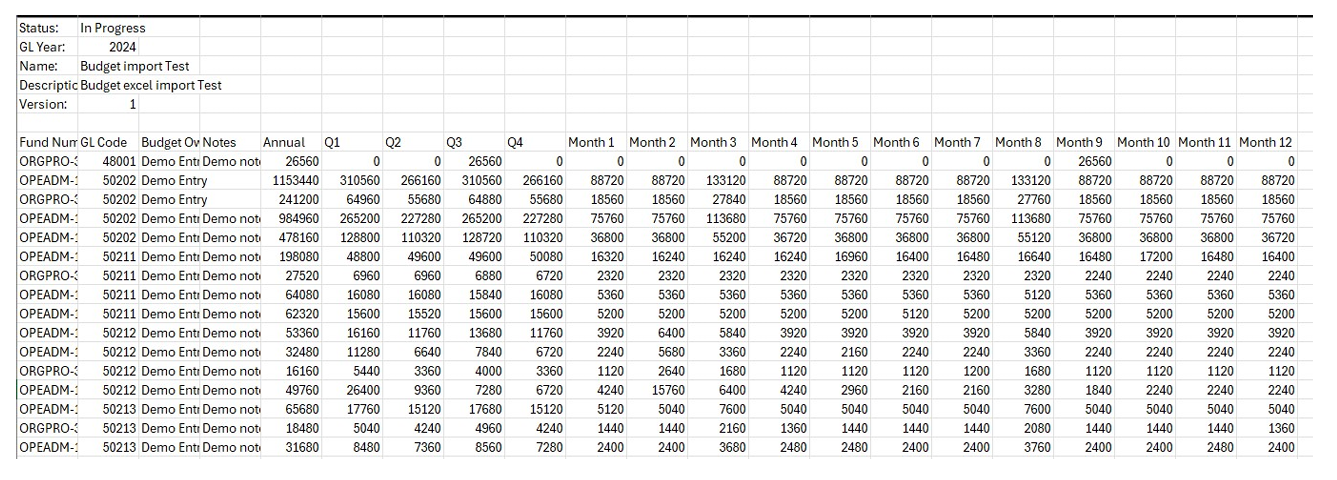
Most organizations prepare budgets in Excel, so you can import data using an Excel template as below.
Importing From Excel
Create an Excel template with columns A through U that match the budget format.
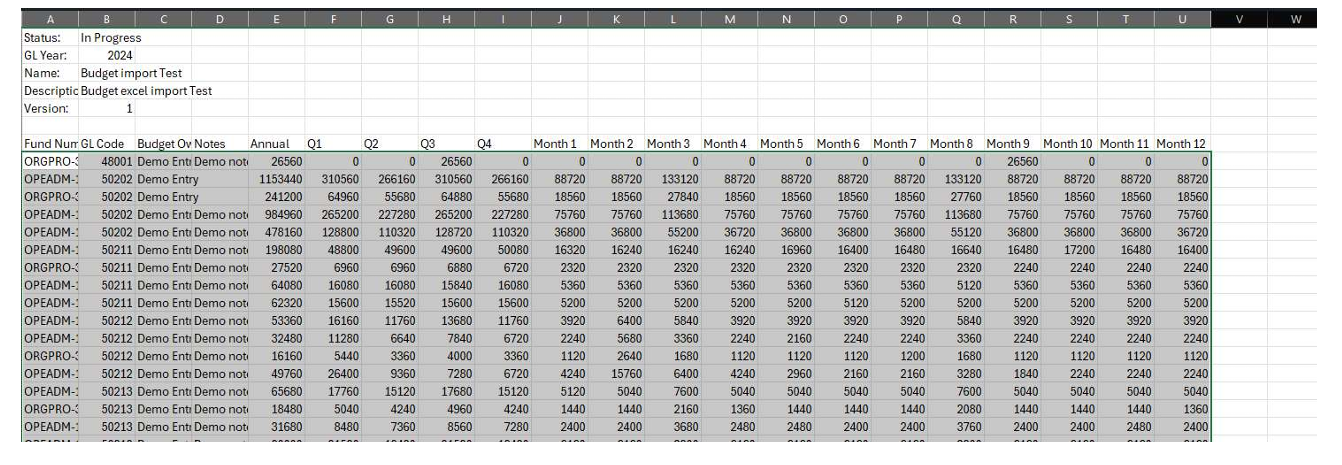
Select columns A to U (without the header row) and copy the data to the clipboard (Ctrl + C).
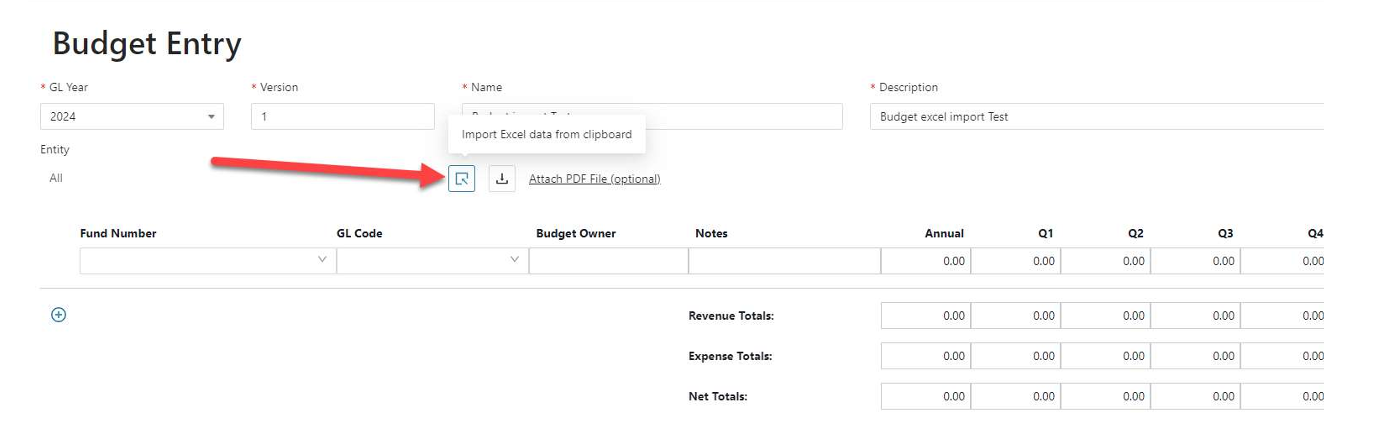
In the Budget Entry screen, click Import Excel data from clipboard.
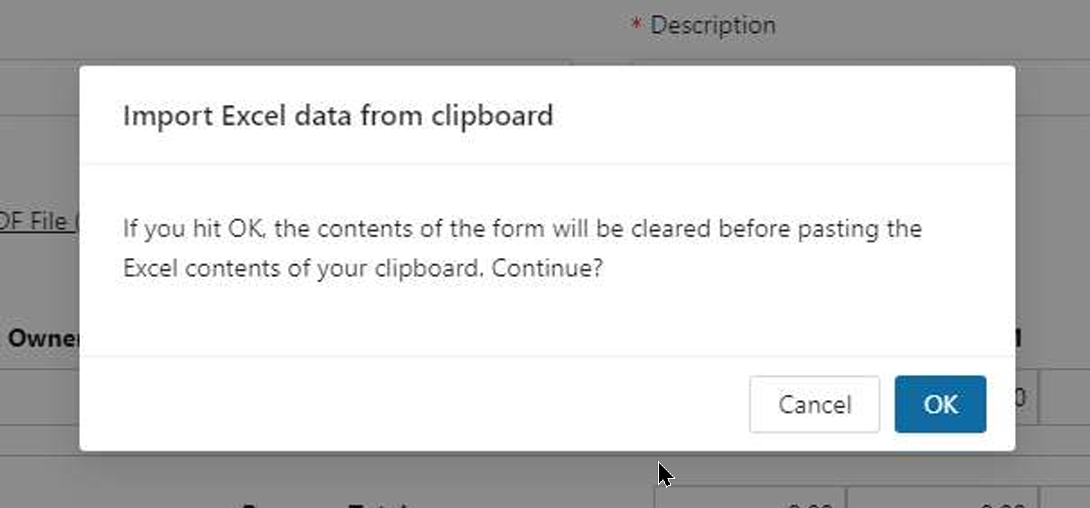
Confirm the prompt to import the data.
 Spreading Issues
If any line has a spreading issue (for example, monthly or quarterly totals do not match the annual amount), the system will mark that line in red. Click the line to adjust or delete it.

Suppose an entry for a particular month (example M3) is different than that for other months.
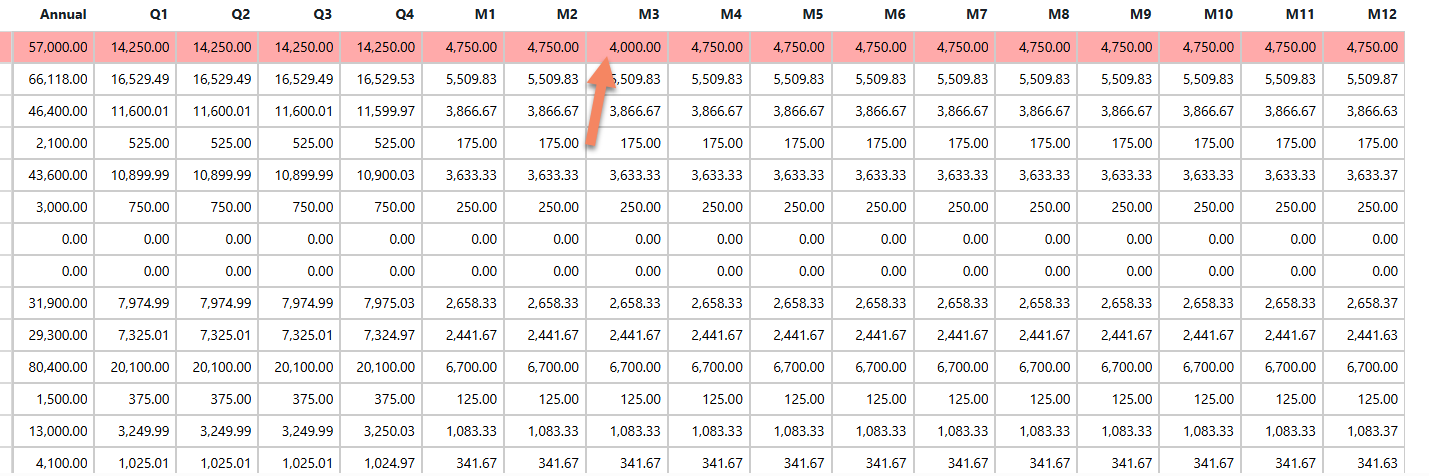
In that case, it can spread out accordingly to prevent a spreading issue (red line).
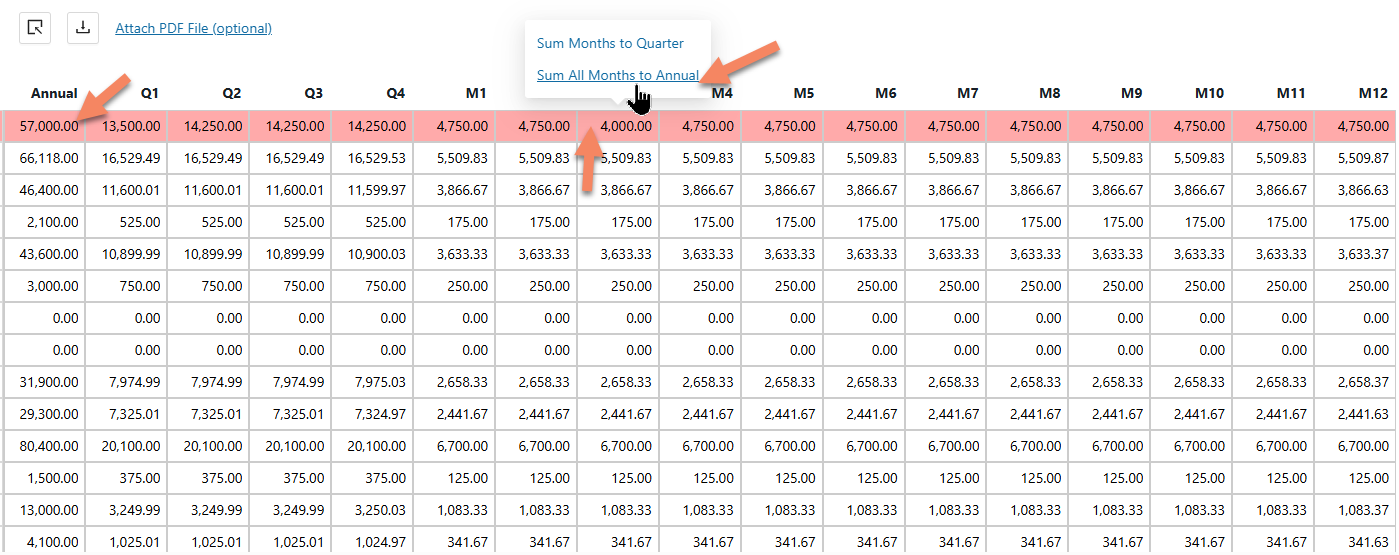
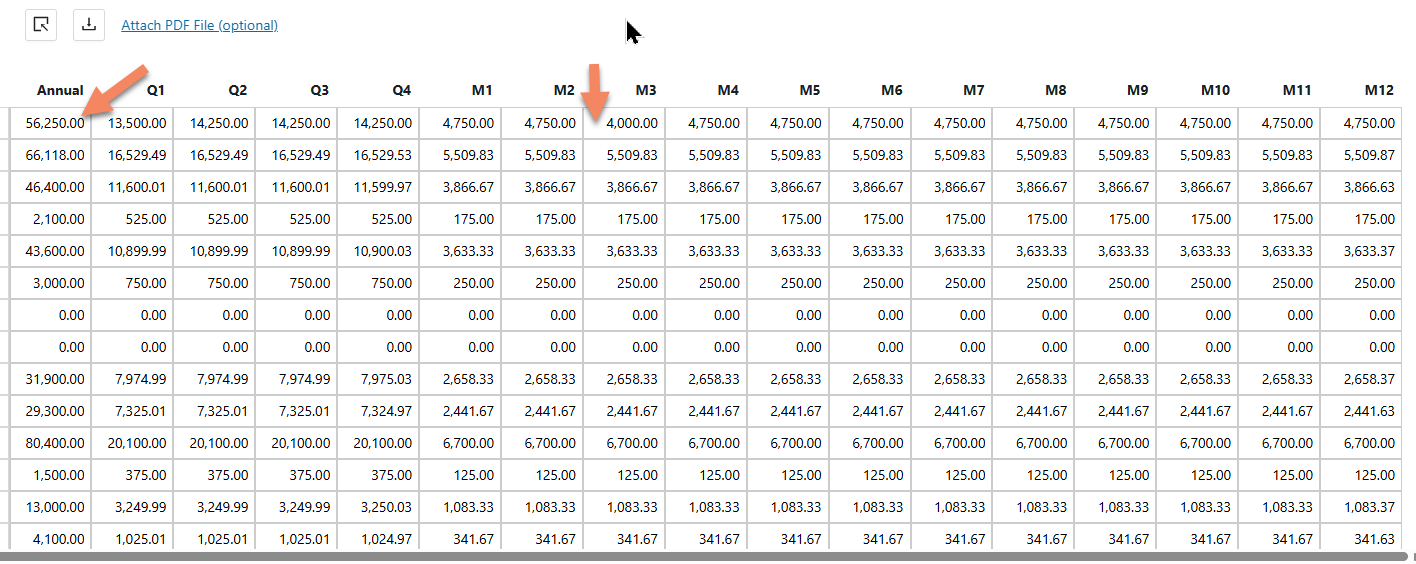
A budget cannot be submitted until all redline entries are resolved.

Submitting and Reporting
Once all lines are complete and valid, submit the budget. It will then appear in the list of submitted budgets.
After submission, you can run reports to compare budget totals to actuals. Budget Reports available in FoundationHub are discussed in this link.
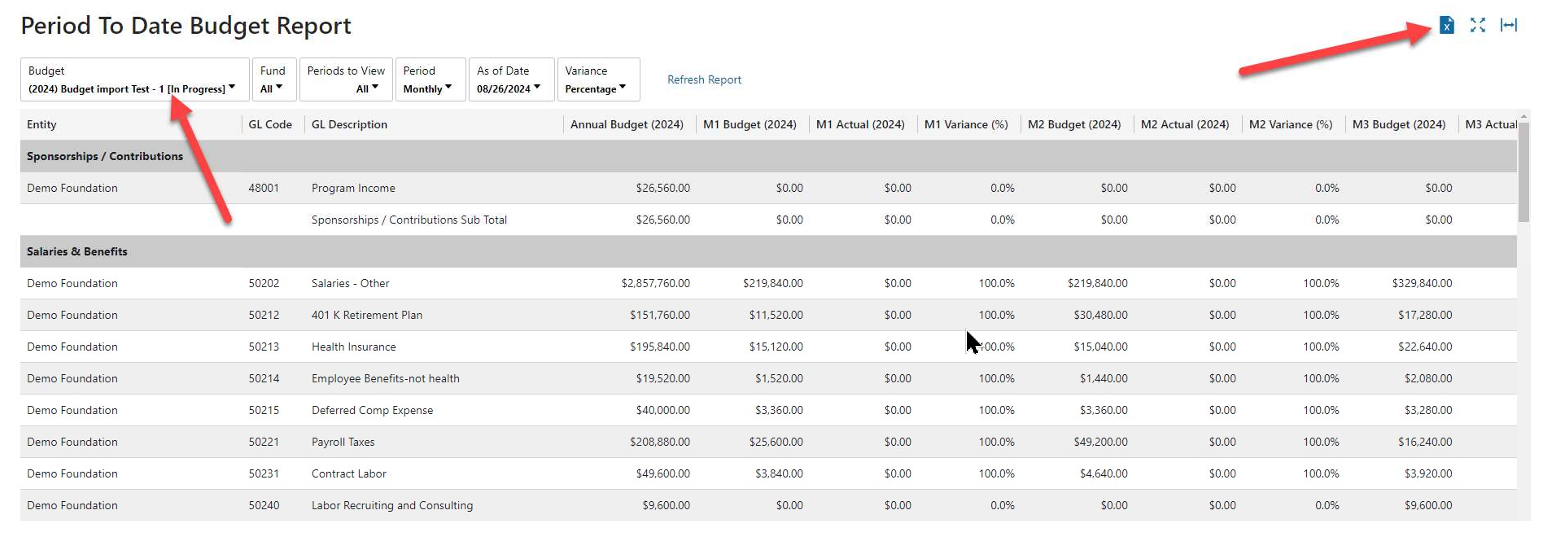
Exporting the Budget
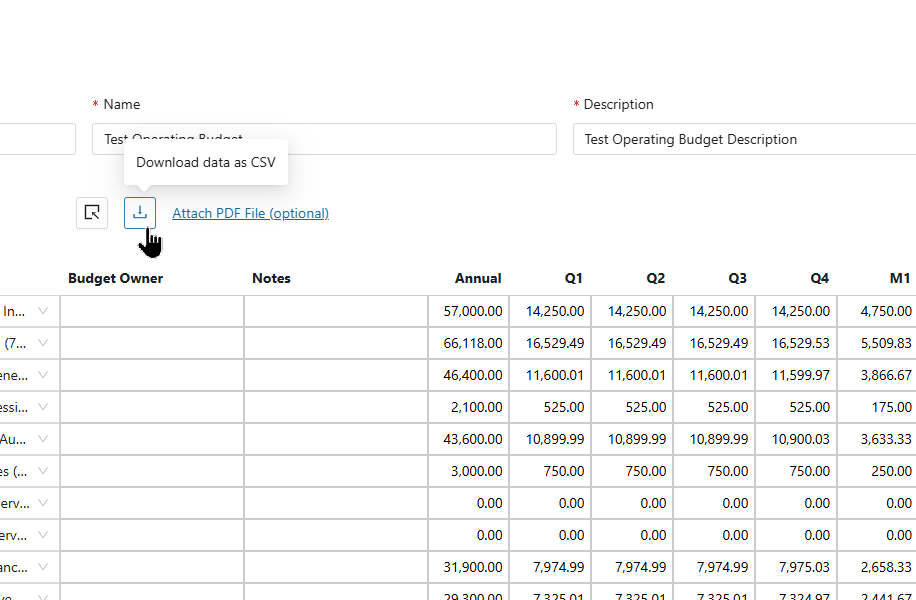
The Budget Entry data can also be downloaded as a CSV file.