Once an ACH disbursement is approved and posted in FoundationHub, the payment must be processed.
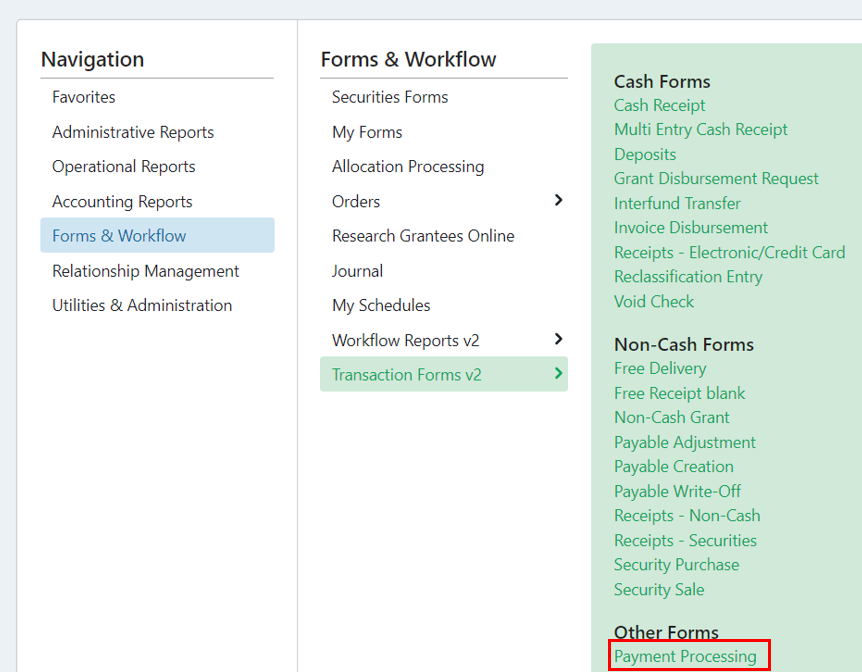
To process an ACH payment, go to Menu > Forms & Workflow > Transaction Forms > Payment Processing:
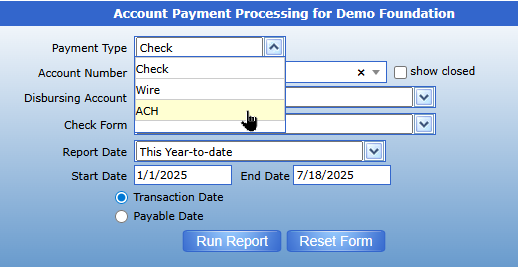
Then select ACH in the parameters for the disbursements you need to process and click “Run Report”:
Select the disbursement to assign numbers to and click “Assign #”.
Remember the date payable needs to be the same to assign numbers to multiple disbursements.

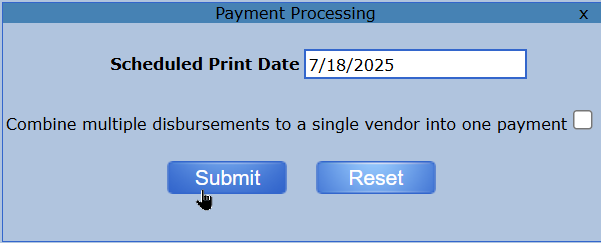
Enter the Scheduled Print Date and click “Submit”.
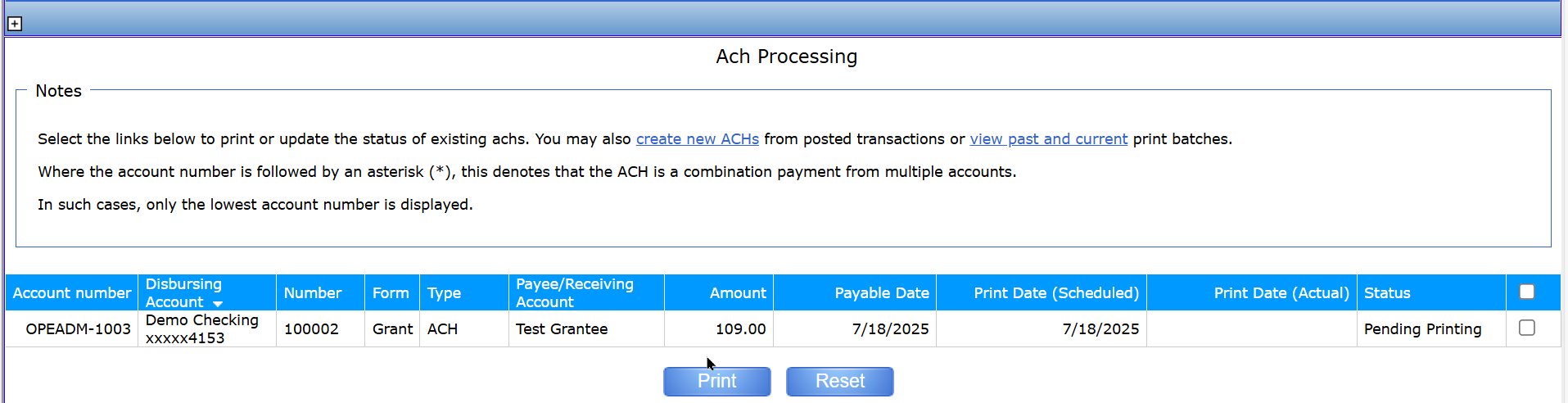
Once the ACH number(s) have been assigned, you will be taken to the ACH Processing screen, where you will be able to set these ACHs and click “Print”.
Once the batch has generated, A PDF will be created. Click on the PDF and you will be brought to a review and confirmation screen.
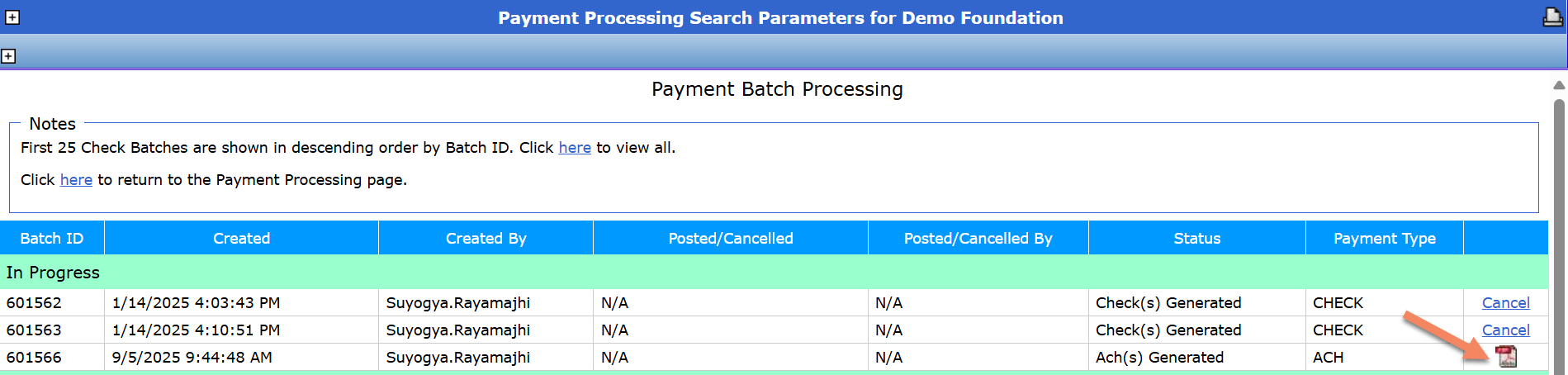
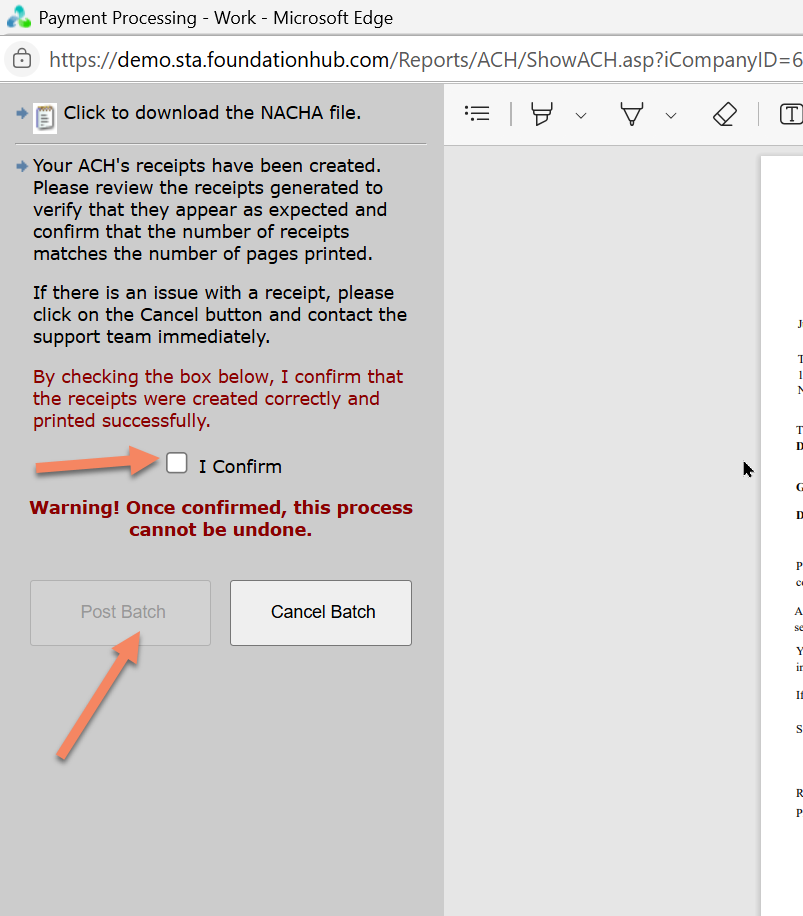
It is very important that you review the checks in the PDF BEFORE confirming and posting. Once you have posted, the job cannot be re-run. All transactions would need to be voided in the system and recreated. This is your opportunity to cancel the batch if something is wrong.
To view the ACH file that was generated and review the NACHA text file, you can navigate to the Check Register.
For this, go to Menu > Operational Reports > Check Register
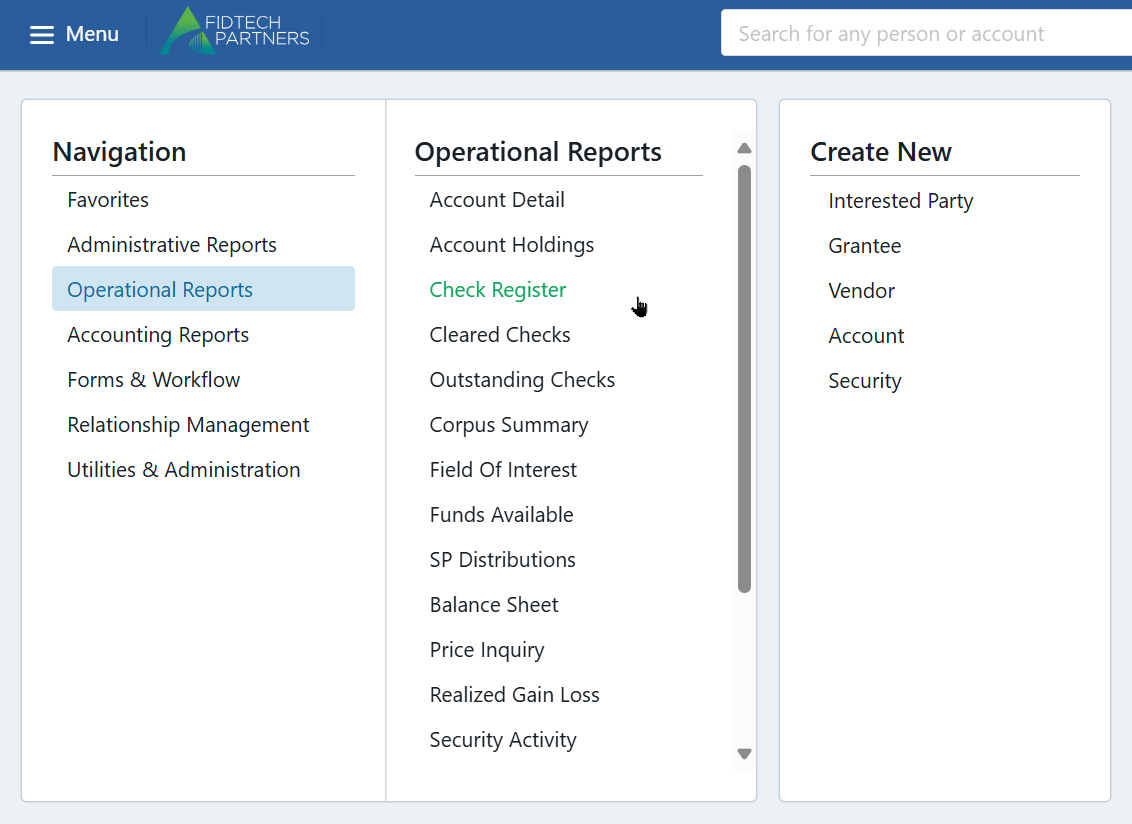
Set Payment Type as ACH, ensure the other parameters and correct, and click “Run Report”
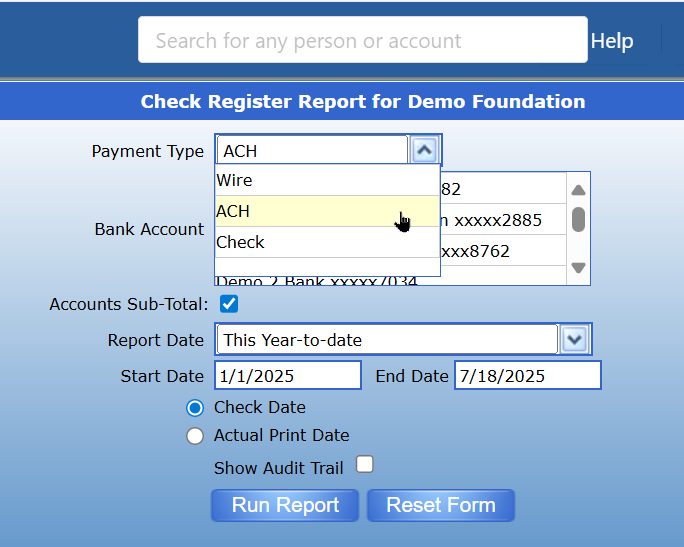
In the report, click on the PDF that was generated for the entry to view the ACH Receipt.

To view the NACHA text file for the ACHs, click on the button on the upper right corner of the report

To learn more about sending email notifications when ACH Payments are processed, click on this link.