Checks Payment Processing
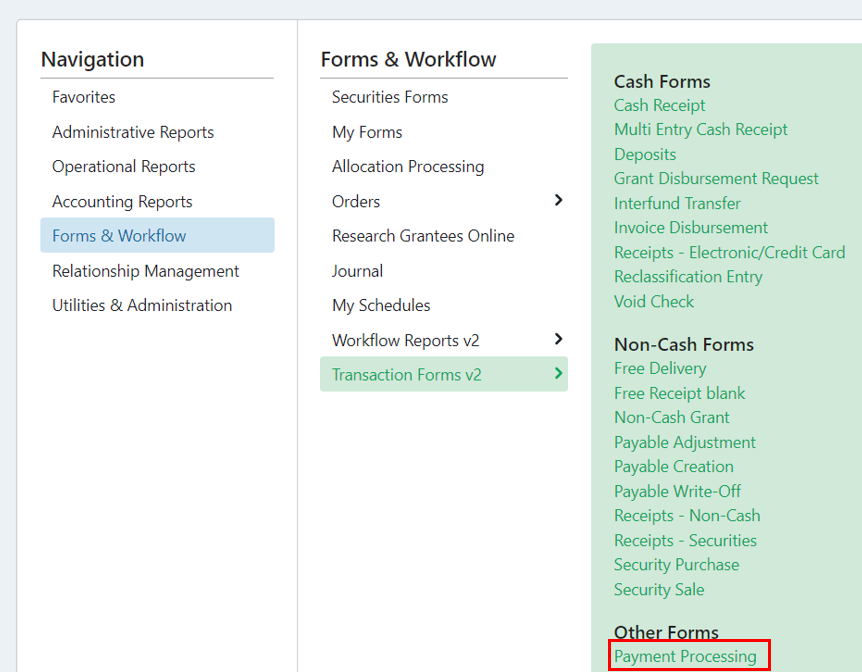
Once a disbursement is approved and posted in FoundationHub, the payment must be processed, whether a check, wire, or ACH. To process the payment, you will go through Forms & Workflow > Transaction Forms > Payment Processing:
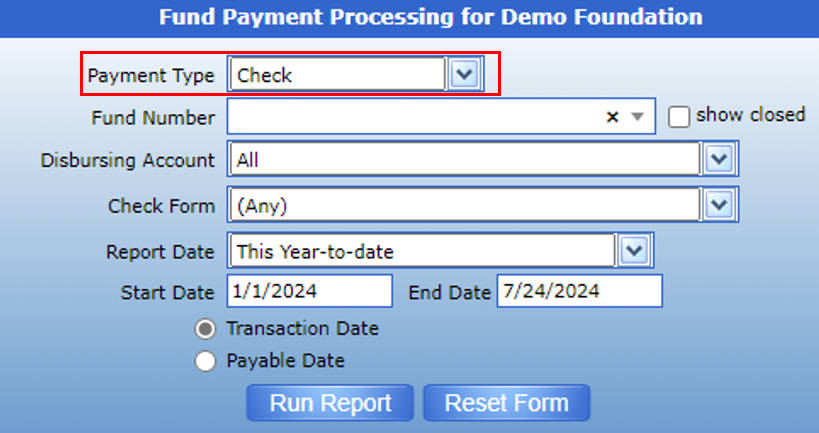
Then select the parameters for the disbursements you need to process:
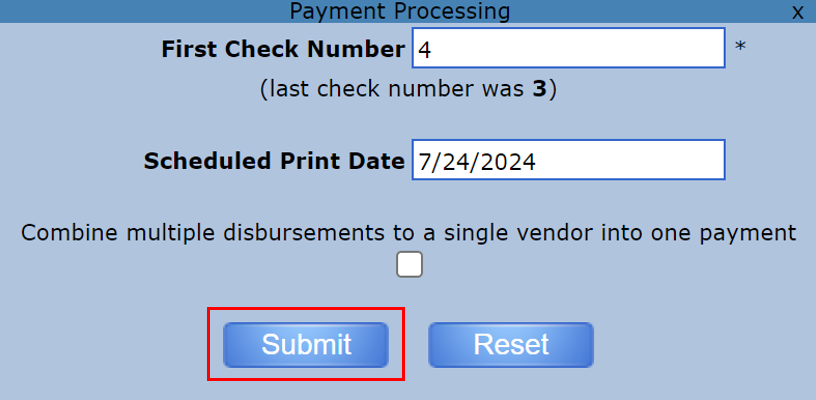
Select the disbursement to assign numbers to (remember the date payable needs to be the same to assign numbers to multiple disbursements):

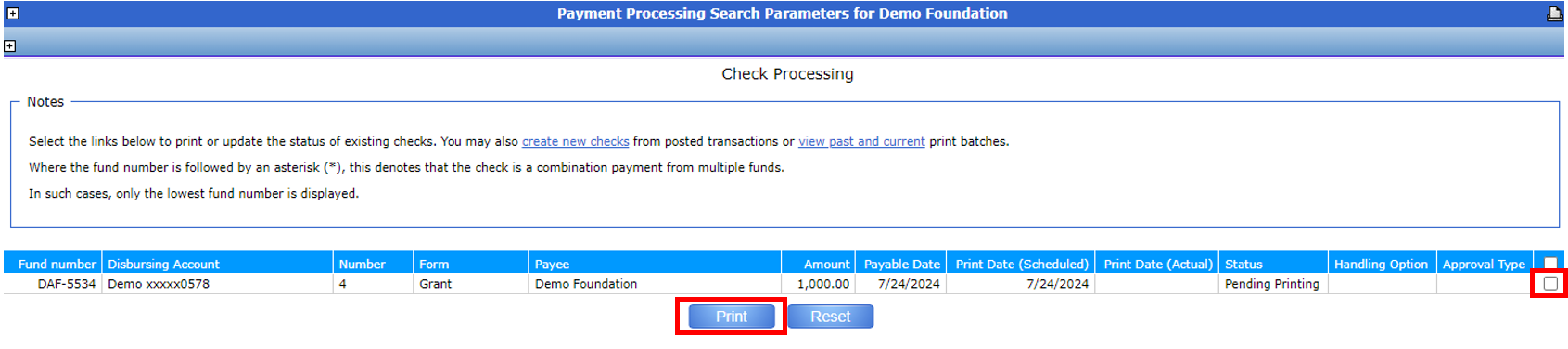
Once the check number(s) have been assigned, you will be taken to the Check Processing screen, where you will be able to print checks. Select the checkbox next to the check you wish to Print and select Print. Do not select "Set to Printed" unless the check has already been printed, as this setting will prevent the check from printing.
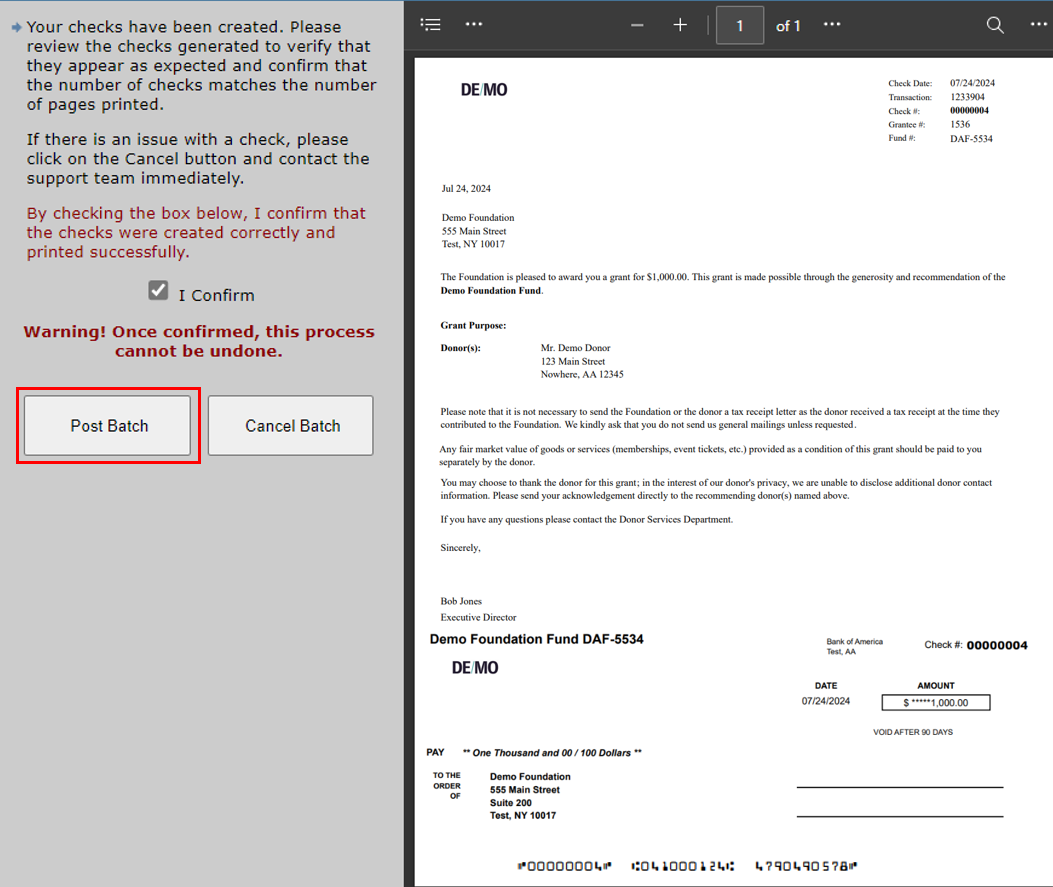
Once the batch has completed, A PDF will be created. Click on the PDF and you will be brought to a review and confirmation screen.
It is very important that you review the checks in the PDF BEFORE confirming and posting. Once you have printed, the job cannot be re-run. All transactions would need to be voided in the system and recreated. This is your opportunity to cancel the batch if something is wrong.
To view the Check Receipt that was generated, you can navigate to the Check Register.
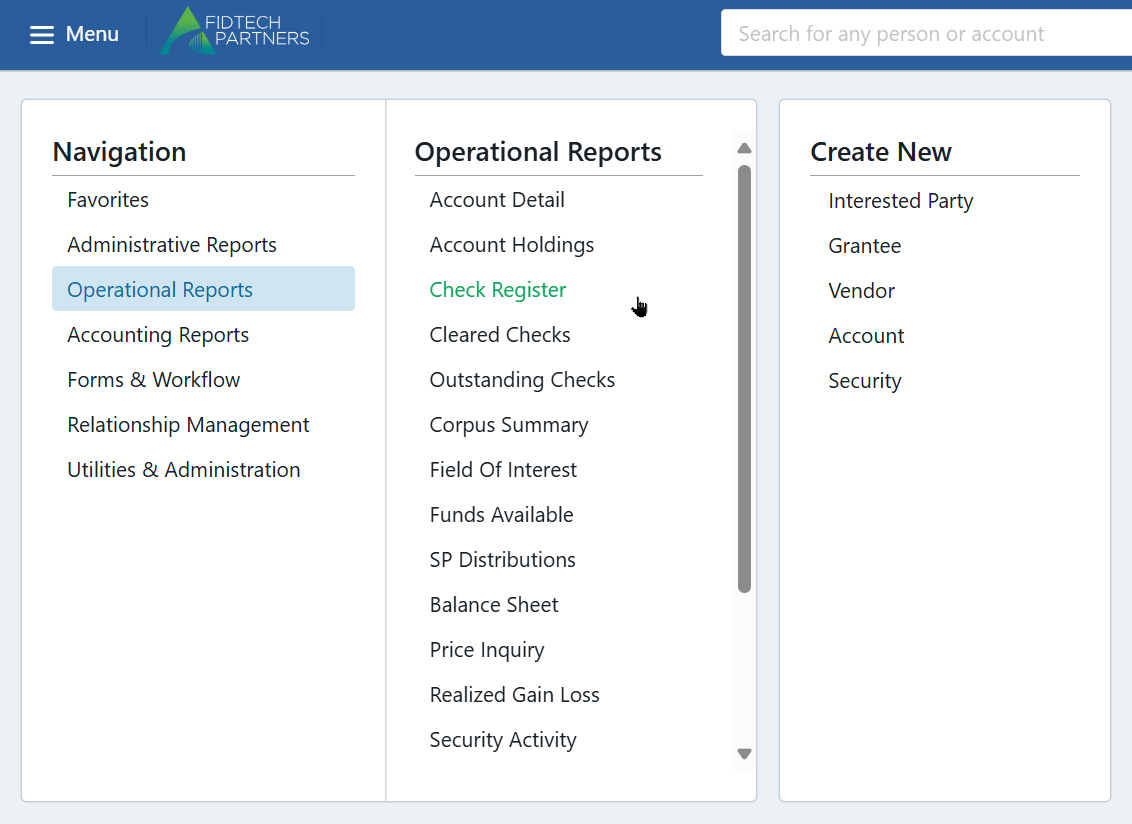
For this, go to Menu > Operational Reports > Check Register
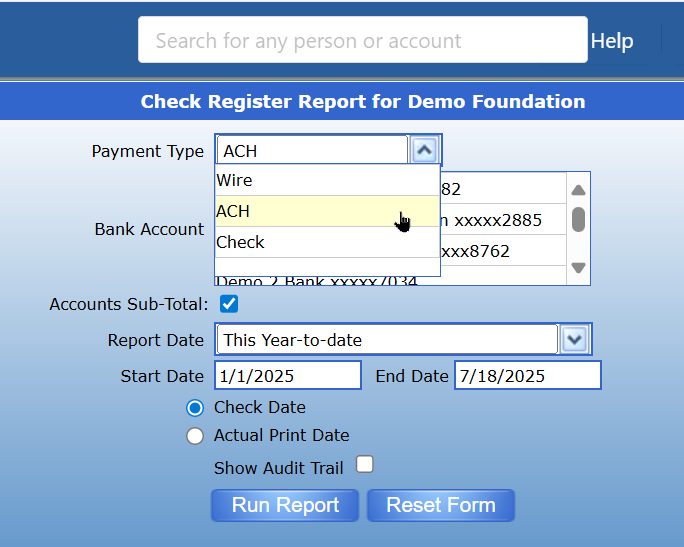
Set Payment Type as Check, ensure the other parameters and correct, and click “Run Report”
In the report, click on the PDF that was generated for the entry to view the Check Receipt.
