

Search Screen/Results Ordering
- 22 Jun 2023
- 1 Minute to read
- Print
- DarkLight
Search Screen/Results Ordering
- Updated on 22 Jun 2023
- 1 Minute to read
- Print
- DarkLight
Article summary
Did you find this summary helpful?
Thank you for your feedback!
Search Screen / Results Ordering

The search pane allows you to search the System and will return a listing of all Funds, Interested Parties, Grantees, Vendors, and Securities that match your search term. You must enter a search of at least three characters. There are dropdowns available to limit the search to a specific type of data as well as status. The search results that are returned will be organized based upon the following ordering criteria:
- An exact match for the whole search term will appear first in the result set i.e., if the entire search term matches to a record, the record will appear first in the list.
- Partial matches appear next i.e., if the search term comprises a part of a record, all matching records will be returned – if numerous records contain the search term, then the results will be secondarily sorted by proximity of the search term to the beginning of the record. If there are numerous matches where the search term appears in the same position within the record these entries will be sorted by interested parties followed by grantees and accounts.
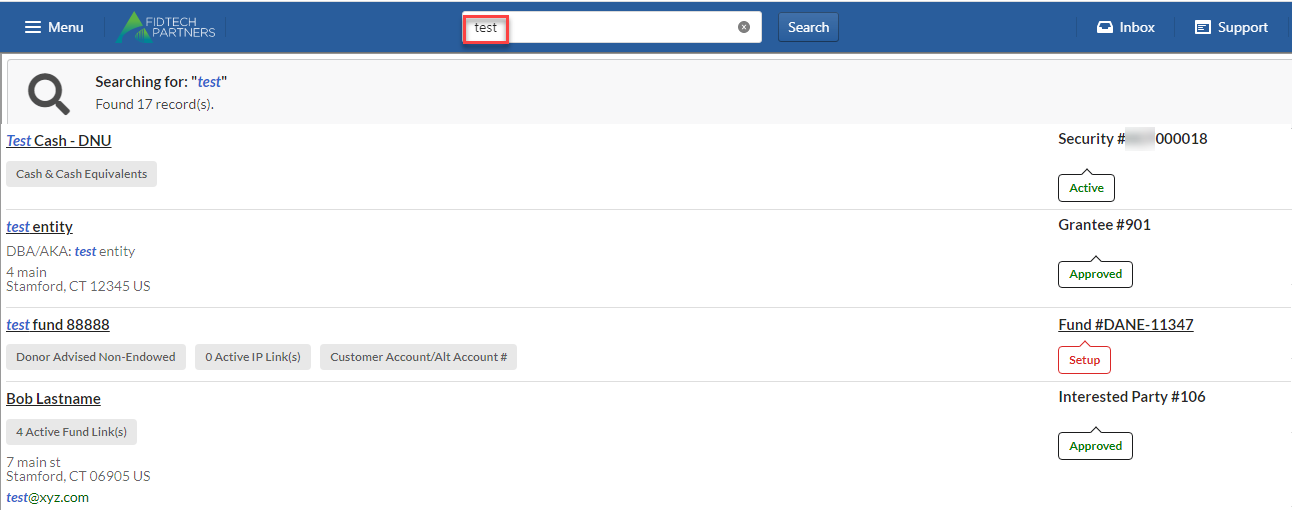
For example, in the search results shown above, the User has searched for the term “test”. There are 17 records that contain the term “test”.
The following fields are searched for each entity type:
Interested Party – full name, short name, interested party number, email address, External Source ID, Tax ID.
Grantee/Vendor – full name, short name, grantee number, Tax ID.
Fund – full account name, short name, fund number, Customer Account, Alternate Account Number, External Source ID.
Security – full security name, short name, CUSIP ID.
Once a set of search results is returned, clicking on the search result will take the User to a different page depending on the type of entity clicked.
Interested Party – clicking on an interested party will take the User to the interested party profile page.
Grantee – clicking on the grantee will take the User to the grantee profile page.
Fund – clicking on the Fund will take the User to the Fund information report, or the Fund profile depending on the link selected.
Security – clicking on the security name will take the User to the Security Master Form.
Was this article helpful?