

New Inbox – Default Option
- 28 Mar 2024
- 1 Minute to read
- Print
- DarkLight
New Inbox – Default Option
- Updated on 28 Mar 2024
- 1 Minute to read
- Print
- DarkLight
Article summary
Did you find this summary helpful?
Thank you for your feedback!
New Inbox – Default Option
The default inbox for FoundationHub has been updated to the latest version. As highlighted in prior release notes, many additional data points have been included in the Inbox views noted below.
- All transaction types will additionally include:
- Fund Name
- Income/Disbursement Code
- DS Created – transactions created from DonorSphere will have a check mark.
- Purpose
- Grant and Invoice payment type transactions will additionally include:
- Payee Name
- Tax ID – This will be the Tax-ID of the payee.
- IRS BMF – This will include a check mark if the Grantee is in the IRS Business Master File.
- Payable Date
- Cash and Security Receipts will additionally include:
- Receipt Date
- Effective Date
- Free Receipt, Cash Receipts, Security Receipts, and Free Deliveries will additionally include:
- Security Name
- Units
- Grantee and Vendor items will additionally include:
- Payee Address
- Default Category (Disbursement Code)
- Tax ID
- IRS BMF – This will include a check mark if the Grantee is in the IRS Business Master File.
- DS Created – New Grantees created from DonorSphere will have a check mark.
- Funds/Accounts will additionally include:
- Fund Type
- Fund Sub Type
- Fund Audit Type
- Entity
- Fund/Account Links will additionally include:
- Fund Name
- Interested Party Address
- The Link relationship has now been split out as its own column.
- Securities will additionally include:
- Security Name
- Ticker
- Security Type
The legacy Inbox will continue to be available as the last menu item on Administrative reports:
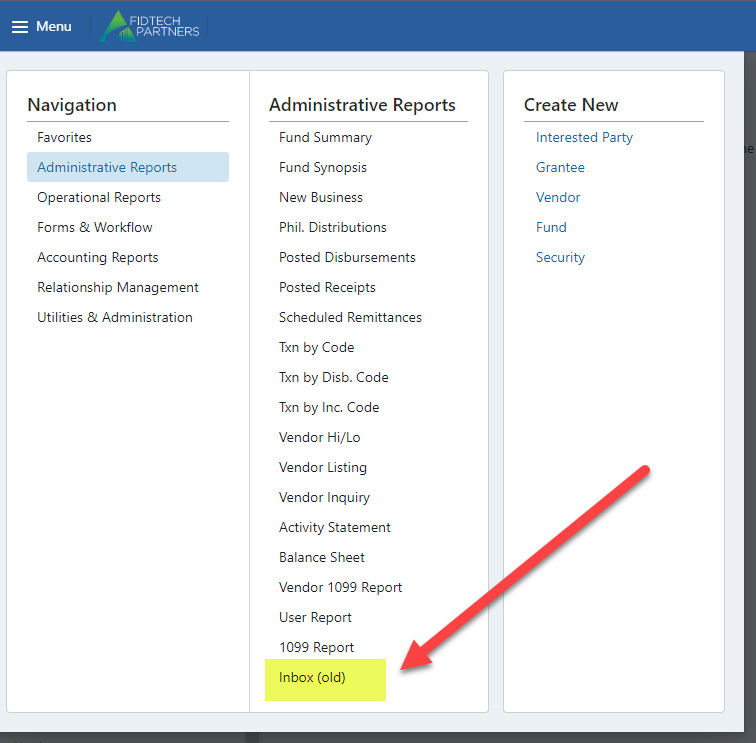
New Inbox initial view:
As a reminder, the new default inbox appears as below (note: sections available to your user may differ depending upon your permissions). In subsequent releases, functionality will be added to allow each user to select their own fields for each Inbox view.
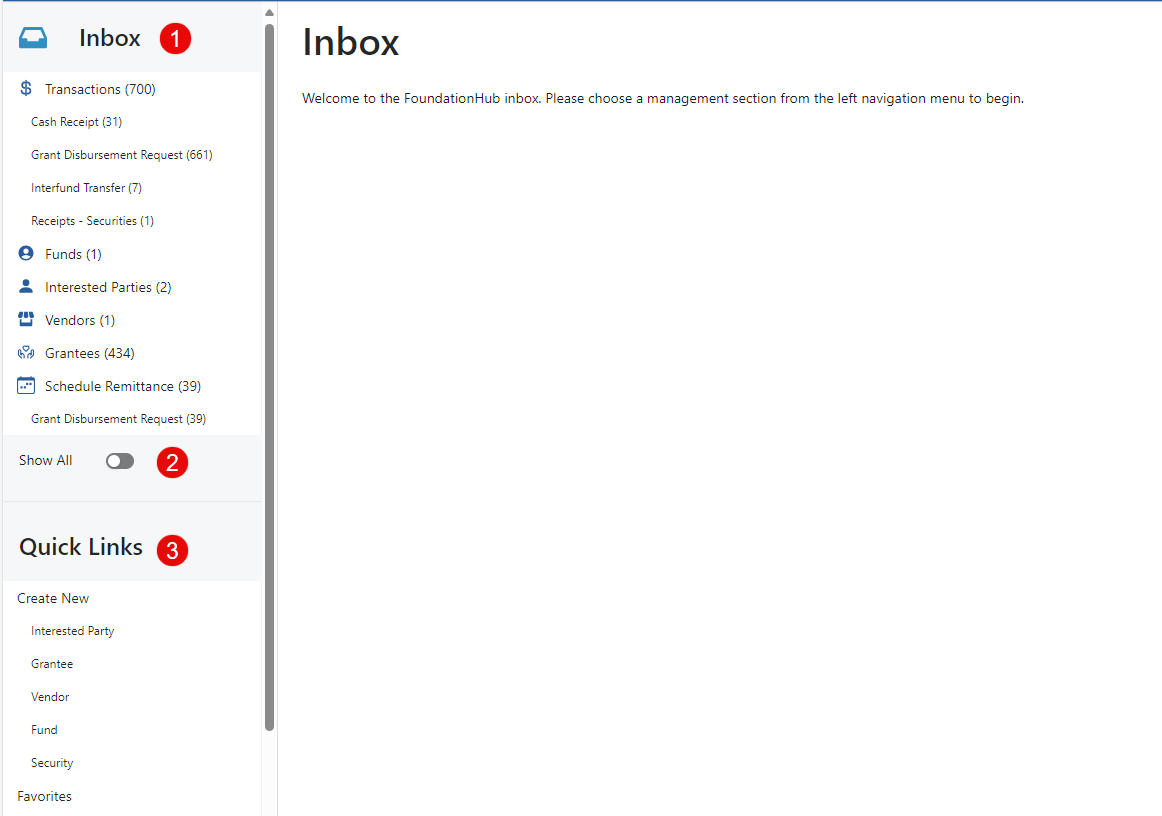
- Left-side panel includes a listing of all activity that the user has been set-up to see. Items will only show if there is at least one status that the user has requested to view.
- A toggle has been included that will show all items that the user has been set-up to see including items that currently has no activity to action.
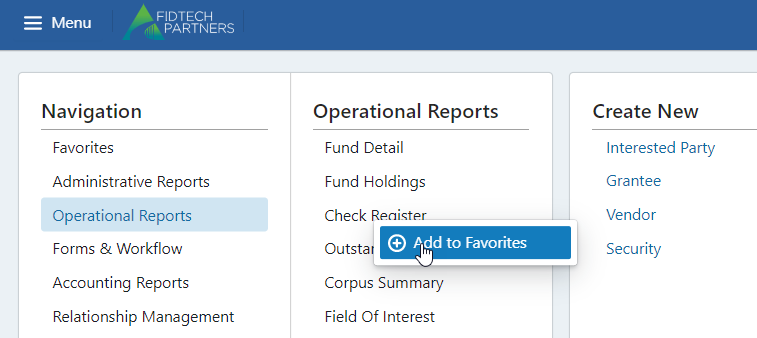
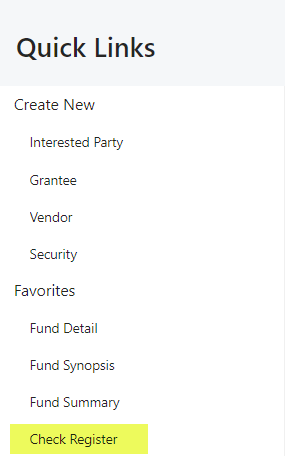
- The quick links section includes the same quick links that are available on the main menu dropdown. Additionally, favorites that the user has included on the main menu will also be available in quick links. To add an item to Favorites, right-click on the menu item and click “Add to Favorites”. In the example below, Check Register was added.
Grant View

Grantee View

Fund View

Was this article helpful?