

Transactions by Account Report
- 28 Mar 2024
- 2 Minutes to read
- Print
- DarkLight
Transactions by Account Report
- Updated on 28 Mar 2024
- 2 Minutes to read
- Print
- DarkLight
Article summary
Did you find this summary helpful?
Thank you for your feedback!
Transactions By Account Report
The Transactions By Account Report allows you to report on and extract to Excel all GL account activity during a period. While the General Ledger Report details all GL accounts, the Transactions by Account Report only details GL accounts with activity during the given time period.
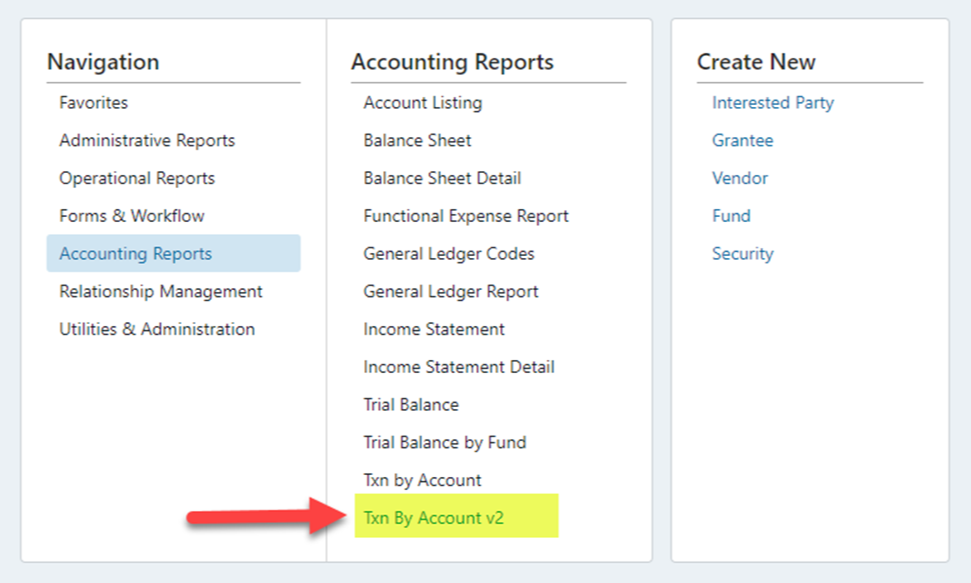
To access the Transactions By Account Report, use the Menu Dropdown and select “Accounting Reports”. Then, choose “Txn By Account v2”.
The report selection / filtering controls will appear as shown below:
.png "image(237).png")
Filters
Before you run the report, you can filter by Date, Fund, Entity/Organization, Fund Type, Audit Type, Sub-Type, GL Code Type(s) and GL Code(s). The filters can be used in multiple combinations. Note that Enabling the Fund selector will disable the Entity/Organization, Fund Type, Audit Type, and Sub-Type filters.
Date Filter
To filter by date, use the dropdown menu “Date Range”.
.png "image(238).png")
Depending on the Workflow, you can filter by “Date Type.” For this Report, the options are “Date Received” and “Deposit Date”:
.png "image(239).png")
Then, you can either use the preset date ranges or enter custom dates in the Date boxes:
.png "image(240).png")
You can either use free type or the calendar to enter a custom date.
.png "image(241).png")
Use the “Select All” or “Clear” buttons to reset your selections.
Fund Number Filter
To create a report for a specific fund or group of funds, use the search function to either search for the Fund name or Fund number.
.png "image(243).png")
You may have to enter multiple characters to begin seeing results.
.png "image(244).png")
Once your fund appears, click on it to add it to the filter:
.png "image(245).png")
Once selected, type again to select additional funds. You may add as many funds as required for your report.
Entity/Organization, Fund Type, Audit Type & Sub-Type Filters
Use the dropdown(s) to filter by Entity / Organization, Fund Type, Audit Type or Sub Type.
.png "image(246).png")
To select one Fund Type, use the “Clear” button and then search for the desired Fund Type. The search box will return all potential matches.
.png "image(247).png")
GL Code Type / GL Code Filters
Use the dropdown(s) to filter by GL Code Types or GL Codes.
Running the Report
Once you have applied all desired filters, run the report. Please note that the Transactions by Account Report will only show a maximum of 500 transactions. To view the entire report containing more than 500 transactions, export the report to Excel. Alternatively, to view the entire report on the screen, modify the filtering criteria to return less data.
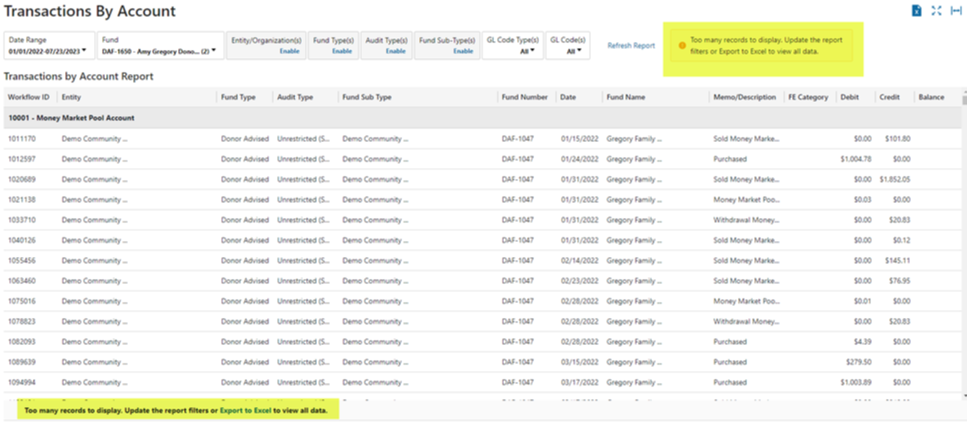
Export to Excel
The excel extract provides a listing of all GL transactions with all fund segments included – Entity, Fund Type, Sub-type, Audit Type etc. and allows for filtering and/or further analysis.
.png "image(249).png")
Other Features
Once the report has run, there are several icons in the top right corner of the screen.
.png "image(250).png")
The first icon is to export the report to Excel.
.png "image(251).png")
The middle icon to expand to Full-Screen view.
.png "image(252).png")
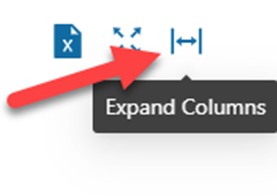
The third icon toggles between an expanded and minimized view of each column within the report.
Was this article helpful?