

Linking Bank Accounts to Grantee/Vendor or Funds
- 11 Jul 2025
- 1 Minute to read
- Print
- DarkLight
Linking Bank Accounts to Grantee/Vendor or Funds
- Updated on 11 Jul 2025
- 1 Minute to read
- Print
- DarkLight
Article summary
Did you find this summary helpful?
Thank you for your feedback!
Once you have created a Bank Account, you can link it to a Grantee, Vendor or Fund in FoundationHub using their profile. You can also link them to an existing Bank Account.
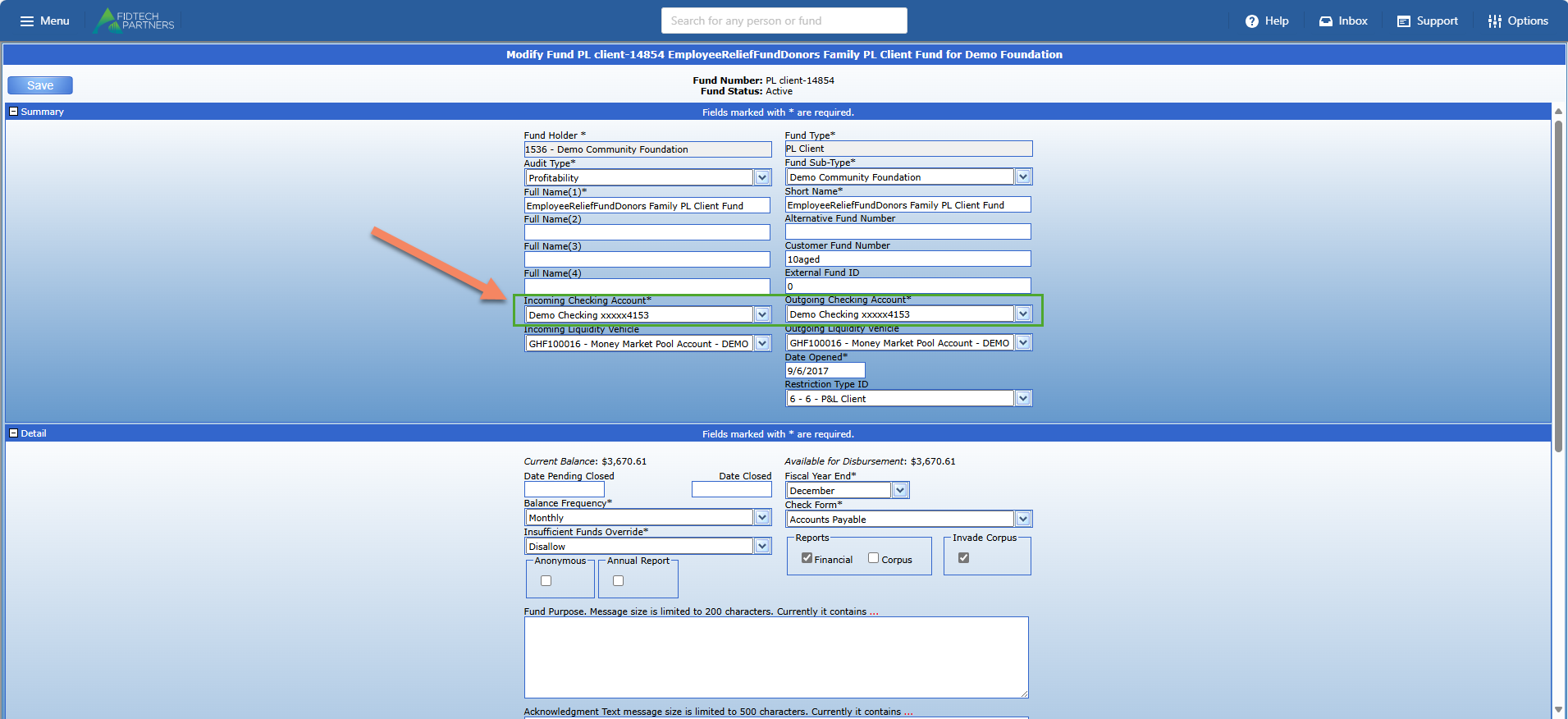
For Funds, open the Fund’s profile and add the Bank Accounts using the Incoming Checking Account and Outgoing Checking Account fields.
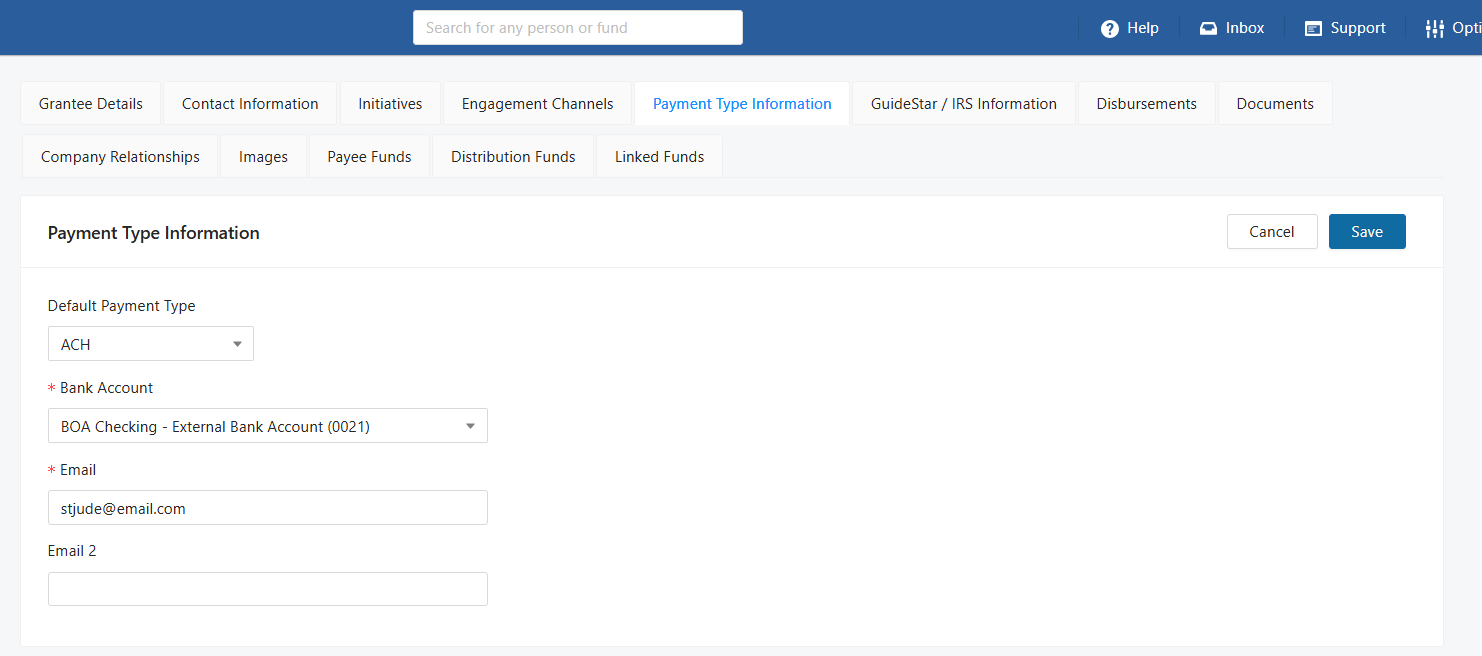
For Grantees or Vendors, open their contact profile page, click on the Payment Type Information section and click on the Edit button to edit the Default Payment Type.
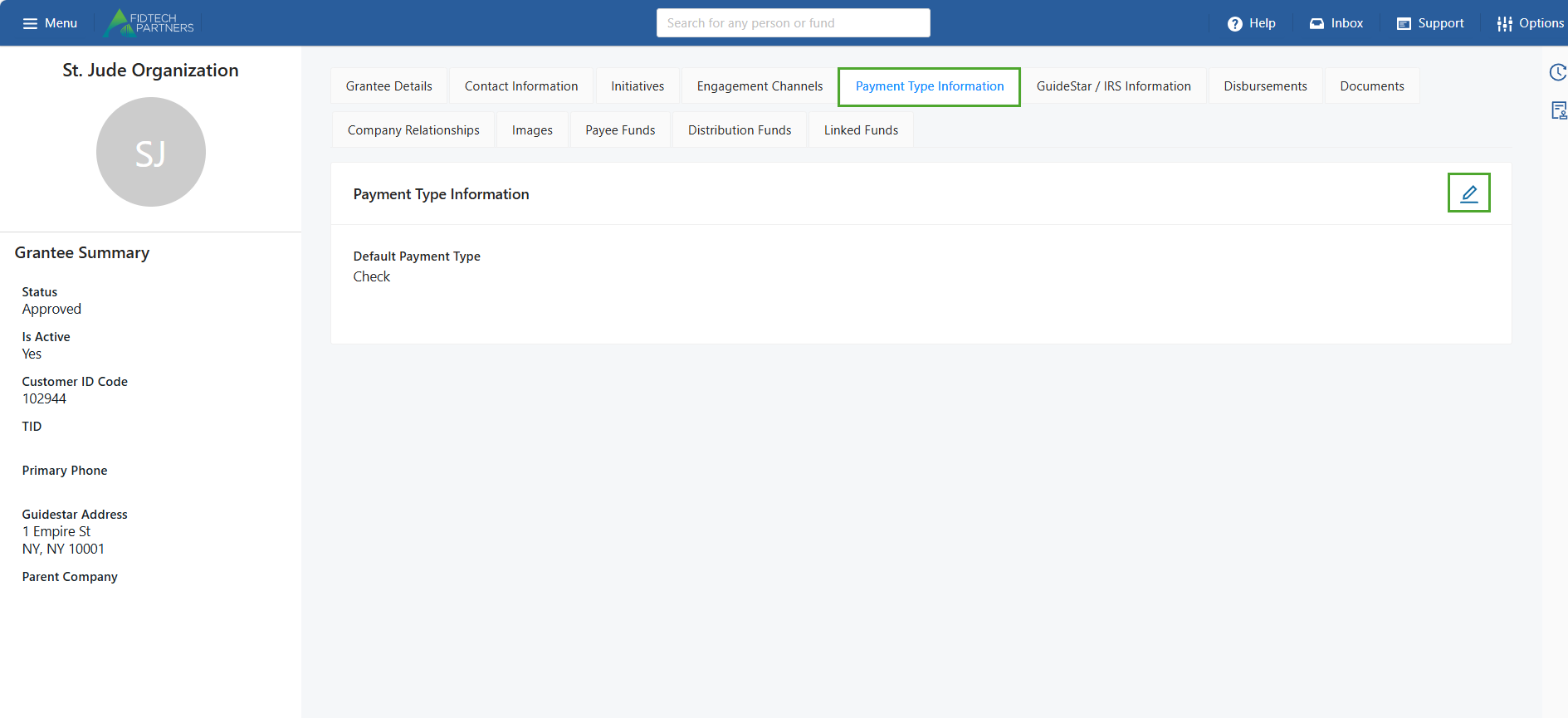
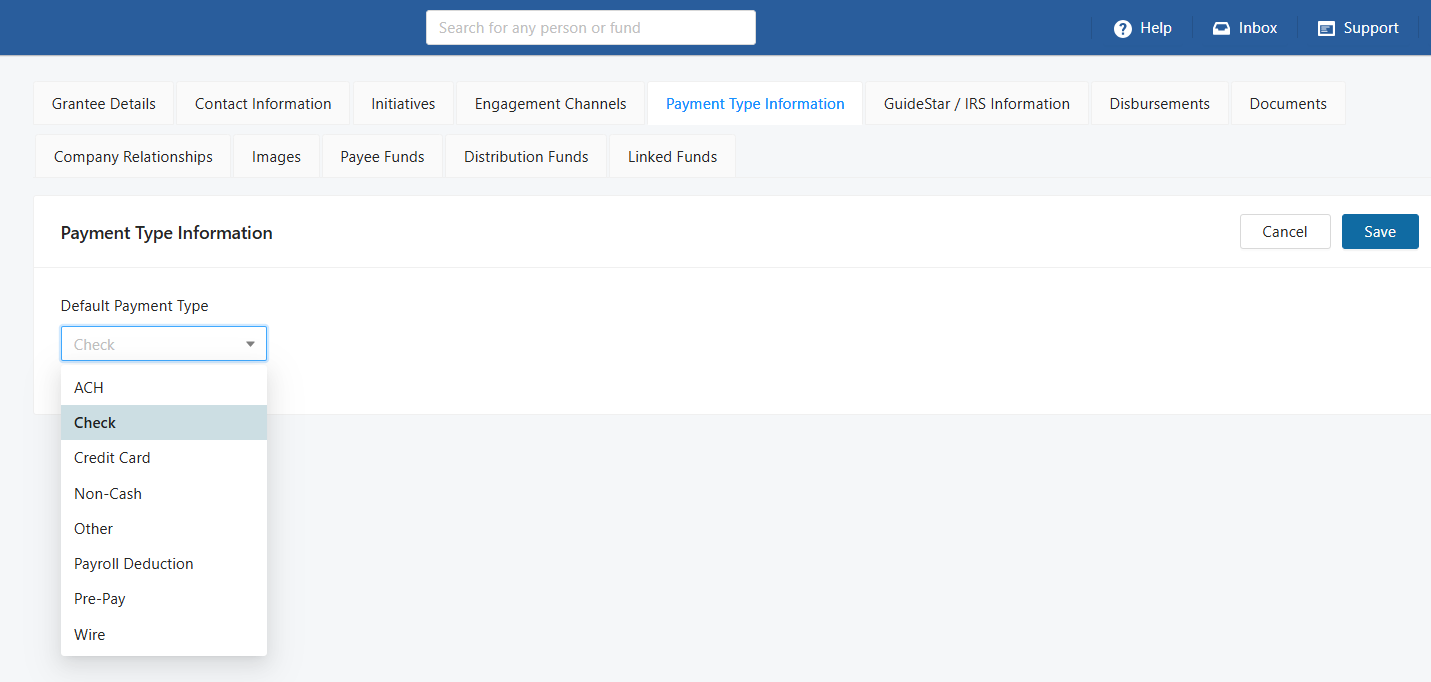
To add a bank account, you will need to change the Default Payment Type from “Check” (the system default) to “ACH.”
To do this, click on the dropdown field, and select “ACH“.
Once you have changed the payment type to ACH, a list of all recipient-eligible ACH accounts will appear in the Bank Account field. If your desired bank account does not appear here, you may need to first add the bank account or check if the existing bank account is ACH eligible.
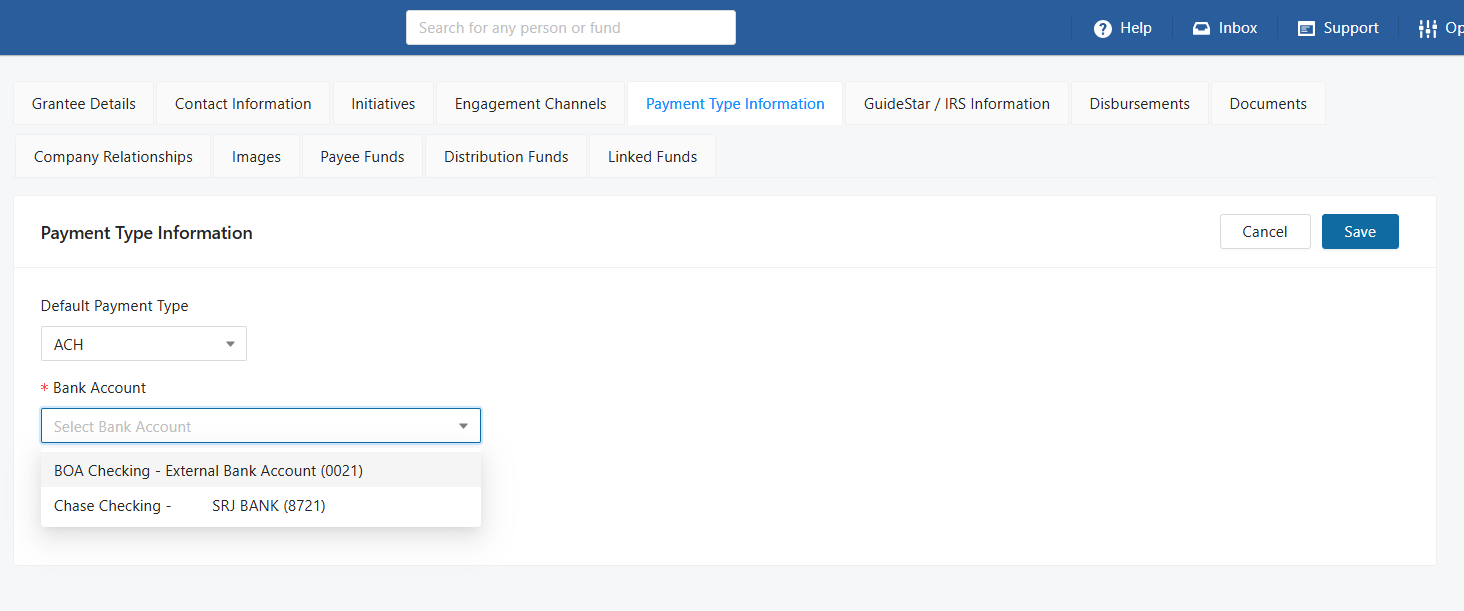
Select the Bank Account that you want to link and add an associated Email by which the contact will be notified when an ACH transaction has been posted. You can add up to 5 emails.
Click “Save” to finalize the process.
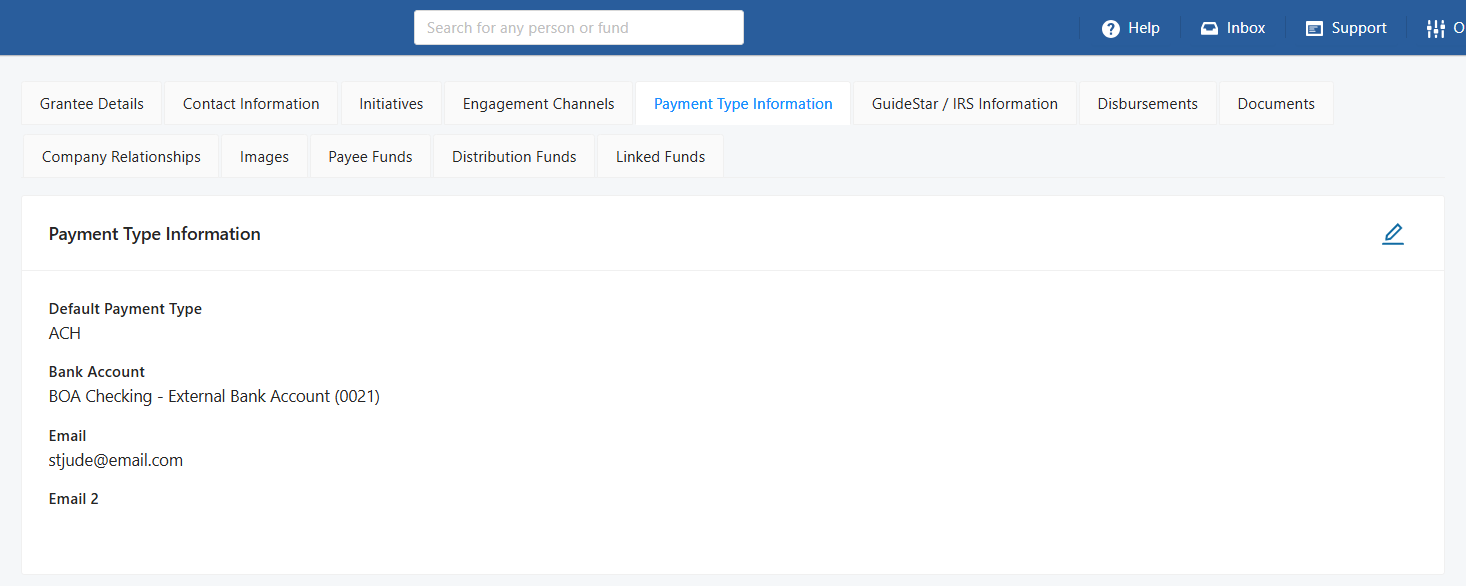
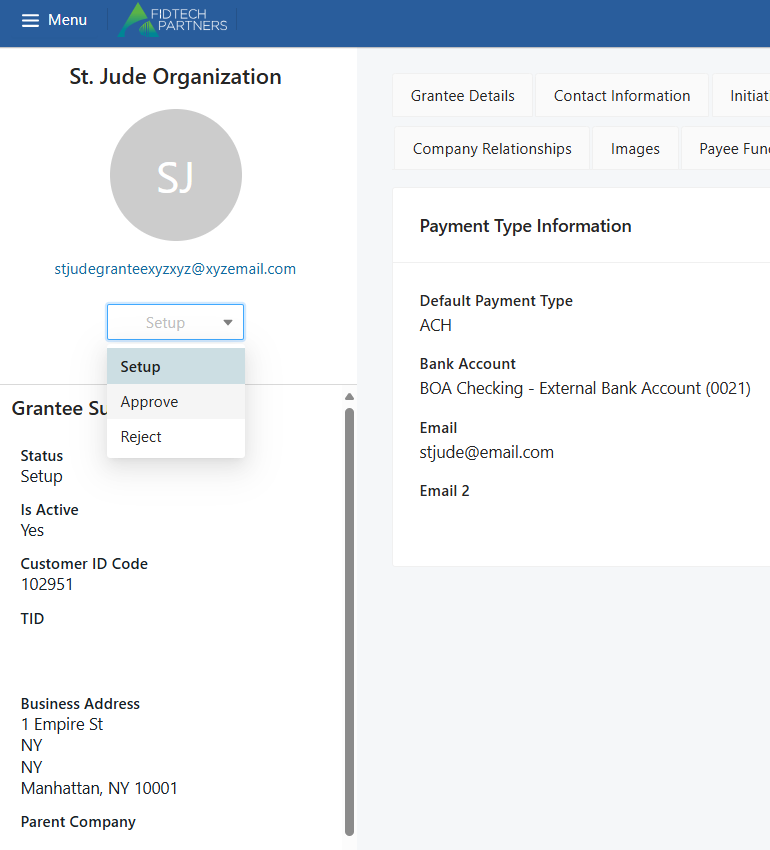
This process changes the contact profile to ‘Setup’ status. You can see this on the left side of the contact’s profile. The Entry-Level User who added the Bank Account to the contact needs to change this status to ‘Approve’. This forwards the record to the Approver-Level User’s Inbox.
The Approver-Level User should carefully review the changes made and after reviewing, needs to activate the contact profile by changing the status of the record to ‘Approved’.
Note: These approval levels may vary based on your institution.
You can also send an email notification to the Donor when an ACH payment is received from them and will need to process these ACH payments.
Was this article helpful?