

Journals
- 28 Mar 2024
- 5 Minutes to read
- Print
- DarkLight
Journals
- Updated on 28 Mar 2024
- 5 Minutes to read
- Print
- DarkLight
Article summary
Did you find this summary helpful?
Thank you for your feedback!
Journals
A journal entry contains the data significant to a single business transaction, including the date, the amount to be credited and debited, a brief description of the transaction and the accounts affected.
It is crucial to accurately enter complete journal data so that the general ledger and financial reports based on this information are also accurate and complete.
Journal entries can be used for many purposes such as to record accruals or to record reclassification entries such as payroll where a single distribution is made to fund payroll but then the distribution needs to be split across various payroll related expense accounts.
Journal entries are made in chronological order and follow the double-entry accounting system, meaning each will have both a credit and a debit column. Even when debits and credits are linked to multiple accounts, the amounts in both columns must be equal. For example, say a company spends $277.50 catering lunch for employees. The expenses account increases by that amount, while the cash account, which is an asset, decreases by $277.50 because that money is now spent.
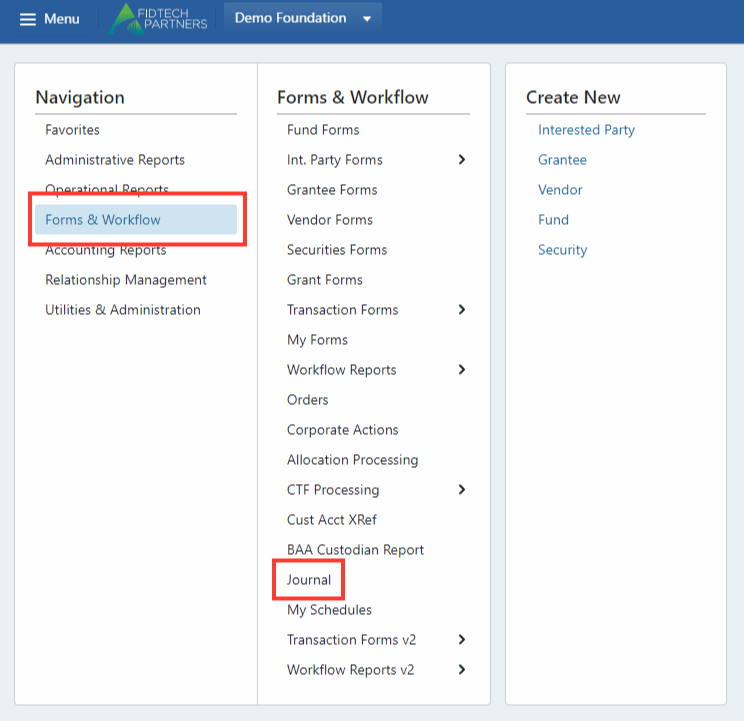
Permissions to view and edit journal batches are controlled by user roles the same way permissions are controlled for other types of transactions. To view a batch, the user must have access to view journals as well as permissions to all Fund types in the batch. The reason for requiring view permissions for all Fund types in a batch is because journal batches are posted or rejected at the batch level and not at the individual journal level.
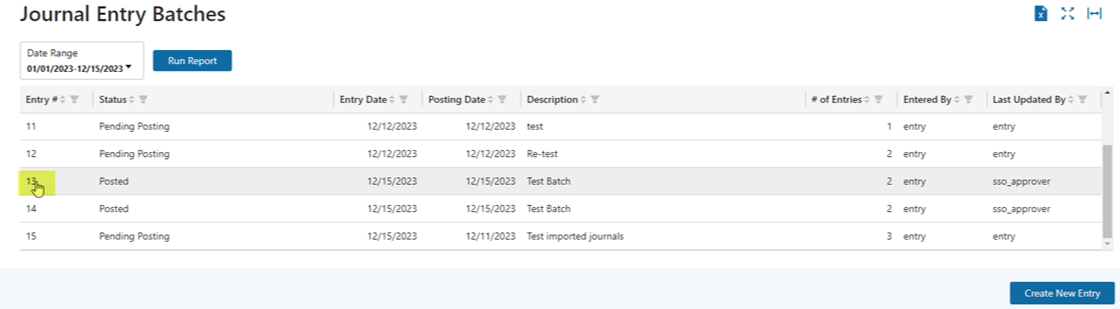
To view an existing batch, click on the “Entry #” on the left.
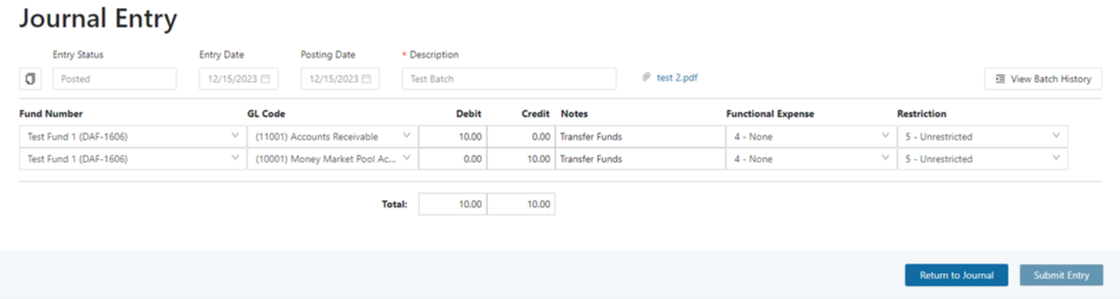
You will be brought to the Journal Entry Screen. This is an example of a posted batch, so all fields are protected except for the attached PDF. The attached document can be downloaded in any batch status.
On the Journal Entry Batches screen, all columns can be filtered or sorted.
To create a new batch entry, click on “Create New Entry”. This will bring you to the new entry screen. On this screen you can either enter data directly onto the screen or use the clipboard import.
Note: You will only see the “Create New Entry” button if you have permission to create new journals. Please reach out to the Fidtech customer service team if you would like to update your permissions.
.png "image(289).png")
Entering Data Directly on the Journal Entry Screen
If you are entering data directly on the screen, there are dropdowns that are used for selecting Fund Numbers and GL Codes. Once you have clicked on the dropdown icon, you will then be able to start typing in the search box.
.png "image(290).png")
.png "image(291).png")
Functional Expense will default to “None” once a Fund Number has been selected. Restriction is pulled from the default Restriction type on the Fund profile. If you wish to change the Functional Expense or the Restriction, you can do so by using the dropdowns.
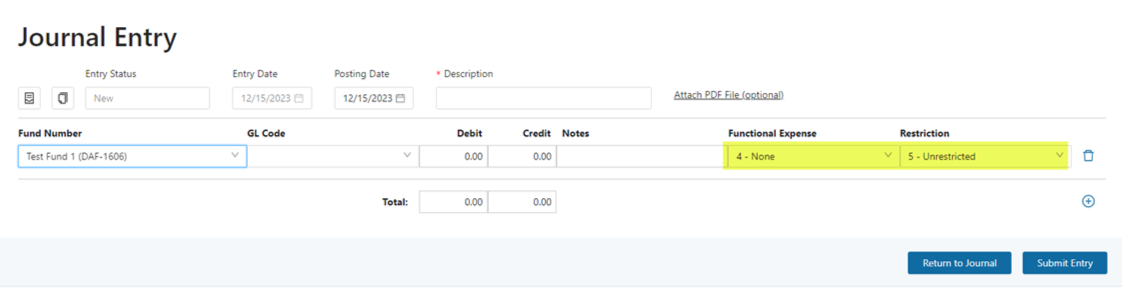
Additional rows can be added by clicking on the “+” icon on the right, above the Submit Entry button. Rows can be deleted using the “trash bin” icon located just above that. Both icons are highlighted in yellow below.
.png "image(295).png")
Select GL Codes and enter the debits and credits for each fund.
A description for the batch is required. Notes are the GL descriptions that you will see for each journal once they have been posted. To complete the batch, adjust the posting date (if needed), and add an optional PDF back-up.
.png "image(297).png")
Once the batch has been submitted, you will be able to see it on the Journal Entry Batches screen. The view or approve the batch, click on the “Entry #” to view the contents of the batch.
.png "image(298).png")
If you have permission to update the status of the batch, you will have the ability to select another status and submit the batch. If you do not have access to update the status, the Submit Entry button will remain un-clickable.
.png "image(299).png")
To post, reject, or return for correction, select the status, and submit the entry. The batch in this example has now been posted.
.png "image(300).png")
If you would like to view the audit history for this batch, click on “View Batch History” highlighted above on the right-hand side. This will open another pop-up window with the audit details as well as any comments that have been made on the batch. If you would like to leave a comment on the batch entry, you can enter that comment by clicking on “View Batch History”, then entering and submitting the comment.
Entering Data From Excel
If you are using the Excel Clipboard option, you will need to first create the entries in Excel. The Excel sheet must have 7 columns and the order of the columns must exactly match with the order on the entry screen. When you select the cells for copying, do not include the header row.
.png "image(301).png")
After you have selected and copied the rows, on the Journal Entry screen, click on the first icon above the Fund Number column, highlighted below.
.png "image(302).png")
Select “OK” in the pop-up to import the copied rows.
.png "image(303).png")
All rows will be copied to the screen. Rows are validated once they are copied. If there are errors, the user will be prompted, and the specific rows will be highlighted. If there are no errors, the only additional information required is to add a Description for the batch, optional PDF attachment, and update the Posting Date if needed. You can continue to adjust the entry via the screen including adding or removing rows. Debits and credits do not have to be one for one. However, the total debits and credits for each fund must balance to Submit the batch.
Important Note: Pasting data from Excel into Journals will clear the current contents of the form. Do not paste data into Journals unless you would like it to completely replace what is currently there.
.png "image(304).png")
After entering a Description, an attachment, adjusting the Posting Date (if needed), and submitting the batch, the status of the batch will move from New to Pending Posting. In this example, the Posting Date was updated to 12/11/2023 and supporting documentation was attached.
.png "image(306).png")
If you would like to copy data from the screen to Excel, click on the “copy” icon (highlighted above) and then paste (Ctrl v) into Excel.
Was this article helpful?