

How to Make a Transfer in DonorSphere
- 28 Mar 2024
- 2 Minutes to read
- Print
- DarkLight
How to Make a Transfer in DonorSphere
- Updated on 28 Mar 2024
- 2 Minutes to read
- Print
- DarkLight
Article summary
Did you find this summary helpful?
Thank you for your feedback!
How to Make a Transfer in DonorSphere
The ability for users to make transfers using DonorSphere is now available.
There are two options that will be available.
1. Ability to make transfers between a user's linked Funds.
2. Ability for a user to make a transfer from a linked Fund to an unlinked Fund.
The option to make transfers to unlinked Funds can be enabled/disabled separately from the option to make transfers between a user's linked Funds.
In both options, the Fund making the transfer must be Transfer Eligible in the system. The Fund that is being transferred to does not need to be transfer eligible.
If the only option enabled is for transfers between linked Funds, the "Transfer To" dropdown will only include linked Funds.
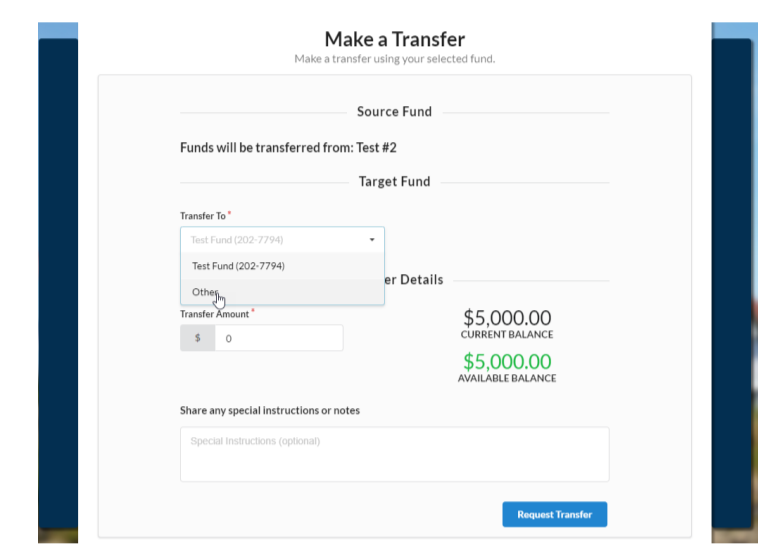
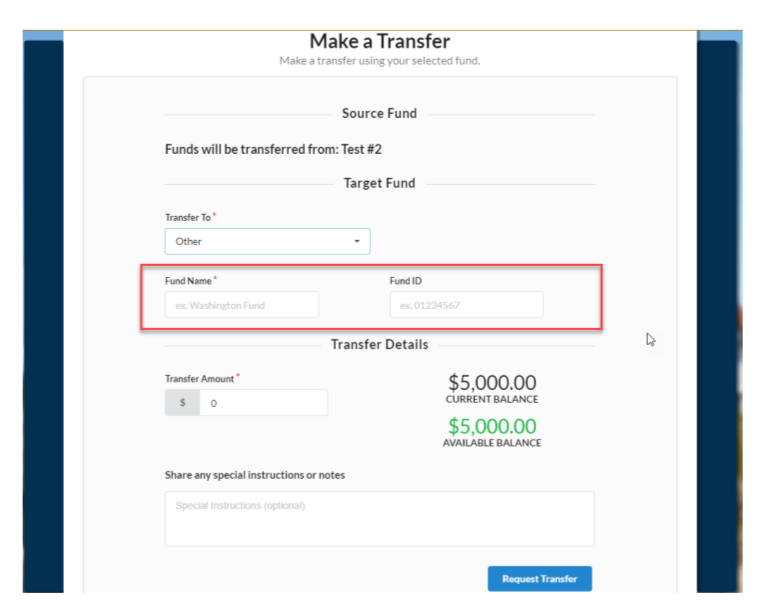
If the option to make transfers to unlinked Funds is enabled, the "Transfer To" dropdown will include an additional selection labeled "Other." When selecting, "Other," two additional boxes will be made available for the user to free type the Fund name and Fund ID (if known.) This information will be included in the external comments on the transfer in FoundationHub. The workflow will then require the details of the "Transfer To" Fund to be completed to forward the workflow for approval.
In a future release, we will be including the ability to schedule transfers and we will be adding a third option - to allow for certain funds to be designated as public so that these funds can receive transfers from unlinked donors without having to free text the fund name or fund ID. If you would like to turn off transfer options1 or 2, please contact FidTech Client Services.
Once enabled, there will be a new button on the DonorSphere home page for making transfers:

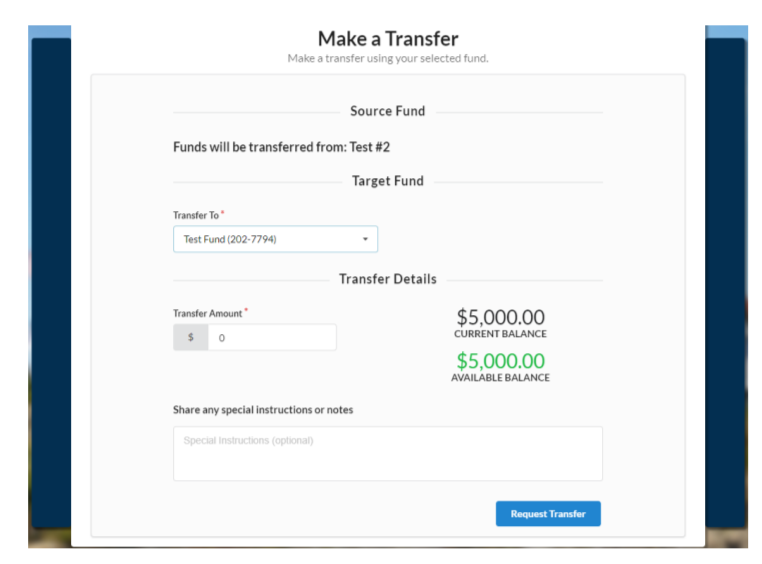
Clicking on the Transfer button will open a new transaction form as shown below.
Making a Transfer to another linked Fund:
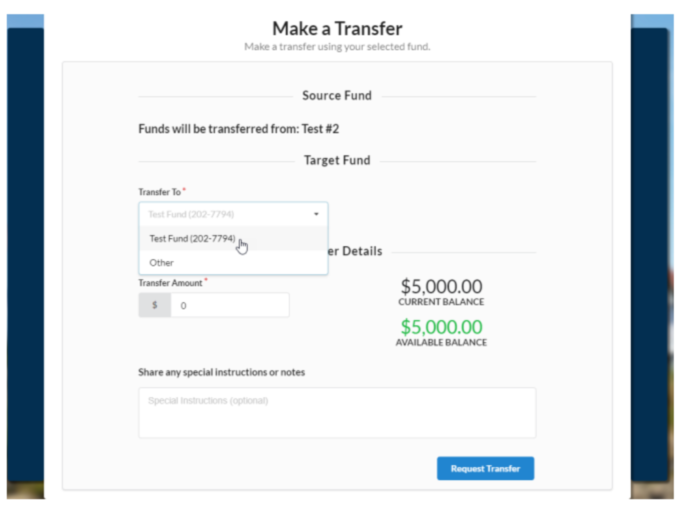
The only other details required would be the amount of the transfer.
Making a Transfer to an unlinked Fund:
Additional boxes are available to enter the details for the Fund that is receiving the transfer. Fund Name is a required field and Fund ID will be optional. Both fields are free text.
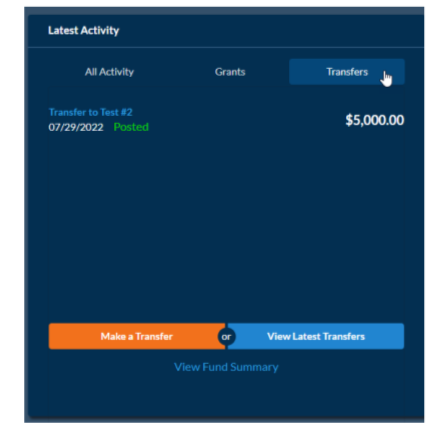
Latest Activity view of a transfer:
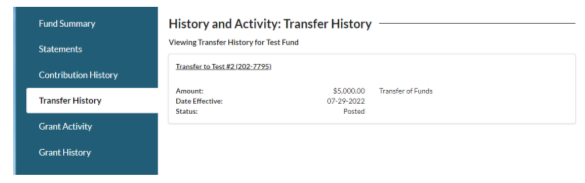
Transfer History is available on the activity tab:
New Enhancements to Transfers
Transfers
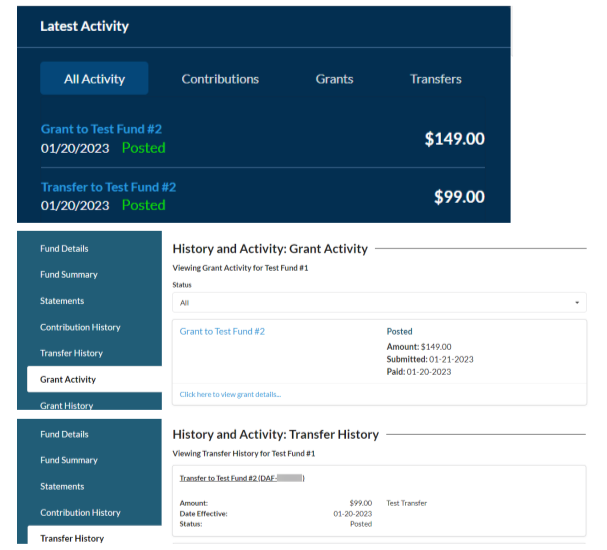
Transfers that are code as a Grant and a Contribution, will now display on the correct Activity and History reports.
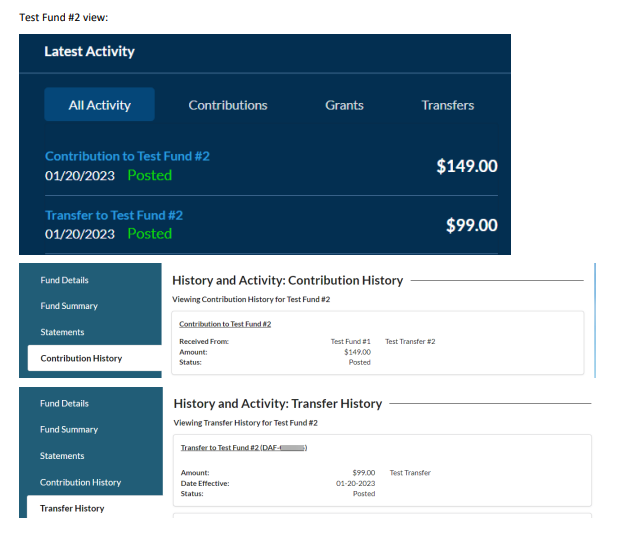
Transfers can now be viewed from both the sender and receiving view. Previously, Transfers could only be viewed by the Fund sending the Transfer.
In the examples, below the $149 Transfer is coded to display as a Grant/Condition and the $99 Transfer is coded as a Transfer.
Test Fund #1
Test Fund #2 view:
Was this article helpful?