

Creating New Securities
- 28 Mar 2024
- 3 Minutes to read
- Print
- DarkLight
Creating New Securities
- Updated on 28 Mar 2024
- 3 Minutes to read
- Print
- DarkLight
Article summary
Did you find this summary helpful?
Thank you for your feedback!
Creating New Securities
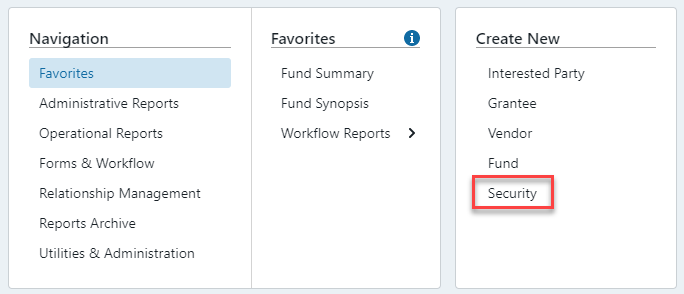
To Create a Security, you need to go to “Create New” > Security:
This will bring you to the new security setup form where you will need to input the required fields:
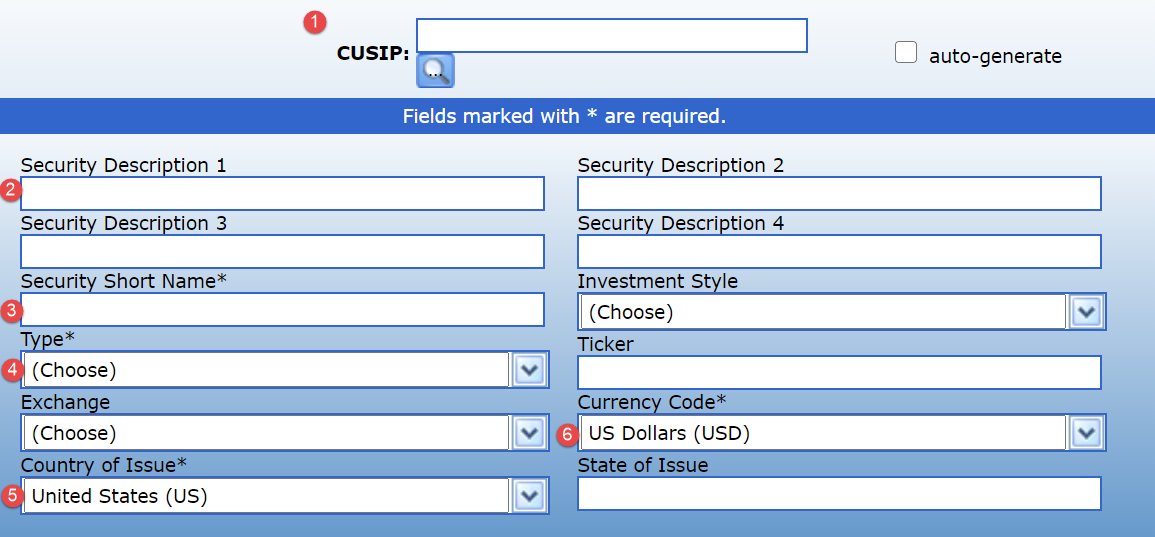
- CUSIP – this can be filled out in two ways, free type and auto-generate.
- Free Type – the field allows you to enter the 8-character known CUSIP of a maximum of 9 characters (the 8-character CUSIP plus the single digit Check Number) which will match the actual CUSIP as the System uses the same Check Number Calculator.
- Auto-generate – by checking the 'auto-generate' box, the System can generate a synthetic CUSIP for securities that do not have an actual CUSIP.
- Security Description – this is the Security Name that will appear on reports and statements.
- Security Short Name – this will auto populate with the first line of the Security Description (to the point where it no longer fits on the one line).
- Type – this is the Security Type used for categorizing and grouping securities.
- Country of Issue – this will default to United States (US).
- Currency Code – this will default to US Dollars (USD).
Once created, a more detailed screen appears containing sections relating to the various aspects of the security. The sections that appear will be dependent on the type of security created. For general securities, the following sections appear:
Security Information – this section contains the information from the initial setup screen.
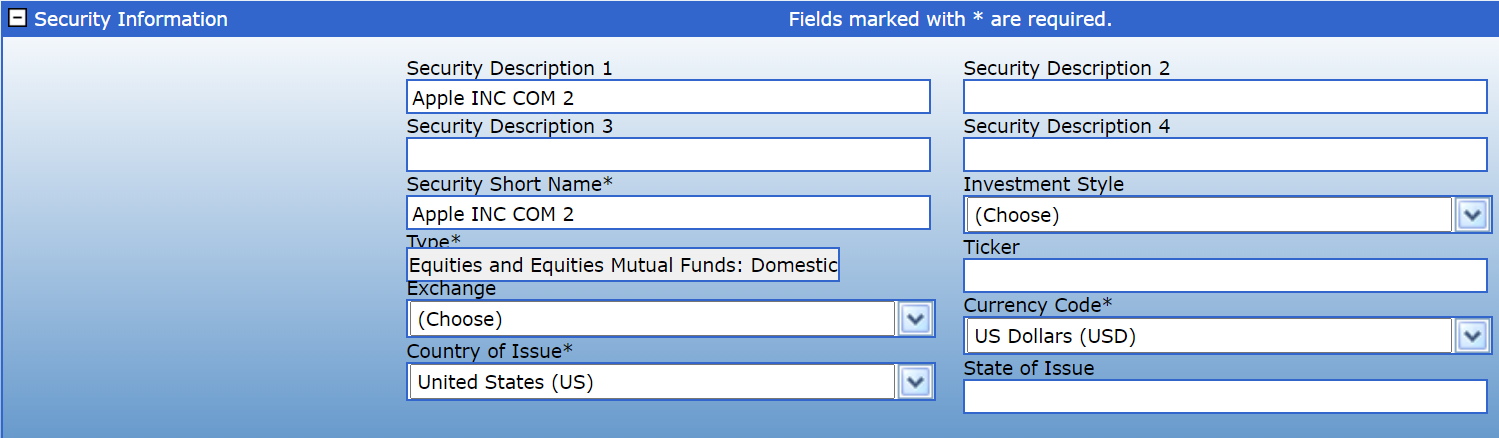
Security Detail
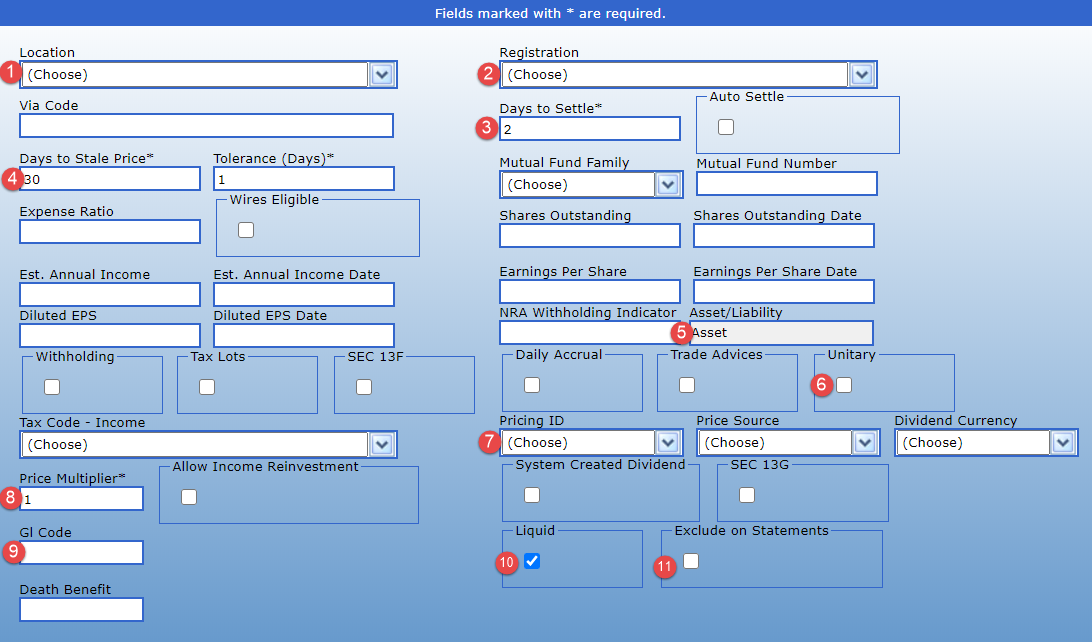
This section contains many different options – many are highly specific and, in most cases, can be skipped. The main fields that are important for reporting and processing are:
1. Location – this is the custodian / bank account where securities are held, and the value entered here is the default value when transactions are processed for this security.
2. Registration – this is the name in which a security is held and, in most cases, will default to your organization’s name.
3. Days to Settle – this is important for actual CUSIPs where a trade date and settlement date are required – if this value is populated then a settlement date will be automatically calculated for transactions by entering just the trade date on the Transaction Form.
4. Days to Stale Price – this is important for reporting purposes and for pool valuation purposes – if pricing of securities within pools is outside of the tolerance set here, the valuation process will not continue and prompt a user for action.
5. Asset/Liability – this flag determines whether the security is treated as an asset or liability account on the balance sheet.
6. Unitary – this is a very important field. If the security is an actual CUSIP then in most cases this field should NOT be checked (the exception is money market instruments that are unitary). For most securities using a synthetic CUSIP this field should be checked – this means that the security is always an equivalent of $1 per unit.
7. Pricing ID – for securities using actual CUSIPs, if you want these securities to be priced automatically using FoundationHub's integrated pricing feed then this field needs to be set to “CUSIP”.
8. Price Multiplier – in almost all cases this field will be set to 1 – the exception is if you hold fixed income securities (government/municipal/corporate bonds, mortgage-backed securities, etc.) in which cases this value will need to be set to 100.
9. GL Code – this field allows for securities to be assigned to a specific balance sheet GL Code so that activity flows correctly on the General Ledger reports.
10. Liquid – this flag determines whether the value of the holding of this security is included within the “Available for Disbursement” balance for determining whether grants can be made.
11. Exclude on Statements – this flag determines whether a particular security holding appears on a donor statement, e.g., a payable or other liability may need to be recorded in a donor’s Fund for accounting purposes, but you may not wish for this to appear on the donor’s statement.
Trade Execution

The most important field in this section (unless you are using the automated trading feed) is the Trade Precision field - this field determines the number of decimal places for the security and is of particular use when using automated rebalancing since this field determines the number of decimal places to which calculated trades are rounded.
History
This section shows an audit trail of all changes that were made to the security and who initiated the changes.
Was this article helpful?