

Cash Receipt Workflow Report
- 28 Mar 2024
- 3 Minutes to read
- Print
- DarkLight
Cash Receipt Workflow Report
- Updated on 28 Mar 2024
- 3 Minutes to read
- Print
- DarkLight
Article summary
Did you find this summary helpful?
Thank you for your feedback!
Cash Receipt Workflow Report
A Cash Receipt is a form used to book a Gift into FoundationHub. This can be in the form of Cash, Check, Credit Card Payment, ACH, Stock, Wire, Other.
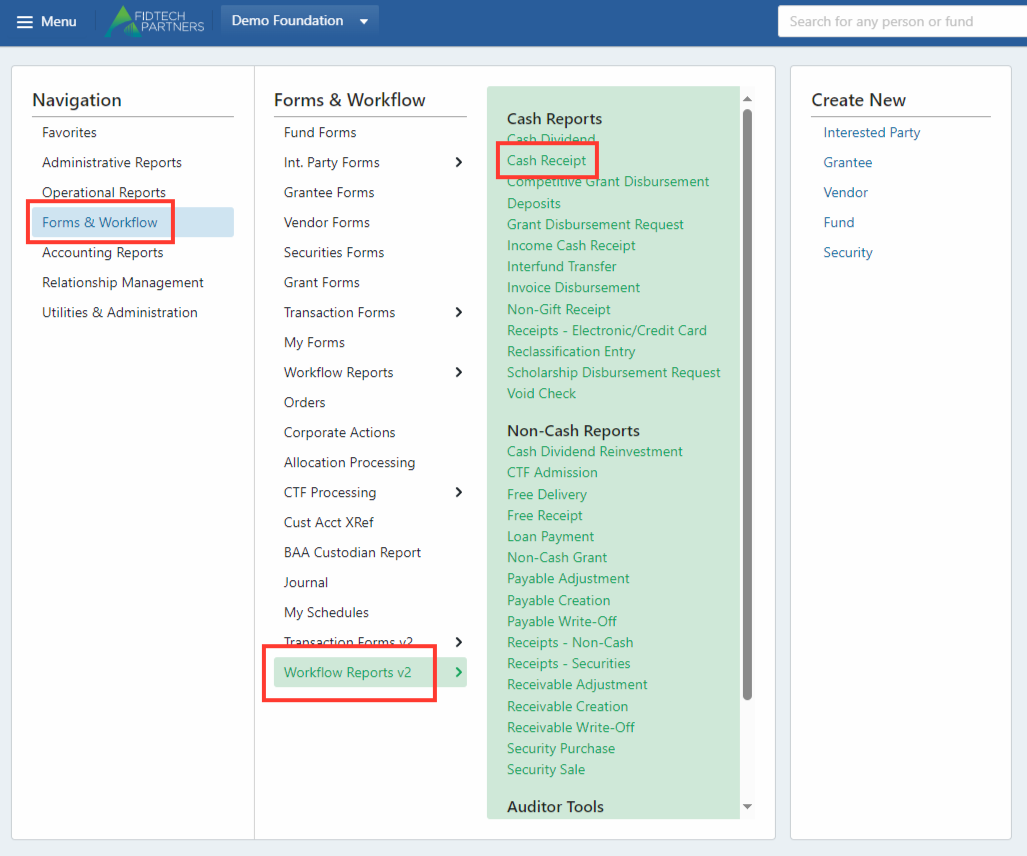
To access the Cash Receipt Report, use the Menu Dropdown and select “Forms & Workflow.” Then, choose “Workflow Reports v2” then “Cash Receipt.”
This report will appear:
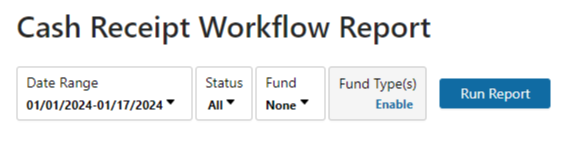
Filters
Before you run the report, you can filter by Date, Status, Fund, or Fund Type.
Date Filter
To filter by date, Date Range dropdown.
.png "image(256).png")
Depending on the Workflow, you can filter by “Date Type.” For the Cash Receipt Report, the options are “Date Received” and “Deposit Date”:
.png "image(257).png")
Then, you can either use the preset date ranges or enter custom dates in the Date boxes:
.png "image(258).png")
You can either use free type or the calendar to enter a custom date.
.png "image(259).png")
Status Filter
You can also choose to filter by Status. This will allow you to select a combination of all Statuses available for the transaction
.png "image(260).png")
Use the “Select All” or “Clear” buttons to reset your selections.
Fund Number Filter
To create a Cash Receipt Report for a specific Fund, use the search function to either search for the Fund name or Fund number.
.png "image(261).png")
You may have to enter multiple characters to begin seeing results.
.png "image(262).png")
Once your fund appears, click on it to filter the Cash Receipt Report.
.png "image(263).png")
Fund Type Filter
Use the dropdown to filter by Fund Type.
.png "image(264).png")
To select one Fund Type, use the “Clear” button and then search for the desired Fund Type. The search box will return all potential matches.
.png "image(265).png")
Creating Reports
Once you have applied all desired filters, run the report. Please note that Cash Receipt Reports will only show a maximum of 500 transactions. To view all transactions, export the Report to Excel.
.png "image(266).png")
Entries in Excel will be sorted by Status. The Excel Report will display number of items and amount total for each status.
.png "image(267).png")
Alternatively, you can add additional filters to shrink the number of transactions returned from your search. The easiest way to do so is to change the Date Range, but you can use any filter.
Editing Columns
Another functionality of Cash Receipt Reports is the ability to edit the Columns displayed in the report. To do so, click the pen icon in the top right corner.
.png "image(268).png")
This will take you to the Editing Screen:
.png "image(269).png")
Click the Report Columns dropdown on the left to view and change the columns on the screen. The first three columns, “ID,” “Status,” and “Next Status,” are unable to be removed or reordered, shown below by the lock icon to the left of each name.
.png "image(270).png")
The list on the left shows all possible columns, where the eye icon denotes whether the column currently appears in the table. The list on the right shows all columns currently in the table. To reorder how the columns appear on the report, drag the column name to your desired place.
For example, to put Amount next to Next Status, drag the Amount column upwards:
.png "image(271).png")
Then, your table will update so that the Amount and Next Status columns are next to each other:
.png "image(272).png")
You can also show or hide a column using either the eye icon or the X button. For example, to show Deposit Date, click the eye icon:
.png "image(273).png")
This will cause the Deposit Date column to appear both in the list of columns and the table itself:
.png "image(274).png")
.png "image(275).png")
When you are finished editing your columns, click Save & Exit within the Edit Mode Actions dropdown. Click Save to save your changes but remain in Edit Mode. You may also use the “Default Columns button to revert to the original table view.
.png "image(276).png")
Other Features
There are a number of other icons in the top right corner of the screen:
.png "image(280).png")
The first two are to export to Excel and Print, respectively. The third is to expand to Full-Screen view.
.png "image(278).png")
Use Expand Columns to see the full entry in each column.
.png "image(279).png")
Use Expand All Rows to view all transactions for each status.
Was this article helpful?