

6a. The Process of Giving to a Giving Button – Contribution from a Registered User
- 18 Apr 2024
- 2 Minutes to read
- Print
- DarkLight
6a. The Process of Giving to a Giving Button – Contribution from a Registered User
- Updated on 18 Apr 2024
- 2 Minutes to read
- Print
- DarkLight
Article summary
Did you find this summary helpful?
Thank you for your feedback!
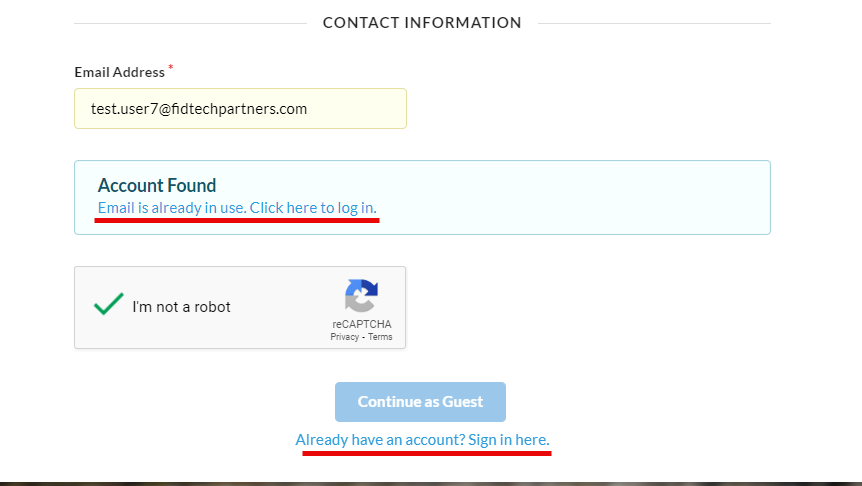
To contribute to a Giving Button, a Giver will first need to access the Giving Buttons’ webpage via a link. The Giver could have received this link from the Foundation or from another Donor. The link will open the Giving Button’s live webpage. If the Giver is a registered DonorSphere User, then they can click the link in the form that says “Already have an account? Sign in here.” to be redirected to the DonorSphere log in screen. (See Image Below)

If the Giver is a Registered User but not logged in, then the system will recognize their email address and ask them to log in on the bottom of the form when they enter their registered email address. There is also another prompt at the bottom of the page giving the option to log in if the Giver already has a registered account.
The link brings the Donor to his or her DonorSphere account.
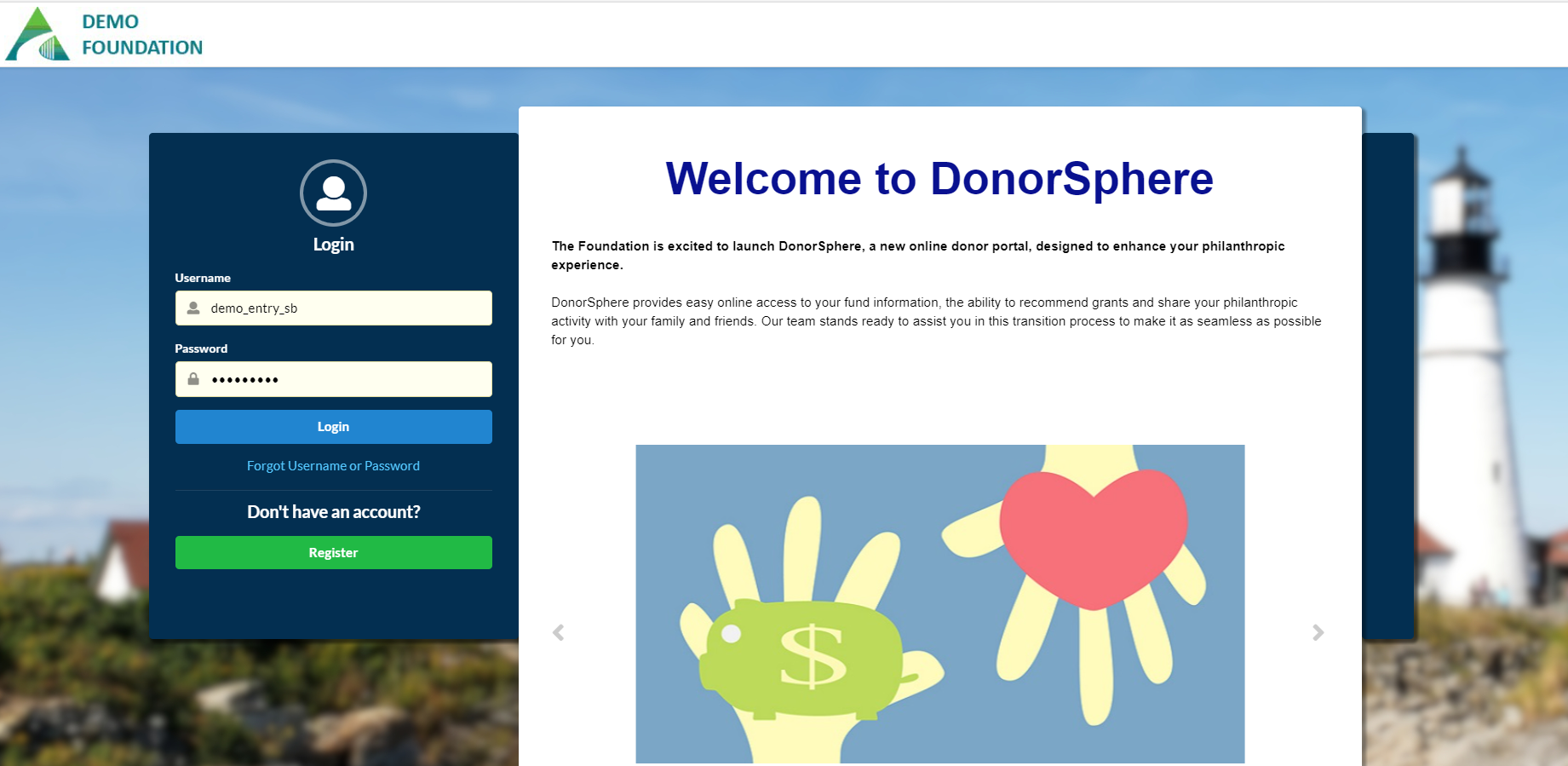
Once signed in the link will redirect back to the Giving Button webpage and the Donor can continue to process the contribution.
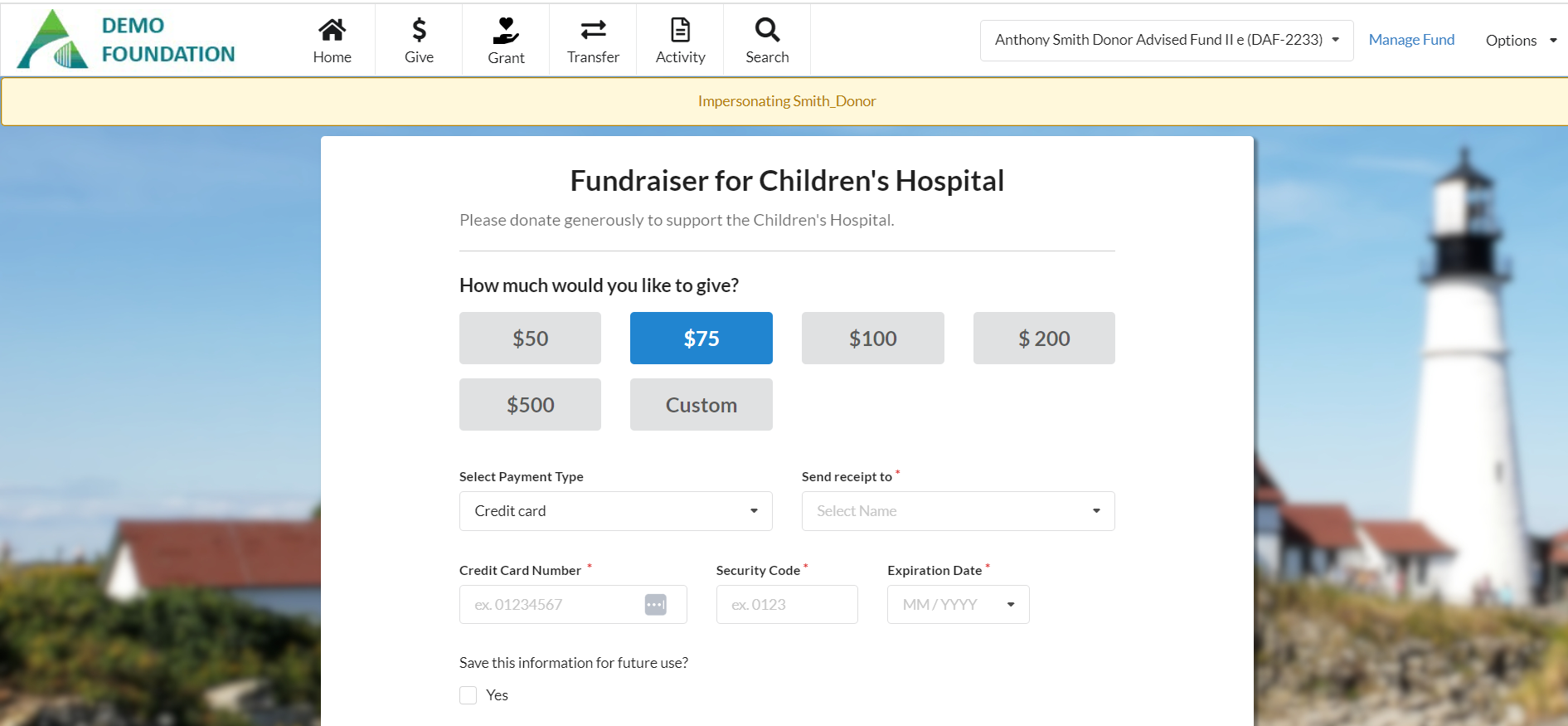
The Donor will then need to fill out all the required fields.
How much would you like to give?
The preset buttons are set by the Organization and can only be adjusted in FoundationHub (See Giving Button Settings). The Donor can also enter a custom amount.

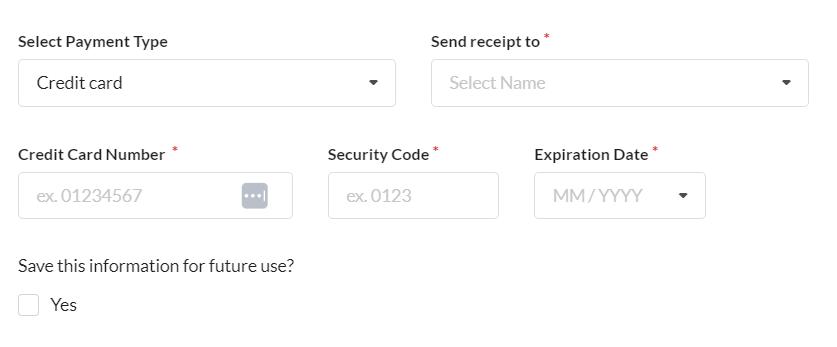
Select Payment Type
The payment type allows payment by credit card or eCheck (from a bank account). The Donor is required to complete all the fields and has the option to save this payment method for future use.
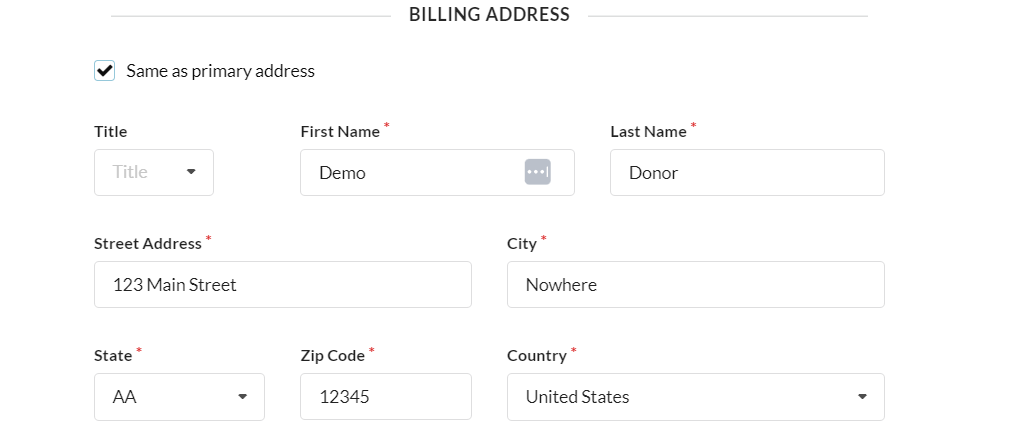
Billing Address
The Donor is required to enter their billing information. Since the Donor has already logged in, the option is available to select the “Primary Address” that is associated with their account.
Additional Details
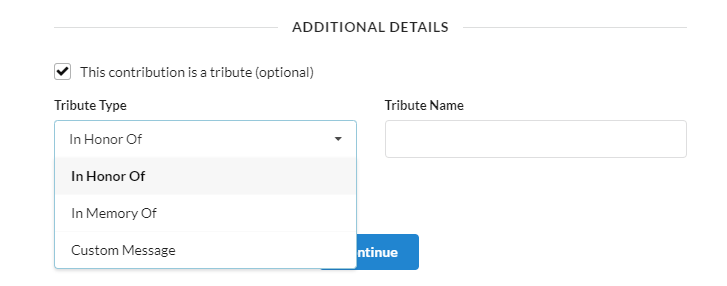
The Donor has the option to select the donation as a tribute through the ‘Tribute Type’ dropdown. Options include “In Honor Of”, “In Memory Of,” or a Custom message. They then can free type the tribute name. The Donor has the option to personalize a tribute and/or make the contribution anonymous.

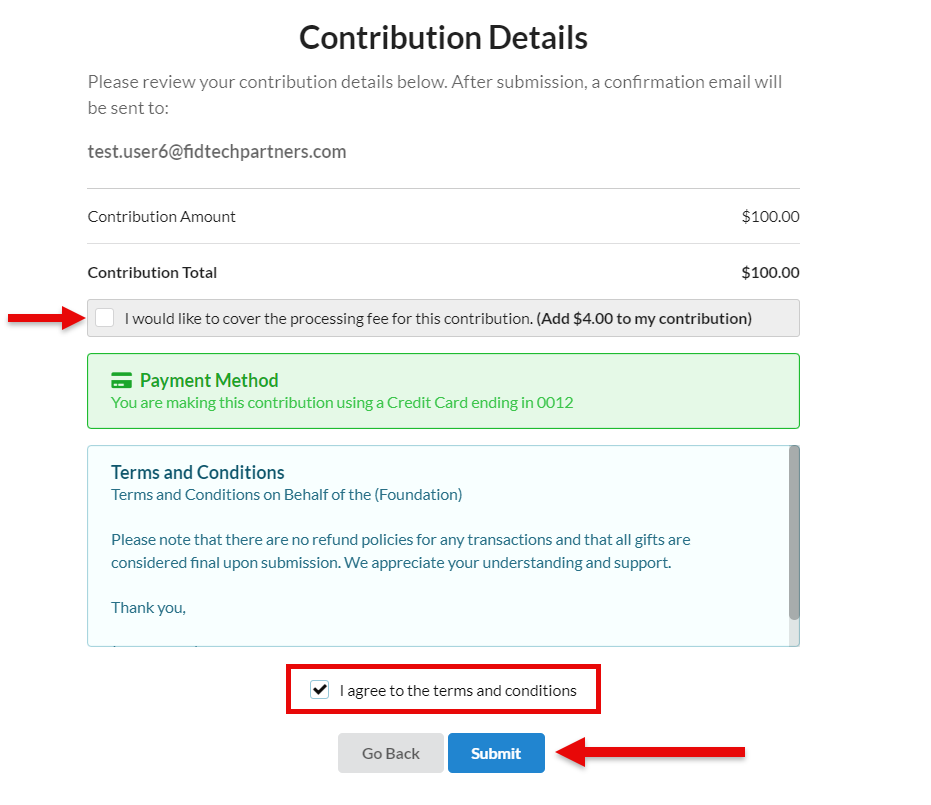
Click “Continue.” The Donor can then check the box if they would like to cover the processing fee of the contribution. Then, they must agree to the “Terms and Conditions.” And lastly, click “Submit.”
Upon successful submission, the Donor will be directed to this confirmation page. This page is set by the Organization and is editable, please see the guide section (Giving Button Settings) for additional information.
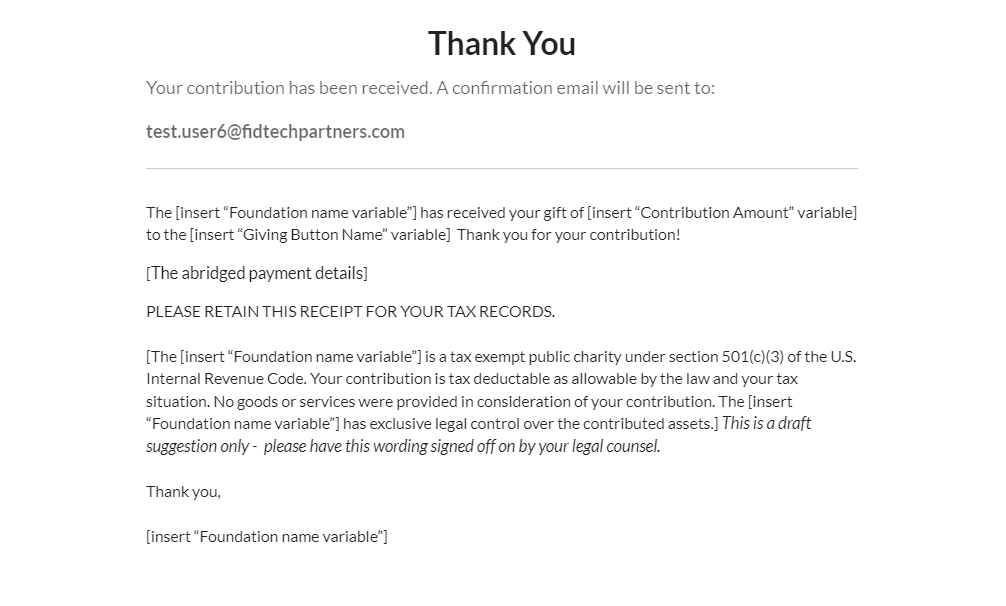
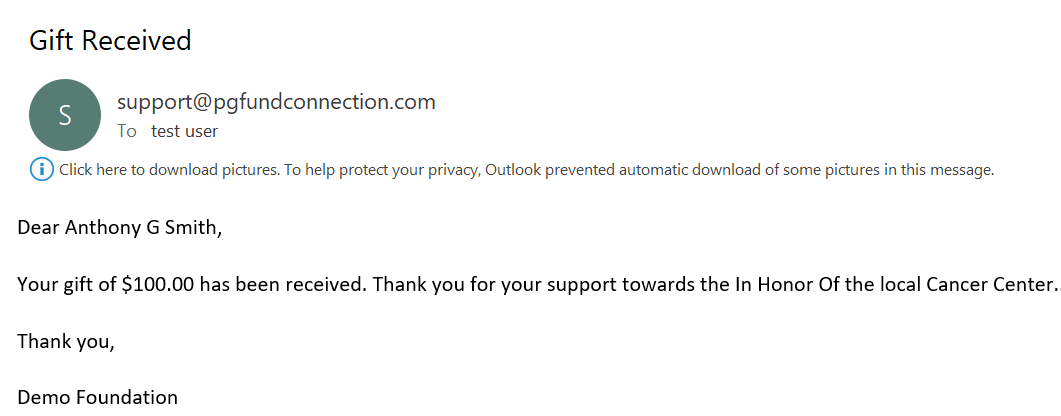
The Donor will receive a confirmation email thanking them for their Gift.
If the Donor receives an error message, then their gift did not go through, and their credit card has not been charged. They need to select “Retry” and resubmit the form.

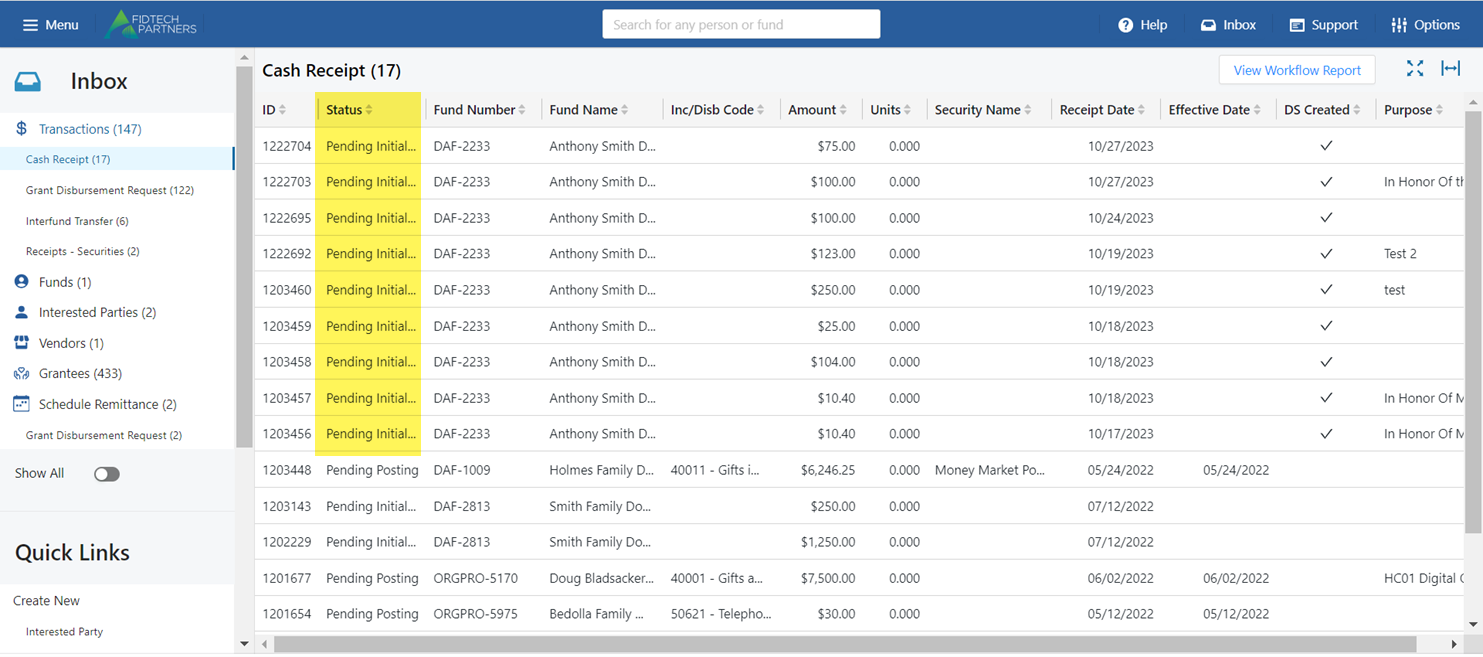
Once a Registered User successfully submits their Gift, it will operate the same as a transaction from DonorSphere and appear in the FoundationHub Inbox, in a “Pending Initial Approval” state, under “Cash Receipts.”
Was this article helpful?