

2c. Giving Buttons Settings
- 18 Apr 2024
- 2 Minutes to read
- Print
- DarkLight
2c. Giving Buttons Settings
- Updated on 18 Apr 2024
- 2 Minutes to read
- Print
- DarkLight
Article summary
Did you find this summary helpful?
Thank you for your feedback!
Several configurable settings are available for Giving Buttons. Settings that can be adjusted are the following:
- Allow User Registration
- Preset Amounts
- Transaction Fees
- Terms & Conditions
- Success and failure language
Please reach out to Client Services to assist with these settings.
“Allow Giving Button user registration” is the ability to allow a member of the public who gives to a Giving Button to register as a DonorSphere user. Some Clients allow these givers to directly register for DonorSphere while others prefer to restrict this access.
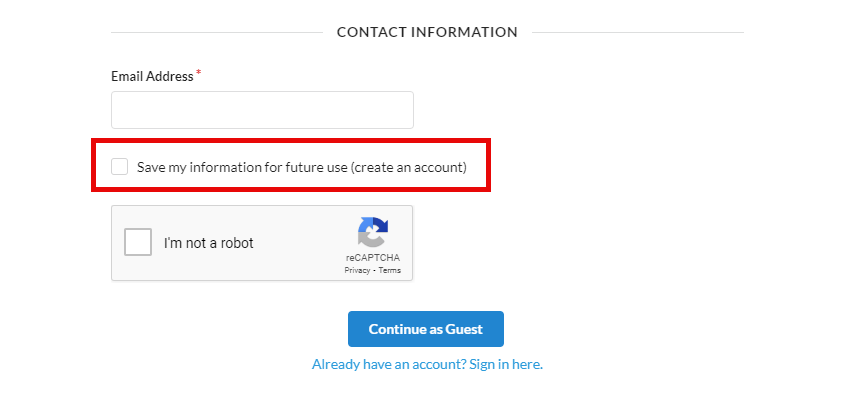
When enabled, the ‘Contact Information’ form at the end of the Giving Button webpage will include an option for a giver to save their information for future use and create a DonorSphere account. (See below for how the option looks on the webpage)
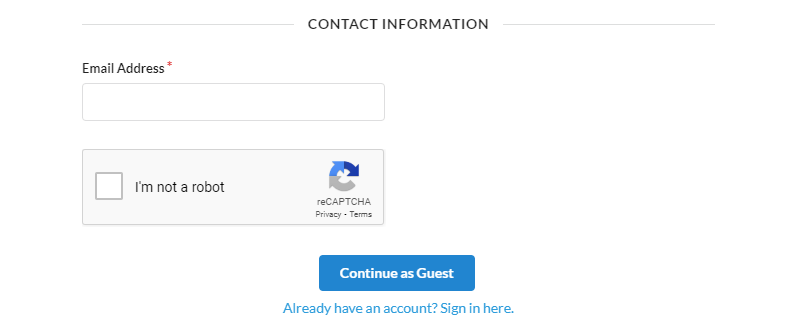
When disabled, this option no longer exists in the ‘Contact Information’ section of the webpage.
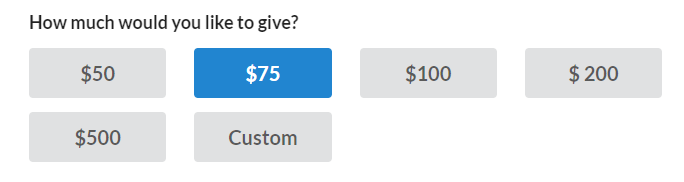
The next adjustable setting is the Giving Button Preset amounts. When opening the live webpage for the Giving Button, potential Givers will see options to select either a pre-designated amount or enter in a custom donation amount. These amounts can be adjusted by changing the values in the Preset Amounts field. The minimum preset amount will also be the minimum amount for a transaction. If the minimum amount is set $50, as seen in the example below, then the contributor will not be able to enter in a lower amount, even if they use the ‘Custom’ option.
How the Preset Amounts will appear on the webpage:
In addition, Clients are allowed to set a Transaction Fee as a percentage of the total donation amount.
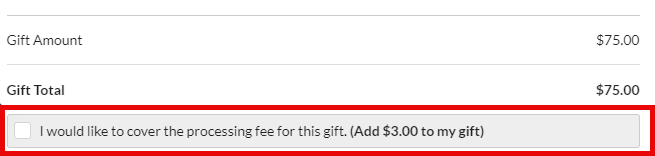
The amount is typically reserved to cover any costs associated with processing the donation. When processing the transaction, a checkbox will appear giving the contributor an option to select if they want to cover the processing fee or not. The amount appears as a percentage in settings but will appear as a dollar amount when being processed. If givers do not check this box, then the amount spent on fees will be deducted from the total gift amount.
How the fee will appear on the transaction:
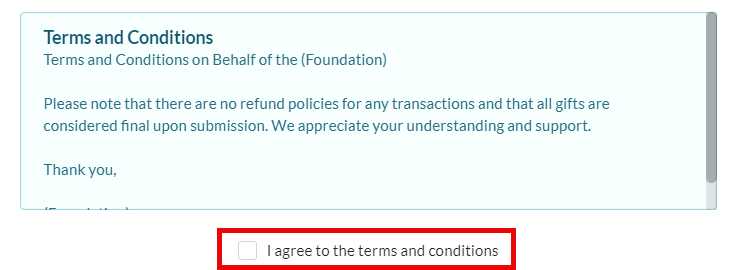
Clients should set their own custom Terms & Conditions for Giving Buttons. Please note that Terms & Conditions must be configured for Giving Buttons to work.
The Terms & Conditions will appear when processing the donation. They must be agreed to by the Giver for the transaction to be processed.
b
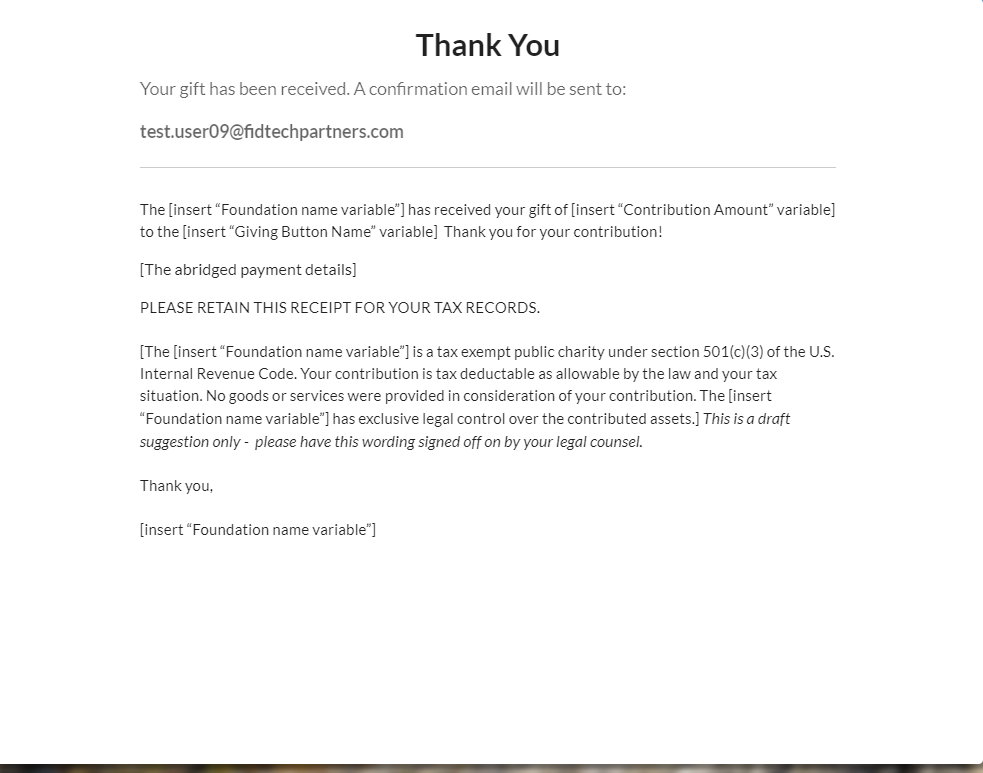
“Confirmation of Success” is the on-screen acknowledgment that a Giver’s donation was submitted successfully.
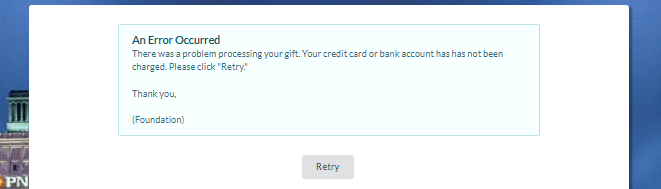
However, if there has been an error, the Giver will be directed to a “Confirmation of Failure” screen (see below) and will be requested to try again.
Was this article helpful?