

Running Policy Calculations
- 03 Nov 2025
- 3 Minutes to read
- Print
- DarkLight
Running Policy Calculations
- Updated on 03 Nov 2025
- 3 Minutes to read
- Print
- DarkLight
Article summary
Did you find this summary helpful?
Thank you for your feedback!
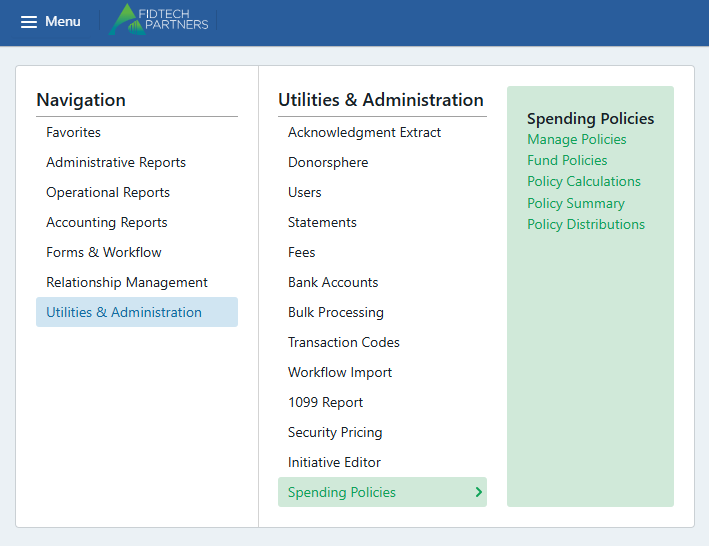
Spending Policy Calculations can now be calculated and run on a period-to-period basis. To roll a spending policy forward to the next period, first, navigate to the Policy Calculations menu as seen below.
(Menu > Utilities and Administration > Spending Policies > Policy Calculations)
Access is controlled by user permissions, allowing specific users to view, create, or modify policies based on their role.
The Policy Calculations section allows users to calculate and review the available spend for each policy. After performing calculations, users are then able to post balances for each fund. If a change is made to the policy, users have the ability to recalculate the balances and post them at a later date.
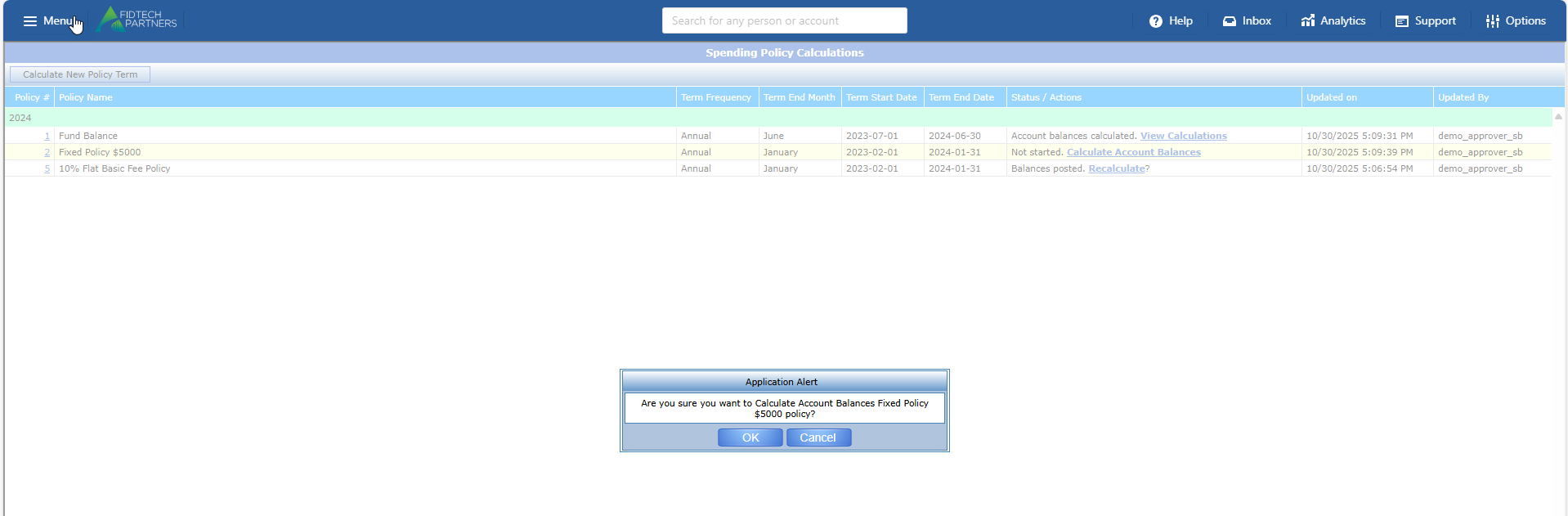
As seen in the image below, if balances have not been calculated, an option will appear to “Calculate Account Balances”.
If the balances have been calculated but not posted, then the option will appear to “View Calculations”.
If the balances have been posted, then an option appears to “Recalculate” the balance.

Understanding Term Start and End Dates
Each Spending Policy has an effective start and end period. In the image below there are 4 Term Columns: Frequency, End Month, Start Date, and End Date.
Term Frequency: Refers to how often the policy is renewed. Typically, most policies are renewed on an annual basis.
Term End Month: Refers to the final month of the policy. If the term end month is June, then the last effective date for the policy is June 30th.
Term Start and End Date: These are the effective dates for the policy. As seen in the image below, term start date is July 1st, 2023, and end date is June 30th, 2024. This means the final date for calculating the amount of this policy is June 30th, 2023, and then the calculated amount is available to that fund starting from July 1st, 2023, until June 30th, 2024.
Clicking “Calculate Account Balances” will run the spending policy for that period.
Once the policy calculations are complete, click on “View Calculations” to open the Policy Calculations report:


The policy calculations will provide a list of funds with the associated spending policy along with calculations based on the policy including the Average Balance, Calculated Amount, and Spending Policy amount. It will also indicate if there were any distributions made by this fund in the previous period. If the policy allows for residuals to be rolled forward, the report will indicate that amount as well. These calculations are based on the “GL Codes for Activity” indicated in the Policy details under “Manage Policies”.
Clicking “Export” will export the report to Excel.

Clicking “Abort” will cancel the calculations.
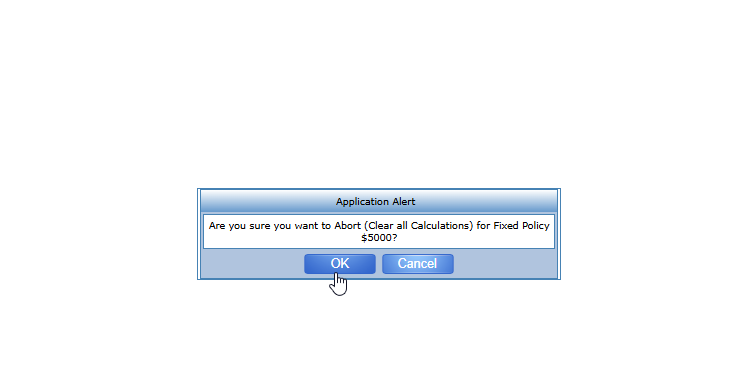
If a calculation is aborted, it will need to be re-ran:

Clicking “Post” will set the balances for each of the funds for that period. After the balances are posted, they will be included in the Policy Summary and Policy Distributions Report. If the Policy details indicate that the funds should “Limit Distributions to Funds Available” then the SP Amount will be the Available Amount viewable on the Fund Profile and on DonorSphere.
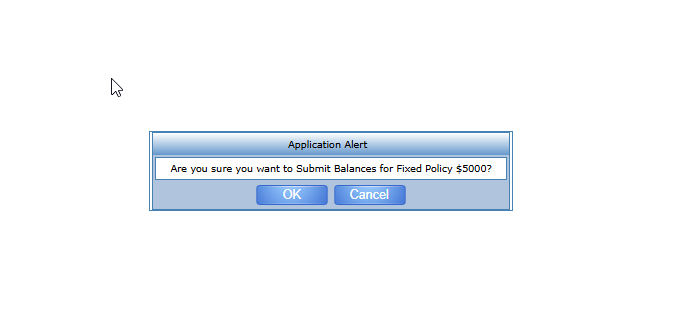
See below for the posted balance on the Policy Summary Report after the calculation was posted. Please note, the balance will appear only within the term’s start and end date.

Rolling Calculations Forward
Spending Policy calculations are tracked by year, enabling users to review both current and past calculated amounts. In order to roll forward Spending Policies for the next year, a “Calculate New Term” function has been added to the policy calculations page.

Clicking “Calculate New Policy Term” will open a prompt to select a policy and new period to be calculated.
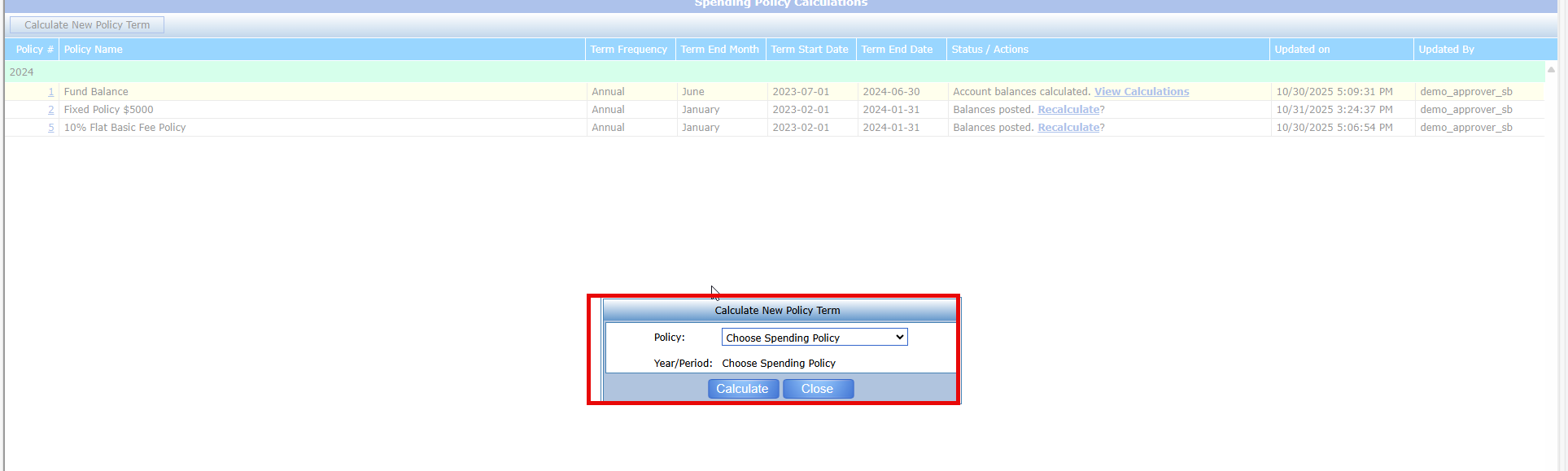
Once a policy is selected, the period term will automatically be populated. If the current period has not been generated, it will be generated first.
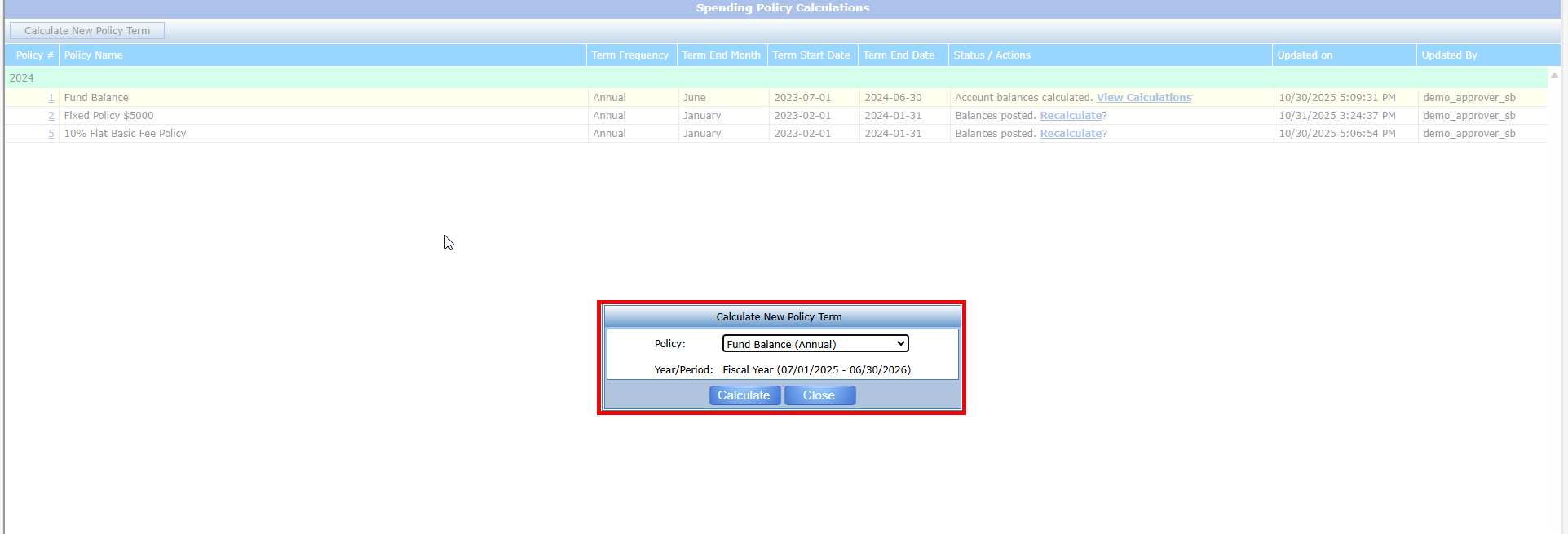
If a previous period still needs to be generated, the option will remain available even after the current period is created.
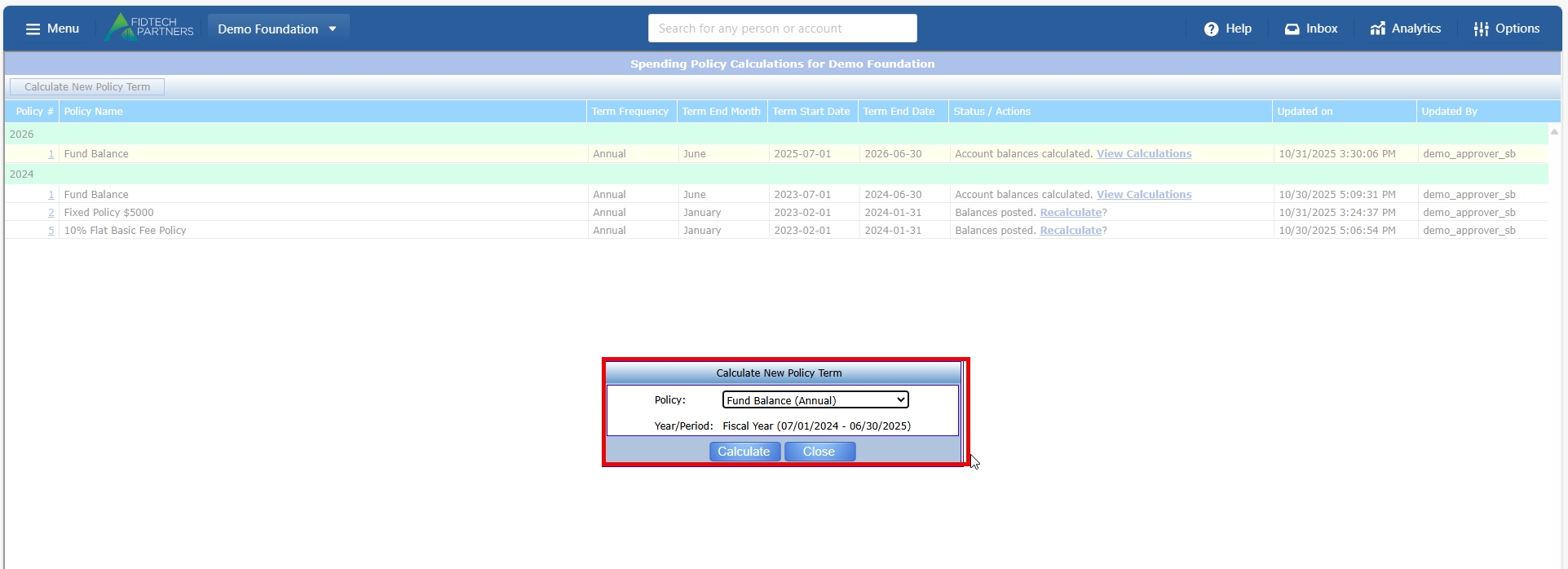
Once a new period is generated, policies will be organized by year. The year of the ending term date will determine which row the policy will be categorized under. In the example above, the ‘Fund Balance’ Policy with a Term Date ending on 06/30/2025 is grouped under ‘2025’ and the policy with the term date of 06/30/2026 is grouped under ‘2026’.
Previous periods do not need to be posted before a current period can be posted. However, posting them ensures that any residual amounts are rolled forward correctly into the next period.
In addition, a term will not appear on the Policy Summary or Policy Distributions report until its calculations have been posted.
Was this article helpful?