

Menu Options
- 28 Jun 2023
- 1 Minute to read
- Print
- DarkLight
Menu Options
- Updated on 28 Jun 2023
- 1 Minute to read
- Print
- DarkLight
Article summary
Did you find this summary helpful?
Thank you for your feedback!
Menu Options
To navigate the System, there is a Menu button in the top left-hand side of the screen providing access to different menus in a dropdown. Access to System functions is controlled by roles. So, it may be that not all people have access to all functions within this document.
The Favorites menu allows each User to create a custom menu combining options from different tabs, typically those items that are used frequently.
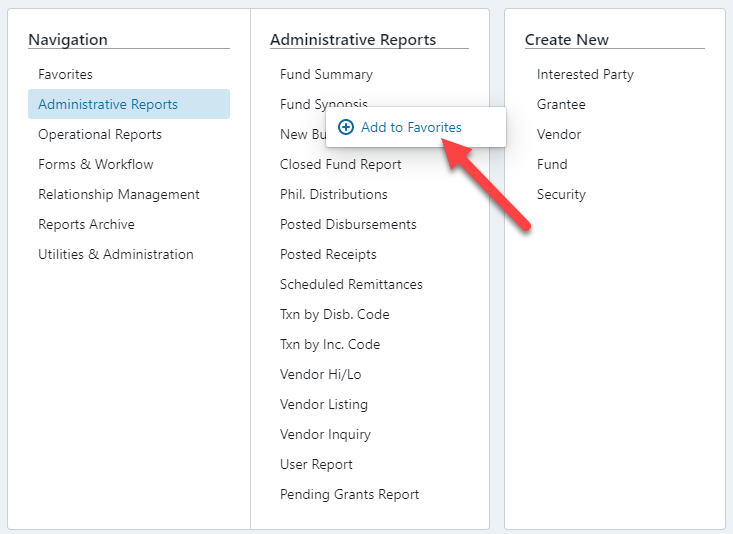
To add an option to the Favorites tab, navigate to the relevant menu item, right click on the item, and click on “Add to Favorites”. This will add the menu option to your Favorites menu.
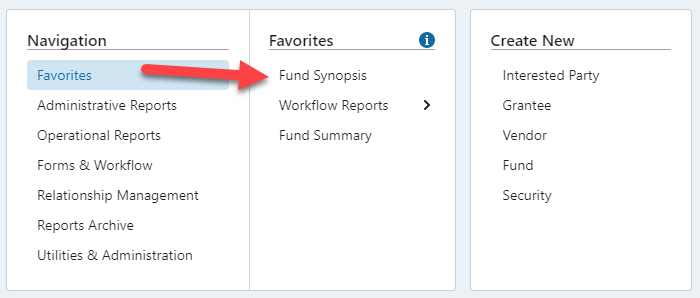
The item you added should now appear in the Favorites section:
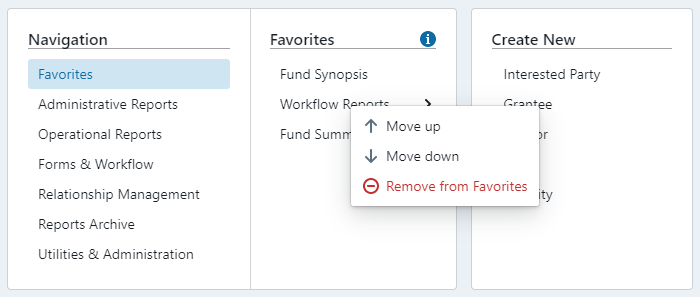
You can rearrange the listing of your favorites by right clicking on the items within the menu. This will reveal an array of options to move items up or down or remove items.
In the top right corner of the screen are three options that remain consistent across all System screens:

Inbox: Returns the User to the home screen and Inbox from any other screen.
Support: In the event that you find a bug with the System, have a question relating to the System, or have an idea for new functionality, enter a support ticket using this link.
Options: Allows the User to toggle Dark Mode, change their password, or log out of the System (currently only the Navigation section has Dark Mode capabilities).
Was this article helpful?