General Ledger Report
Please note that this report will only be available if your foundation uses our General Ledger system. If you are unsure of whether your foundation uses the General Ledger system, or your foundation would like to use this system, please contact the Fidtech Customer Service Team.
The general ledger is a master report of all the accounts within your foundation and is primarily used for monitoring your foundation’s financial activity during a given period. The general ledger report contains account summaries, including details of every transaction going in and out of your accounts. It is organized not only by date but also by account type and account.
To access the new General Ledger Report, use the Menu Dropdown and select “Accounting Reports.” Then, choose “General Ledger Report.”
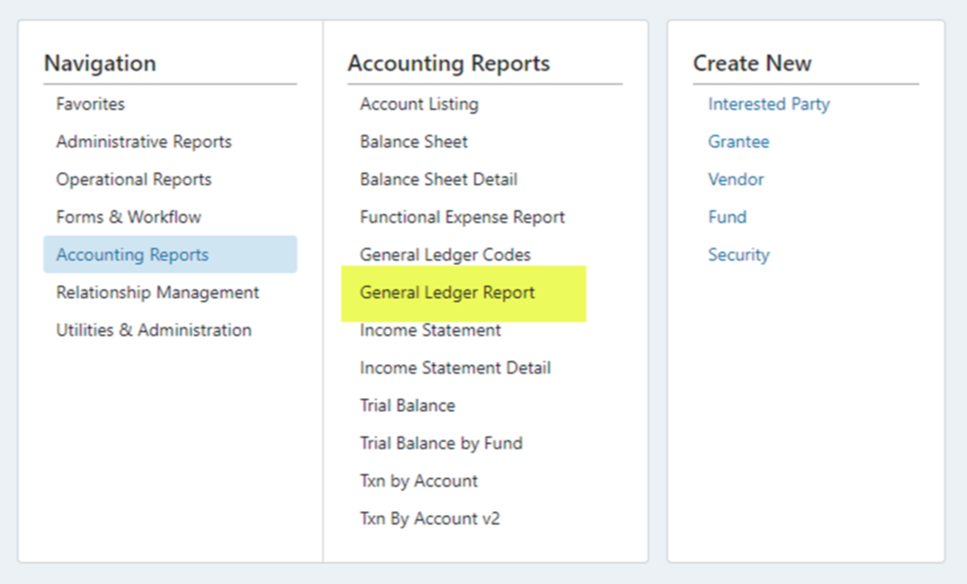
The report will appear as shown below:

Filters
Before you run the report, you can filter by Date, Fund, Entity/Organization, Fund Type, Audit Type, Sub-Type, GL Code Type(s) and GL Code(s). The filters can be used in multiple combinations. Note that Enabling the Fund selector will disable the Entity/Organization, Fund Type, Audit Type, and Sub-Type filters.
Date Filter
To filter by date, use the dropdown next to the Date Range.
.png "image(188).png")
Depending on the Workflow, you can filter by “Date Type.” For this Report, the options are “Date Received” and “Deposit Date”:
.png "image(189).png")
Then, you can either use the preset date ranges or enter custom dates in the Date boxes:
.png "image(190).png")
You can either use free type or the calendar to enter a custom date.
.png "image(191).png")
Use the “Select All” or “Clear” buttons to reset your selections.
Fund Number Filter
To create a report for a specific group of funds, use the search function to either search for the Fund name or Fund number.
.png "image(192).png")
You may have to enter multiple characters to begin seeing results.
.png "image(193).png")
Once your fund appears, click on it to add it to the filter:
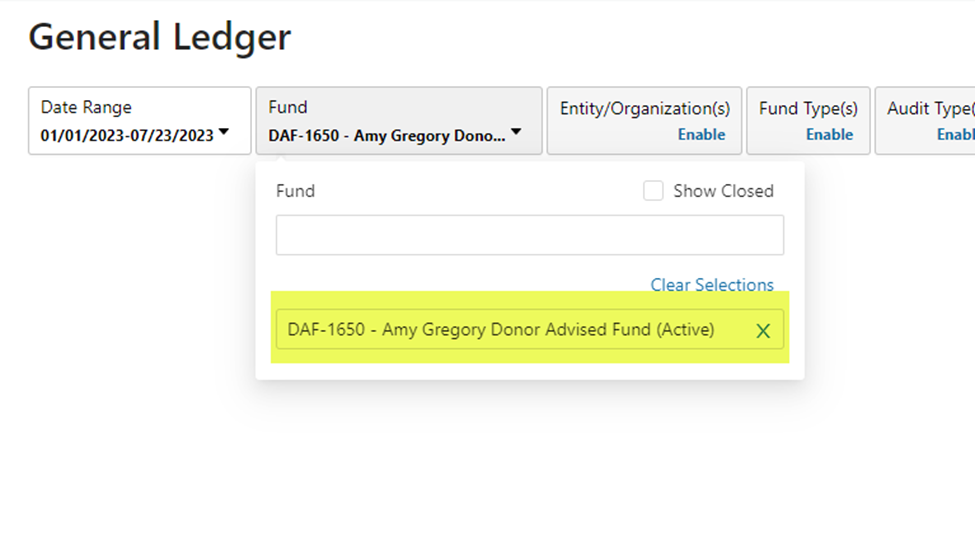
Once selected, you may type again to select additional funds (click on each one to add to the filter):
.png "image(195).png")
Add as many funds as required for your report:
.png "image(196).png")
Entity/Organization, Fund Type, Audit Type & Sub-Type Filters
Use the dropdown(s) to filter by Entity/Organization, Fund Type, Audit Type or Sub Type.
.png "image(197).png")
To select one Fund Type, use the “Clear” button and then search for the desired Fund Type. The search box will return all potential matches.
.png "image(198).png")
GL Code Type / GL Code Filters
Use the dropdown(s) to filter by GL Code Types or GL Codes.
Running the Report
Once you have applied all desired filters, run the report. Please note that the General Ledger Report will only show a maximum of 10,000 transactions. To view the entire report containing more than 10,000 transactions, you must export the report to Excel (noted below).
.png "image(235).png")
Note that beginning balances for Income and Expense accounts will be for the current fiscal year of the start date. If your fiscal year runs 1/1/20xx-12/31/20xx, a report run from 5/1/20XX will show a beginning balance in Income Expense accounts for the period 1/1/20XX – 4/30/20XX.
Beginning and Ending Balances for Equity Accounts will be for the beginning of the fiscal year.
Asset and Liability accounts beginning balances will be for the start date of the report – a report run for 5/1/20XX will show beginning balances in Asset and Liability accounts for 4/30/20XX.
Other Features
Once the report has run, there are several icons in the top right corner of the screen:
.png "image(200).png")
The first icon is to export the report to Excel.
The middle icon is to expand to Full-Screen view.
.png "image(202).png")
The third icon toggles between an expanded and minimized view of each column within the report.