Filters
Before you run the report, you can filter by Date, Status, Fund, or Fund Type.
Date
To filter by date, use the dropdown next to the Date Range.
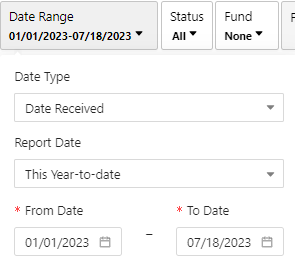
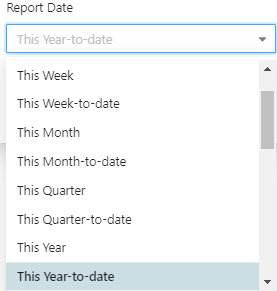
Then, you can use the preset date ranges or enter custom dates in the Date boxes:
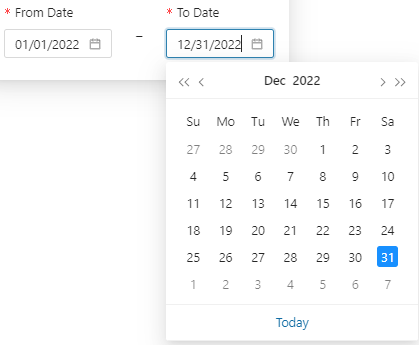
You can also either use free type or the calendar to enter a custom date.
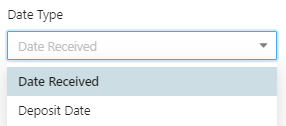
Depending on the Workflow, you can filter by “Date Type.” For this Report, the options are “Date Received” and “Deposit Date”:
Status
You can also choose to filter by Status. This will allow you to select a combination of all Statuses available for the transaction.
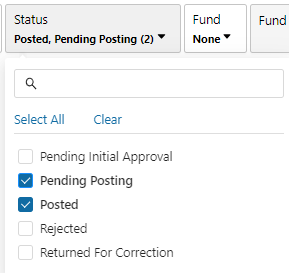
Use the “Select All” or “Clear” buttons to reset your selections.
Fund
To create a Workflow Report for a specific Fund, use the search function to either search for the Fund name or Fund number.
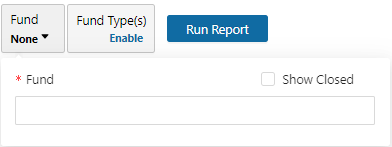
You may have to enter multiple characters to begin seeing results.
.png "image(110).png")
Once your fund appears, click on it to filter the Workflow.
.png "image(111).png")
Note that the default setting is to only return open funds, but you can check the “Show Closed” box to show both open and closed funds.
Fund Type
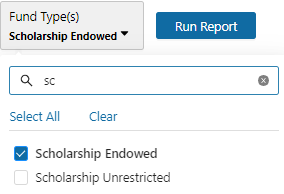
Use the dropdown to filter by Fund Type.
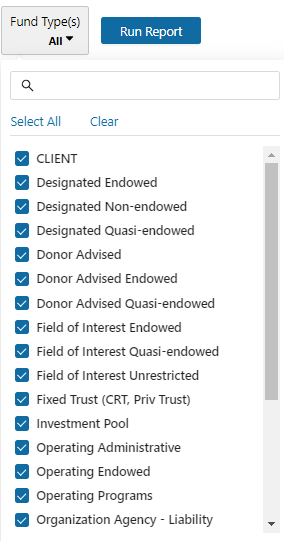
To select one Fund Type, use the “Clear” button and then search for the desired Fund Type. The search box will return all potential matches.