

Getting Started
- 28 Mar 2024
- 2 Minutes to read
- Print
- DarkLight
Getting Started
- Updated on 28 Mar 2024
- 2 Minutes to read
- Print
- DarkLight
Article summary
Did you find this summary helpful?
Thank you for your feedback!
Getting Started
FoundationHub (or the “System”) is FidTech Partners’ (“FidTech”) Operations and Technology Platform. It is an internet-based solution for the record-keeping and administration of non-profit investments and donor accounts.
To get started using FoundationHub, the first thing you need to do is log into the System – your System administrator should provide Username and URL details to access the System.
If your System Administrator provides you with a URL via email etc. click on the link, and the login screen will appear, alternatively, type the URL into the address bar.
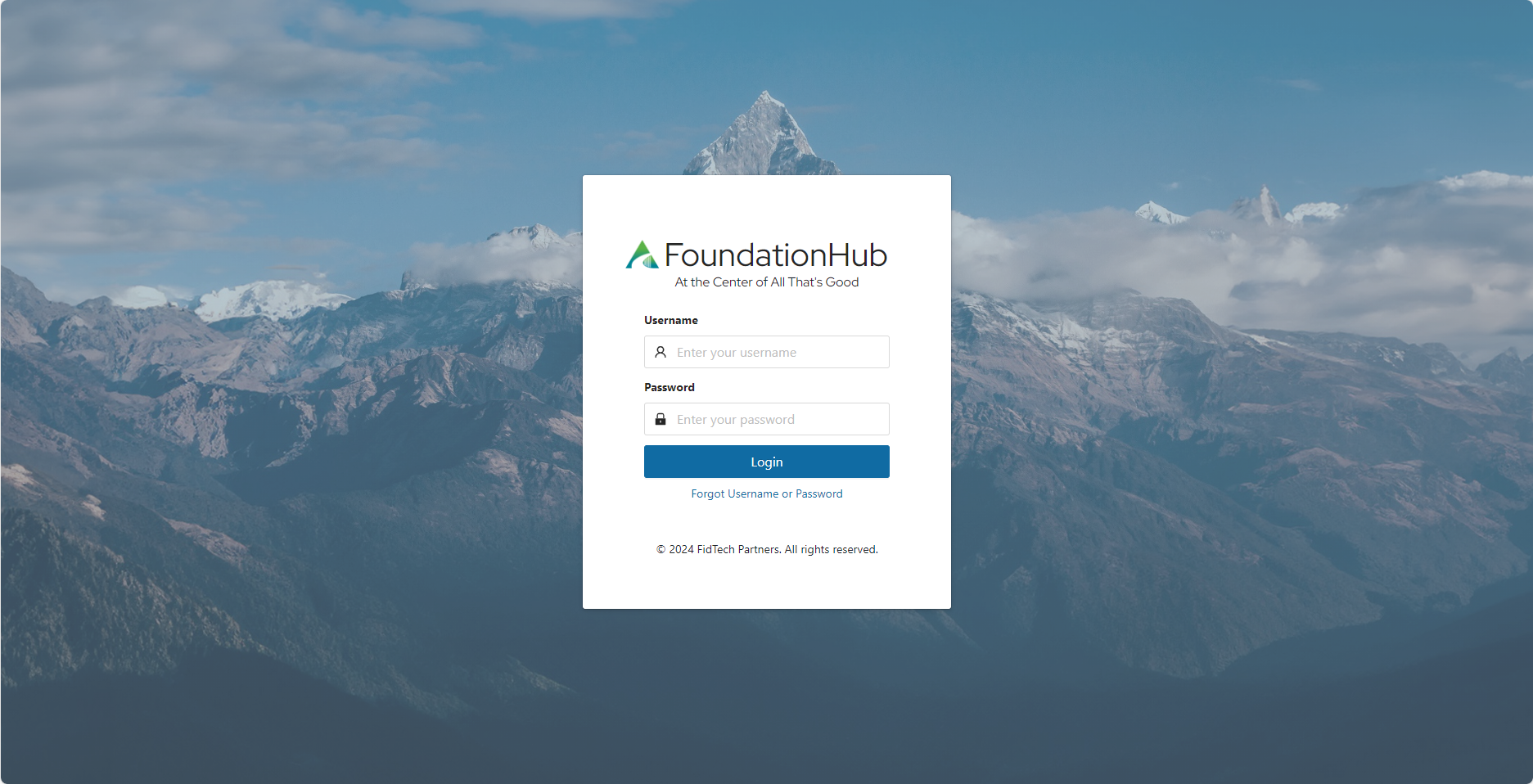
When you first log into the System, or if you forget your password, click on the ‘Forgot Username or Password’ link. Click on 'Forgot Password' and enter your registered email address. The email you receive will guide you through the password reset process.
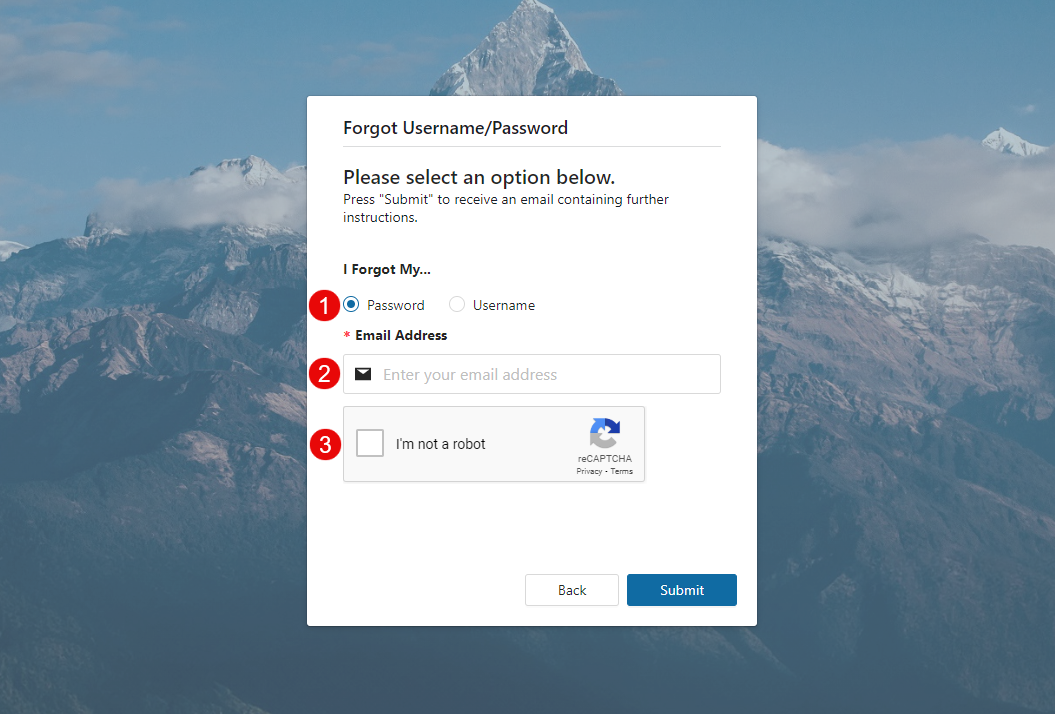
- Select whether you forgot your Username or Password (select password for first login attempt)
- Enter your email address.
- Completed the reCAPTCHA validation.
Once the steps above are completed you will click the Submit button. If you forget your Username, you will receive an email with your Username. If you forget your password, you will receive an email which includes a link that will direct you to register your device by entering your phone number to receive a verification code via text message or voice call.
Please note, you will need to complete this process twice upon your first login. Once will be to reset your password and the second to register your device. If you are logging in from a non-public device, you may want to check the “Remember this Device” box.
Once you are logged into the System you will see your Inbox as the central panel in your screen.

The Inbox provides you with a list of the various entries that can be brought to your Inbox for review / approval. If there are items in a particular section that require your attention, the section name will be underlined – click on the section name and you will be taken to the item(s) that require your attention.
When you are in a detail section, you may click on the column headings to sort the list by that field. Clicking the same column again will resort that field in reverse (i.e., something sorted A to Z would be sorted Z to A).
Example: By default, the Inbox sorts the Task ID from oldest item first to newest item last. If you want to see the most recent items at the top of the list, simply click on the "Created" column heading.
Was this article helpful?