

Old - Generating Statements
- 18 Feb 2025
- 1 Minute to read
- Print
- DarkLight
Old - Generating Statements
- Updated on 18 Feb 2025
- 1 Minute to read
- Print
- DarkLight
Article summary
Did you find this summary helpful?
Thank you for your feedback!
Generating Statements
To generate statements, you need to follow these steps:
1. Go to Utilities & Administration in the Menu:
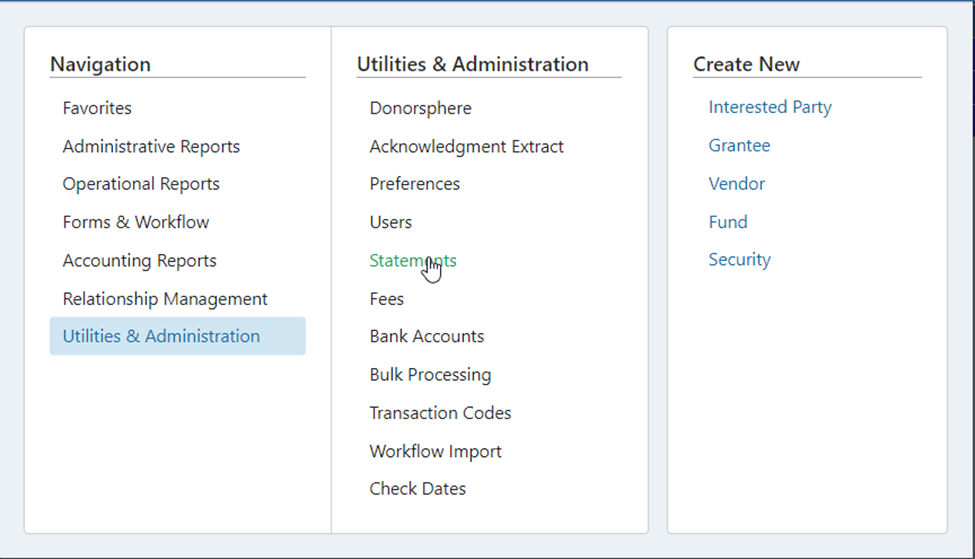
2. Select Statements.
3. Next select “Run Statement” and a new screen will populate.
.png "image(341).png")
Funds – Here you can select whether you want to run the statement job for all Funds or a subset of specific Funds. To add a Fund or a list of Funds, choose “Specific Funds” at the top of the box and then click “Add”. A pop-up search will allow you to add Funds.
Contacts – Here you can select whether you want to run the statement job for all contacts or a subset of specific contacts. To add a contact or a list of contacts, choose “Specific Contacts” at the top of the box and then click “Add”. A pop-up search will allow you to add contacts.
Account Type – Here you can filter the statement job by Account Type. If nothing is selected, all Account types will be picked up.
Account Subtype – Here you can filter the statement job by Account Subtype. If nothing is selected, all Account Subtypes will be picked up.
Entity/Organization(s) – Here you can filter the statement job by Entity. If nothing is selected, all Entities will be picked up.
Statement Types – Here you will select the statement type(s). If nothing is selected, all Statement types will be picked up.
Frequency/Period – Here you will select the statement period. Selection is required.
Order By – Here you will select sort order that the files will be generated in.
Cover Sheet – Here you will select the cover sheet if applicable.
Statement Insert – Here you will select the statement insert if applicable.
Duplex Printing – This will set the file up to print on both sides of the paper when the statements are printed.
Include Electronic Only – This will include Interested Parties who have “Electronic Only” links to Funds.
Single File for Printing – Will generate one file, otherwise each statement will have its own PDF file.
Notes – Will only appear internally when a User checks the statement job status.
Run Type – Select “Create Statements” if you would like to generate the statements only for review or printing, select Create/Post if you would like to post the statements to the System and to DonorSphere.
.png "image(342).png")
Click Run Statements button which will bring you to the Check Statement Status screen and here you will find the PDF copies of the statements once they are generated.
.png "image(17).png")
Was this article helpful?