

Create New Article
- 28 Mar 2024
- 1 Minute to read
- Print
- DarkLight
Create New Article
- Updated on 28 Mar 2024
- 1 Minute to read
- Print
- DarkLight
Article summary
Did you find this summary helpful?
Thank you for your feedback!
Create New Article
To create a new article, click on the “Create New” button:
Then provide a name for the new article and click “create new article” or click on the title of the article you wish you edit to open the WYSIWYG editor.
Once you double click, the editor opens and you can edit the content.
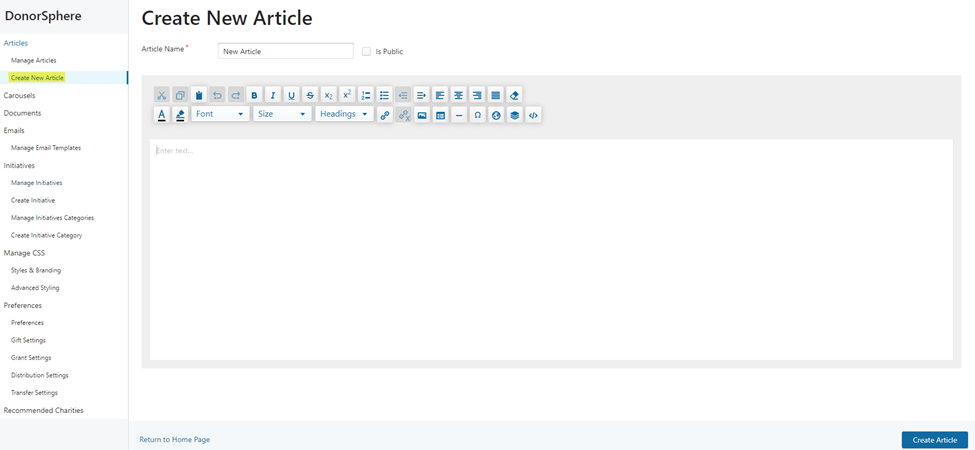
If you need to create a link to a PDF, the PDF must first be uploaded in the Documents section. See Section 5.1 of this guide for further instructions.
Once you have uploaded the PDF, type the name of the document (e.g. DonorSphere Login Guide).
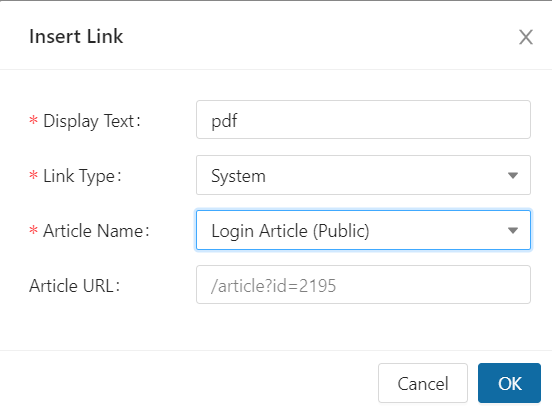
Then, highlight the name and select the hyperlink button on the editor tool bar.
From the dropdown menu, select "System", and then a list of all documents uploaded to FoundationHub should appear. Select your document from the list and click OK to link the PDF to the article.
Was this article helpful?