

CTF Processing (Allocation Setup)
- 23 Jul 2024
- 1 Minute to read
- Print
- DarkLight
CTF Processing (Allocation Setup)
- Updated on 23 Jul 2024
- 1 Minute to read
- Print
- DarkLight
Article summary
Did you find this summary helpful?
Thank you for your feedback!
Allocations
CTF Processing (Allocation Setup)
CTF Processing (Allocations) is the functionality by which investment returns can be allocated to subfunds based on either a dollar amount or a fixed percentage factor.
The method by which amounts are allocated are setup within the CUSIP that maps to each investment pool. The setup of the allocation method for the pool occurs on the security master – see below.
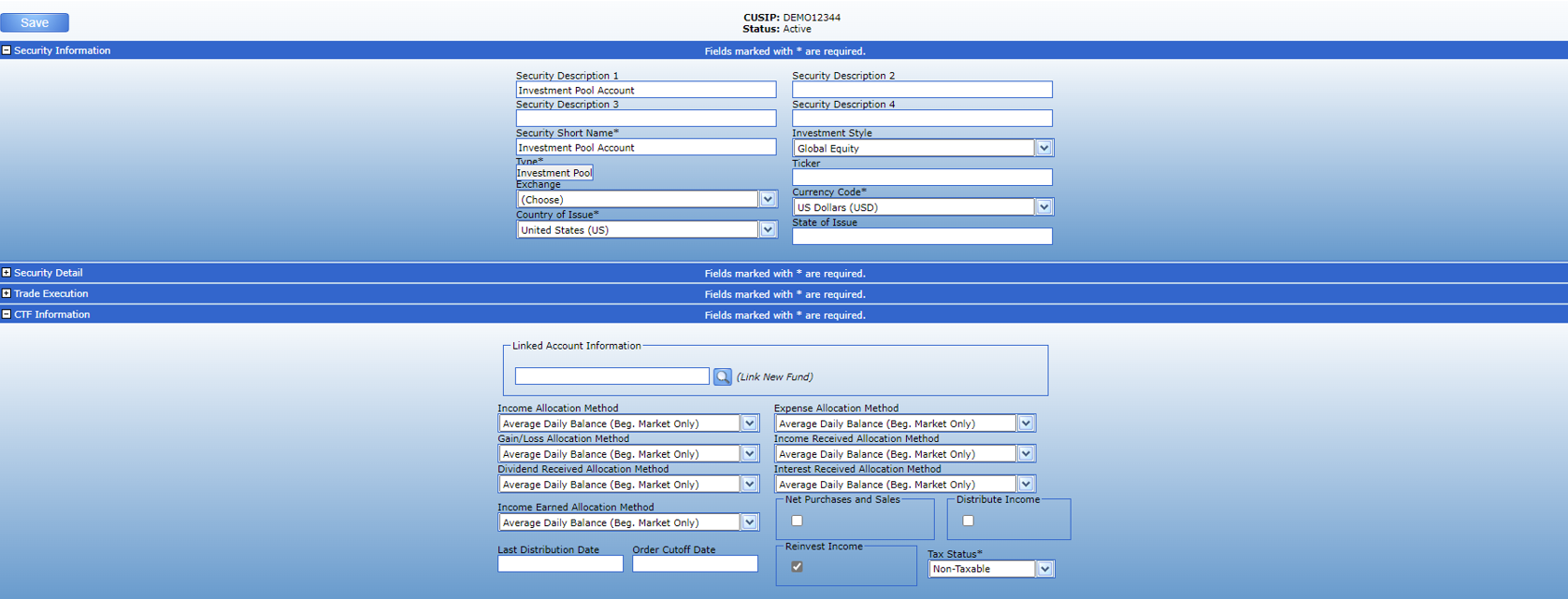
Different allocation methods can be used for different types of returns but generally the same method is used for all types of returns (income, unrealized gains, management fees / expenses, realized gains etc.)
CTF Processing
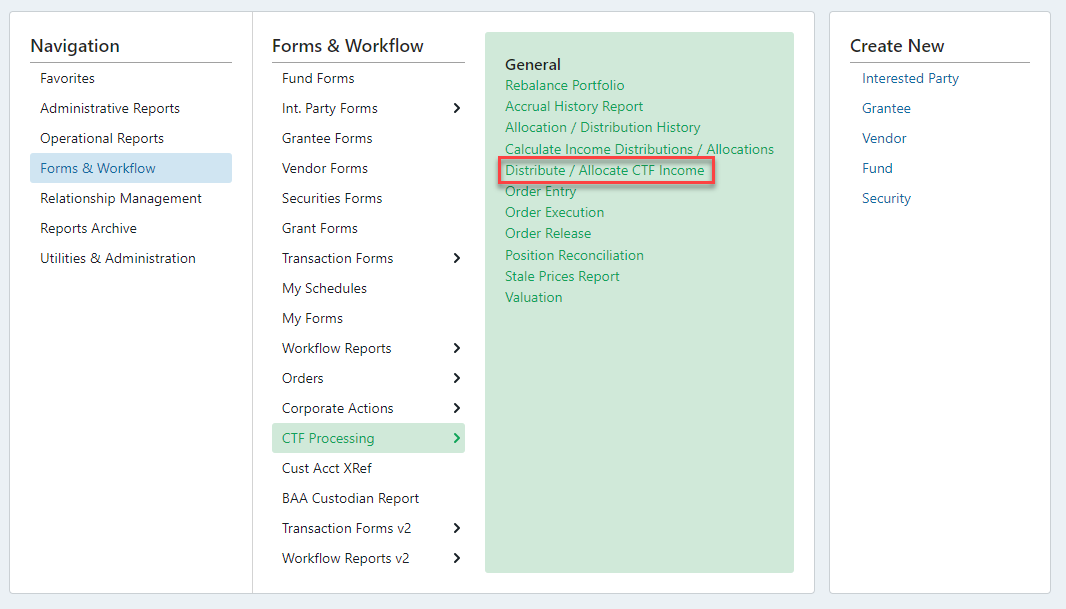
To run allocations to the subfunds, go to Forms & Workflows > Allocation Processing> Distribute/Allocate CTF Income:
This will bring you to the allocation processing screen:
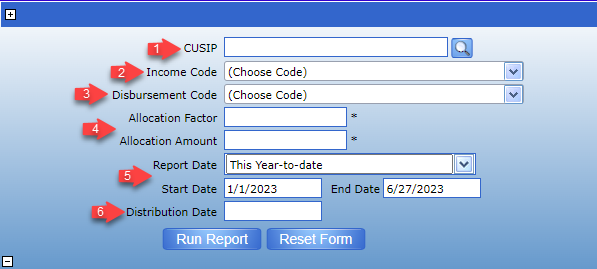
- CUSIP – Select the shareholder CUSIP to be allocated
- Income Code – Select income code for positive allocations
- Disbursement Code – Select Disbursement Code for negative allocations
- Allocation Factor/Allocation Amount – Enter either the allocation factor or the allocation amount of P&L to be allocated. In most cases, the allocation amount will be used and the system will automatically calculate the appropriate factor and allocate based on the method selected in 12.1
- Period Start/End Date – Enter the period that the allocation job will be run for – if the allocation is to be run for a month then the state date would be the first day of the month and the end date would be the last day of the month.
- Distribution Date – Enter the date that allocations should be posted as of
When the allocation processing screen is completed, click Run Report and the system will generate the allocation map - the example below is allocating $50,642.72 of Interest for the Flagship pool.

Once the map is created, click on the map ID to review the information.

Once confirmed, select all transactions (use the checkbox in the top right corner) and post to the subaccounts.
If there is an issue with the allocation map, select all transactions and cancel them.
Was this article helpful?