

6b. The Process of a Giving Button - Contribution from an Unregistered User
- 18 Apr 2024
- 1 Minute to read
- Print
- DarkLight
6b. The Process of a Giving Button - Contribution from an Unregistered User
- Updated on 18 Apr 2024
- 1 Minute to read
- Print
- DarkLight
Article summary
Did you find this summary helpful?
Thank you for your feedback!
To contribute to a Giving Button, a Giver will first need to access the Giving Buttons’ webpage via a link. The Giver could have received this link from the Foundation or from another Donor or they may see it on the foundation’s homepage or social media. The link will open the Giving Button’s webpage.
The process for filling out and completing the Contribution is identical to a Registered User (Donor).
Contact Information
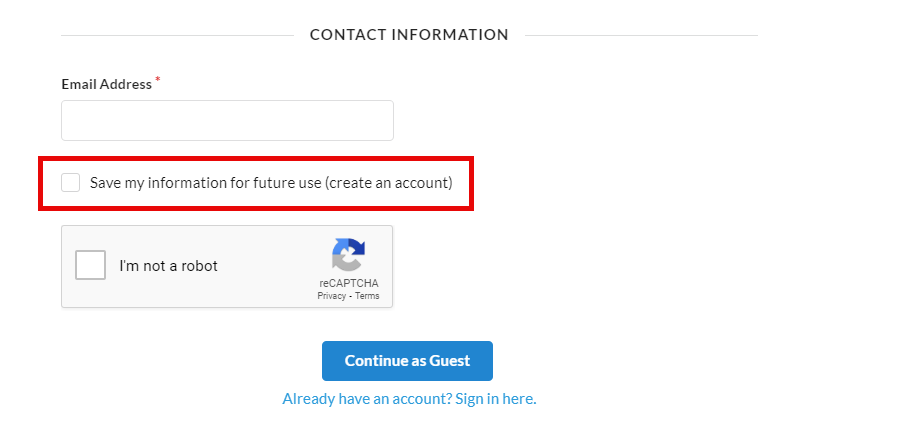
The Giver will need to input their email address for the contribution. As an unregistered user, the Giver will have the option to check “Save my information for future use (create an account)”. This feature is only available if the organization allows Givers to register themselves for DonorSphere and can be turned on/off in the ‘Giving Buttons Settings’.
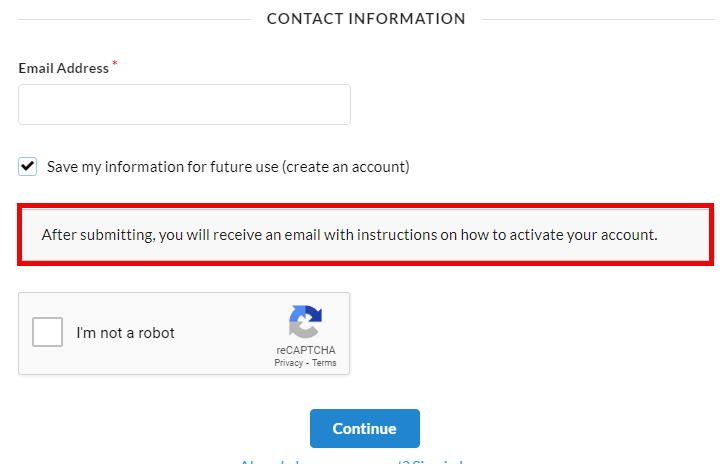
If selected, the transaction will include this additional note.
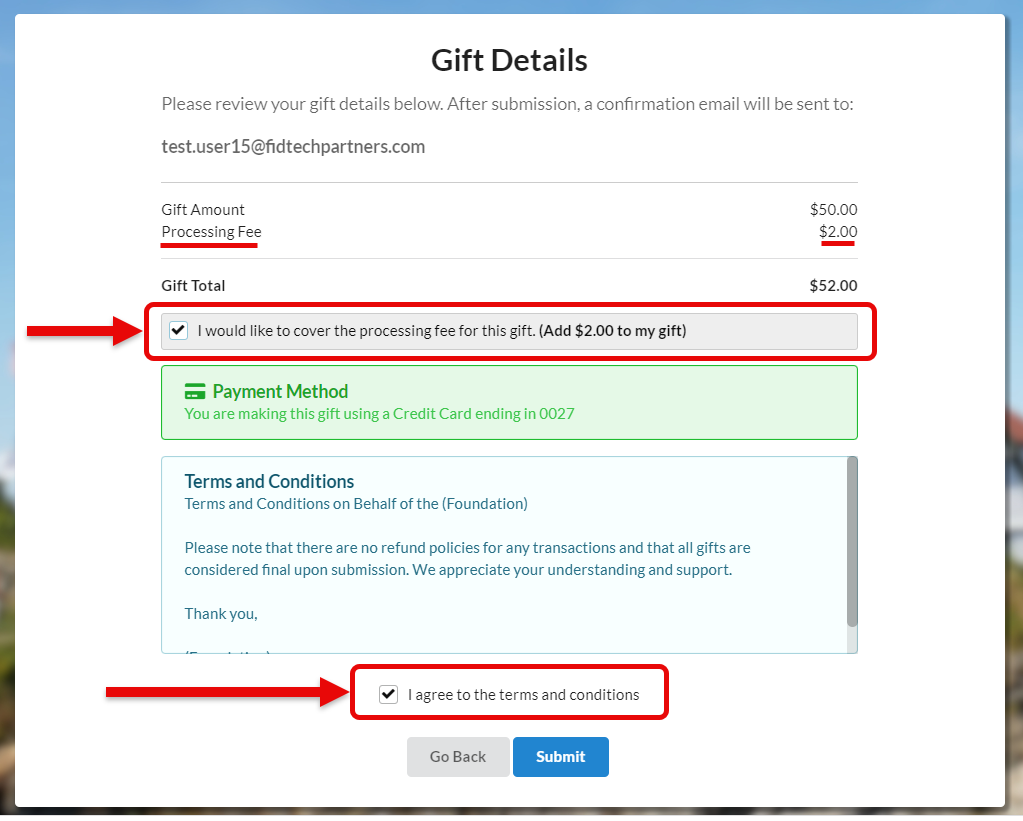
If the Giver opts to submit as a Guest they move on to the Gift Details page summarizing their contribution. Similar to a Registered User they have the option to cover the processing fee for their gift. They must agree to the terms and conditions to process the gift.
After a gift is submitted, the giver will similarly to either be directed to a “Confirmation of Success” screen as an acknowledgment of the success of their gift or a “Confirmation of Failure” screen notifying them of failure of the gift submission and asking them to retry:
If the Giver chose to remain unregistered, then they will only receive one confirmation email.
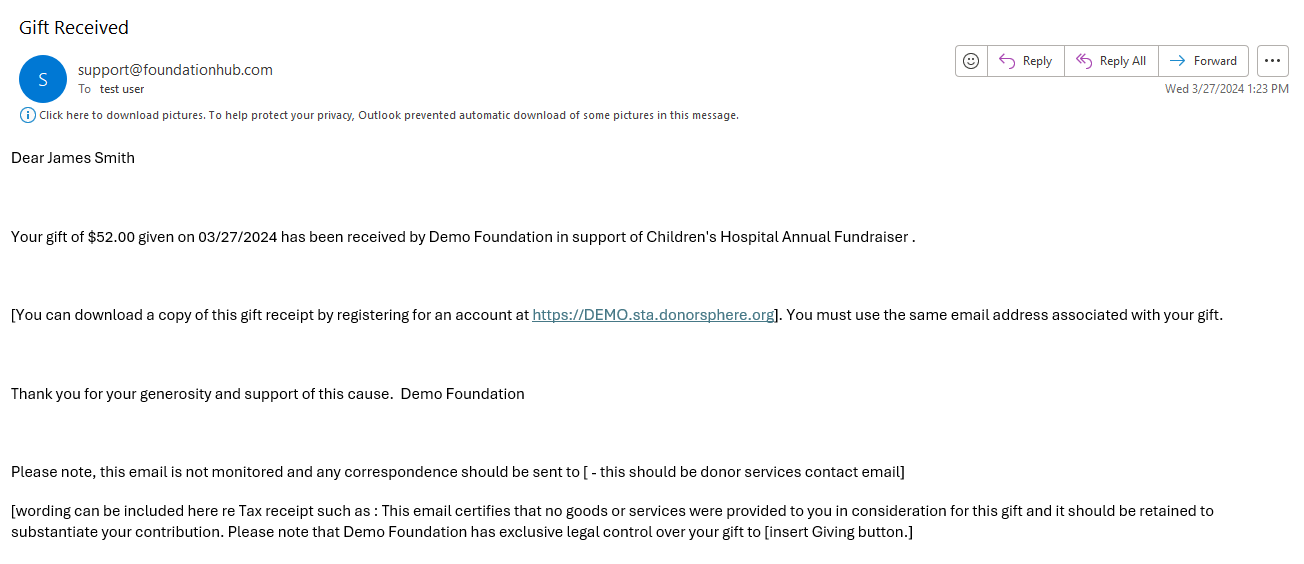
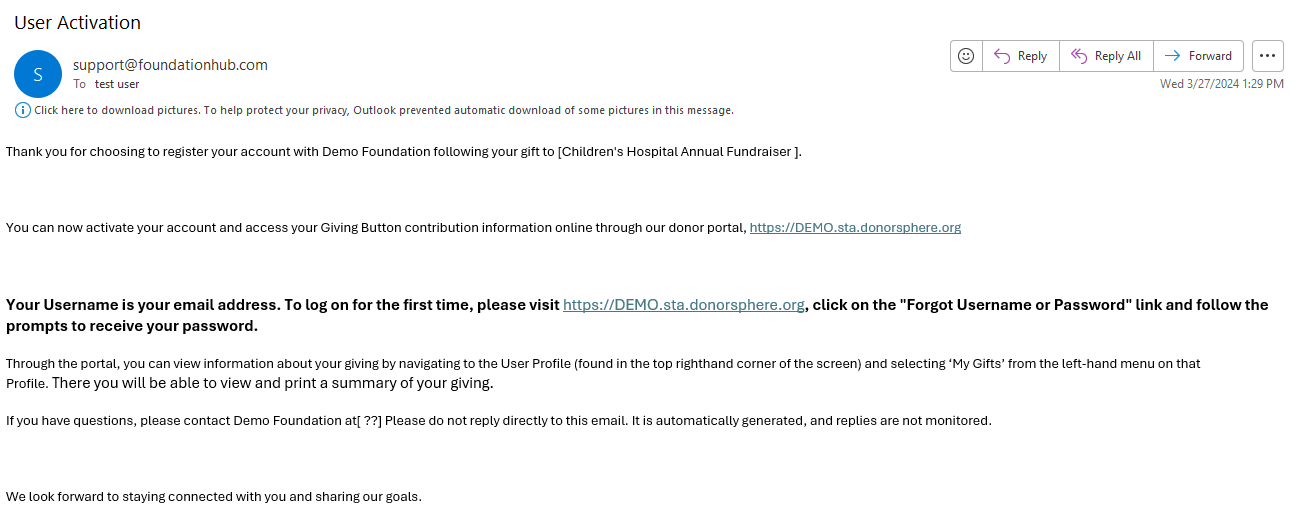
If the Giver chose to register while making their gift, they will receive the following additional email following the submission of their gift.
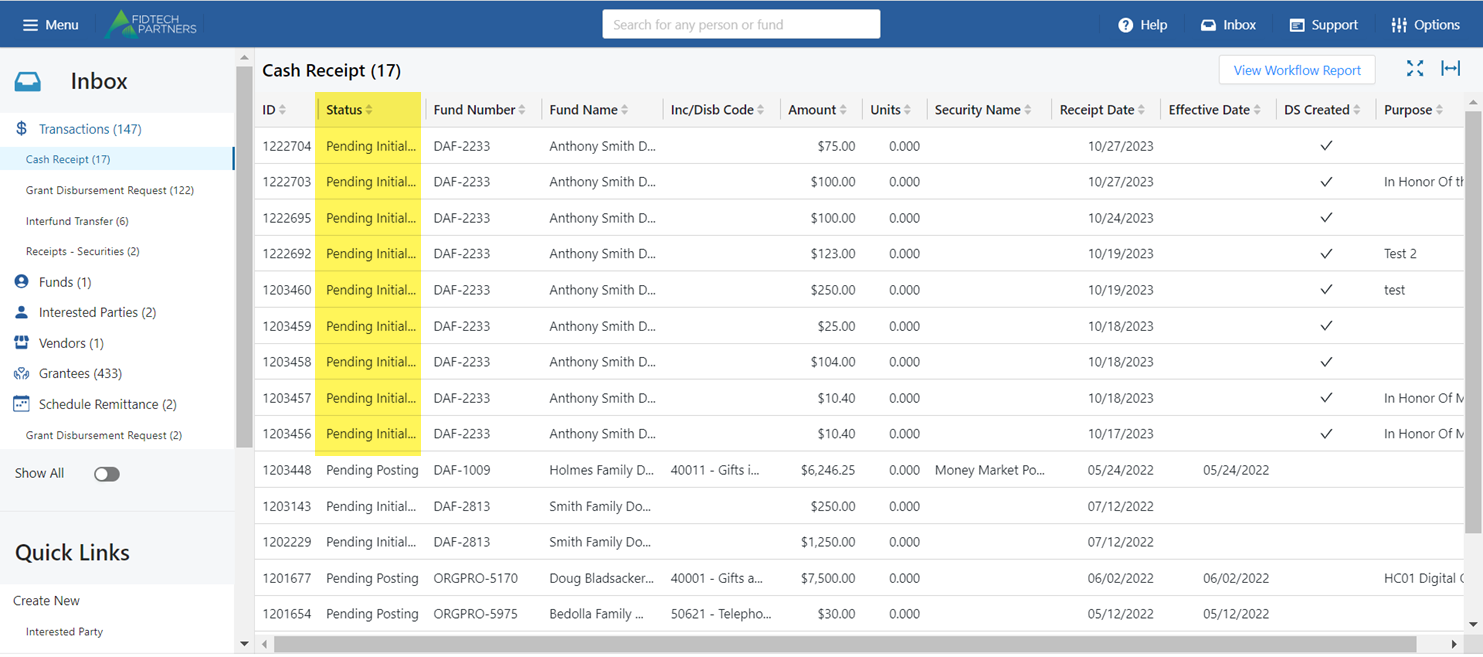
Just like a registered user, once a Giver successfully submits their Gift it will operate the same as a transaction from DonorSphere and appear in the FoundationHub Inbox, in a “Pending Initial Approval” state, under “Cash Receipts.”
Was this article helpful?