

3. How to Create and Publish Giving Button Emails
- 18 Apr 2024
- 1 Minute to read
- Print
- DarkLight
3. How to Create and Publish Giving Button Emails
- Updated on 18 Apr 2024
- 1 Minute to read
- Print
- DarkLight
Article summary
Did you find this summary helpful?
Thank you for your feedback!
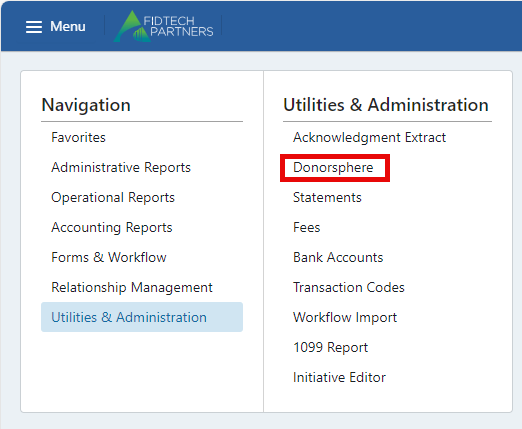
Under Menu, Utilities & Administration, navigate to DonorSphere.
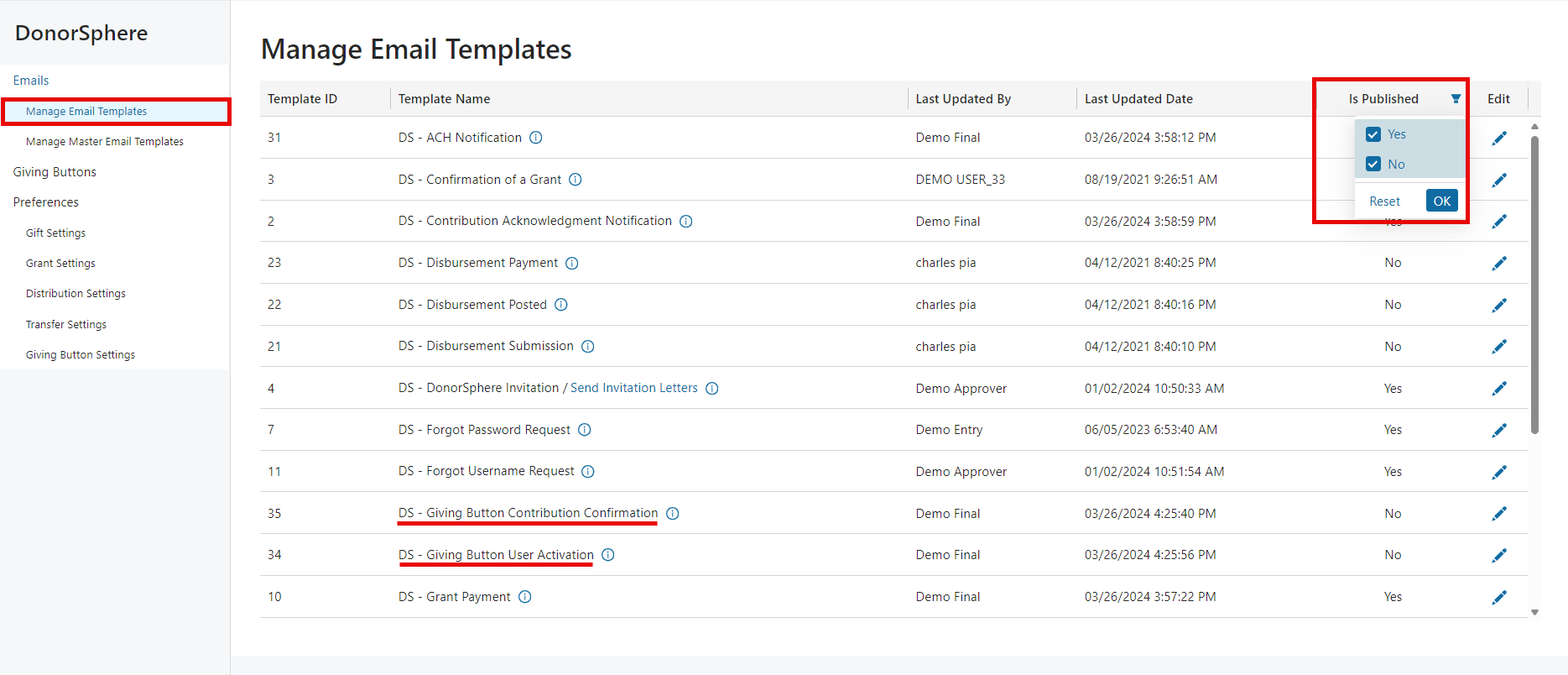
There are two email templates associated with Giving Buttons. Under “Manage Email Templates” there will be two new email templates, “Giving Button Contribution Confirmation” and “Giving Button User Activation”. These templates may not initially be visible as they may be unpublished. To view unpublished email templates, select “No” in the filter dropdown in the “Is Published” column, then select “OK”.
To customize each email, select the Edit Button in the righthand column.
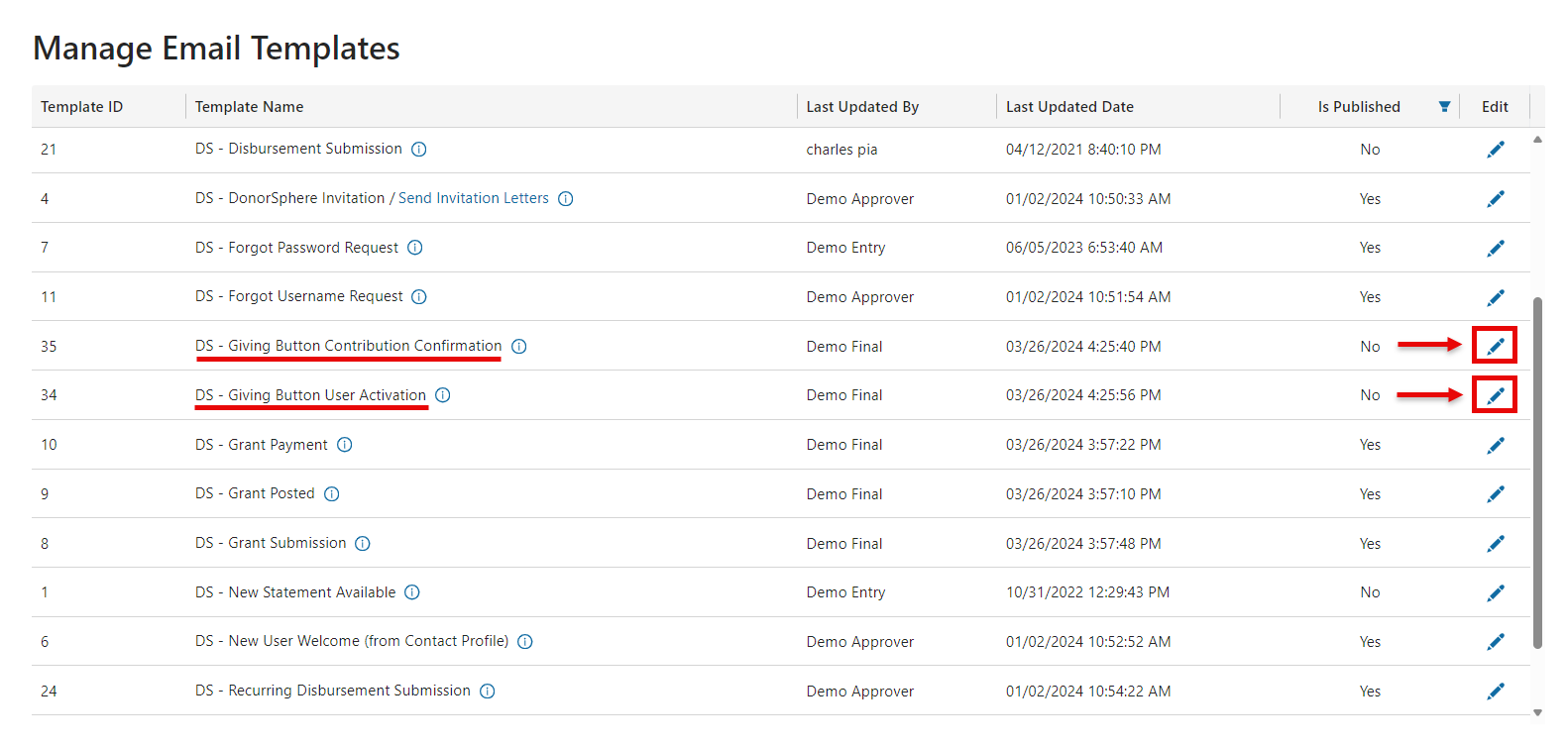
The Giving Button Contribution Confirmation email template is sent when a donation is processed through a Giving Button. The Giving Button User Activation is sent if a Giver chooses to create a new user account during the process of their donation.
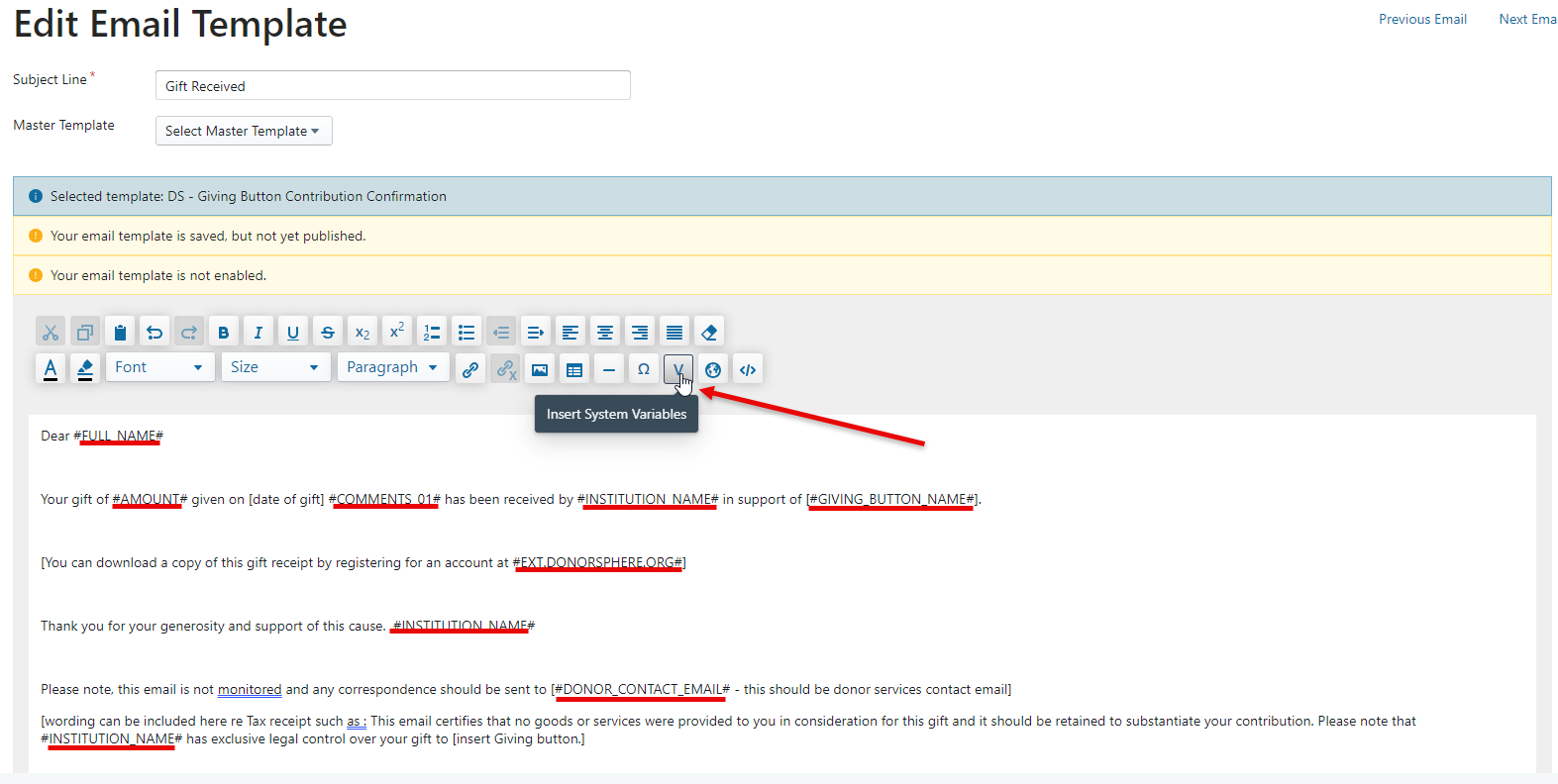
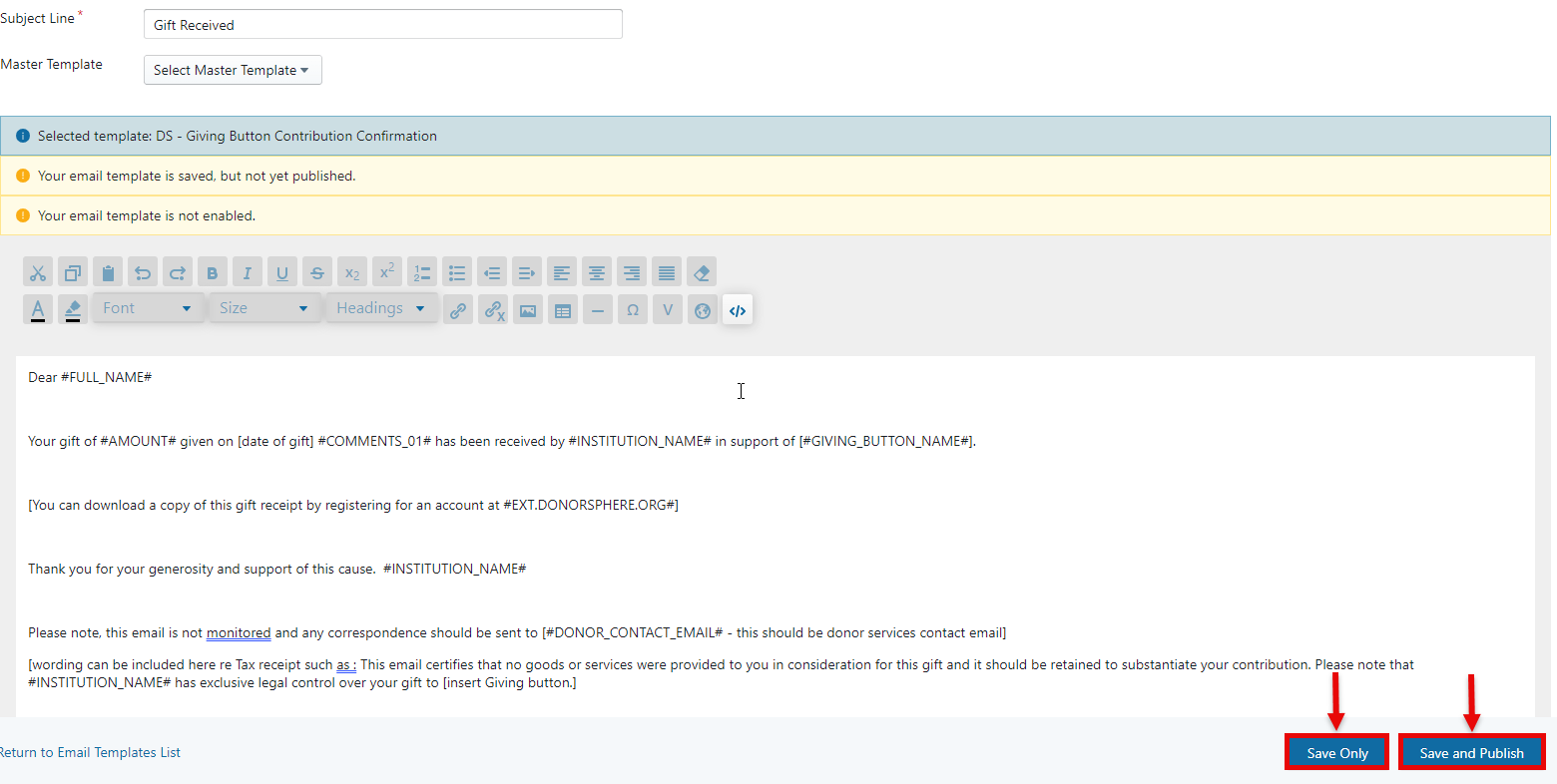
For both email templates, Variables specific to Giving Buttons have been added as options to include in the email. These can be accessed by clicking on the “V” icon seen in the email toolbar. The underlined text in the image below are a few options which can be included as variables in the email template.
After completing the email template, click “Save Only” to save the template draft. This will save any changes made to the email template but leave it unpublished and inactive. This email template can be edited as needed until ready for use. Until the email template is published, the email will not go out when a Giving Button transaction is processed.
If the email template is final and ready to be used, then click “Save and Publish” at the bottom of the screen.
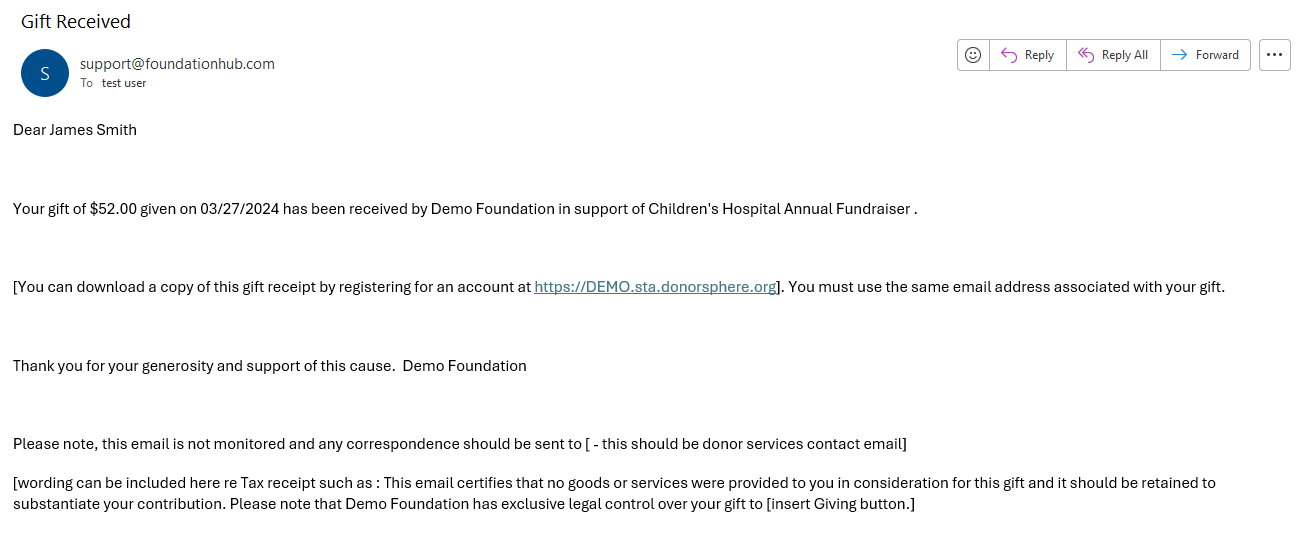
Example of an email that would be received by a Giver after a donation has been processed.
Was this article helpful?